App Settings
App Settings
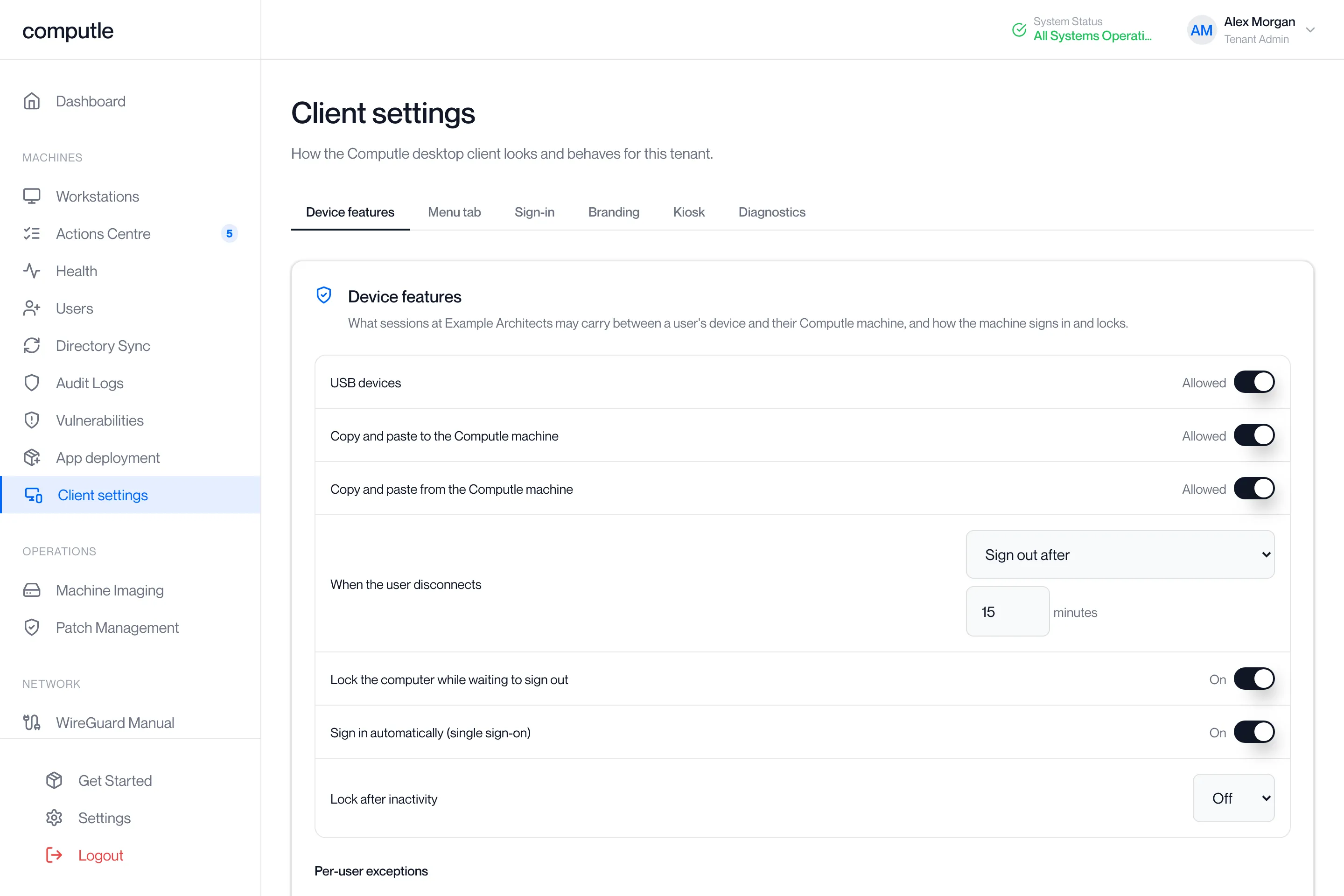
The policies that apply to every session in your organisation, and to the Computle app on every device, are set on one portal page with a tab for each area. In the portal the page is called Client settings.
Open Client settings under Machines in the sidebar. The page needs the Tenant Admin role. The subtitle reads “How the Computle desktop client looks and behaves for this tenant.”
The tabs
Section titled “The tabs”| Tab | What it sets | Page |
|---|---|---|
| Device features | Whether sessions may carry USB devices and the clipboard between the user’s device and the workstation, and what the workstation does when the user disconnects or goes idle. Organisation defaults with per-user exceptions. | Device features |
| Menu tab | The shape, size and colour of the tab that opens the menu in a full-screen session. Organisation default with per-user exceptions. | Menu tab |
| Sign-in | Which sign-in methods your organisation’s users can use. | Sign-in methods |
| Branding | Your own wording and photos on the client’s sign-in page. Shown only when branding is part of your subscription. | Branding |
| Kiosk | Shared terminals that start straight into the client, and their sign-in, power and update policy. | Kiosk terminals |
| Diagnostics | Raise the log level on your workstations or clients for a set time when Computle asks for it. | Diagnostics |
The tab you were on is kept in the page address, so a link to ?tab=kiosk opens straight on Kiosk.
When a change applies
Section titled “When a change applies”| Area | Applies |
|---|---|
| Device features | From each user’s next connection. Sessions already running keep the policy they started with. |
| Menu tab | When you click Save. |
| Branding | On the sign-in page the next time the client opens it. |
| Kiosk sign-in, power and updates | At each terminal’s next check-in, within a minute. |
| Diagnostics | At the next check-in of the workstation or client. |
The order to read these pages in
Section titled “The order to read these pages in”- Device features: the policy most organisations set first: USB, copy and paste, and lock or sign out on disconnect, with per-user exceptions.
- Menu tab: the shape, size and colour of the tab that opens the menu in a full-screen session.
- Branding: your organisation’s name, wording and photos on the app’s sign-in screen.
- Kiosk terminals: shared terminals that start straight into the app, and their sign-in, power and update policy.
- Diagnostics: raising the log level on workstations or devices for a set time when Computle asks for it.
The Sign-in tab is documented under Sign-in Methods.
Pages in this section
Section titled “Pages in this section”Device featuresUSB, copy and paste, and lock or sign out on disconnect, with per-user exceptions.
Menu tabShape, size and colour of the full-screen menu tab.
BrandingYour display name, sign-in wording and photos.
Kiosk terminalsEnrol shared terminals and set their sign-in, power and update policy.
DiagnosticsDebug logging for workstations and clients for a set time.