Connection Messages
Connection Messages: The Workstation
These messages are about the workstation you are connecting to, from power-on through to its desktop appearing.
Machine is off
Section titled “Machine is off”What you see
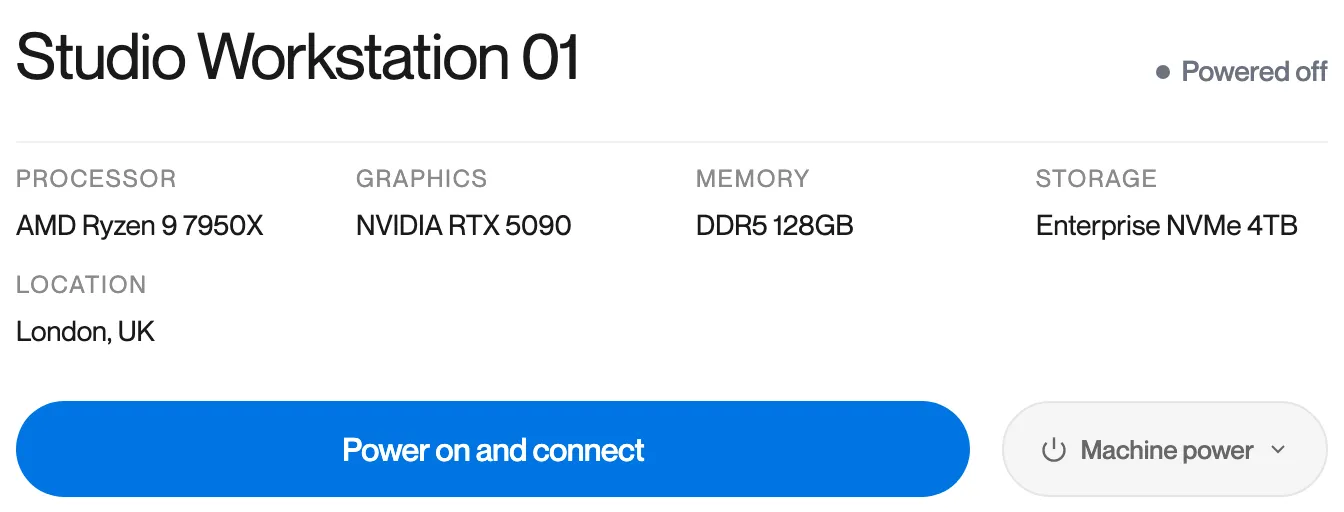
The machine card shows “Powered off” and the button reads “Power on and connect”.
What it means
The workstation is powered off. Remotle can start it for you.
What to do
-
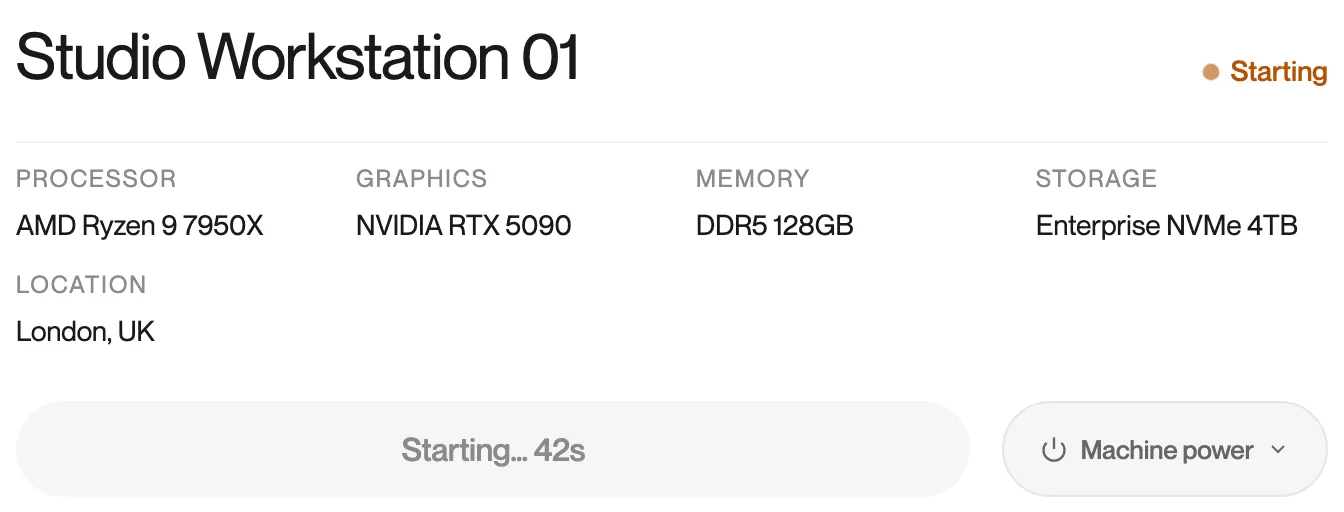
Click Power on and connect. The card shows “Starting…” with a counter while the workstation starts.
-
Remotle connects as soon as the workstation is ready. Starting usually takes a minute or two.
In use by you
Section titled “In use by you”What you see
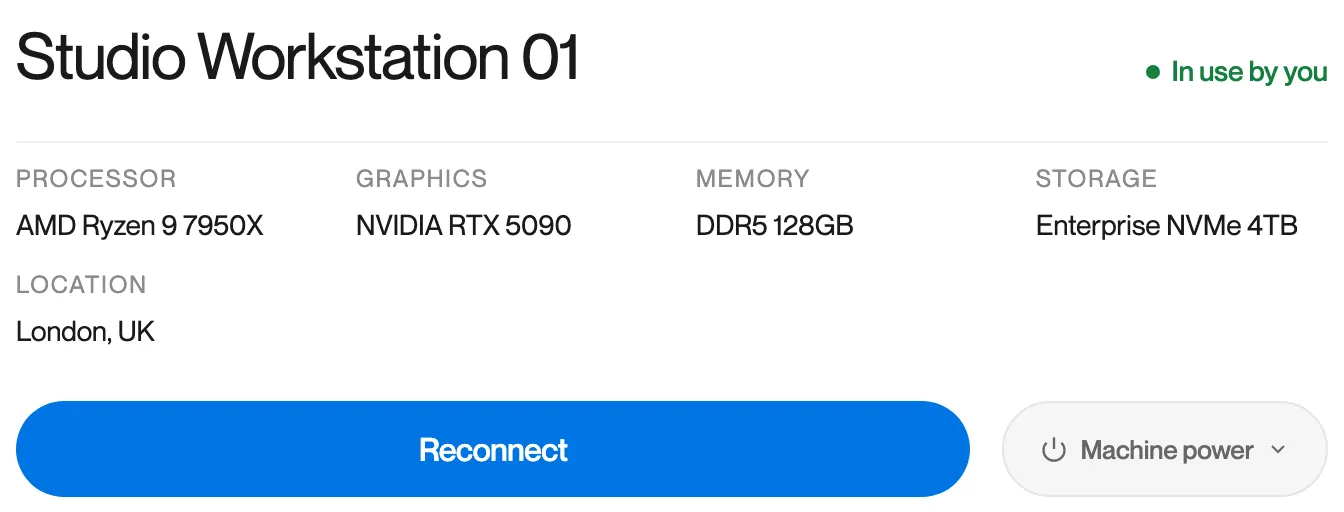
The machine card shows “In use by you” and the button reads “Reconnect”.
What it means
Your account already has a session open on this workstation, on this device or another one. Your applications are still running in it.
What to do
- Click Reconnect. Remotle joins the open session, so your desktop is as you left it.
- If the session is open on another device, Remotle asks whether to take over or share. See Moving Between Devices and Sharing.
This machine isn’t responding
Section titled “This machine isn’t responding”What you see
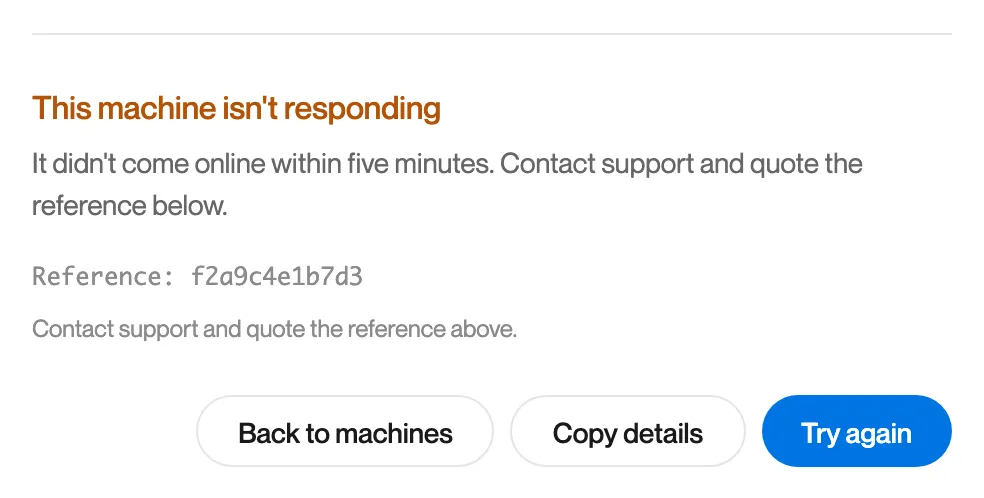
“This machine isn’t responding. It didn’t come online within five minutes. Contact support and quote the reference below.”
What it means
You chose Power on and connect, Computle asked the workstation to start, and it did not come online within five minutes.
What to do
- Click Try again once. If the workstation was still starting, this connects.
- If the message returns, click Copy details and contact Computle support with the reference.
Machine not connected
Section titled “Machine not connected”What you see
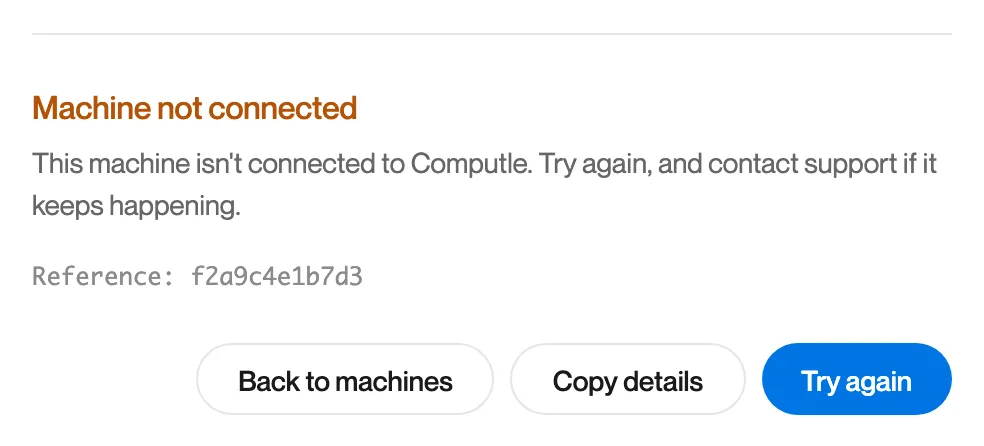
“Machine not connected. This machine isn’t connected to Computle. Try again, and contact support if it keeps happening.”
What it means
The Computle (Remotle) Host on the workstation is not connected to Computle, so no session can be set up. Remotle does not know whether the workstation is powered off, so it does not say so.
What to do
- Click Try again.
- If the workstation was recently started, wait a minute and try again. The host connects as soon as the workstation’s network is up.
- If it continues, click Copy details and contact Computle support. An administrator can check the workstation’s status in the portal (see Workstations) and the host’s logs on the workstation (see Host Logs).
Couldn’t reach this machine
Section titled “Couldn’t reach this machine”What you see
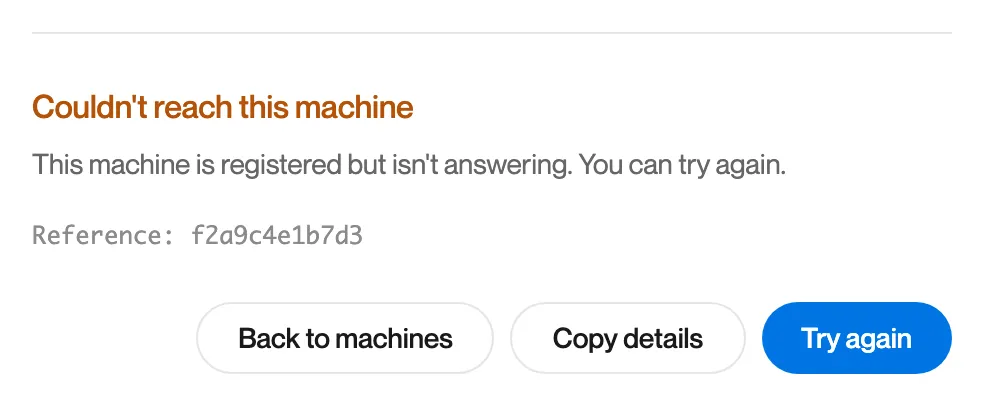
“Couldn’t reach this machine. This machine is registered but isn’t answering. You can try again.”
What it means
The workstation is registered with Computle, but it did not answer when Remotle tried to reach it.
What to do
- Click Try again.
- If it continues, run Diagnostics on this device. If every check passes, the cause is on the workstation’s side; contact your administrator.
Connected to this machine, but its desktop didn’t appear
Section titled “Connected to this machine, but its desktop didn’t appear”What you see
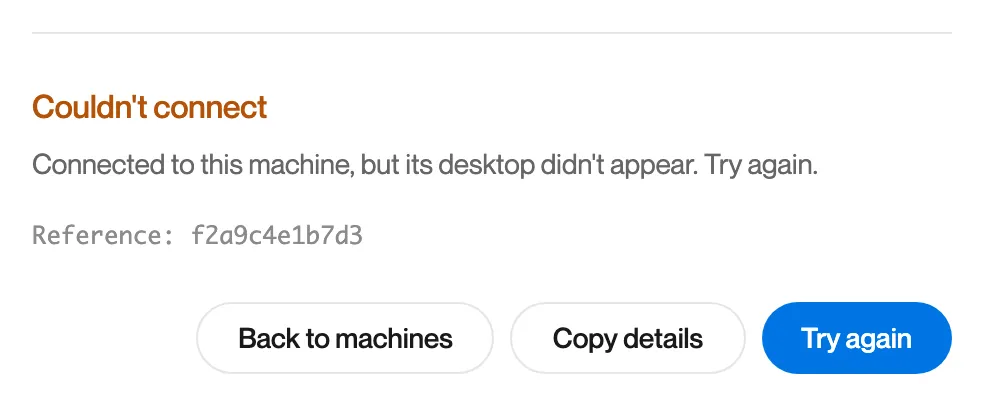
“Couldn’t connect. Connected to this machine, but its desktop didn’t appear. Try again.”
What it means
The connection to the workstation was made, but no picture arrived from it in time.
What to do
- Click Try again.
- If it continues, report it from the app with the reference. See Reporting a Problem.
Machine is under maintenance
Section titled “Machine is under maintenance”What you see
On the machine list, the card shows “Maintenance”, the button is greyed out, and the reason your administrator entered is shown under the card.
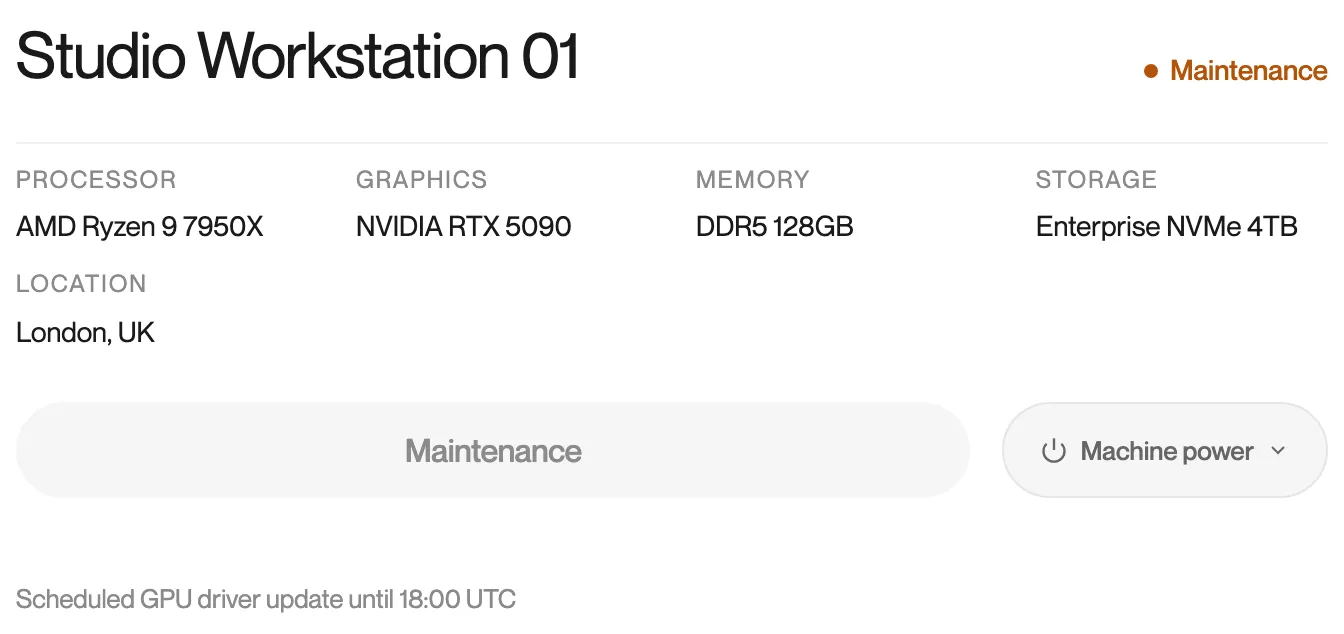
If a connection is refused for this reason, the message reads “Machine is under maintenance. This machine is under maintenance and can’t be connected to.” or shows the reason your administrator gave.
What it means
Your administrator has put the workstation into maintenance. It cannot be connected to until maintenance ends.
What to do
- Read the reason on the card. It usually says when maintenance ends.
- Contact your administrator if you need the workstation sooner.