App Settings
Branding
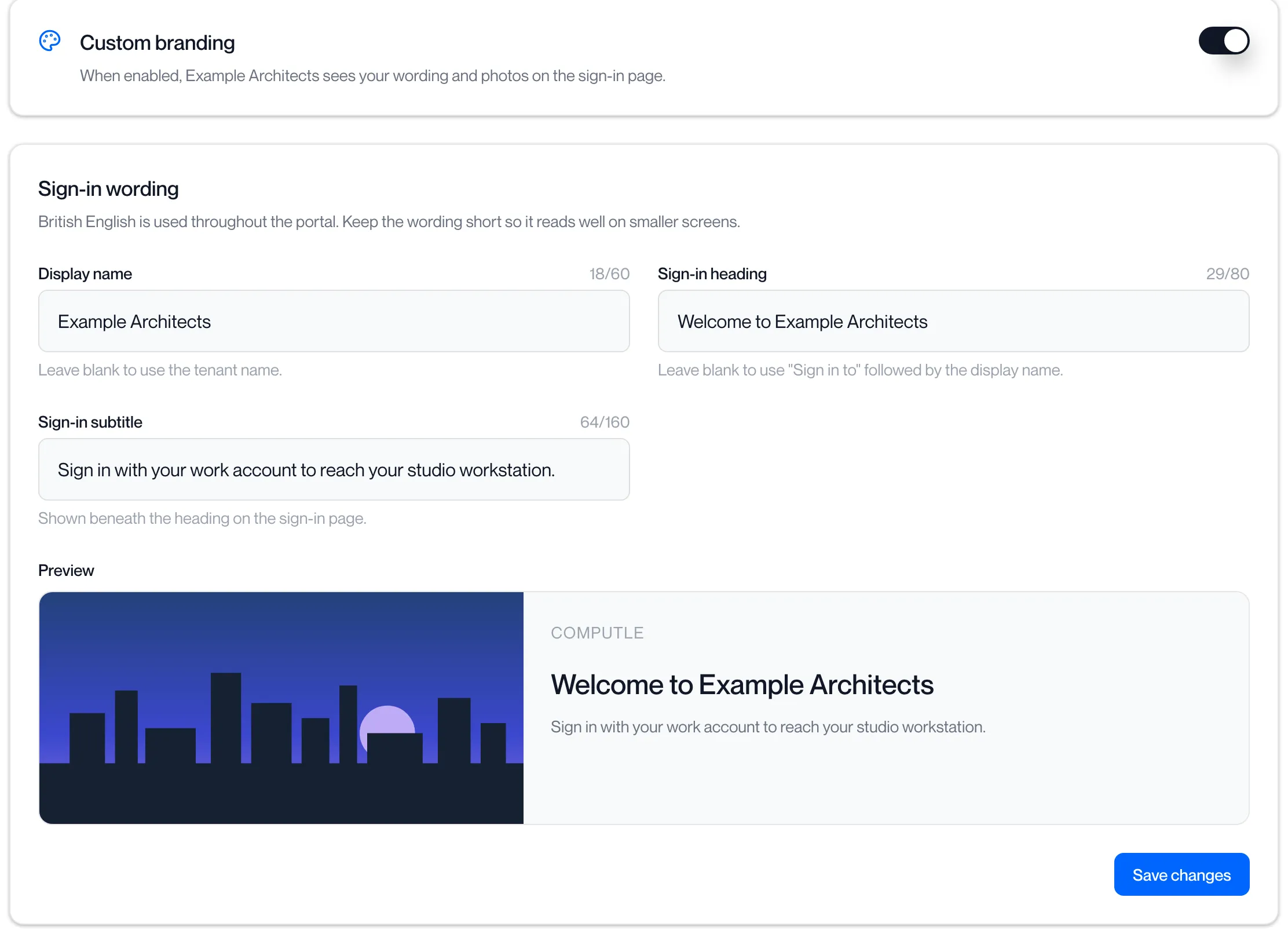
Branding puts your organisation’s name, your own wording and your own photos on the sign-in screen your team sees in the Remotle client. When branding is off, the sign-in screen shows Computle’s default wording and background.
Open Client settings under Machines in the portal sidebar and click the Branding tab. The page needs the Tenant Admin role. The tab is shown when branding has been enabled for your organisation; otherwise the page reads “Branding is not enabled. Custom sign-in branding is not enabled for this tenant. Contact Computle to have it turned on.”
What can be branded
Section titled “What can be branded”| Setting | Where it appears | Limit |
|---|---|---|
| Display name | In the sign-in heading, in place of your organisation’s name. | 60 characters |
| Sign-in heading | The heading on the sign-in screen. Blank uses “Sign in to” followed by the display name. | 80 characters |
| Sign-in subtitle | The line beneath the heading. Blank uses “Use your work account to reach your workstation.” | 160 characters |
| Sign-in photos | The background of the sign-in screen, shown in rotation. | Up to 50 photos; JPEG or PNG; at least 1280x720 pixels; 12 MB each |
A character count next to each field shows how much of the limit is used.
Set the wording
Section titled “Set the wording”-
Enter a Display name, or leave it blank to use your organisation’s name.
-
Enter a Sign-in heading and Sign-in subtitle, or leave them blank for the defaults.
The Preview below the fields shows the sign-in screen as it will look, with the first photo as the background, or “Default background” when there are no photos yet.
-
Click Save changes.
The portal shows “Branding details saved”.
Wording is saved separately from the switch, so you can prepare it before turning branding on.
Add photos
Section titled “Add photos”-
Drag photos onto the box under Sign-in photos, or click it to choose files.
You can add several at once. The box shows how many slots remain, and the heading shows “n of 50 used”.
-
Wait for “Uploading…” and the progress bar to finish.
The portal shows “[file name] uploaded” for each photo. Each photo tile shows its size in pixels and bytes, the date it was uploaded, and the first characters of its checksum.
| Message | What it means |
|---|---|
| “[file name] was not uploaded: only JPEG and PNG images are accepted.” | The file is another format. Convert it to JPEG or PNG. |
| “[file name] was not uploaded: it is [size], over the 12 MB limit.” | Reduce the file size. |
| “[file name] was not uploaded: it is [width]x[height], below the 1280x720 minimum.” | Choose a larger image. |
| “[file name] was not uploaded: the image could not be read.” | The file is damaged or is not an image. |
| “Only n more photos can be added.” | You chose more files than there are slots. The first n were uploaded. |
| “You already have 50 photos. Remove one before adding another.” | The limit is reached. The box reads “Photo limit reached”. |
Remove a photo
Section titled “Remove a photo”-
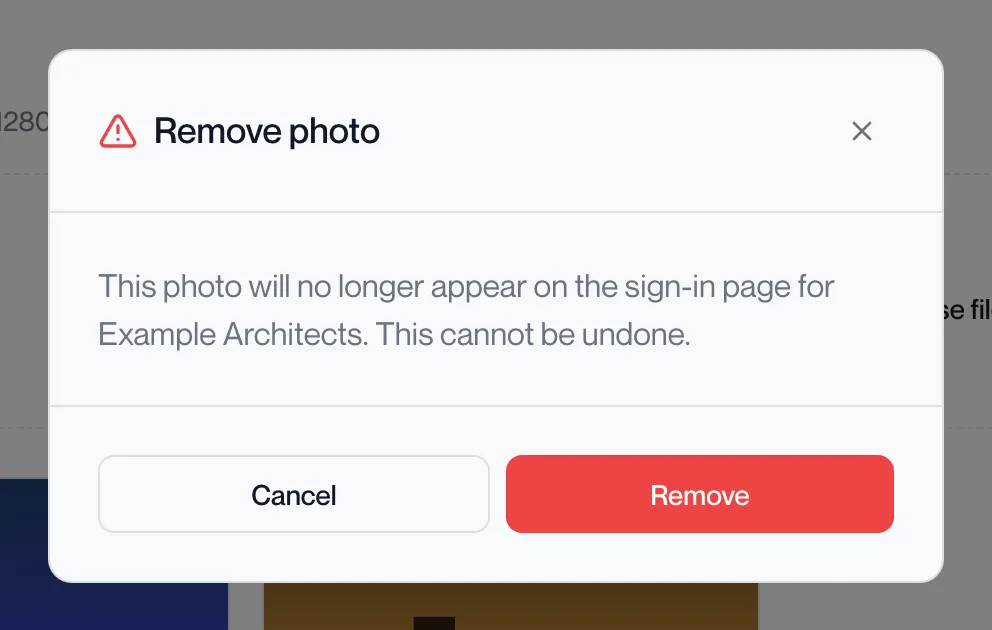
Click Remove on the photo’s tile.
The Remove photo dialog reads “This photo will no longer appear on the sign-in page for [your organisation]. This cannot be undone.”
-
Click Remove.
The portal shows “Photo removed” and the tile disappears. The slot count under Sign-in photos goes down by one.
Turn branding on or off
Section titled “Turn branding on or off”-
Click the switch under Custom branding.
The portal shows “Branding enabled” or “Branding disabled” at once; there is no Save button for the switch. If the change cannot be saved the portal says “Could not update branding” and the switch returns to its previous position.

-
Check the sign-in screen in the client.
The branded heading, subtitle and photos appear the next time the client opens its sign-in page. While the switch is off, your wording and photos are kept but the sign-in screen shows the defaults.
Related pages
Section titled “Related pages”Questions
Section titled “Questions”Does branding change the portal?
Section titled “Does branding change the portal?”No. It changes the sign-in screen in the Remotle client. The portal keeps its own appearance.
How are several photos used?
Section titled “How are several photos used?”The sign-in screen shows them in rotation.
Can I keep the default background and change only the wording?
Section titled “Can I keep the default background and change only the wording?”Yes. Leave the photos empty; the preview reads “Default background”.
I cannot see the Branding tab.
Section titled “I cannot see the Branding tab.”Branding is a licensed feature. Contact Computle to have it enabled for your organisation.