The Session Menu
Session Menu: Picture
The Picture tab sets how your workstation encodes the picture it sends to this device. Open the session menu with F2 or the half circle at the top of the screen.
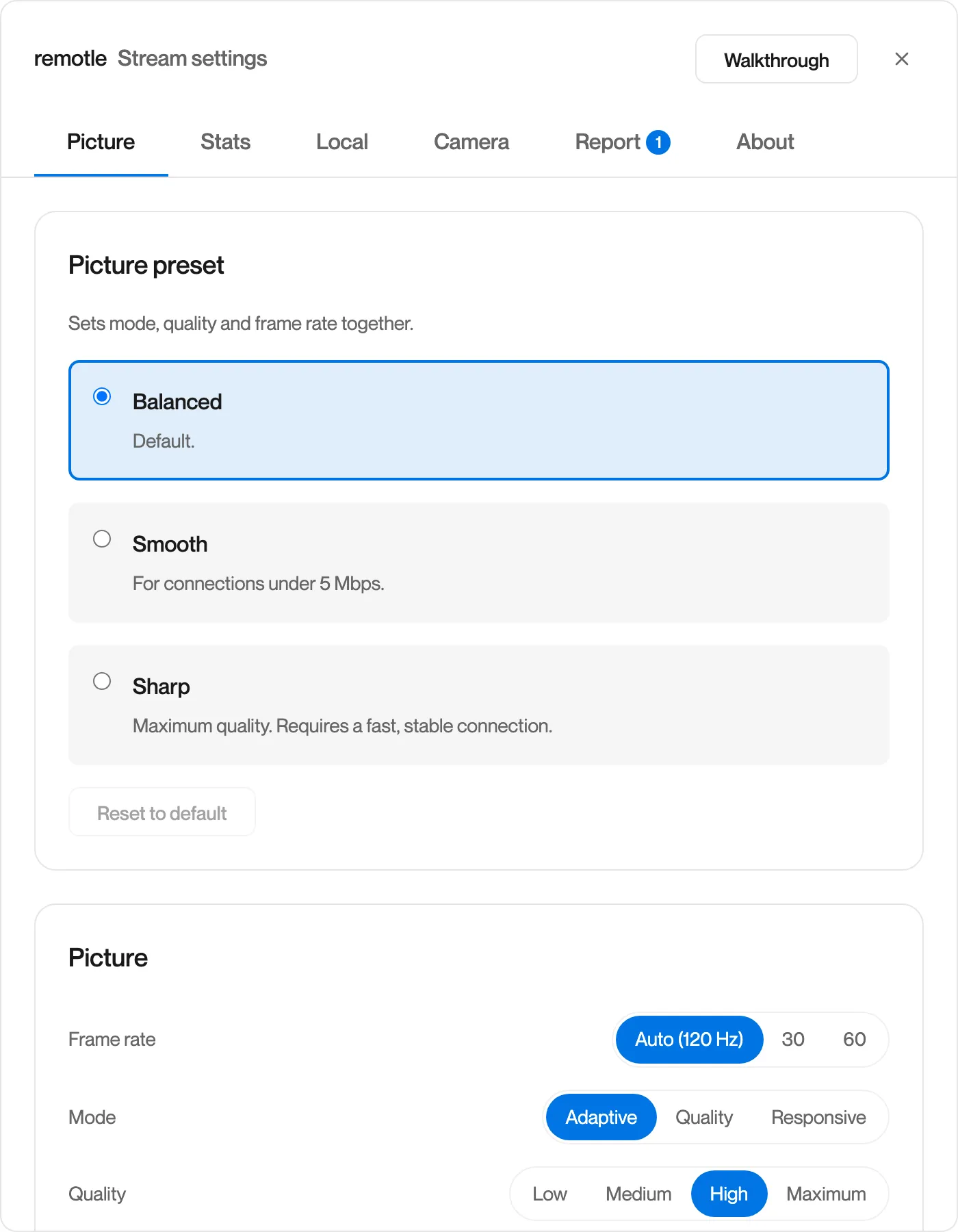
Presets
Section titled “Presets”A preset sets Mode, Quality and Frame rate together.
| Preset | Mode | Quality | Frame rate | Use it for |
|---|---|---|---|---|
| Smooth | Responsive | Low | 30 | Connections under 5 Mbps, or fast-moving work where motion matters more than detail |
| Balanced | Adaptive | High | Auto | Everyday work. The default. |
| Sharp | Quality | Maximum | Auto | Detailed work on a fast, stable connection |
If you change one of the controls below so that they no longer match a preset, the preset list shows Custom. Pick a preset to reset them, or click Reset to default to return to Balanced.
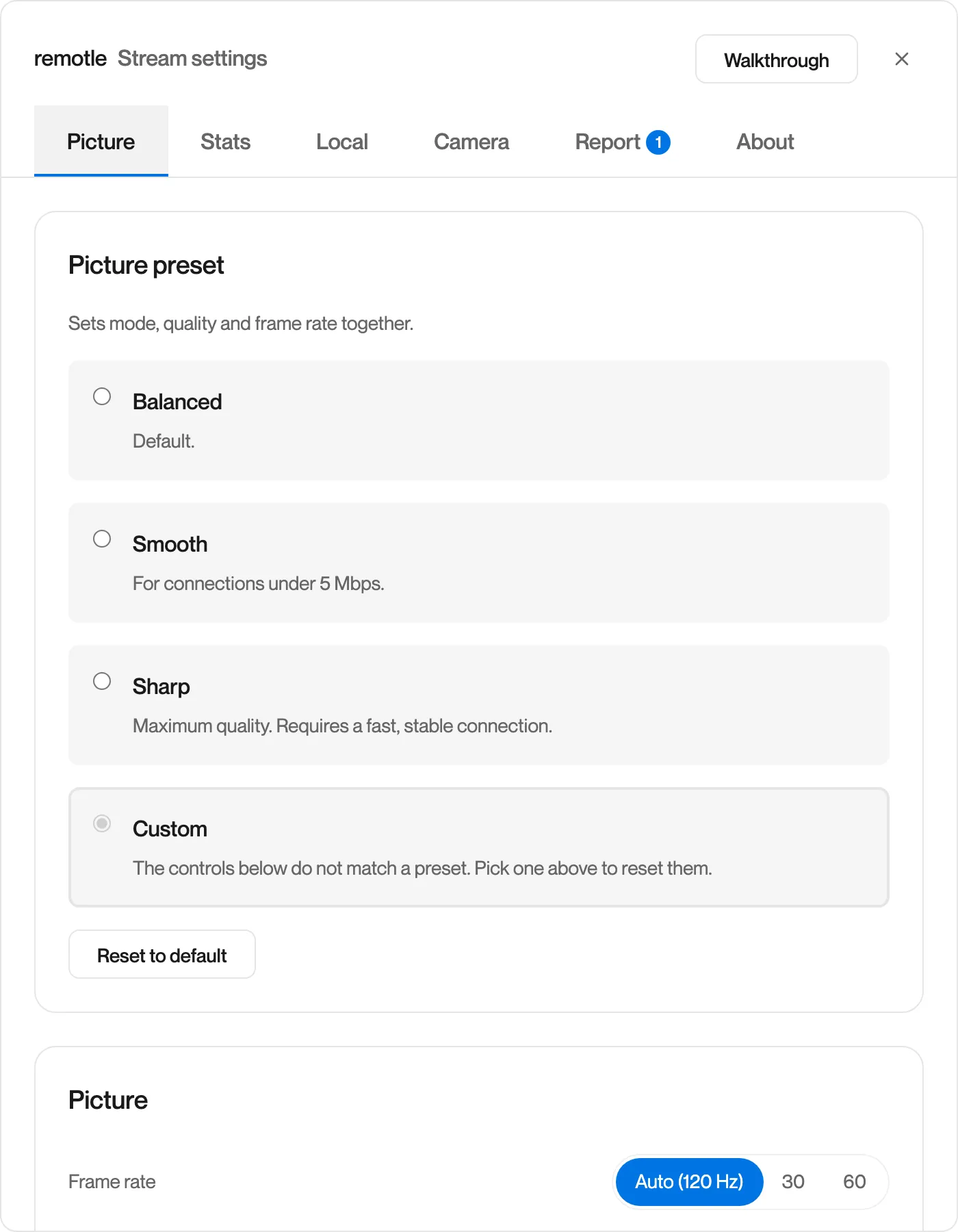
The individual controls
Section titled “The individual controls”| Setting | Options | What it does |
|---|---|---|
| Frame rate | Auto, 30, 60 | How many frames a second your workstation sends. Auto matches the refresh rate of your screen and shows it, for example Auto (120 Hz). |
| Mode | Adaptive, Quality, Responsive | How the workstation encodes the picture. Adaptive varies the bitrate and adjusts to the connection. Quality holds a constant bitrate for the quality you set. Responsive varies the bitrate with a fixed quality profile tuned for motion. |
| Quality | Low, Medium, High, Maximum | The picture quality the encoder aims for. Higher uses more bandwidth. |
Picture settings are saved on the workstation. When you connect from another device, the workstation sends it the saved settings, so your picture looks the same everywhere.
Questions
Section titled “Questions”Where are my picture settings saved?
Section titled “Where are my picture settings saved?”On your workstation. Mode, Quality and Frame rate are sent to the workstation when you change them and kept there, so the next device you connect from gets the same picture. Settings on the Local tab stay on the device you set them on.
Which preset should I use?
Section titled “Which preset should I use?”Balanced suits most work. Choose Smooth on a slow connection or when you mostly watch motion, and Sharp for fine detail on a fast, stable connection. If text looks soft, try Sharp before changing the individual controls.