Users & Sign-in
Directory Sync
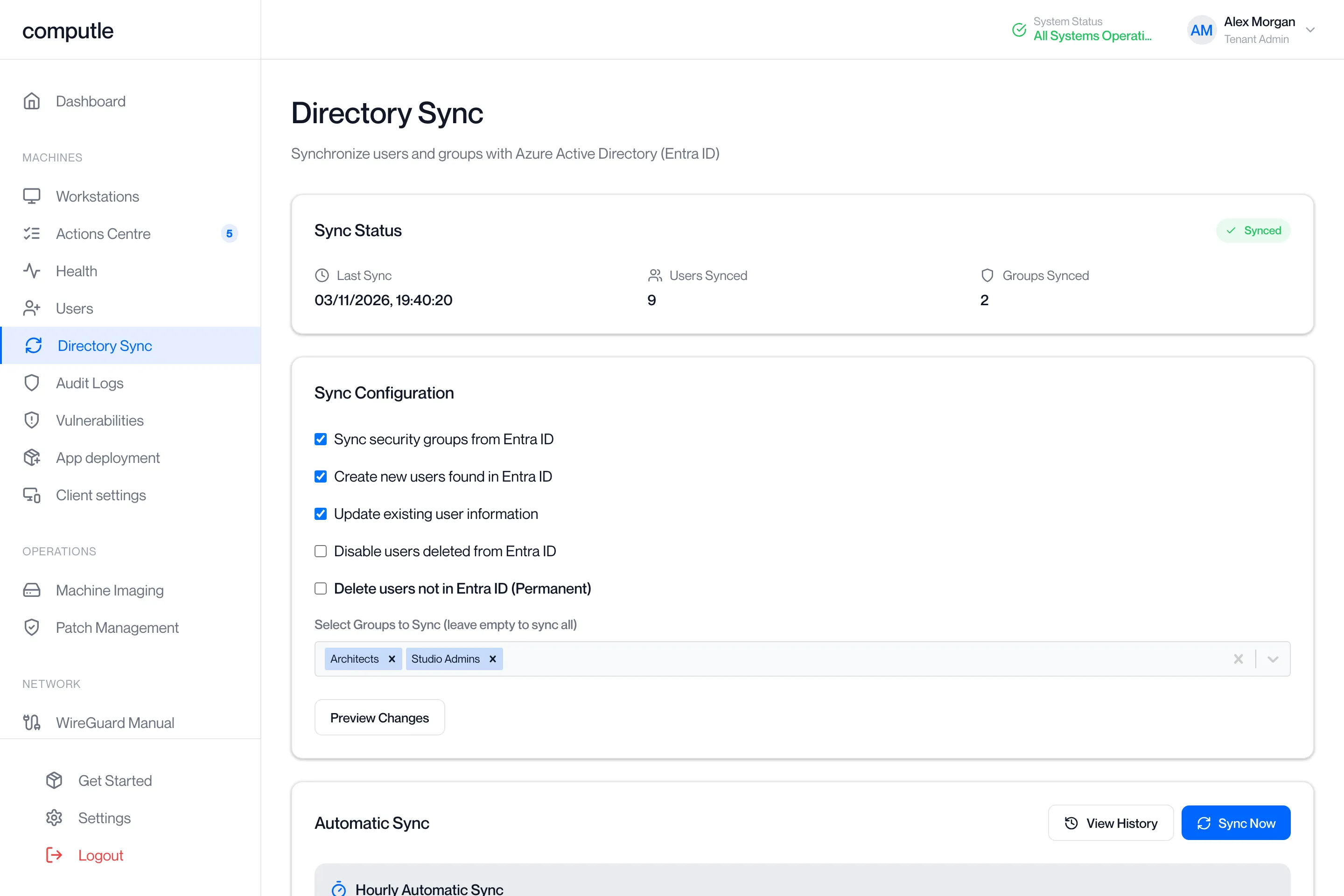
Directory Sync reads the people in your Microsoft Entra ID directory and keeps your Computle user list in step with it: new people are added, names and login names are updated, and leavers can be disabled or removed. You choose which security groups to read from, preview the changes, then apply them.
Open Directory Sync under Machines in the portal sidebar. The page needs the Tenant Admin role.
What a sync does
Section titled “What a sync does”| Setting | On | What happens |
|---|---|---|
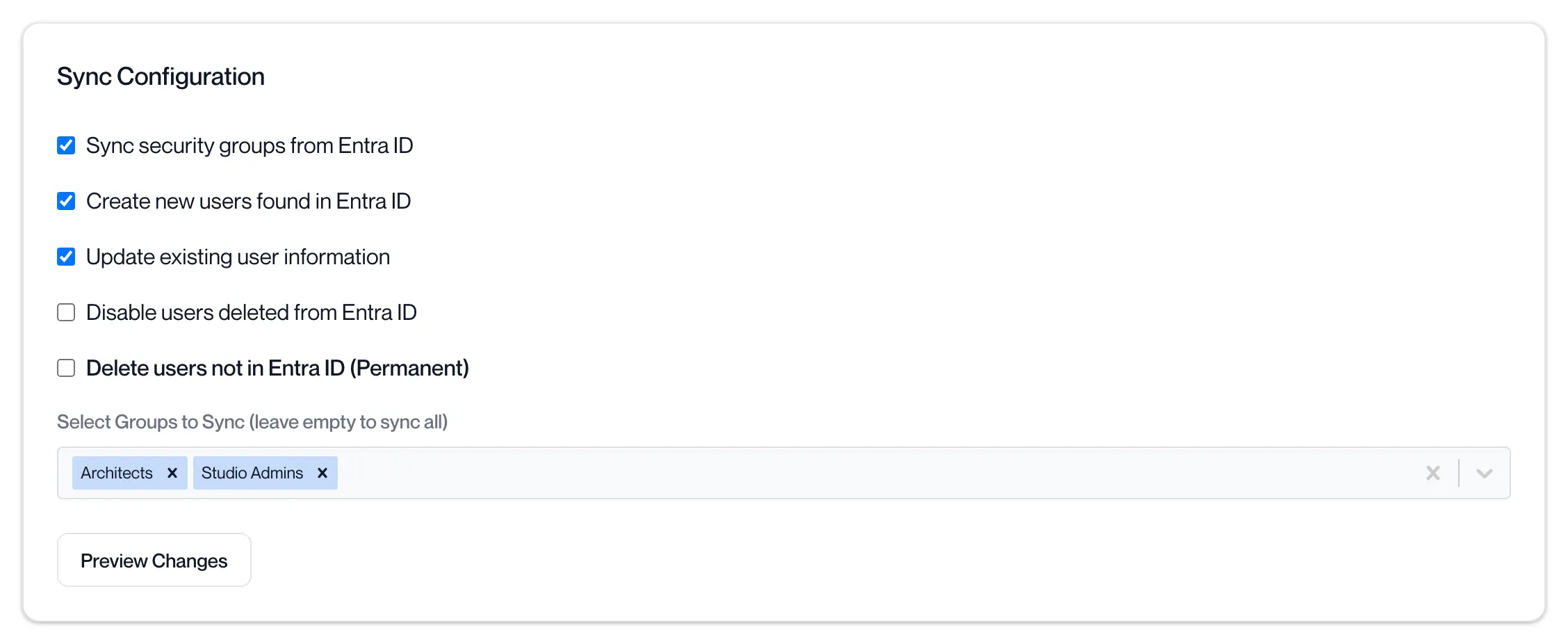
| Sync security groups from Entra ID | Yes | Only members of the groups you select are read. With no groups selected, every user in the directory is read. |
| Create new users found in Entra ID | Yes | Anyone in the directory who is not yet a Computle user is added with the User role. Their name and login name come from the directory. |
| Update existing user information | Yes | A user’s name and login name are updated when they differ from the directory. |
| Disable users deleted from Entra ID | No | Active Computle users who are not in the directory (or not in the selected groups) are disabled. They cannot sign in until re-enabled. |
| Delete users not in Entra ID (Permanent) | No | Computle users who are not in the directory (or not in the selected groups) are removed from Computle. This cannot be undone. Ticking it unticks Disable. |
Users who hold the Tenant Admin role are never disabled or deleted by a sync, whichever settings are on.
A sync only reads your directory. It does not change anything in Microsoft Entra ID.
Each sync counts towards your organisation’s user seats. If the sync would create more users than your plan allows, the portal shows “User seat limit reached. Choose a plan or sync fewer users.” and nothing is changed.
Grant consent
Section titled “Grant consent”The first time you open the page, a banner headed Azure AD Admin Consent explains that Computle needs permission to read user profiles and security group memberships from your directory. This is a separate enterprise application from the one you sign in with.
-
Click Grant Admin Consent.
A Microsoft sign-in window opens. If the browser blocks it, the portal shows “Popup Blocked” with an “Open Consent Page” link.
-
Sign in as a Global Administrator of your Microsoft Entra tenant and accept the permissions.
-
Return to the portal.
The window shows “Consent Granted!” and closes. The portal shows “Admin consent granted successfully!” and the banner disappears. If the permissions were declined, the window shows “Consent Failed” with “Admin consent was not granted”.
Consent is granted once for your organisation. Until it is in place the sync settings are greyed out and Sync Now shows “Please grant admin consent before syncing”.
Run a sync
Section titled “Run a sync”-
Choose the settings under Sync Configuration.
With “Sync security groups from Entra ID” ticked, choose the groups under “Select Groups to Sync (leave empty to sync all)”.
-
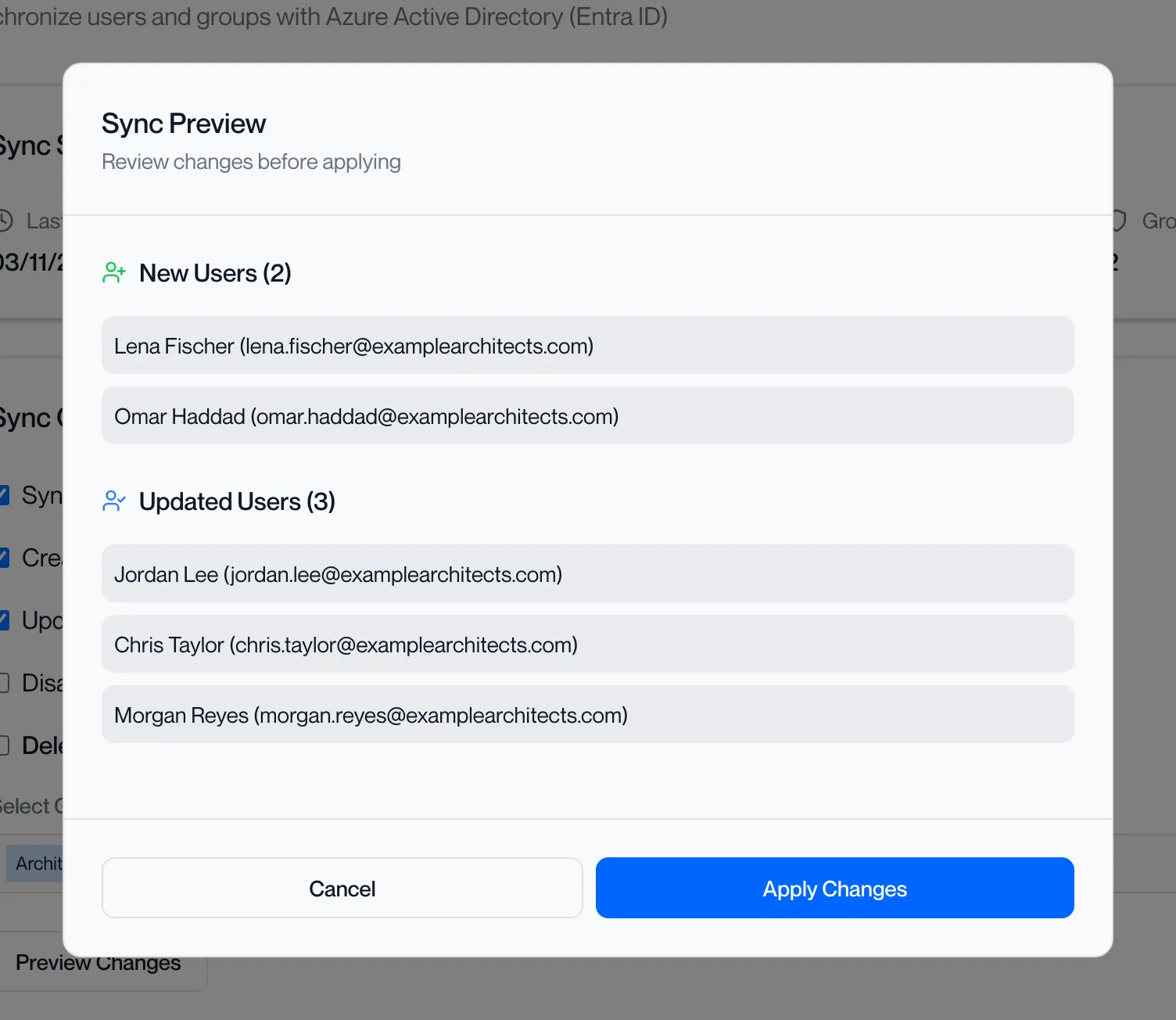
Click Preview Changes.
The Preview dialog lists New Users, Updated Users and Users to Disable, each with a count and the names and email addresses affected. Nothing is changed yet.
-
Click Apply Changes, or Sync Now on the page.
The badge on Sync Status shows “Syncing…” and the page refreshes every few seconds. When it finishes the portal shows “Directory sync completed successfully” and the badge shows “Synced”.
The settings you used are saved and loaded again next time you open the page.
Sync Status
Section titled “Sync Status”| Field | What it shows |
|---|---|
| Badge | Synced after a successful sync, Error after a failed one, Not Synced before the first, Syncing… while one runs. |
| Last Sync | When the last sync finished, or “Never”. |
| Users Synced | How many users the last sync created or updated. |
| Groups Synced | How many groups were selected for the last sync. |
| Sync Error | Shown under the fields when the last sync failed, with the reason. |
See past syncs
Section titled “See past syncs”-
Click View History next to Sync Now.
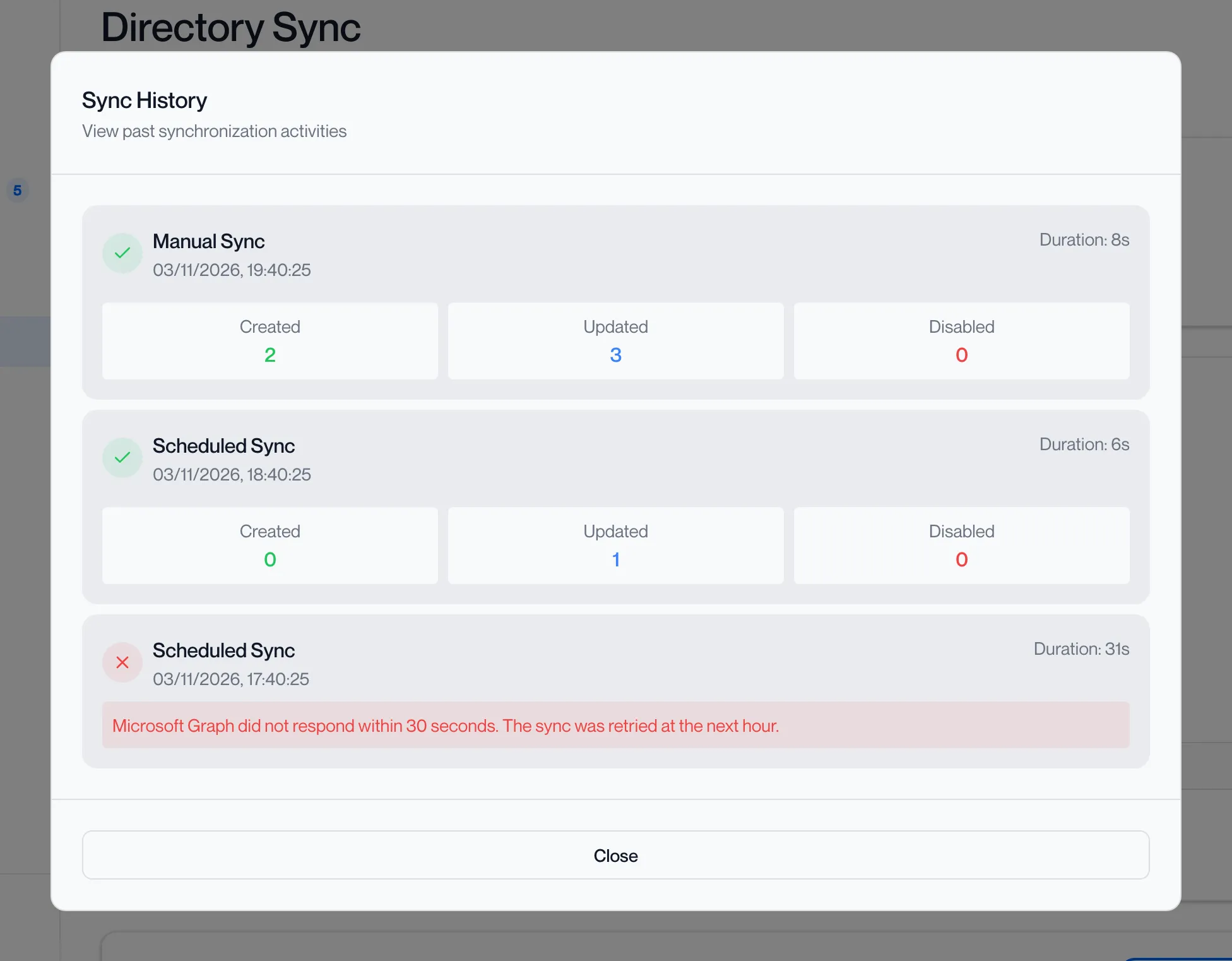
The Sync History dialog opens, headed “View past synchronization activities”.
-
Read each entry.
Each shows Manual Sync or Scheduled Sync, when it started, its duration, and the number of users created, updated and disabled. A failed sync is marked in red.
-
Click outside the dialog to close it.
The page states “Directory sync runs automatically every hour to keep user data up-to-date” and shows the next scheduled time.
Messages
Section titled “Messages”| Message | What to do |
|---|---|
| “Azure AD tenant not configured. Please grant admin consent first.” | Your organisation is not yet linked to a Microsoft Entra tenant. Grant consent, or sign in to the portal with a Microsoft work account from your organisation first. |
| “Please grant admin consent before syncing” | Click Grant Admin Consent in the banner. |
| “User seat limit reached. Choose a plan or sync fewer users.” | Select fewer groups, or increase your plan. |
| “Failed to preview sync” or “Directory sync failed” | Try again. If it continues, see Getting Help and quote the time and the Sync Error text. |
| “Your browser blocked the consent popup.” | Allow pop-ups for the portal, or click Open Consent Page. |
Related pages
Section titled “Related pages”Questions
Section titled “Questions”Does a sync assign workstations?
Section titled “Does a sync assign workstations?”No. A sync creates and updates user accounts. Assign workstations on the Workstations page.
Someone left and was removed from our directory. What happens to their Computle account?
Section titled “Someone left and was removed from our directory. What happens to their Computle account?”Nothing until a sync runs with “Disable users deleted from Entra ID” or “Delete users not in Entra ID” ticked. Disabled accounts stay in the Users list with the status disabled; deleted accounts are removed.
Can a sync remove an administrator?
Section titled “Can a sync remove an administrator?”No. Users with the Tenant Admin role are left alone by both the disable and the delete settings. Remove their role on the Users page first if you want a sync to handle them.
Do synced users get an email?
Section titled “Do synced users get an email?”No. They sign in to the portal or the Remotle app with their Microsoft work account. Send invitations from the Users page if you want people told.