Workstations
Start, restart or shut down a workstation
This page is for the administrator who needs to power a workstation on, restart it, shut it down, or cut its power when it has stopped responding. Every action is taken from the ⋯ menu on the Workstations page, and each one is recorded in Audit Logs.
Start a workstation
Section titled “Start a workstation”-
Open Workstations under Machines in the sidebar and find the workstation.
Type its name in Search name, user, address, GPU…. The Health column reads Shut Down or Unresponsive when it is off.

-
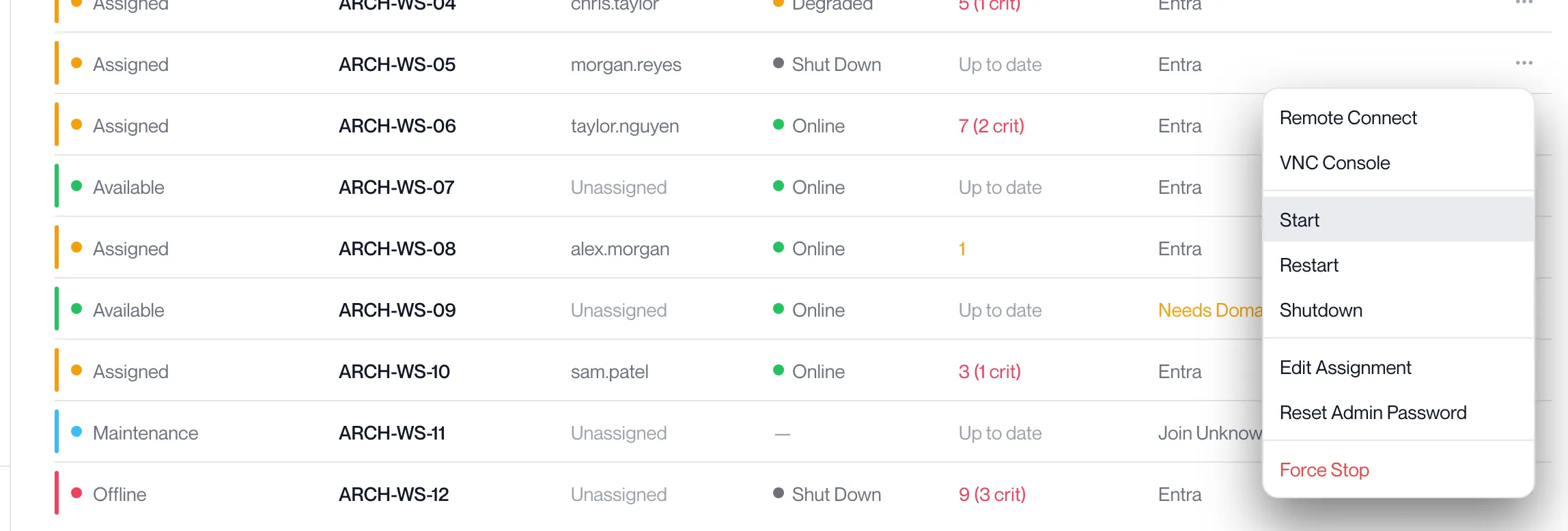
Click ⋯ at the right of the row and choose Start.
On a wide screen the Start button also appears when you hover over the row. There is no confirmation.
-
Watch the Assigned column.
It reads “Starting up — this usually takes a few minutes.” and the Start, Restart and Shutdown controls on that row stay locked, so one click is enough. “Still working — completing start-up.” means Computle is finishing it for you.
-
The row reads “Your workstation is ready.”
The Health column returns to Online within a minute or two of the agent reporting. The user can connect.
| Message | Meaning |
|---|---|
| This workstation is already running. | The workstation was on. Nothing was changed. |
| Workstation started | The start was issued on a workstation that does not report progress. Check the Health column. |
| Failed to start workstation | The start was not issued. Try again; if it repeats, raise a ticket under Support with the workstation name and the time. |
| This is taking longer than expected. Our engineering team has been notified and is completing it for you — no action needed. | Shown after 12 minutes, or when the start could not be completed automatically. Nothing is needed from you. |
Restart a workstation
Section titled “Restart a workstation”-
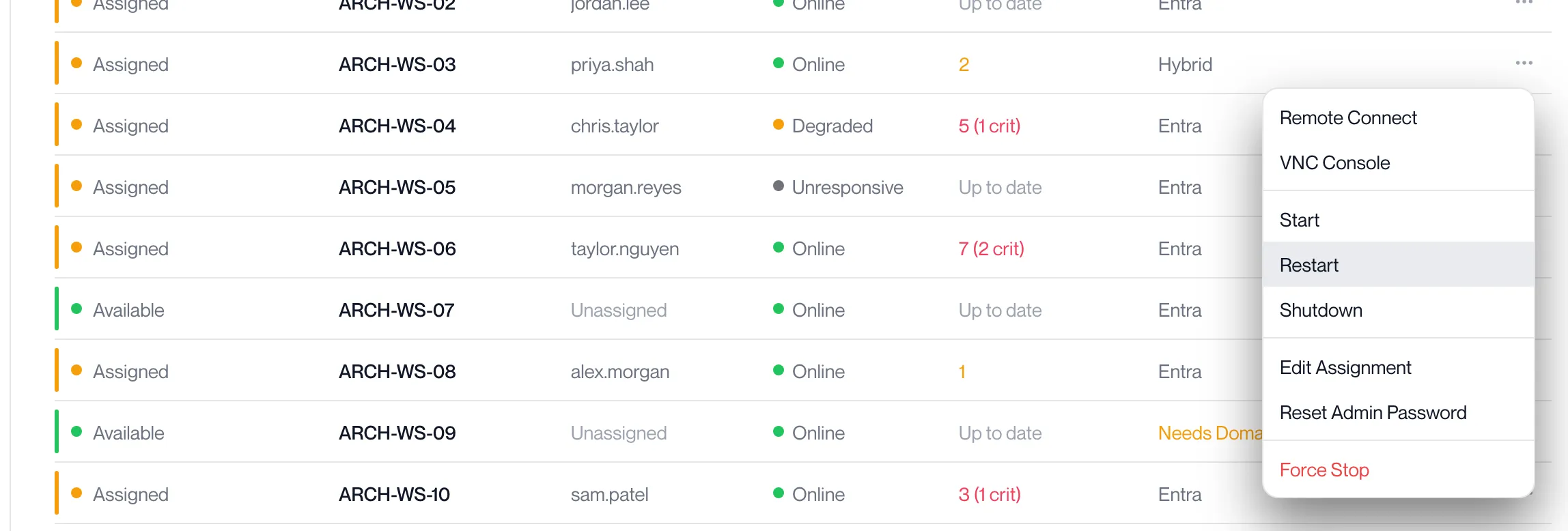
On the Workstations page, click ⋯ on the workstation and choose Restart.
-
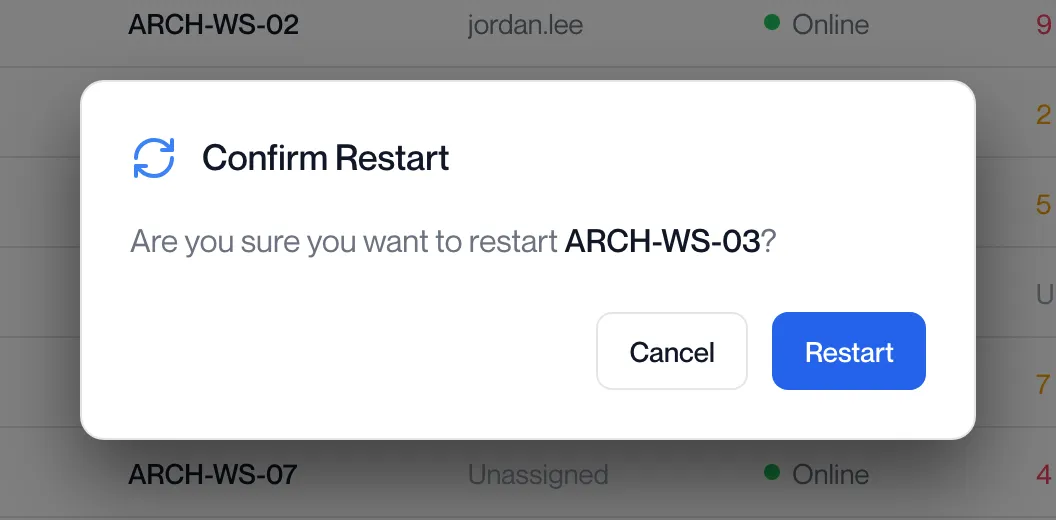
Read the Confirm Restart dialog and click Restart.
It asks “Are you sure you want to restart ARCH-WS-03?”. Cancel closes it without doing anything. For an appliance the dialog also shows “Type ARCH-WS-03 to confirm” and Restart stays greyed out until you type the name exactly.
-
Watch the Assigned column.
It reads “Restart in progress — this usually takes a few minutes.”, then “Still working — completing the restart.” if the restart takes longer than usual. The row’s power controls stay locked until it finishes.

-
The row reads “Restart complete.”
The user’s client reconnects, or they click Connect again. Opening the workstation’s details while this runs shows the same message under a Restart heading.
| Message | Meaning |
|---|---|
| Workstation restart initiated | The restart was issued on a workstation that does not report progress. Check the Health column. |
| Failed to restart workstation | The restart was not issued. Try again. |
| This restart is taking longer than expected. Our engineering team has been notified and is completing it for you — no action needed. | Shown after 12 minutes, or when the restart could not be completed automatically. Nothing is needed from you. |
| Restart cancelled. | The restart was stopped by Computle. Raise a ticket if the workstation is still needed. |
The same Restart is offered on each row of the Actions Centre and under Actions in the console.
Shut down a workstation
Section titled “Shut down a workstation”Shutdown closes Windows cleanly, as if the user had chosen Shut down from the Start menu. Use it to switch a workstation off at the end of a contract or before a long absence.
-
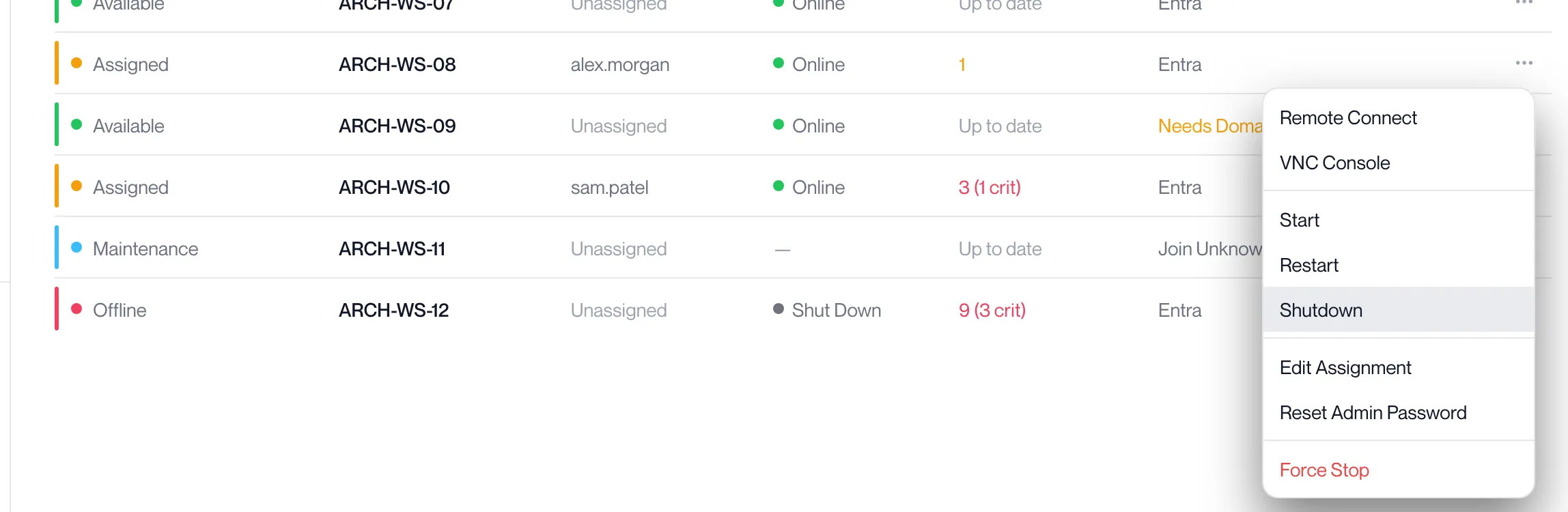
On the Workstations page, click ⋯ on the workstation and choose Shutdown.
-
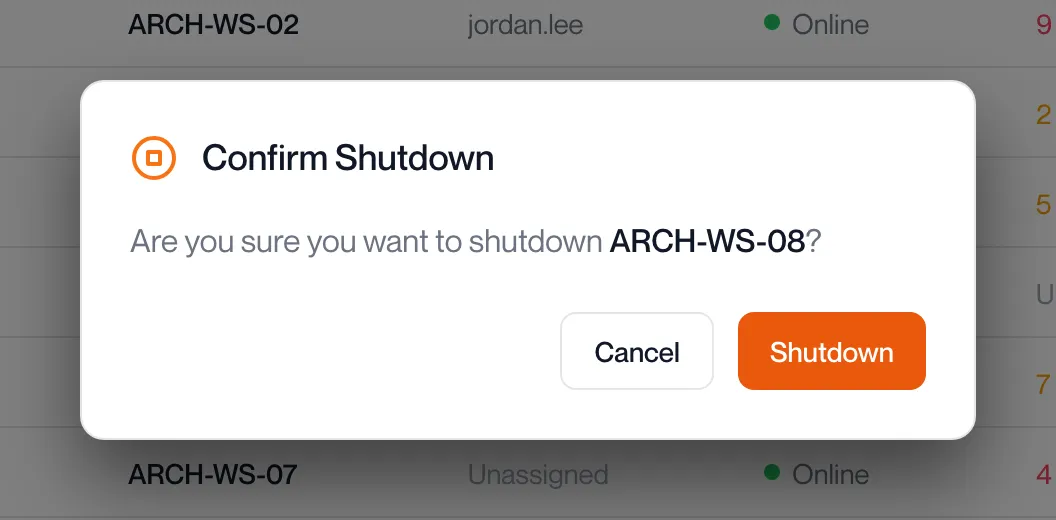
Read the Confirm Shutdown dialog and click Shutdown.
It asks “Are you sure you want to shutdown ARCH-WS-08?”. For an appliance, type its name in the box first.
-
The portal reports “Workstation shutdown initiated”.
Windows closes open programs and shuts down. Within a few minutes the Health column reads Shut Down. A program with unsaved work can hold the shutdown up; if the Health column still reads Online after ten minutes, open the console to see what is on screen.
“Failed to shutdown workstation” means the shutdown was not issued. Try again.
To switch the workstation back on, use Start a workstation.
Force stop a workstation
Section titled “Force stop a workstation”-
Check the console first.
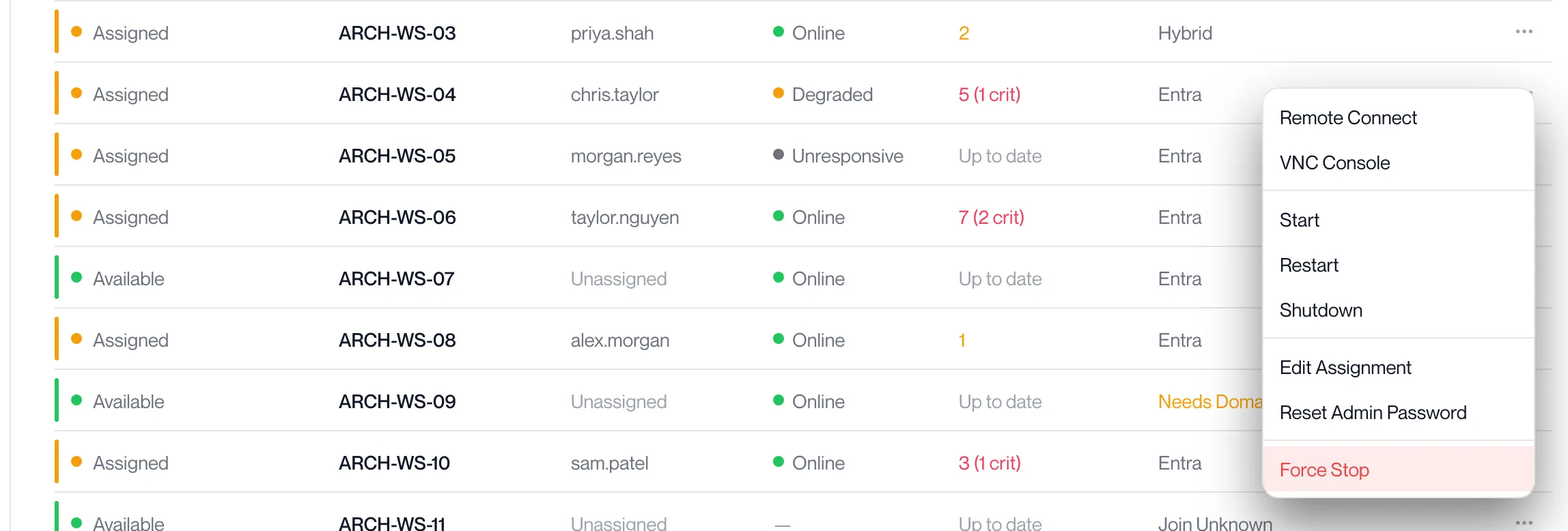
Click ⋯ and VNC Console. If the screen responds to Ctrl+Alt+Del, use Restart or Shutdown from the console’s Actions menu instead.
-
Click ⋯ on the workstation and choose Force Stop.
-
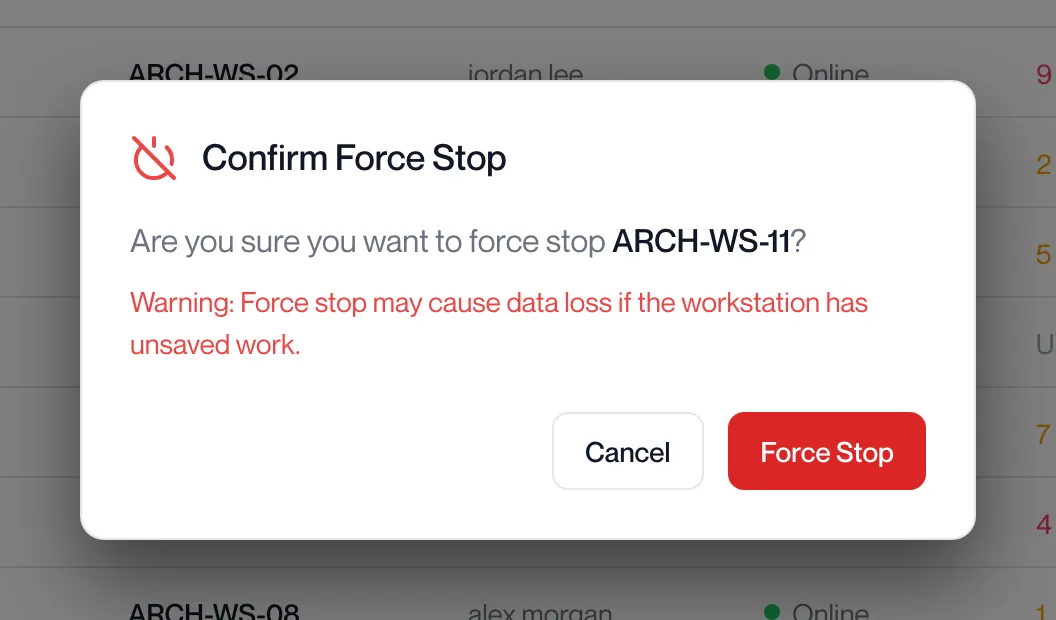
Read the Confirm Force Stop dialog and click Force Stop.
It asks “Are you sure you want to force stop ARCH-WS-11?” and shows in red “Warning: Force stop may cause data loss if the workstation has unsaved work.” For an appliance, type its name in the box first.
-
The portal reports “Workstation stopped”.
The Health column reads Unresponsive until the agent next reports, then Shut Down. Click ⋯ and Start to switch the workstation back on. If it does not come back, raise a ticket under Support.
“Failed to stop workstation” means the action was not issued. Try again.
Related pages
Section titled “Related pages”Questions
Section titled “Questions”Can I restart several workstations at once?
Section titled “Can I restart several workstations at once?”The Workstations page acts on one workstation at a time. Patch Management has a Reboot button that restarts every ticked workstation; see Reboot workstations.
The Start, Restart and Shutdown buttons are greyed out.
Section titled “The Start, Restart and Shutdown buttons are greyed out.”A start or restart is still running on that workstation. Wait for the row’s progress message to finish.
Does a restart from the portal warn the user?
Section titled “Does a restart from the portal warn the user?”No. The session ends when Windows restarts. Tell the user first.
Why does the row say “Your workstation is ready.” when I started someone else’s workstation?
Section titled “Why does the row say “Your workstation is ready.” when I started someone else’s workstation?”The wording is the same for every start. The workstation is on and its user can connect.