Users & Sign-in
Single Sign-On
Single Sign-On signs a user in to Windows on their workstation with the Microsoft work account they used to sign in to the Remotle app. The user clicks Connect and their desktop opens, with no Windows sign-in screen and no password typed. It uses Microsoft Entra authentication for Remote Desktop, the sign-in model Microsoft provides for remote desktops.
This page is for the IT administrator who connects Single Sign-On and looks after it. It covers the Single Sign-On and SSO diagnostics tabs of Users under Machines in the portal sidebar. Both tabs are shown only when Single Sign-On is available to your organisation; see Questions. The tabs need the Tenant Admin role, and the Microsoft sign-in in step 4 needs a Microsoft Entra administrator.
How it works
Section titled “How it works”Connect makes a one-time change in your directory. Afterwards, each time a user connects, the Remotle app obtains a single-use sign-in ticket for that workstation from Microsoft Entra, and Windows on the workstation checks the ticket with Microsoft and signs the user in. No password is read, stored or sent. Your Conditional Access and multifactor authentication policies apply to the sign-in as to any other.
Connect Microsoft Entra
Section titled “Connect Microsoft Entra”-
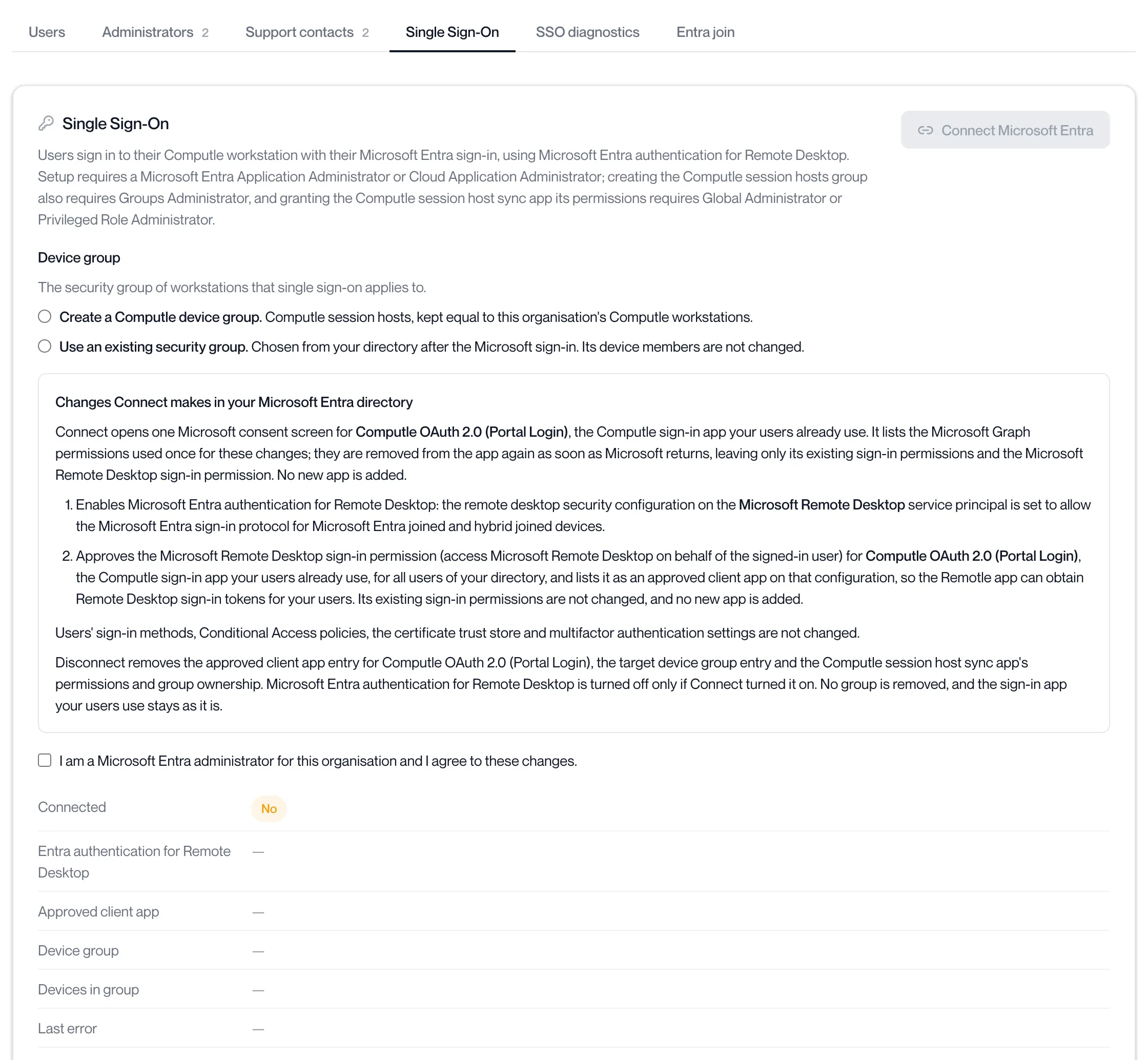
Open Users under Machines in the sidebar and click the Single Sign-On tab.
The card reads “Users sign in to their Computle workstation with their Microsoft Entra sign-in, using Microsoft Entra authentication for Remote Desktop.” The Connected row reads No.
-
Under Device group, choose which workstations Single Sign-On applies to.
Option What it does Create a Computle device group. Adds a security group named Computle session hosts to your directory. Computle keeps its members equal to your organisation’s Computle workstations. Use an existing security group. You pick one of your own security groups after the Microsoft sign-in. Its members are not changed. 
-
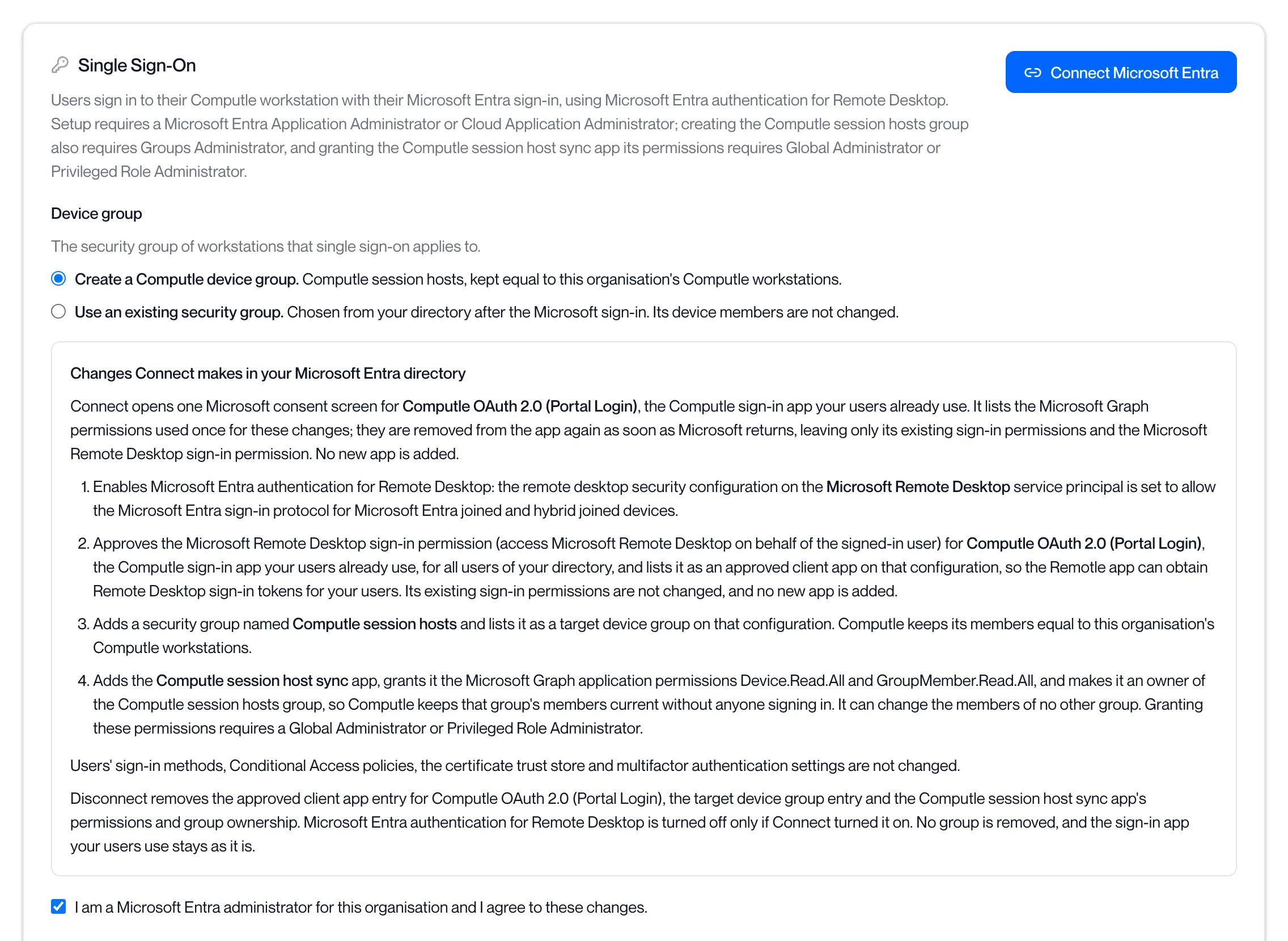
Read “Changes Connect makes in your Microsoft Entra directory” and tick the agreement.
The list states every change: Microsoft Entra authentication for Remote Desktop is enabled on the Microsoft Remote Desktop service principal; the Microsoft Remote Desktop sign-in permission is approved for Computle OAuth 2.0 (Portal Login), the sign-in app your users already use; and the device group is listed as a target. With a Computle group it also adds the Computle session host sync app with the permissions Device.Read.All and GroupMember.Read.All, as owner of that one group. Users’ sign-in methods, Conditional Access policies, the certificate trust store and multifactor authentication settings are not changed.
Tick “I am a Microsoft Entra administrator for this organisation and I agree to these changes.” Connect Microsoft Entra becomes available.
-
Click Connect Microsoft Entra and sign in as a Microsoft Entra administrator in the window that opens.
The window shows one consent screen for Computle OAuth 2.0 (Portal Login). The setup permissions it lists are removed from the app again as soon as Microsoft returns. If the browser blocks the window the portal says “The browser blocked the sign-in window. Allow pop-ups for this site and try again.”
-
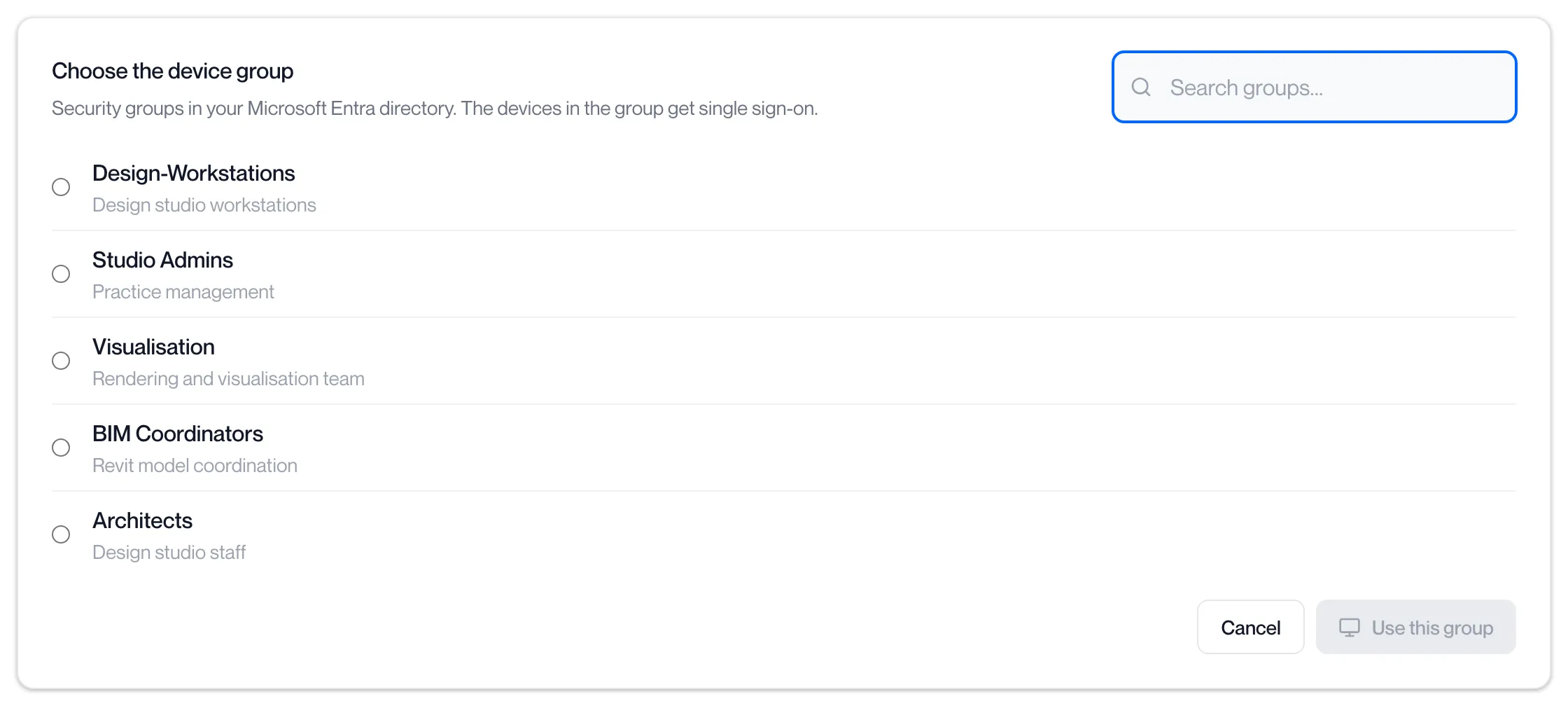
If you chose an existing group, choose it now.
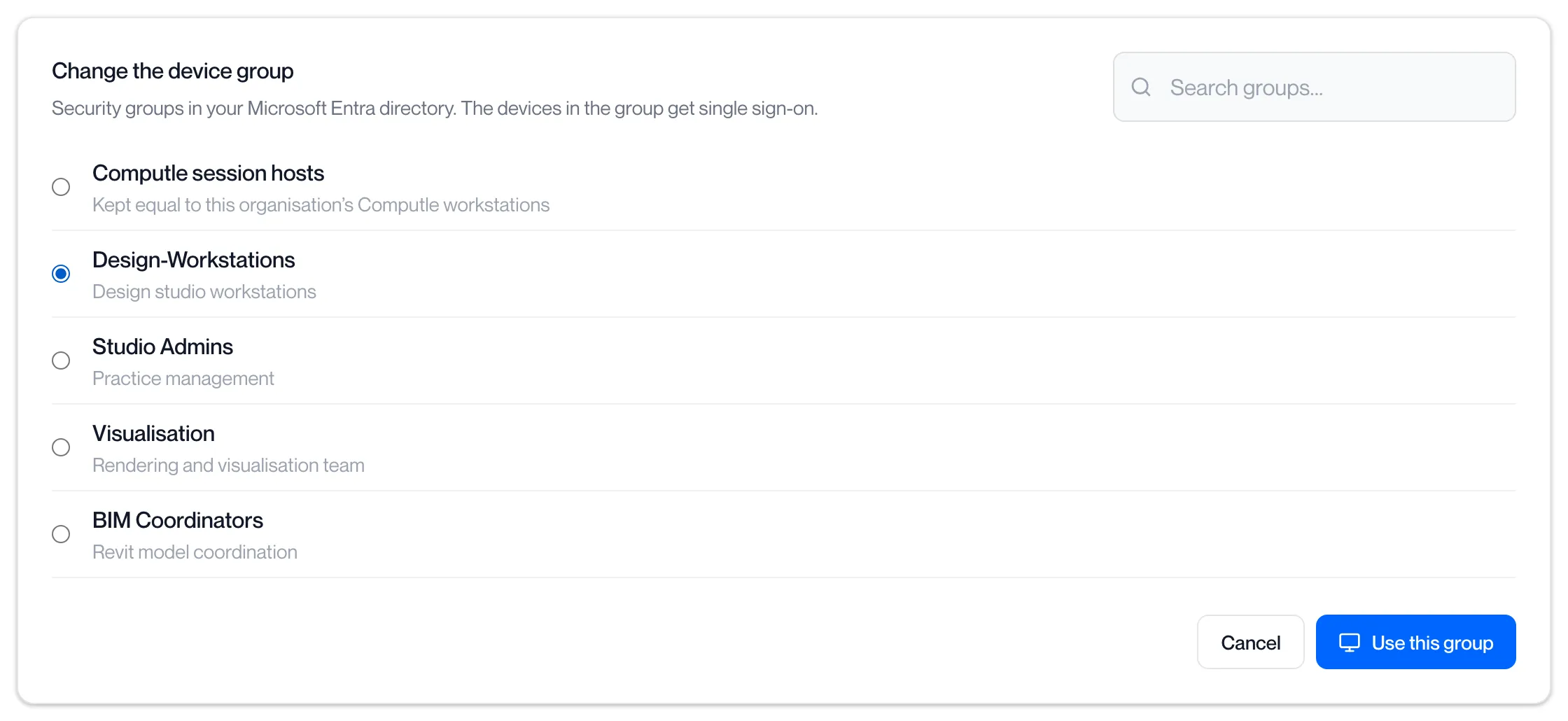
The window, or the portal if you closed it, shows “Choose the device group” with the security groups in your directory. Type in Search groups…, select the group and click Use this group. The sign-in is held for ten minutes; after that the portal says “The sign-in expired before the device group was chosen. Start the connection again.”
-
Wait for the change to finish.
The Connected row reads “Setup in progress” with the step under way, for example “Now enabling Microsoft Entra authentication for Remote Desktop.” The portal checks every few seconds and reports “Microsoft Entra connected”. The window reads “Microsoft Entra is connected. You can close this window.”
-
Check the status rows.
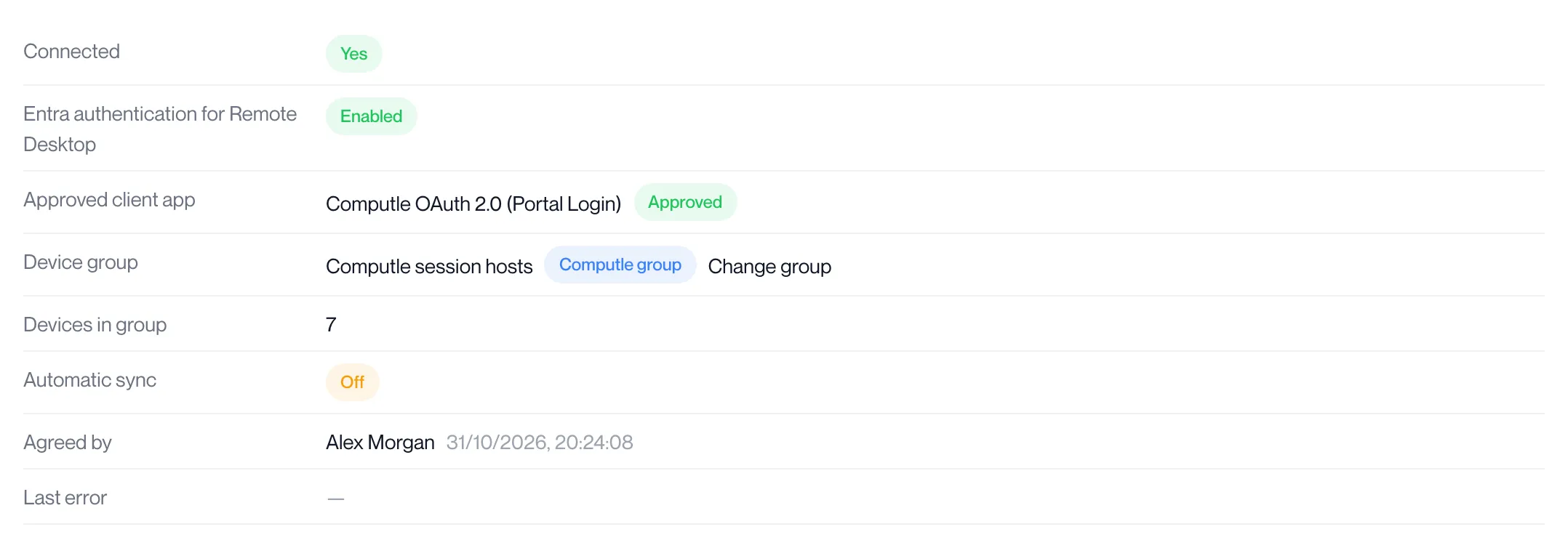
Row What it shows Connected Yes. A Reconnect needed badge means the connection must be made again; see Reconnect. Entra authentication for Remote Desktop Enabled or Not enabled. Approved client app Computle OAuth 2.0 (Portal Login), Approved or Not approved. Device group The group’s name, with a Computle group or Existing group badge, and a Change group link. Devices in group How many devices the group holds. Automatic sync On or Off. Shown for a Computle group only; see Turn on automatic sync. Agreed by Who ticked the agreement, and when. Last change Shown only when the last change failed, with the step it stopped at and what Microsoft Entra said. Last error The most recent problem Computle met in your directory, with its time, or a dash.
A connect that fails leaves “Microsoft Entra was not connected.” in the Last change row, with the step it stopped at, for example “Stopped while creating the Computle session hosts group.” and the reason. Fix the cause and click Connect Microsoft Entra again.
Turn on automatic sync
Section titled “Turn on automatic sync”With a Computle group, Computle fills the group’s members from your directory. Until automatic sync is on, that happens only when one of your administrators signs in to the portal with Microsoft, so a workstation joined in the meantime gets the Windows sign-in screen until the next sign-in.
-
Under “Turn on automatic sync”, read the change and click Turn on automatic sync.
The box appears on the Single Sign-On tab once connected with a Computle group. The change adds the Computle session host sync app, grants it Device.Read.All and GroupMember.Read.All, and makes it an owner of the Computle session hosts group. It can change the members of no other group.

-
Sign in as a Global Administrator or Privileged Role Administrator in the window that opens and accept the permissions.
-
The portal reports “Automatic sync turned on”.
The Automatic sync row reads On. The window reads “Automatic sync is on. You can close this window.”
“Automatic sync is already on.” means nothing was needed. “Automatic sync was not turned on.” in the Last change row names the step that failed.
Change the device group
Section titled “Change the device group”-
On the Single Sign-On tab, click Change group next to the Device group row.
If Computle holds no sign-in of its own for your directory, a Microsoft window opens for an administrator to sign in first.
-
Under “Change the device group”, select the new security group and click Use this group.
-
The portal reports “Device group changed”, or “Device group is now …”.
While the change runs the Connected row reads “Changing the device group…”. Workstations outside the new group get the Windows sign-in screen from their next connection.
| Message | Meaning |
|---|---|
| The chosen group is not a security group. | Choose a security group. Microsoft 365 groups and distribution lists are refused. |
| The device group is managed in Microsoft Entra, not here. | The group is one of your own; change its members in Microsoft Entra. |
| Another Single Sign-On change is still in progress. Wait for it to finish. | Wait for the Connected row to settle. |
Reconnect
Section titled “Reconnect”A Reconnect needed badge next to Connected means the connection must be made again with an administrator sign-in, for example after a change in your directory. Choose the device group, tick the agreement and click Connect Microsoft Entra, as in Connect Microsoft Entra. Change group is hidden until the reconnect is done.
Disconnect
Section titled “Disconnect”-
On the Single Sign-On tab, click Disconnect.
-
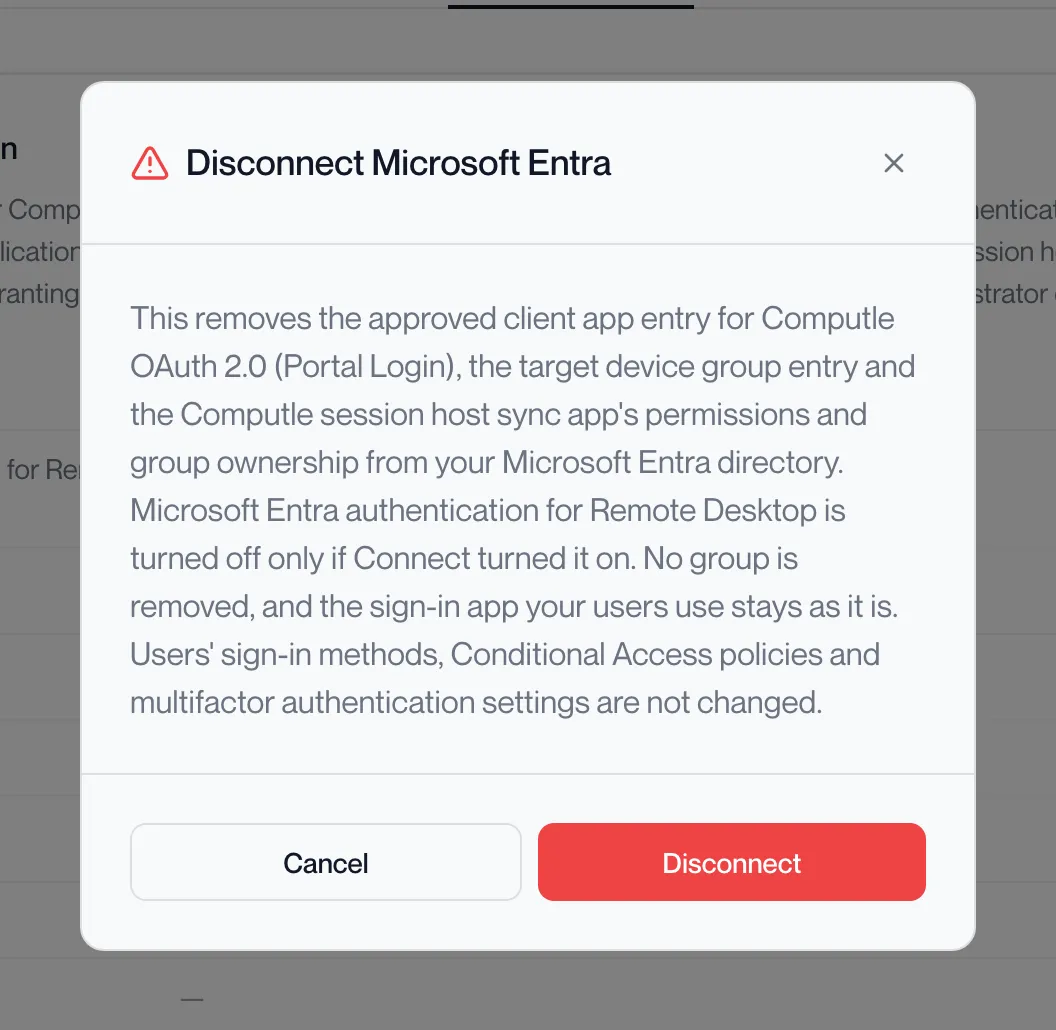
Read the Disconnect Microsoft Entra dialog and click Disconnect.
It states that the approved client app entry for Computle OAuth 2.0 (Portal Login), the target device group entry, and the Computle session host sync app’s permissions and group ownership are removed; that Microsoft Entra authentication for Remote Desktop is turned off only if Connect turned it on; and that no group is removed and the sign-in app your users use stays as it is. If Computle holds no sign-in for your directory, a Microsoft window opens for an administrator to sign in first.
-
The portal reports “Microsoft Entra disconnected”.
The Connected row reads “Disconnecting…” while the change runs, then No. “Disconnected. Microsoft Entra refused part of the clean-up: …” means the connection is gone and the listed items are left in your directory for you to remove.
Users see the Windows sign-in screen from their next connection and sign in with their password. Nothing else about their sign-in changes.
Turn it off for one user
Section titled “Turn it off for one user”Single Sign-On can be switched off for one person without disconnecting. Open Client settings, Device features, add the user under Per-user exceptions and set Single sign-on to Off. The organisation-wide switch is Sign in automatically (single sign-on) on the same tab. See Device features.
SSO diagnostics
Section titled “SSO diagnostics”The SSO diagnostics tab checks your organisation’s connection, then every workstation. Open it when a user is still shown the Windows sign-in screen.
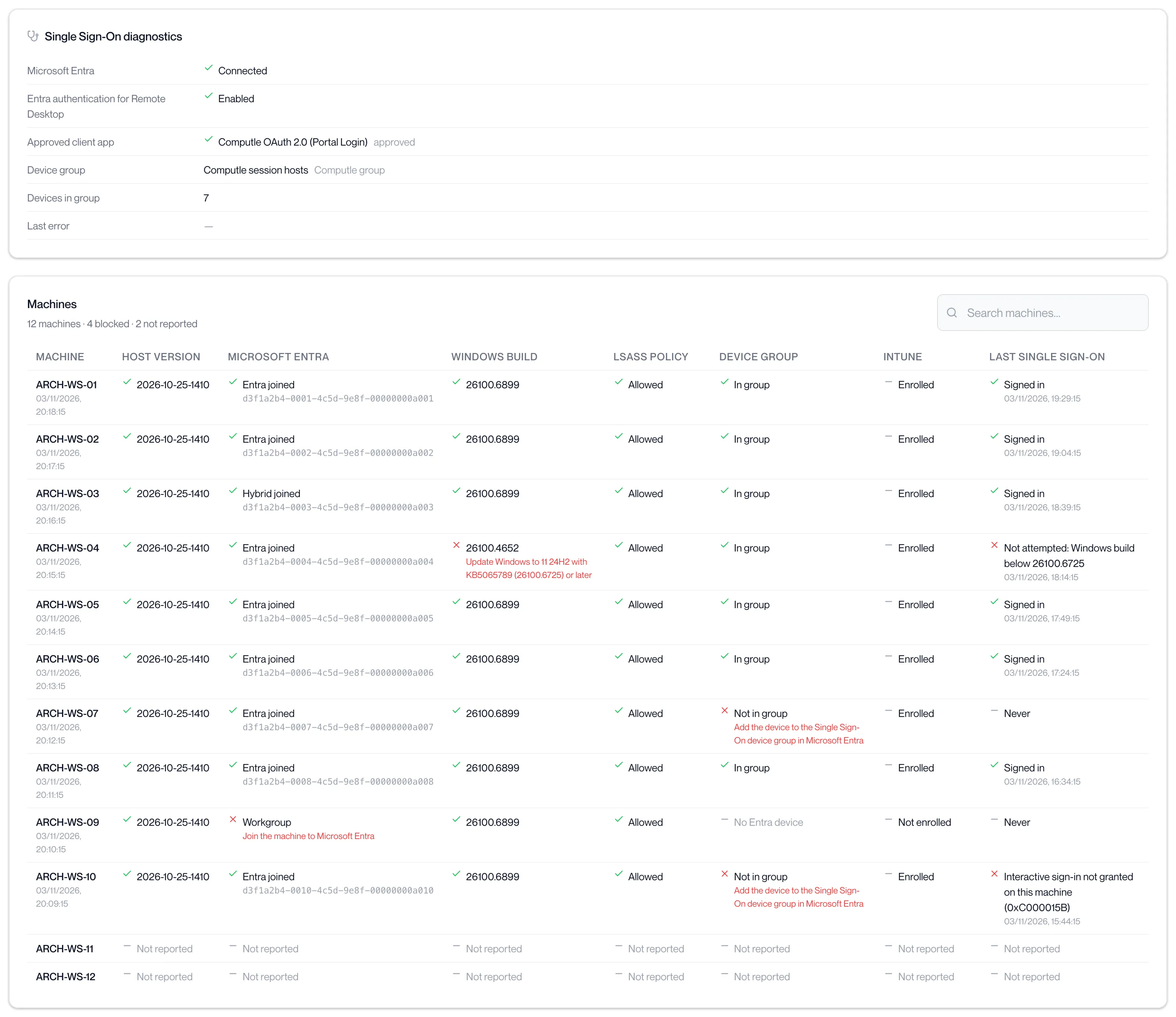
The top card repeats the connection: Microsoft Entra (Connected, “Connected, setup incomplete” or Not connected), Entra authentication for Remote Desktop, Approved client app, Device group, Devices in group and Last error. A cross on any of them reads “Connect Microsoft Entra on the Single Sign-On tab”.
The Machines card reads “N machines · N blocked · N not reported” and has one row per workstation with a tick, a cross or a dash for each check. A failed check shows what to fix in red beneath it. Type in Search machines… to find one workstation. The page refreshes every minute.
| Check | Passes when | If it fails |
|---|---|---|
| Host version | The Remotle host on the workstation is 2026-10-11-2304 or later. | “Update the Remotle host to 2026-10-11-2304 or later”. Hosts update through Computle; contact your account manager. |
| Microsoft Entra | Entra joined or Hybrid joined. The device ID is shown. | Domain only: “Needs hybrid join by your IT via Entra Connect”. Workgroup: “Join the machine to Microsoft Entra”; see Entra join. |
| Windows build | 26100.6725 or later; for a server, 26100.32230 or later. | “Update Windows to 11 24H2 with KB5065789 (26100.6725) or later” or “Update Windows Server 2025 with KB5073379 (26100.32230) or later”. Install the update with Patch Management. |
| LSASS policy | Allowed. | “Enable “Allow Custom SSPs and APs to be loaded into LSASS” (Local Security Authority policy, Intune or Group Policy)”. |
| Device group | In group. | “Add the device to the Single Sign-On device group in Microsoft Entra”. With a Computle group, the workstation is added at the next sync. “No Entra device” means the workstation is not joined. |
| Intune | Shown for information: Enrolled or Not enrolled. | Nothing. |
| Last single sign-on | Signed in, with the time. | The reason Windows gave, for example “Account disabled (0xC0000072)” or “Interactive sign-in not granted on this machine (0xC000015B)”, or “Not attempted” with the reason. |
A workstation showing “Not reported” in every column has not sent its readiness yet. It reports when the host starts and after each change. The same first failing check is shown in the Actions Centre under Single Sign-On blocked.
Related pages
Section titled “Related pages”Questions
Section titled “Questions”I cannot see the Single Sign-On tab.
Section titled “I cannot see the Single Sign-On tab.”The tab is shown when Single Sign-On is available to your organisation. The portal says why when it is not: “Single Sign-On is not yet available for this organisation.”, “Single Sign-On is not enabled for this organisation.” or “The Single Sign-On service for this organisation could not be reached.” Contact your account manager.
Does it store or send passwords?
Section titled “Does it store or send passwords?”No. The sign-in is a single-use ticket from Microsoft Entra for one workstation. No password is read, stored or sent, and no certificate is issued.
Does multifactor authentication still apply?
Section titled “Does multifactor authentication still apply?”Your Conditional Access policies decide. If a policy asks the user to sign in again, a Microsoft window opens in their normal browser on their own computer. If a policy blocks the sign-in, the user sees the Windows sign-in screen and signs in with their password.
Can it lock users out?
Section titled “Can it lock users out?”No. Connect adds no sign-in method and removes none. If a Single Sign-On attempt fails, the Windows sign-in screen is shown as before.
Should I use an existing group or a Computle group?
Section titled “Should I use an existing group or a Computle group?”Both work. A Computle group needs no upkeep once automatic sync is on. An existing group lets you decide which workstations get Single Sign-On, and you change its members in Microsoft Entra. Change group moves between them.
What do users see?
Section titled “What do users see?”They sign in to Remotle with Microsoft and click Connect. The connecting screen runs through to their desktop. The Remotle side is described at Signing in to Remotle.