Workstations
Assigning workstations
A workstation is assigned to one user at a time. The assigned user sees the workstation in the client and can connect to it; nobody else can. This page covers assigning a workstation to a new starter, moving it to someone else, changing the connection method, and unassigning it.
Assign a workstation
Section titled “Assign a workstation”-
On the Workstations page, click ⋯ on the workstation and choose Edit Assignment.
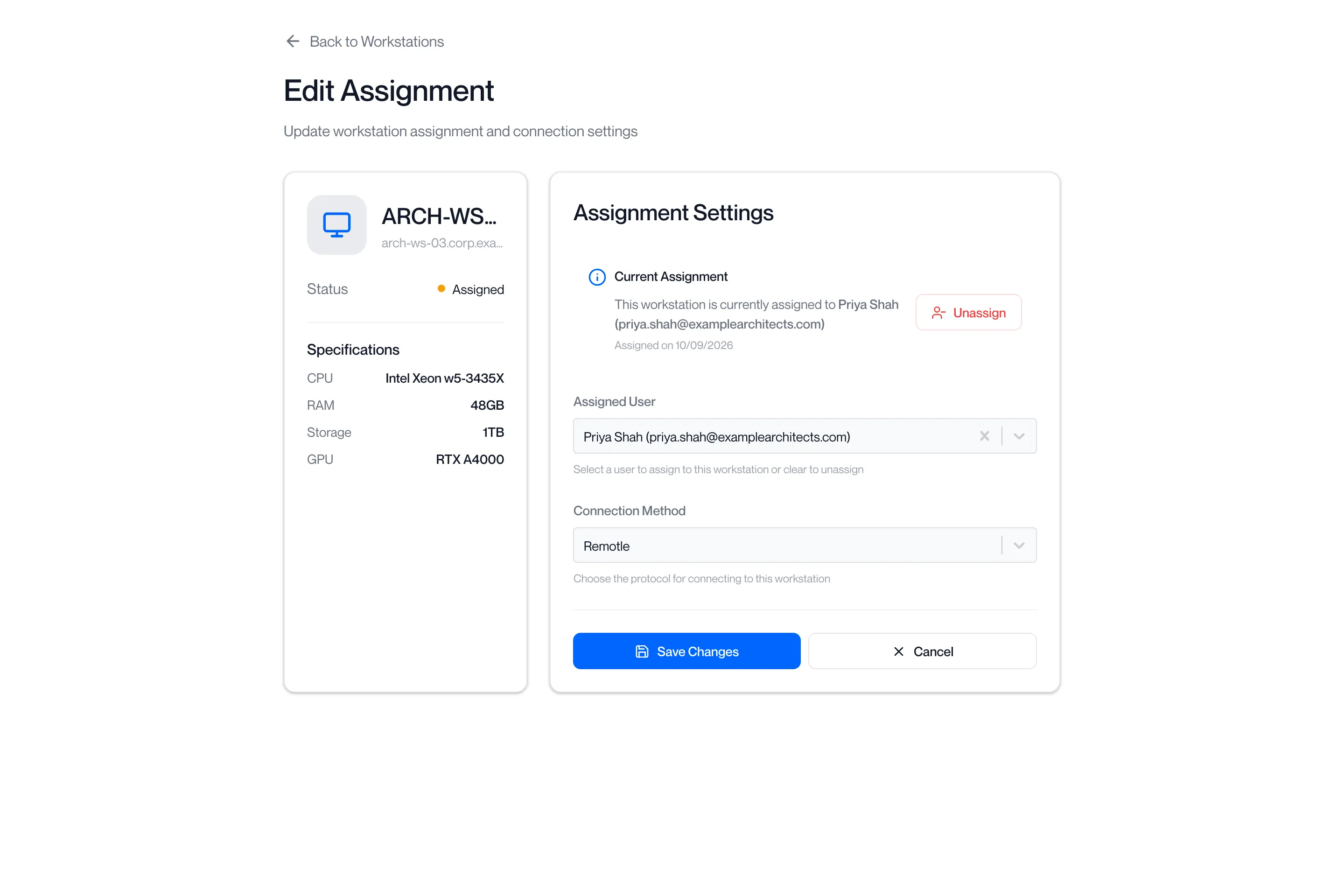
The Edit Assignment page opens on its own, without the sidebar. Back to Workstations at the top returns you to the list.
-
Check the workstation card.
The card on the left shows the workstation’s name and address, its Status, its Licence where known (Licensed or Unlicensed), and its Specifications: CPU, RAM, Storage and GPU.
-
Under Assigned User, choose the person.
Type to search the list. Each entry shows the user’s name and email address.
-
Under Connection Method, choose how they connect.
See Connection method. The method already set on the workstation is selected.
-
Click Save Changes.
The portal returns to the Workstations list and reports “Assignment updated”. The workstation’s status becomes Assigned and the user’s name appears in the Assigned column. The user sees the workstation the next time the client refreshes their list.
If no user is chosen the portal says “Please select a user”; if no method is chosen, “Please select a connection method”.
Move a workstation to someone else
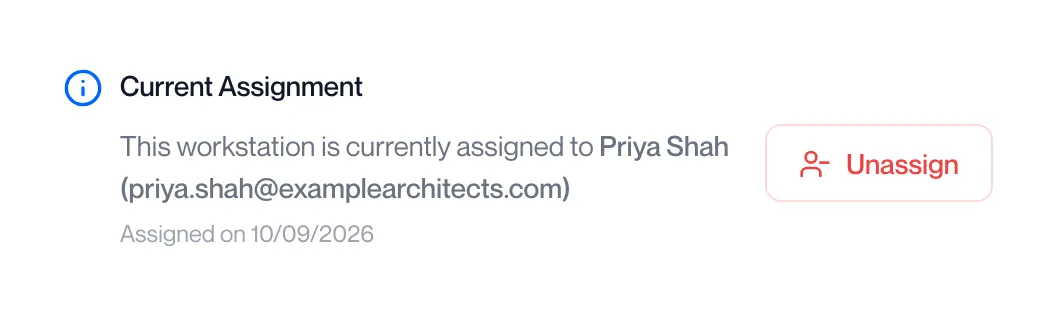
Section titled “Move a workstation to someone else”Open Edit Assignment as above. The Current Assignment box reads “This workstation is currently assigned to …” with the date it was assigned. Choose the new person under Assigned User and click Save Changes. The previous user loses access and the change is recorded in the assignment history.
Change the connection method
Section titled “Change the connection method”Open Edit Assignment, leave Assigned User as it is, change Connection Method and click Save Changes.
Connection method
Section titled “Connection method”| Method | What it is | Remote Connect from the portal |
|---|---|---|
| Remotle | The Computle client. | Yes. |
| RDP - Remote Desktop Protocol | Microsoft Remote Desktop. | No. |
| TGX - NICE TGX | NICE TGX. | No. |
| DCV - NICE DCV | NICE DCV. | Yes, when the workstation has an address. |
The method sets how the user’s client connects and whether Remote Connect appears in the workstation’s ⋯ menu on the Workstations page.
Unassign a workstation
Section titled “Unassign a workstation”Either clear the Assigned User box and click Save Changes, or click Unassign in the Current Assignment box and confirm “Are you sure you want to unassign … from …?”. The portal reports “Workstation unassigned” and the status returns to Available.
The user can no longer connect to the workstation. Nothing on the workstation itself is changed.
Related pages
Section titled “Related pages”Questions
Section titled “Questions”Can a workstation be assigned to two people?
Section titled “Can a workstation be assigned to two people?”No. Assigning it to someone else replaces the current assignment.
Why is Edit Assignment missing from the ⋯ menu?
Section titled “Why is Edit Assignment missing from the ⋯ menu?”The workstation is an appliance, which cannot be assigned, or its status is Maintenance, Pending Handover, Offline or Decommissioned, which greys the whole menu out.
The page says “Workstation not found”.
Section titled “The page says “Workstation not found”.”The workstation is no longer in your organisation’s list. Click Back to Workstations and check the list.
Does unassigning sign the user out of the workstation?
Section titled “Does unassigning sign the user out of the workstation?”No. It removes their access from the client. To lock or sign out the workstation when a user disconnects, see Device features.