Workstations
Workstations
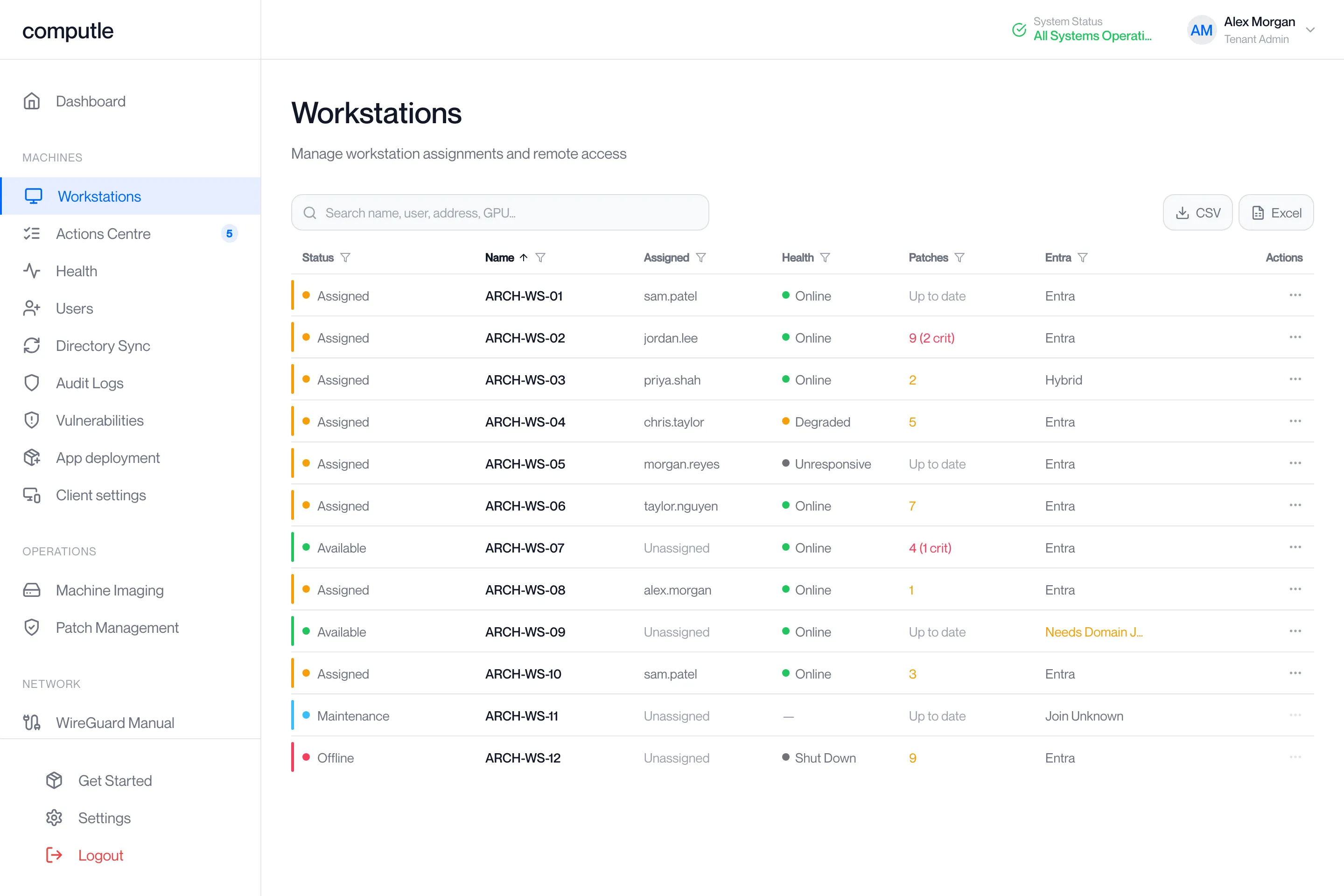
The Workstations page lists every workstation in your organisation, its status and who it is assigned to. From a row you can connect, open a console, start, restart or shut down the workstation, reset its administrator password, and change who it is assigned to.
Open Workstations under Machines in the sidebar. The page needs the Tenant Admin role.
The columns
Section titled “The columns”| Column | What it shows |
|---|---|
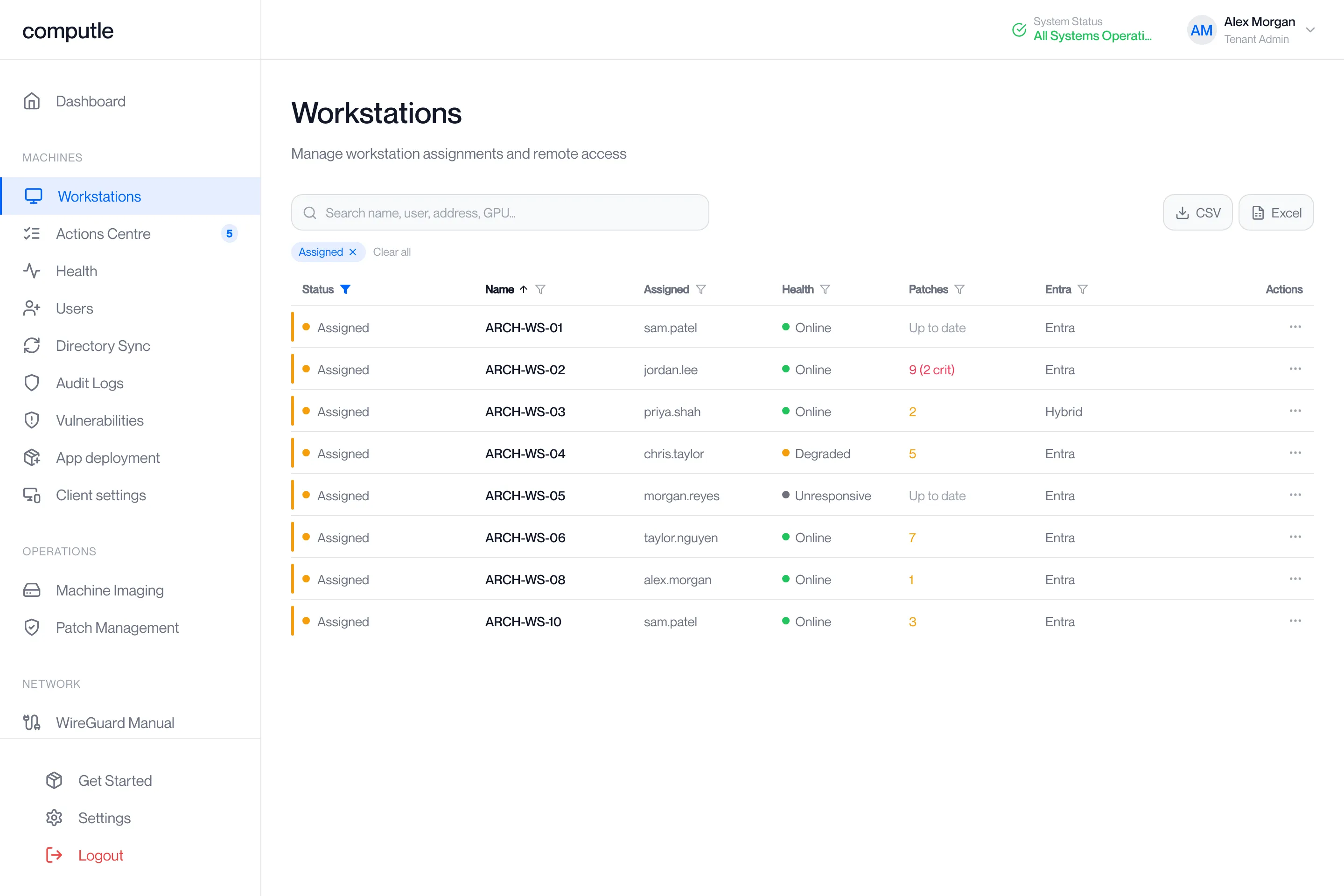
| Status | The workstation’s state in Computle. The coloured bar at the left edge of the row and the dot match the status. See Status. |
| Name | The workstation’s name. Names sort naturally, so Studio-2 comes before Studio-10. |
| Assigned | The user the workstation is assigned to, shown as the part of their email address before the @. “Unassigned” when nobody has it. While a start or restart is running, this column shows its progress instead. |
| Health | The state the workstation’s agent last reported. Shown only when health monitoring is enabled for your organisation. See Health. |
| Patches | “Up to date”, or the number of Windows updates the workstation is missing. A count in red with “(N crit)” means some of them are critical; amber means none are. ”—” until the workstation has been scanned. Shown with the Health column. |
| Entra | How the workstation is joined to your directory, as it last reported. See Directory join. |
| Actions | The ⋯ menu. See Actions. |
Status
Section titled “Status”| Status | Colour | Meaning | Actions available? |
|---|---|---|---|
| Available | Green | Not assigned to anyone. | Yes. |
| Assigned | Amber | Assigned to a user, who can connect to it. | Yes. |
| Deploying | Blue | An image is being deployed to it; see Machine Imaging. The status returns to its previous value when the deployment finishes. | No. |
| Maintenance | Light blue | Set aside by Computle for maintenance. | No. |
| Pending Handover | Purple | Being prepared before it is handed to your organisation. | No. |
| Offline | Red | Marked offline by Computle. | No. |
| Decommissioned | Grey | Taken out of service. | No. |
For Deploying, Maintenance, Pending Handover, Offline and Decommissioned the ⋯ menu and the hover buttons are greyed out. Maintenance, Pending Handover, Offline and Decommissioned are set by Computle; contact your account manager if a workstation shows one of them unexpectedly.
Directory join
Section titled “Directory join”The Entra column reads what the workstation reported about its own directory join.
| Shown as | Meaning |
|---|---|
| Entra | Joined to Microsoft Entra. |
| Hybrid | Joined to an on-premises domain and to Microsoft Entra. |
| Domain | Joined to an on-premises domain only. |
| Registered | Registered with Microsoft Entra without being joined to it. |
| Needs Domain Join | In a workgroup: joined to neither a domain nor Microsoft Entra. Shown in amber; hovering reads “Joined to neither a domain nor Entra — finish the join”. |
| Join Unknown | The workstation has not reported its join yet. |
Find a workstation
Section titled “Find a workstation”Search
Section titled “Search”Type in Search name, user, address, GPU… to filter the list as you type. The search looks in the name, the assigned user’s email address, the workstation’s address, and its processor and graphics card.
A number on its own works differently: it finds the workstation whose own number matches, or a user whose address contains it. Typing 4 shows Studio-04 only.
Click a column heading to sort by it. Click it again to reverse the order. The arrow next to the heading shows the current sort. The list opens sorted by name.
Filter
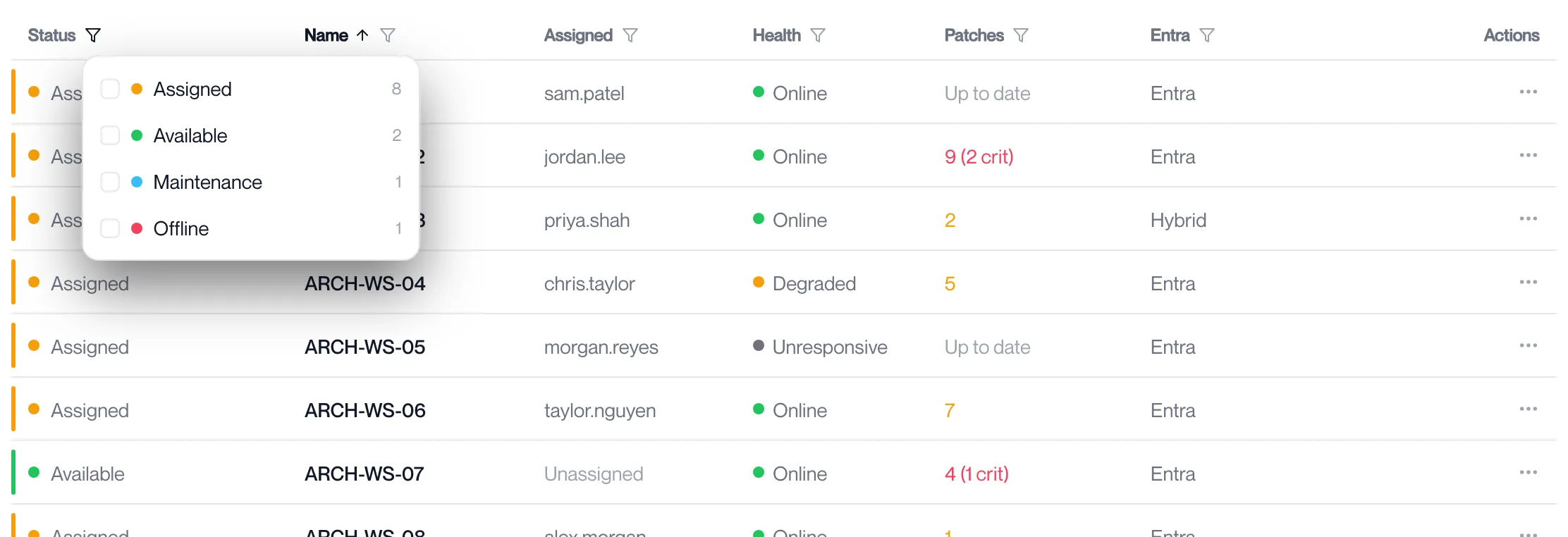
Section titled “Filter”Click the funnel icon next to a heading to filter that column. Each option shows how many workstations match it. Tick more than one option to show all of them. Click Clear at the bottom of the list to remove that column’s filter.
| Column | Filter |
|---|---|
| Status | One or more statuses. |
| Name | One or more graphics card models. The model comes from the workstation’s specification, or from its name when the specification does not list it. |
| Assigned | Text to look for in the user’s email address. Type unassigned to show only workstations with no user. |
| Health | One or more health states, or No health data. |
| Patches | Has critical, Missing updates, Up to date, Unknown. |
| Entra | One or more directory join states. |
Active filters appear as chips above the list. Click a chip to remove that filter, or Clear all to remove every filter and clear the search. When nothing matches, the list says “No workstations match your filters” with a Clear filters link.
Actions
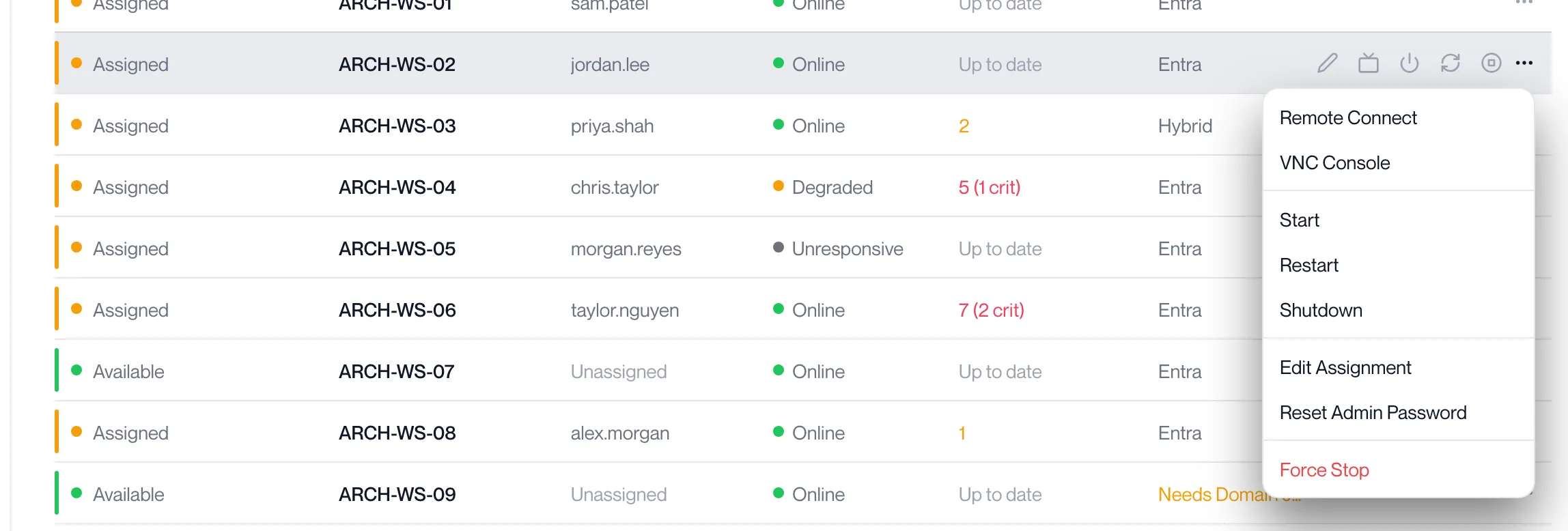
Section titled “Actions”Click the ⋯ at the right of a row to open its menu.
| Action | What it does |
|---|---|
| Remote Connect | Opens the client on your computer and connects to the workstation. Shown only when the workstation’s connection method is Remotle or DCV; see Remote Connect. |
| VNC Console | Opens the workstation’s console in the portal. See Console. |
| Start | Powers the workstation on. |
| Restart | Restarts the workstation. Asks you to confirm. |
| Shutdown | Shuts the workstation down through Windows. Asks you to confirm. |
| Edit Assignment | Opens the Edit Assignment page. See Assigning workstations. |
| Reset Admin Password | Sets a new password on the workstation’s local Administrator account and shows it to you once. See Reset the administrator password. |
| Force Stop | Cuts power to the workstation without shutting Windows down. Asks you to confirm. |
On a wide screen, five buttons also appear when you hover over a row: Edit assignment, VNC Console, Start, Restart and Shutdown.
Restart, Shutdown and Force Stop ask you to confirm, and a start or restart is tracked on the row until it finishes. See Power, console and password reset for each action, the console and the password reset.
Workstation details
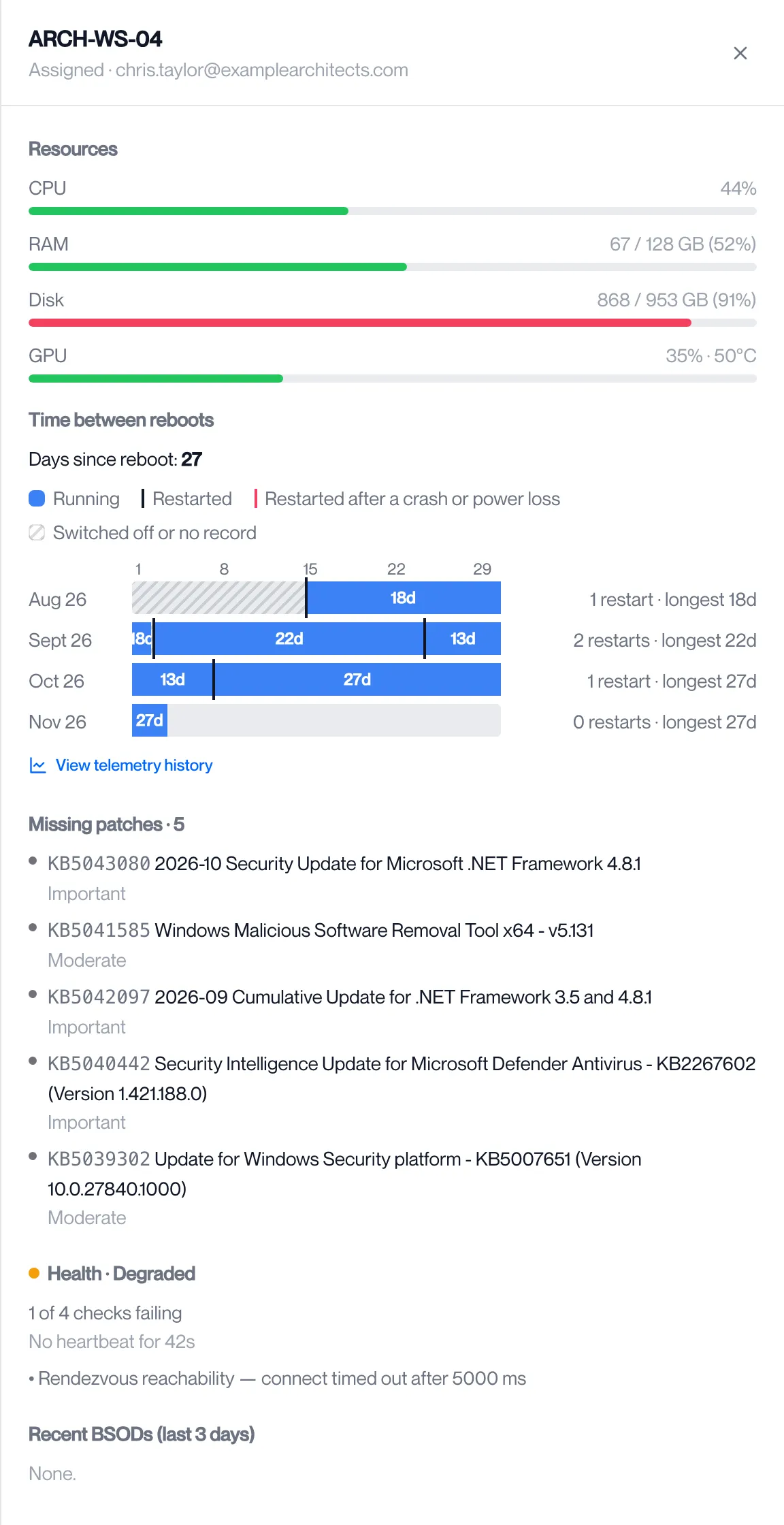
Section titled “Workstation details”Click anywhere on a row to open the workstation’s details in a panel at the right of the page. Click the ×, click outside the panel or press Escape to close it.
| Section | What it shows |
|---|---|
| Heading | The workstation’s name, its status and the assigned user’s email address. |
| Restart | Progress of a start or restart, while one is running. |
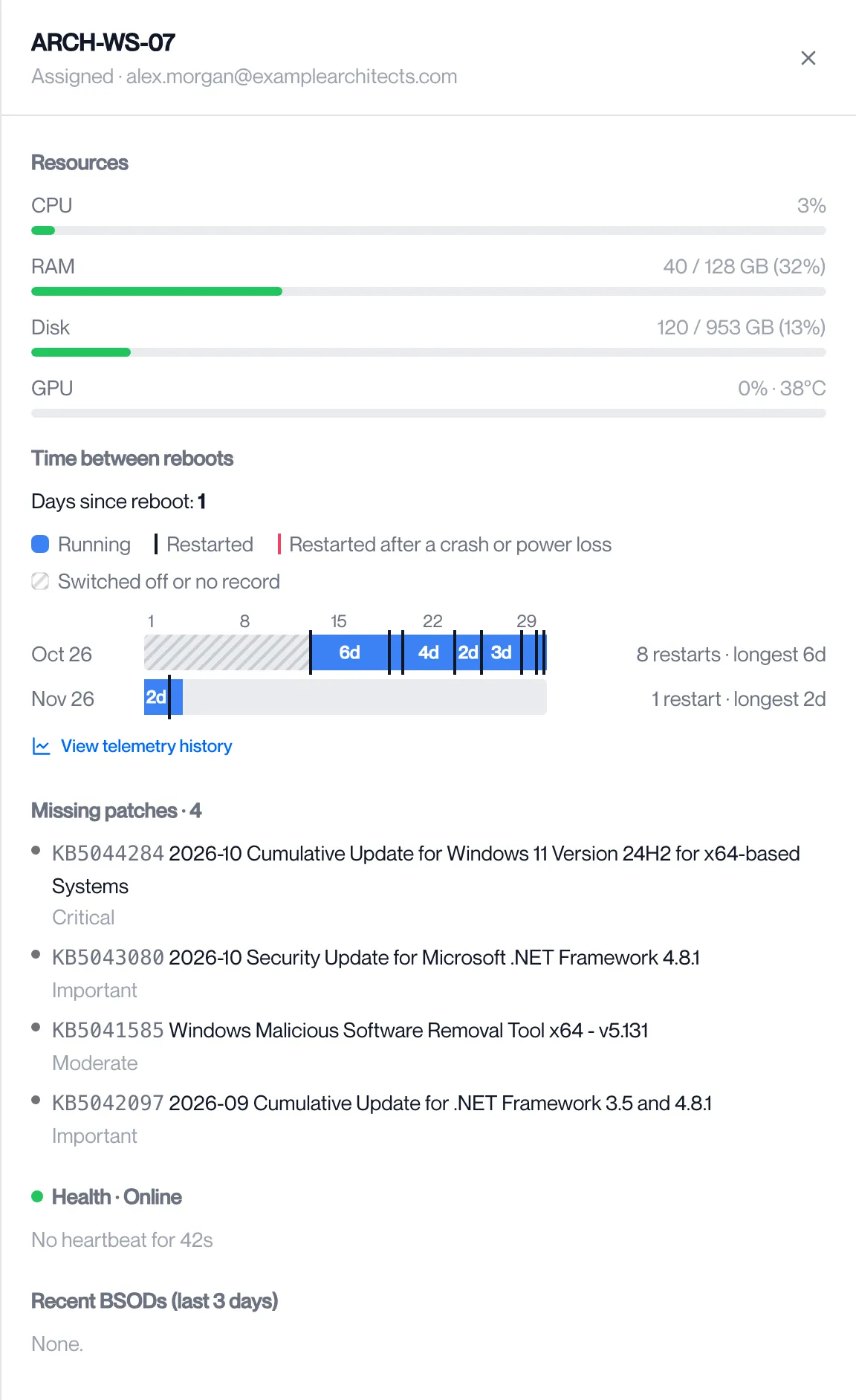
| Resources | Live CPU, RAM, disk and GPU usage, with the GPU temperature. The bar turns amber at 70% and red at 90%. Shown once the workstation has reported its usage. View telemetry history opens the Workstation Telemetry page for this workstation. |
| Time between reboots | Days since the workstation last restarted, and its recent restart history. |
| Missing patches | Each Windows update the workstation is missing, with its severity: critical, important, moderate or low. “Up to date.” when there are none. See Patch Management. |
| Health | The health state with its reason, how long since the last heartbeat, and any failing checks. See Health. |
| Recent BSODs (last 3 days) | Any Windows stop errors reported in the last three days, with the bug check code and time. “None.” otherwise. |
An appliance shows “Appliance · power and console” instead, because it runs no Computle agent.
Open a workstation’s details
Section titled “Open a workstation’s details”-
Find the workstation in the list.
Type part of its name or the user’s email address in the search box, for example
ARCH-WS-07oralex. -
Click the row, anywhere except the ⋯ menu.
The details panel slides in at the right. The heading shows the name, the status and the assigned user.
-
Read the section you need.
Resources shows live usage; Missing patches lists each update by severity; Health shows the state and any failing check. Click View telemetry history to open the workstation’s graphs.
-
Close the panel.
Click the ×, click outside the panel, or press Escape.
Export the list
Section titled “Export the list”Two buttons above the list download the workstations you are currently viewing. Filters and the search box apply, so filter first to export part of the estate. The portal confirms with “Exported N workstations”, or says “Nothing to export with the current filters”.
| Button | File |
|---|---|
| CSV | workstations-<organisation>-<date>.csv, one row per workstation. Opens in Excel with accented names intact. |
| Excel | A workbook with a Cover sheet that records the filters that were applied, a Machines sheet, and a Missing patches sheet listing every missing update per workstation. If the patch detail cannot be fetched the portal says “Patch detail unavailable — exporting without that sheet” and the workbook has the first two sheets. |
The CSV has these columns: Name, Status, Assigned to, Power state, Guest health, Missing patches, Entra / AD, DNS name, IP address, Gateway, Connection method, CPU, RAM (GB), Storage (TB), GPU, Site, Machine UUID, Machine ID. Columns for features your organisation does not have are left blank.
Export the workstations you are viewing
Section titled “Export the workstations you are viewing”-
Filter the list to the workstations you want.
Use the search box, the column filters or both. To export everything, click Clear all first so no filter is left on.
-
Click CSV or Excel above the list.
The portal reports “Exported 8 workstations” and the browser downloads the file:
workstations-example-architects-2026-11-03.csv, or the matching.xlsxworkbook. -
Open the file.
The CSV opens in Excel with one row per workstation. The workbook opens on its Cover sheet, which records the filters you had applied; the Machines sheet is the list and the Missing patches sheet has one row per missing update.
| Message | What to do |
|---|---|
| “Nothing to export with the current filters” | No workstation matches. Change or clear the filters. |
| “Patch detail unavailable — exporting without that sheet” | The workbook was downloaded with the Cover and Machines sheets only. Try again later for the Missing patches sheet. |
Related pages
Section titled “Related pages”Questions
Section titled “Questions”Why is the ⋯ menu greyed out on a workstation?
Section titled “Why is the ⋯ menu greyed out on a workstation?”Its status is Maintenance, Pending Handover, Offline or Decommissioned, or an image is being deployed to it. Nothing can be done with it from the portal until it returns to Available or Assigned.
The Health and Patches columns are not there.
Section titled “The Health and Patches columns are not there.”They appear only when health monitoring is enabled for your organisation. Contact your account manager.
A user says they cannot see a workstation in the client. What do I check?
Section titled “A user says they cannot see a workstation in the client. What do I check?”Find the workstation in the list. The Assigned column must show that user, and the status must be Assigned. If it shows someone else, see Assigning workstations.
Why does the Entra column say “Needs Domain Join”?
Section titled “Why does the Entra column say “Needs Domain Join”?”The workstation reported that it is in a workgroup. A workstation that has just been re-imaged comes back in a workgroup until it is joined again.
Can I rename a workstation?
Section titled “Can I rename a workstation?”Not from the portal. Contact your account manager.
Does the export include workstations I have filtered out?
Section titled “Does the export include workstations I have filtered out?”No. Both exports contain exactly the rows on screen. Clear the filters first to export everything.