Workstations
Power, console and password reset
Every row on the Workstations page has a ⋯ menu with the actions you take on a workstation itself: connect to it, open its console, start, restart, shut down or force stop it, and reset its Administrator password. This page covers each of them.
Open Workstations under Machines in the sidebar and click ⋯ on the workstation. The actions need the Tenant Admin role. The menu is greyed out while the workstation’s status is Deploying, Maintenance, Pending Handover, Offline or Decommissioned.
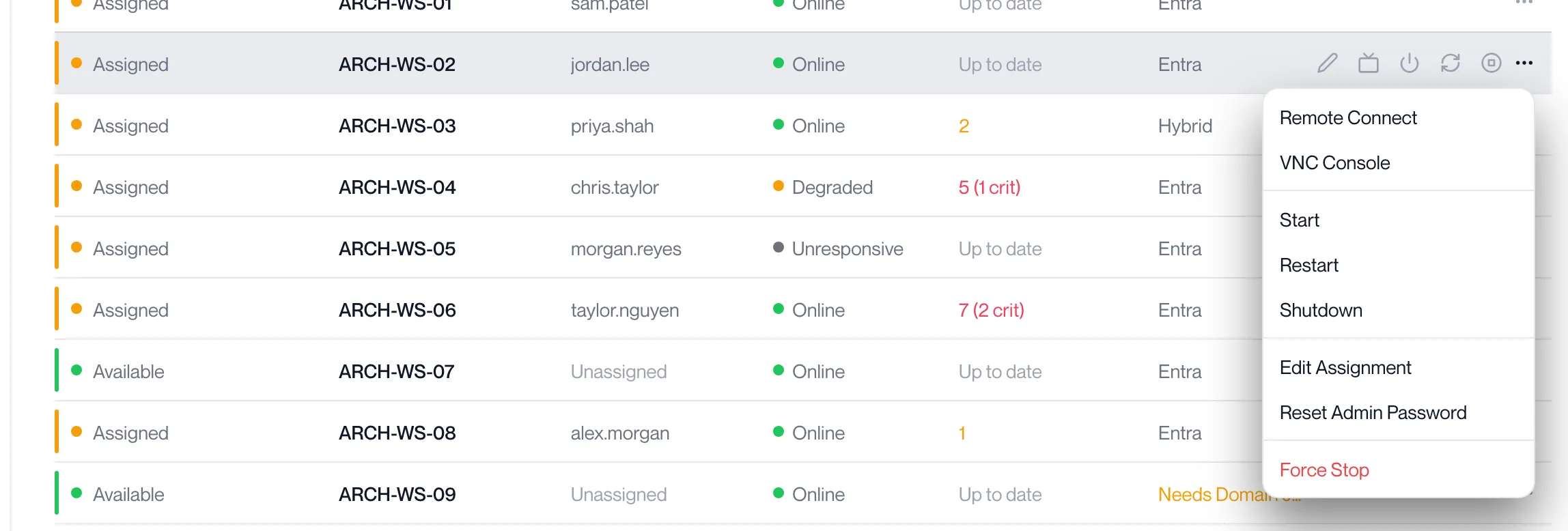
Remote Connect
Section titled “Remote Connect”Remote Connect opens the client on your computer and connects you to the workstation. The portal shows “Connecting to …” and the client takes over.
It appears in the menu only when the workstation’s connection method is Remotle or DCV, and for DCV only when the workstation has an address. For RDP or TGX, or for an appliance, it is not offered; the portal says “Remote connect is not available for this machine” if it cannot open the link. The method is set on the Edit Assignment page; see Assigning workstations.
Connect from the portal
Section titled “Connect from the portal”-
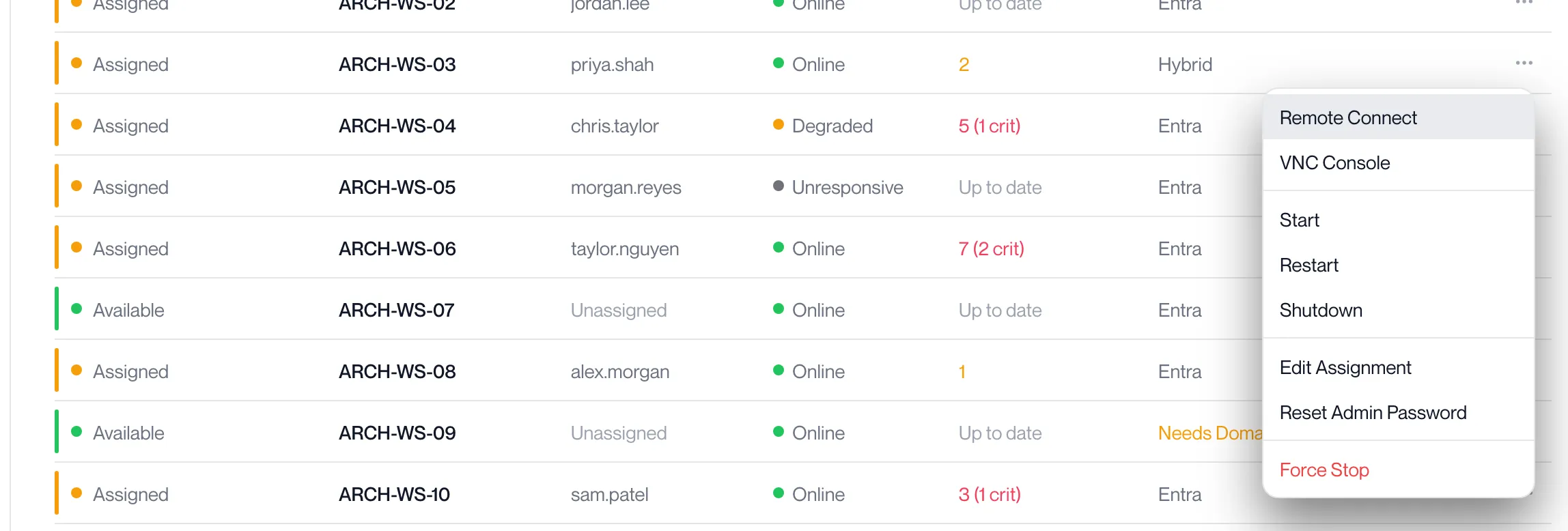
On the Workstations page, click ⋯ on the workstation and choose Remote Connect.
-
Allow the browser to open the client.
The portal reports “Connecting to ARCH-WS-03…” If the browser asks whether to open the Computle client, allow it. The client starts and connects to the workstation.
-
If the client does not open, install it first.
See Computle Client. Nothing in the portal needs to be changed.
Start, restart, shut down and force stop
Section titled “Start, restart, shut down and force stop”For click-by-click steps for each of these, see Start, restart or shut down a workstation.
| Action | What it does | Confirmation |
|---|---|---|
| Start | Powers the workstation on. | None. |
| Restart | Restarts the workstation. | “Are you sure you want to restart …?” |
| Shutdown | Shuts the workstation down through Windows. | “Are you sure you want to shutdown …?” |
| Force Stop | Cuts power to the workstation without shutting Windows down. | “Are you sure you want to force stop …?” with “Warning: Force stop may cause data loss if the workstation has unsaved work.” |
On a wide screen, Start, Restart and Shutdown also appear as buttons when you hover over the row.
An appliance, such as a file server that Computle hosts for you, also asks you to type its name before Restart, Shutdown or Force Stop goes ahead.
For a shutdown the portal reports “Workstation shutdown initiated” and, for a force stop, “Workstation stopped”. A failure reads “Failed to start workstation”, “Failed to restart workstation”, “Failed to shutdown workstation” or “Failed to stop workstation”.
Following a start or restart
Section titled “Following a start or restart”A start or restart is tracked on the row. The Assigned column shows its progress and the Start, Restart and Shutdown controls stay locked until it finishes, so one click is enough.

| Message | Meaning |
|---|---|
| Restart in progress — this usually takes a few minutes. | The restart has been issued. |
| Still working — completing the restart. | The restart is taking longer than usual and Computle is completing it. |
| Restart complete. | The workstation is back. |
| This restart is taking longer than expected. Our engineering team has been notified and is completing it for you — no action needed. | Shown after 12 minutes, or when the restart could not be completed automatically. Nothing is needed from you. |
| This workstation is already running. | You asked to start a workstation that was already on. |
A start shows the same stages with “Starting up” and “Your workstation is ready.” in place of the restart wording. Opening the workstation’s details while this runs shows the same message under a Restart heading.
Console
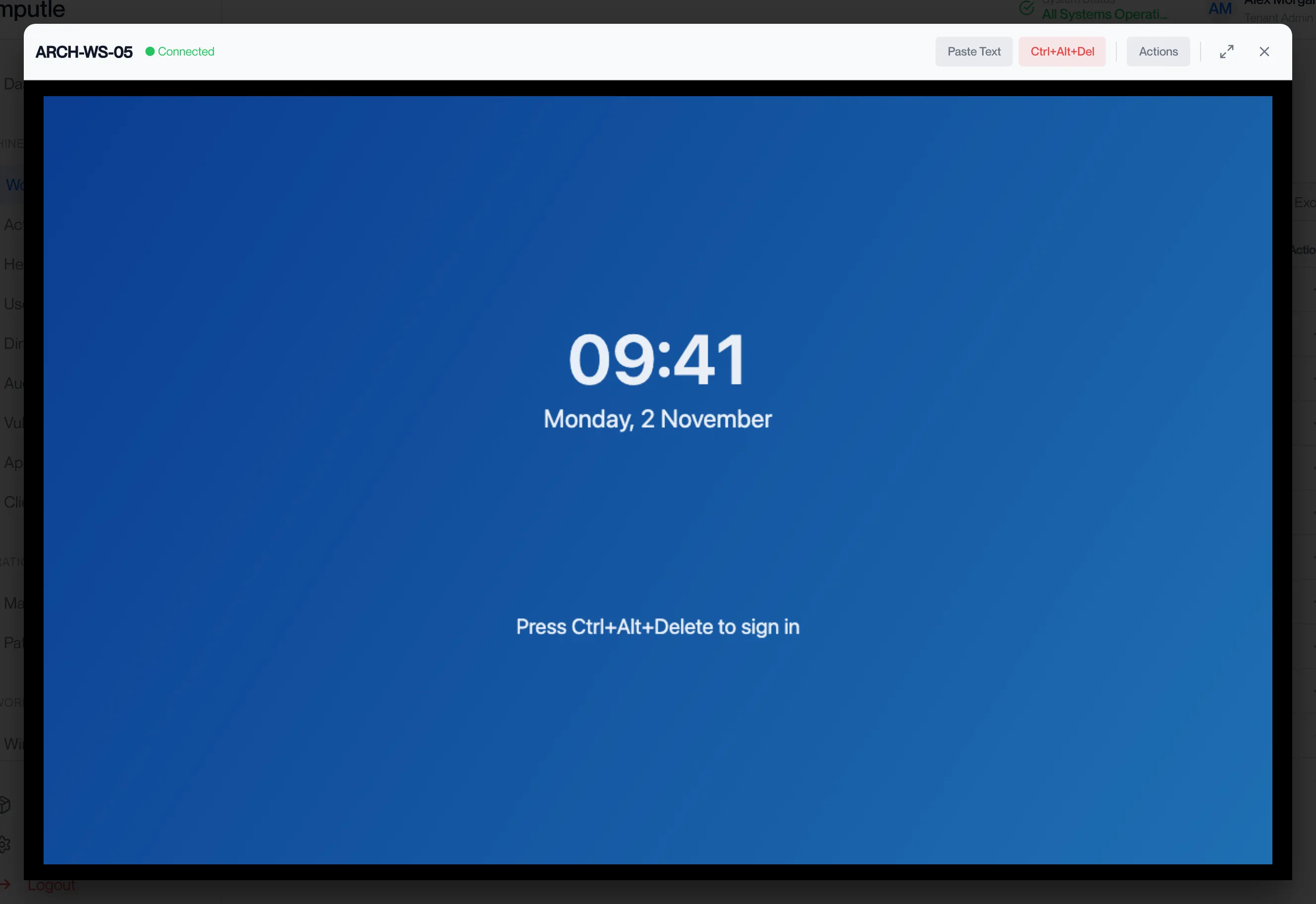
Section titled “Console”VNC Console opens the workstation’s screen in a window in the portal, as if you were sitting at it. It works before Windows has started and when nobody can sign in, so it is the way to reach a workstation that a user cannot connect to.
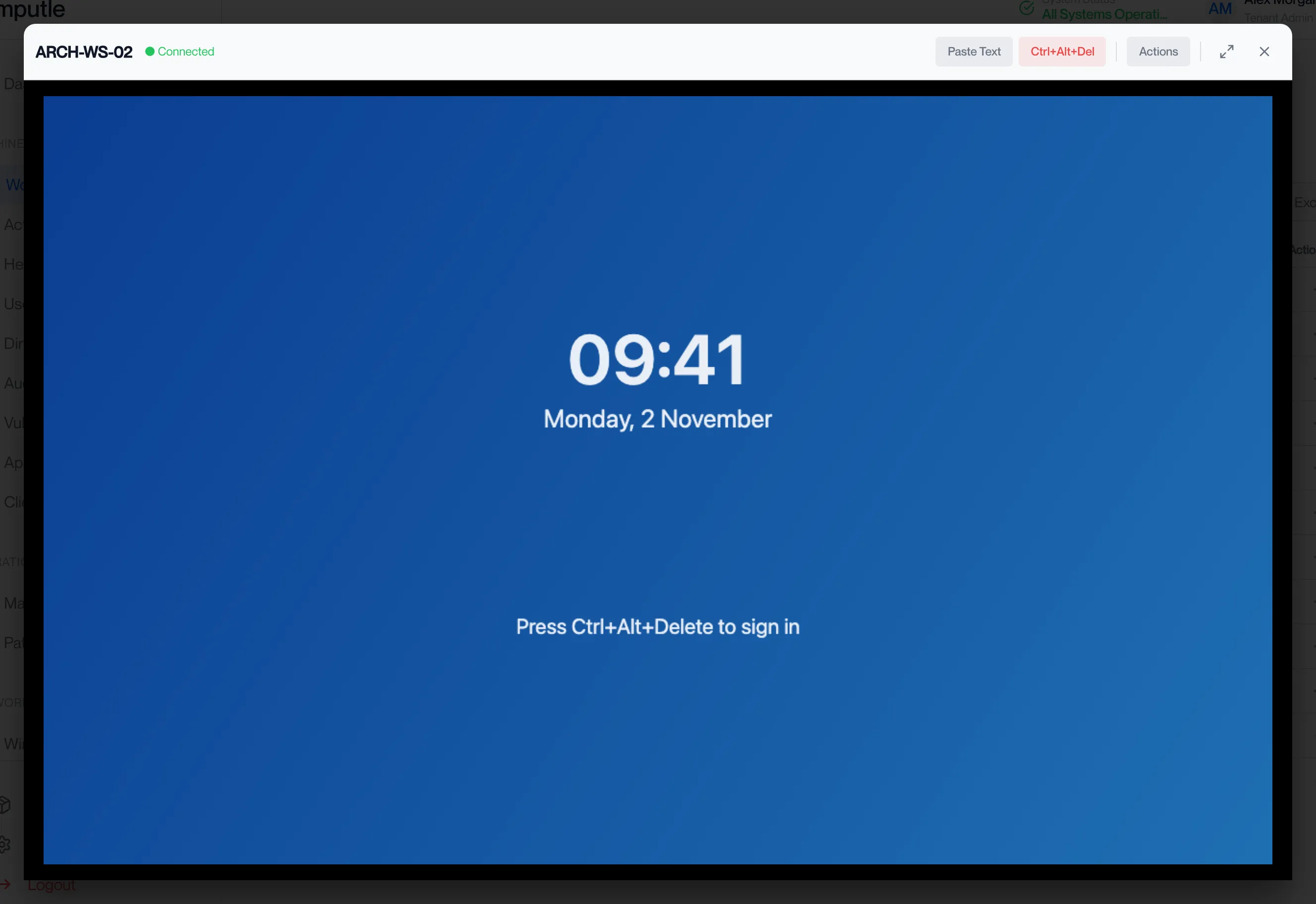
| Control | What it does |
|---|---|
| Status | Connecting…, Connected, Reconnecting…, Disconnected or Connection Error, beside the workstation’s name. |
| Paste Text | Types the text on your clipboard into the workstation. |
| Ctrl+Alt+Del | Sends Ctrl+Alt+Del, for the Windows sign-in screen. |
| Actions | Start, Restart, Shutdown, Reset Admin Password and Force Stop, as on the list. |
| Keyboard | On a touch device, opens the on-screen keyboard. |
| Enter fullscreen | Fills your screen with the console. |
| Close | Closes the window. Clicking outside it also closes it. |
If the connection drops, the console reconnects by itself: “Attempt N of 18 — retrying every 10s”. After that it reads “Failed to connect to VNC” and “Please check if the workstation is running and try again”, with a Try Again button.
Open the console
Section titled “Open the console”-
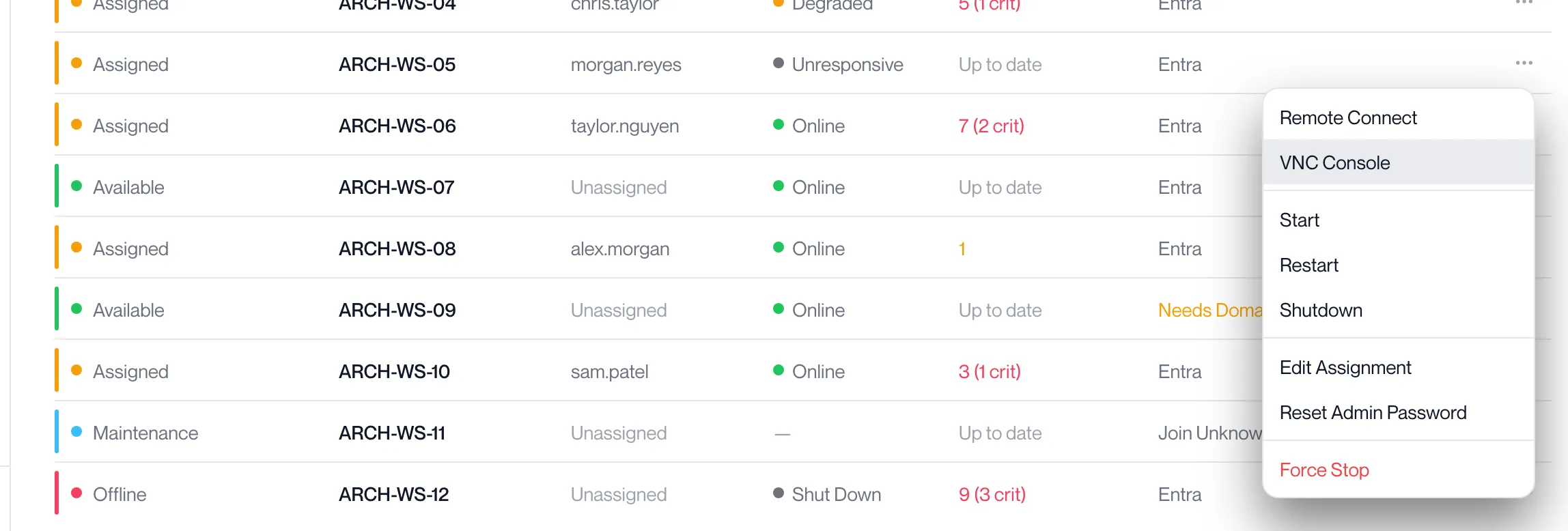
On the Workstations page, click ⋯ on the workstation and choose VNC Console.
On a wide screen the VNC Console button also appears when you hover over the row.
-
Wait for the status beside the workstation’s name to read Connected.
It reads Connecting… first. The workstation’s screen then fills the window, exactly as it is at that moment: the Windows sign-in screen, a desktop, or the boot screen if it is still starting.
-
Click Ctrl+Alt+Del to reach the Windows sign-in screen, then click in the window and type.
Your keyboard and mouse go to the workstation while the pointer is over the window. To type a long password or a command, copy it on your own computer and click Paste Text; the button reads Pasting… and then Pasted!.
-
Click Close when you have finished.
Clicking outside the window also closes it.
If the window reads “Failed to connect to VNC”, the workstation is off or still starting. Click Try Again, or close the console, start the workstation from the ⋯ menu and open the console again once the row’s progress message reads “Your workstation is ready.”
Reset the administrator password
Section titled “Reset the administrator password”Reset Admin Password sets a new, random password on the workstation’s local Administrator account.
-
Click ⋯ and Reset Admin Password.
The dialog reads “Are you sure you want to reset the Administrator password for …?” and “The current password will be replaced immediately. Any active sessions using the old password may be disconnected.”
-
Click Reset Password.
The workstation must be running. If it is busy with another task the portal says ”… has pending tasks. Please try again shortly.”; if it cannot be reached, “Failed to reset password for …. Ensure the workstation is running.”
-
Copy the password.
“Password Reset Successful” shows the new password once, with a copy button. The text reads “Copy the password below. It will not be shown again.” After 30 seconds the password is blurred; click it to reveal it again. Close the dialog once you have it.
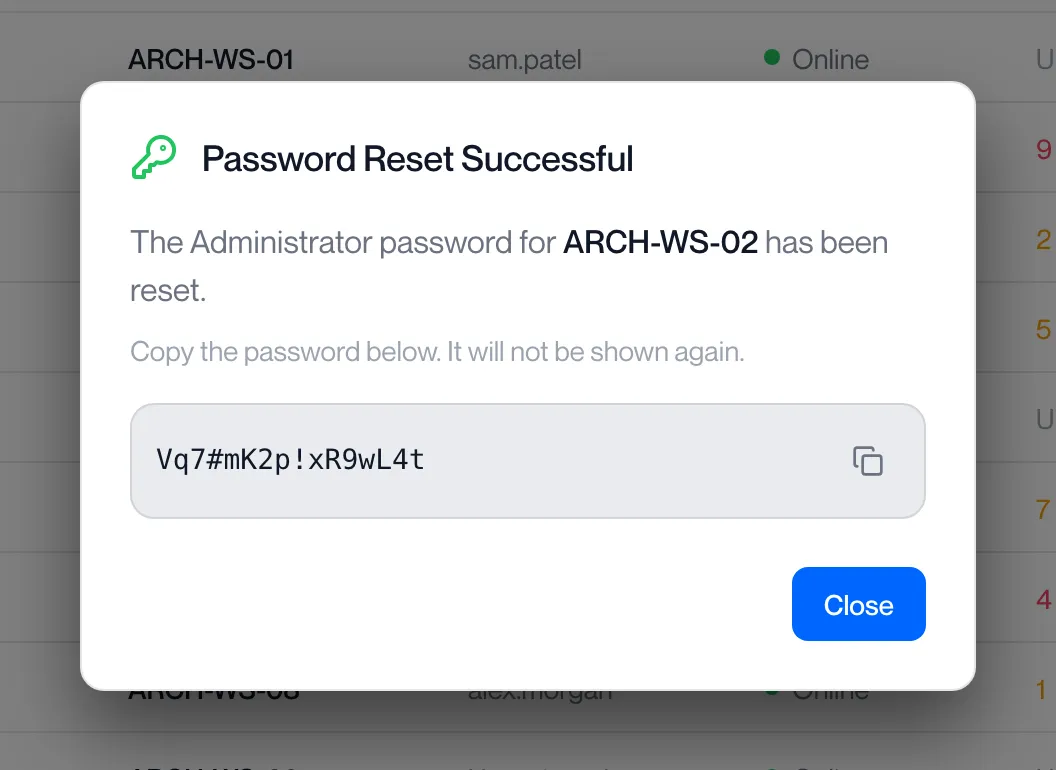
The same action is available from the Actions menu in the console, which shows the new password under “New Admin Password:”.
Related pages
Section titled “Related pages”Questions
Section titled “Questions”Why is Remote Connect missing from the menu?
Section titled “Why is Remote Connect missing from the menu?”The workstation’s connection method is RDP or TGX, which the client does not launch from the portal, or the workstation is an appliance. Change the method on the Edit Assignment page; see Assigning workstations.
The Start, Restart and Shutdown buttons are greyed out.
Section titled “The Start, Restart and Shutdown buttons are greyed out.”A start or restart is still running on that workstation, or its status is one that allows no actions. Wait for the row’s progress message to finish.
Does Reset Admin Password change the user’s password?
Section titled “Does Reset Admin Password change the user’s password?”No. It changes the workstation’s local Administrator account only. Users sign in with their own accounts.
Can I use the console on an appliance?
Section titled “Can I use the console on an appliance?”Yes. An appliance offers Start, Restart, Shutdown and Force Stop in the console’s Actions menu; Reset Admin Password is not offered for it.