App Messages
Diagnostics
Diagnostics checks every service this device needs to connect, from the sign-in service to each relay, and tells you which one is not answering. Run it when a connection message asks you to, when a network has not been used with Remotle before, or before you contact support.
What the test checks
Section titled “What the test checks”| Group | Rows | What a pass means |
|---|---|---|
| This device | Client version, Signed in, Support code, Log file | Information about this device. These rows are not checks. |
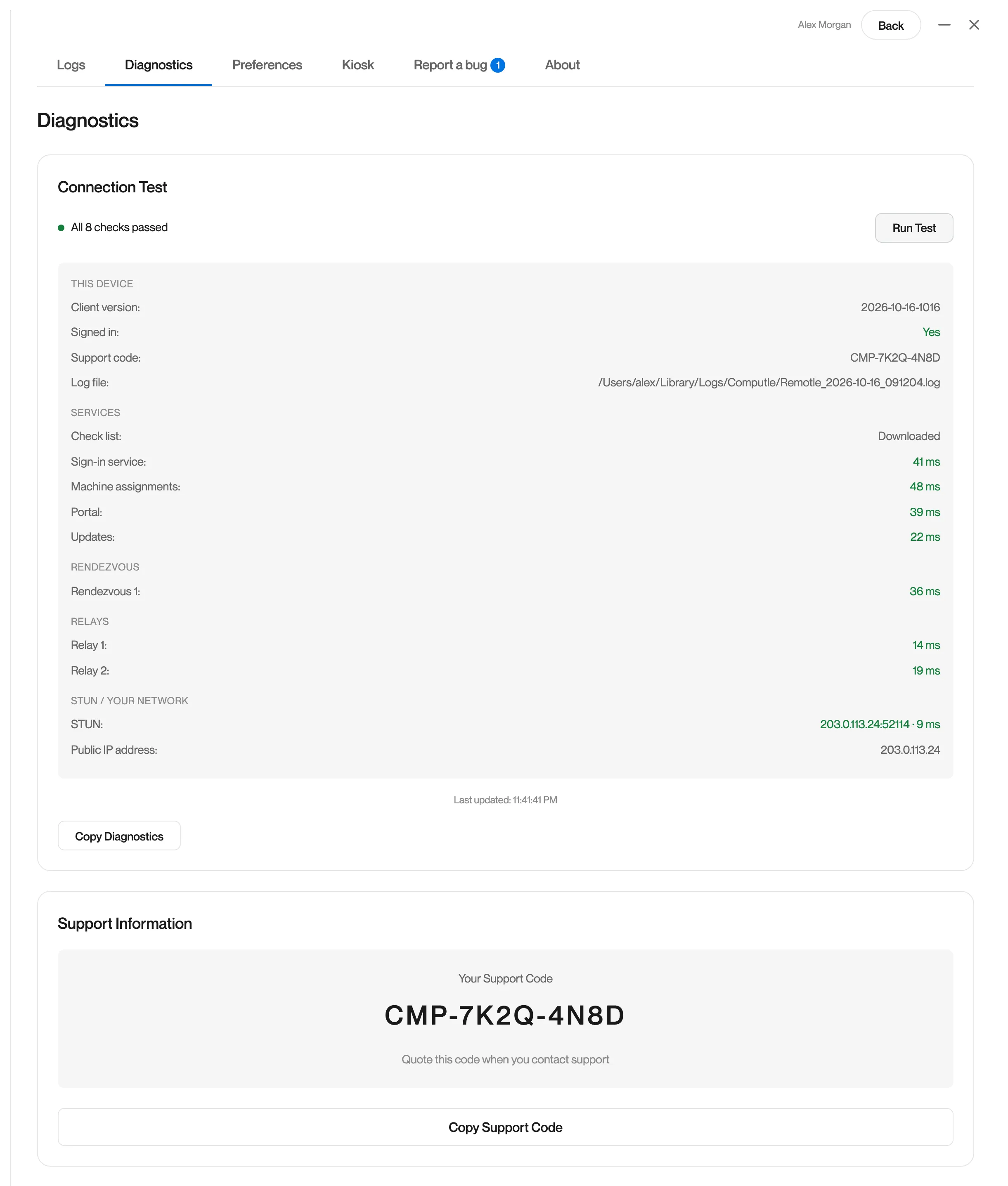
| Services | Check list, Sign-in service, Machine assignments, Portal, Updates | This device can reach each Computle web service over HTTPS. |
| Rendezvous | One row per rendezvous server | This device can reach the service that introduces it to your workstation at the start of a session. |
| Relays | One row per relay | This device can send and receive UDP on port 4443 to each Computle relay. A session uses a relay when no direct path to the workstation is available. |
| STUN / Your network | STUN, Public IP address | This device can learn its own public address, which it needs to find a direct path to the workstation. |
The summary line counts only the checks: “All 8 checks passed”, or “3 of 8 checks need attention”.
Run a connection test
Section titled “Run a connection test”-
Open Settings.
On the machine list, click the gear icon at the top right. In a session, open Settings from your machine list after you disconnect.
-
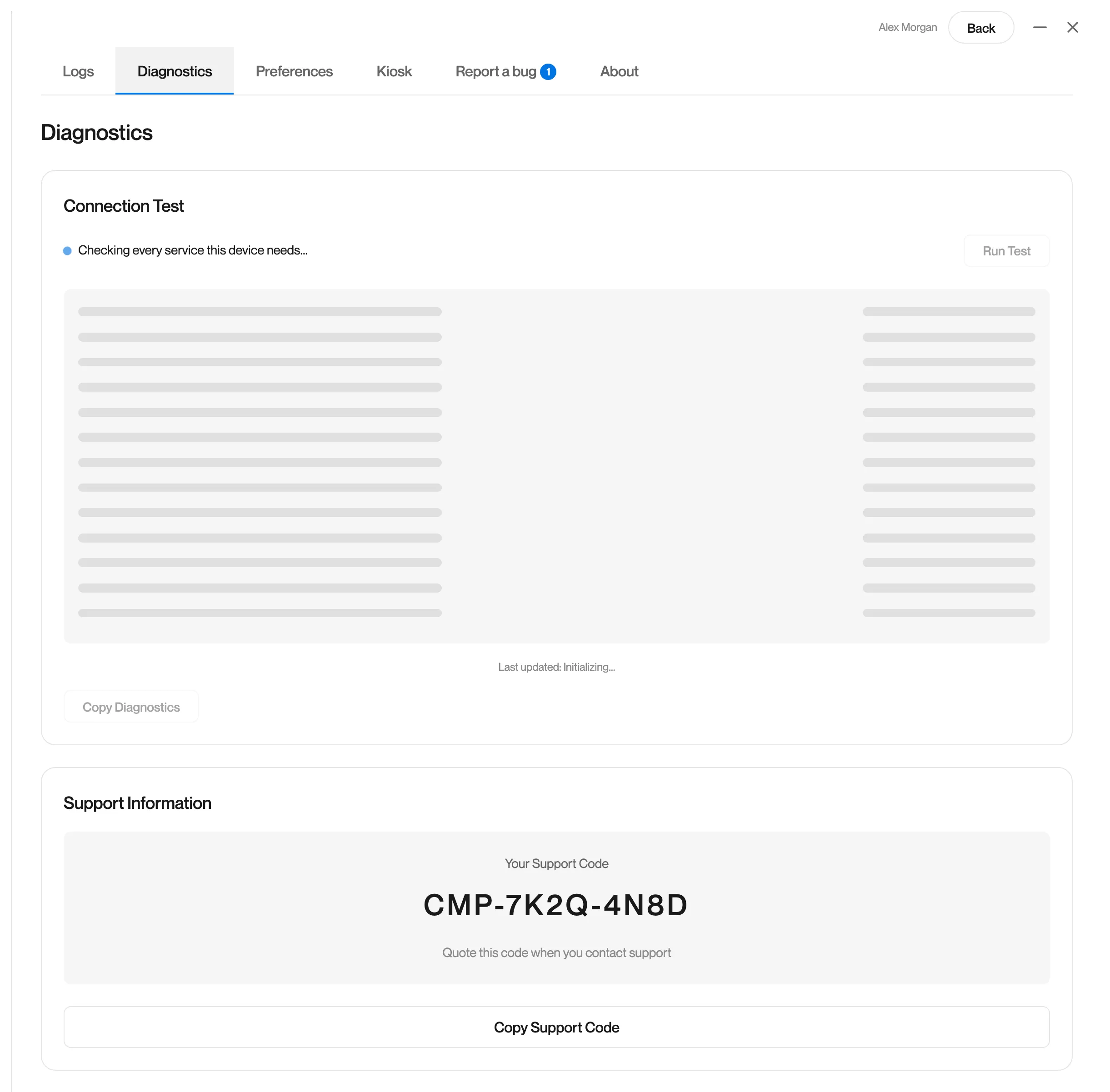
Open the Diagnostics tab.
Your Support Code is shown under Support Information before you run anything.
-
Click Run Test.
Remotle shows “Checking every service this device needs…” while it runs.
-
Read the summary line and the coloured results.
Green is a pass. Orange needs attention and the session may still work. Red means the service did not answer.
-
Click Copy Diagnostics.
Remotle copies the summary and every row as text. Paste it into a report from the app, or into a message to your IT team or Computle support.
Remotle keeps the last result and shows it, with “Last updated”, the next time you open the tab.
Reading the results
Section titled “Reading the results”Each row shows a value and, when it needs attention, a reason underneath. The values and reasons Remotle can show:
Services and Rendezvous
Section titled “Services and Rendezvous”| Value | Reason shown | What it means |
|---|---|---|
| “41 ms” (green) | The service answered. The figure is the round trip from this device. | |
| “Degraded · 36 ms” (orange) | “Degraded: [reasons]” | The rendezvous server answered and reports it is degraded. Connections still work. |
| “Draining · 36 ms” (orange) | “Draining: [reasons]” | The rendezvous server is handing its connections to another one. New connections go elsewhere. |
| “HTTP 503” (red) | “No health report (HTTP 503).” or “The service answered HTTP 503.” | The service answered with an error. Try again in a few minutes. |
| “Timed out” (red) | No answer within the time allowed. | |
| “The name could not be resolved” (red) | This device could not look up the service’s address in DNS. Check this device’s DNS settings. | |
| “Could not connect” (red) | The connection was refused or blocked. | |
| “The certificate was not trusted” (red) | A device on the network is intercepting HTTPS and presenting its own certificate. See Network Requirements. | |
| Check list: “Downloaded” | Remotle downloaded the current list of services to check. | |
| Check list: “Built-in list” (orange) | “The latest list could not be downloaded ([why]).” | Remotle used the list it shipped with. The rest of the test is still valid. |
Relays
Section titled “Relays”| Value | Reason shown | What it means |
|---|---|---|
| “14 ms” (green) | The relay answered on UDP 4443. | |
| “Healthy · 14 ms”, “Degraded · 14 ms” or “Draining · 14 ms” (orange) | One or more of “cannot report to rendezvous”, “certificate expiring or unreadable”, “at capacity”, “forwarding socket down” | The relay answered and reported its state. Computle monitors this; no action is needed on your side. |
| “No reply” (red) | “UDP blocked or relay down (UDP 4443).” | Nothing came back. On a company network this is almost always UDP 4443 being blocked outbound. |
| “Unreachable” (red) | “Could not resolve [host] ([why]).” or the network error | This device could not look up or reach the relay’s address. |
STUN / Your network
Section titled “STUN / Your network”| Value | Reason shown | What it means |
|---|---|---|
| “203.0.113.24:52114 · 9 ms” (green) | The STUN server answered with this device’s public address and port. | |
| “No reply” (red) | “UDP blocked or STUN server down (UDP 3478).” | No UDP reached the STUN server or came back. |
| “9 ms” (orange) | “The reply carried no public address.” | The server answered without an address. |
| Public IP address: “Unknown” (orange) | “No STUN server replied.” | Remotle could not learn this device’s public address, so it cannot find a direct path. Sessions use a relay. |
When UDP is blocked
Section titled “When UDP is blocked”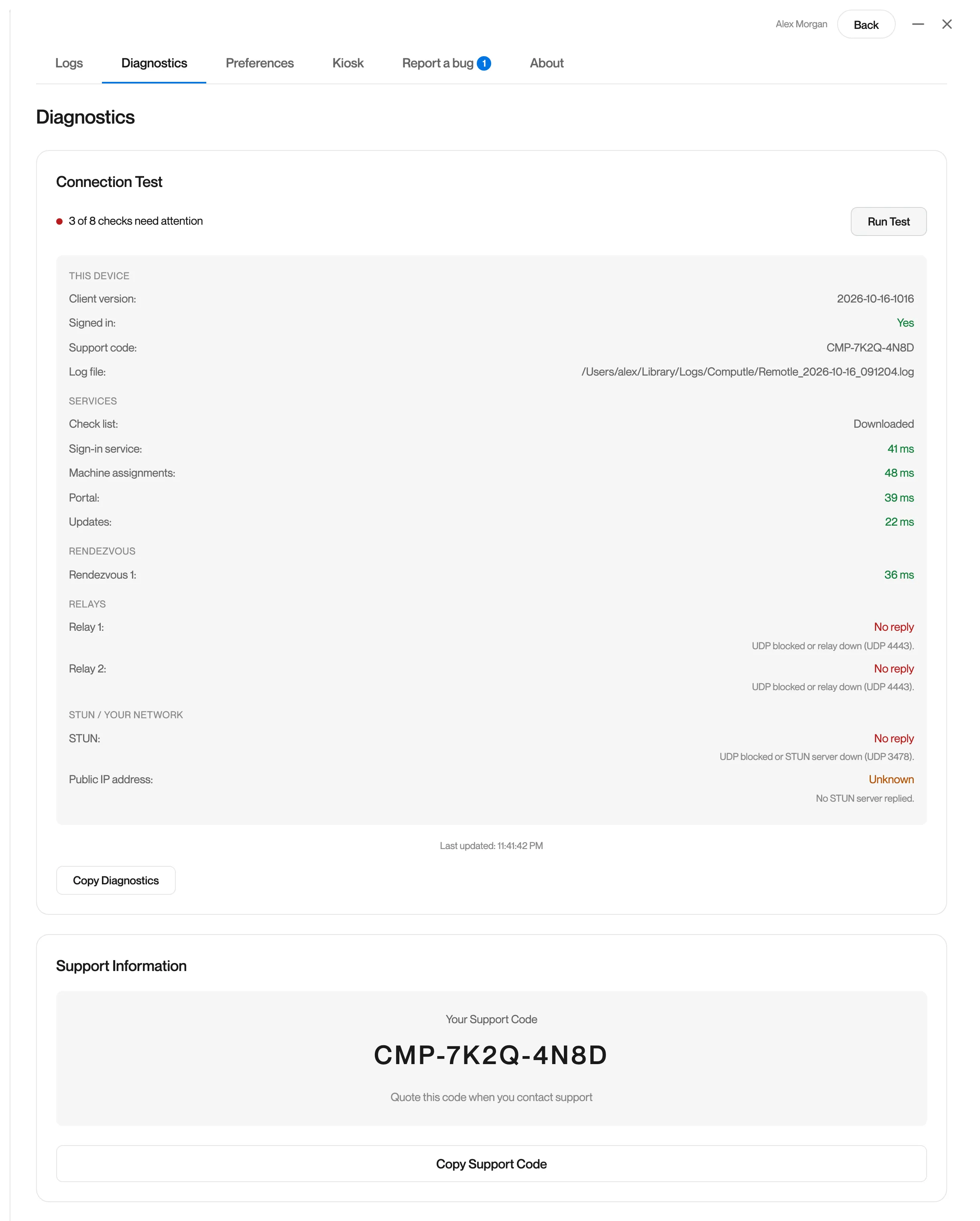
This pattern, with every relay and STUN showing “No reply” while Services and Rendezvous pass, means the network allows web traffic and blocks UDP. Remotle streams over UDP, so sessions cannot start on this network until it is allowed.
- Click Copy Diagnostics.
- Send the results to your IT team with Network Requirements, which lists the addresses and ports to allow.
Diagnostics could not run
Section titled “Diagnostics could not run”“Diagnostics could not run” means the test itself did not complete. Try again. If it continues, open Settings, Report a bug and send a report; it includes the app’s logs.
Your Support Code
Section titled “Your Support Code”Settings, Diagnostics shows Your Support Code under Support Information. It identifies this installation of Remotle to support, so they can find its logs without asking you for them. The same code is shown on the About tab and in the Support code row of the test results.
- Click Copy Support Code.
- Quote it when you contact Computle support, and in any report you send from the app. Reports include it by themselves.
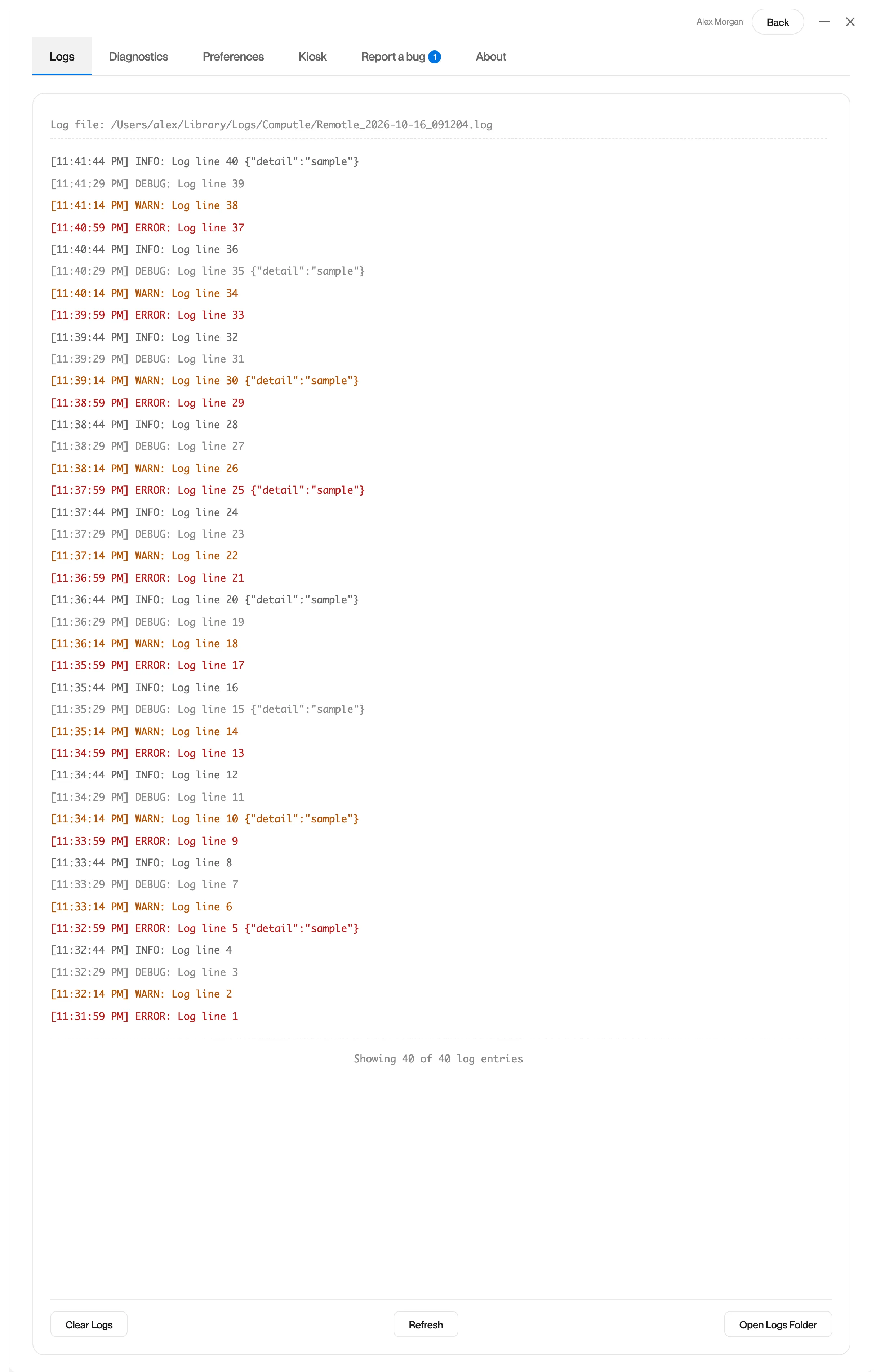
Remotle writes a log on this device and sends it to Computle while you are signed in, so support can usually see what happened without asking you for files. The Logs tab in Settings shows the recent entries that need attention, the path of the current log file, and Open Logs Folder.
| Log | Where |
|---|---|
| App log | %LOCALAPPDATA%\Computle\Stream\shell.log |
| Session logs | C:\ProgramData\Computle\Remotle\Logs\, when support has turned on local log files on this device |
Open Logs Folder opens the folder of each file that exists. Clear Logs empties shell.log and keeps any session logs.
| Log | Where |
|---|---|
| App and session log | ~/Library/Logs/Computle/Remotle_<date>_<time>.log, one file per launch, kept for 28 days |
Open Logs Folder opens this folder in Finder.
| Log | Where |
|---|---|
| App and session log | ~/.local/state/computle-stream/logs/, one file per run, the last 30 kept |
Open Settings, Logs and tap Share Log to send the current log by email, Messages or AirDrop.
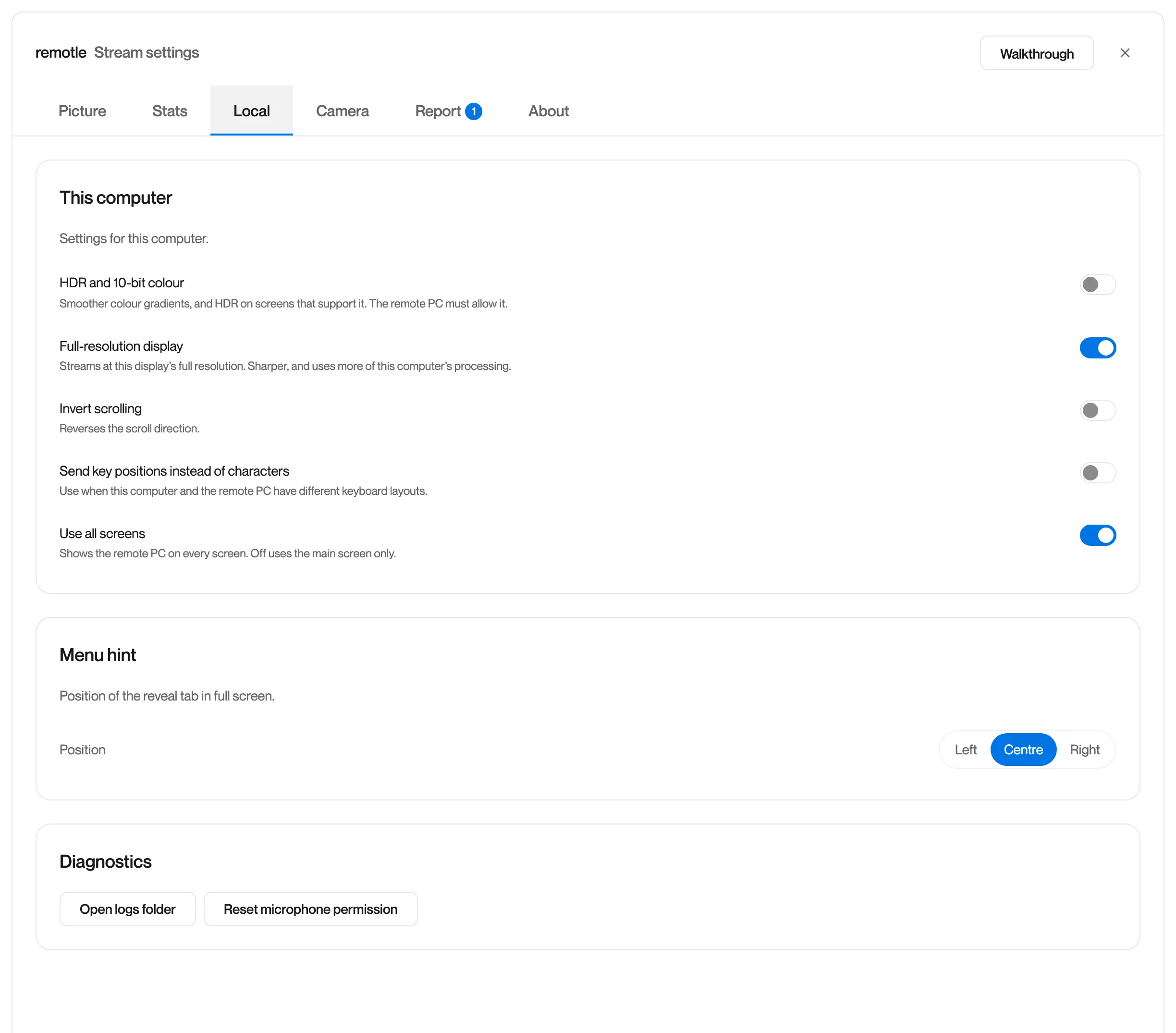
During a session, the logs folder is also reachable from the session menu: press F2, open Local and click Open logs folder under Diagnostics.
For the logs on the workstation itself, see Host Logs.
Collect everything for support
Section titled “Collect everything for support”When you contact Computle support about a connection, send these four things:
- The message. Click Copy details on a connection message, or write down the exact text of an in-session message.
- The diagnostics. Settings, Diagnostics, Run Test, then Copy Diagnostics.
- Your Support Code. Shown under the diagnostics; it is also included in the copied diagnostics.
- When it happened. The time and the workstation’s name.
Sending a report from the app does all of this in one step. See Reporting a Problem.