Getting Help
Triage an Issue
Work through this list when something is not working. Each step either resolves the fault or narrows it down, and the details you collect at the end are the fields on the New Ticket form, so the ticket can be raised in one go.
1. Check Service Status
Section titled “1. Check Service Status”Open the Computle Portal. The top of every page shows “System Status”. “All Systems Operational” means the service is running normally and the fault is local to your organisation. Anything else is an incident Computle is already working on, and the status page carries the updates, so there is nothing to collect. See Service Status.
If you cannot open the portal at all, open https://status.computle.com directly.
2. Find out how wide it is
Section titled “2. Find out how wide it is”Answer these three questions before anything else. They decide where to look and how urgent it is.
| Question | If the answer is one | If the answer is all |
|---|---|---|
| Is it one user or several? | Start with that person’s device and sign-in. | Something shared: a workstation, a network or the service. |
| Is it one workstation or every workstation? | Check that workstation in the portal (step 3). | Check Service Status again, then the network the users share. |
| Is it one location or network, or everywhere? | Ask the user to try another network, for example a mobile hotspot. If it works there, the fault is on the first network. | The network is not the cause. |
Note the answers. The New Ticket form asks for “Affected Machines” and “Affected Users”, and support reads them first.
3. Check the workstation in the portal
Section titled “3. Check the workstation in the portal”These pages need the Tenant Admin role.
-
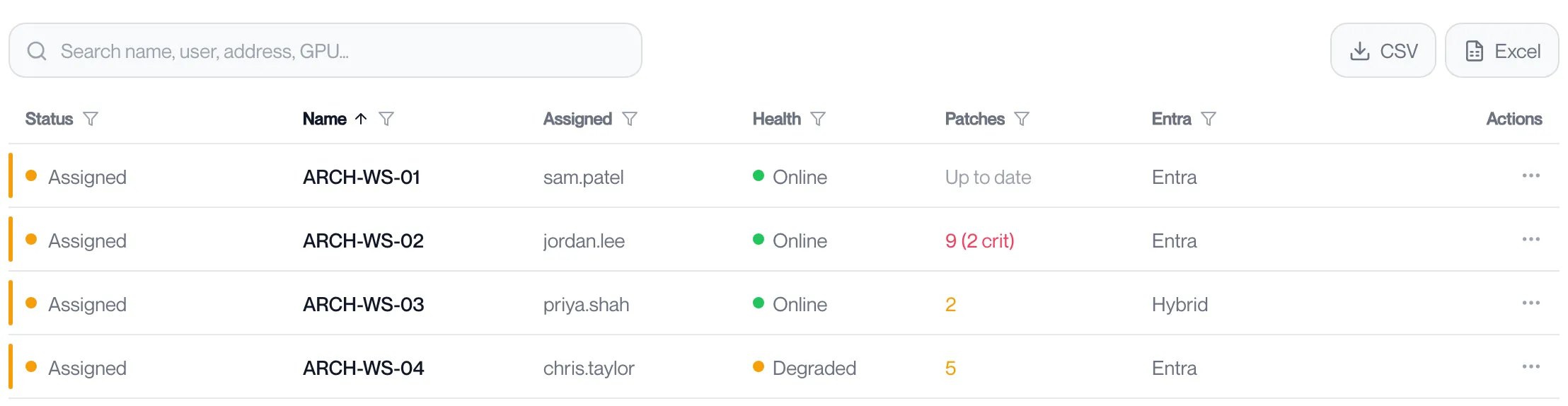
Open Workstations and find the workstation.
Check whether it is running and whether the right user is assigned to it. A workstation that is off cannot be connected to, and a user without an assignment sees “No machine assigned” on their Dashboard. See Workstations.
-
Open Health.
Health shows “Per-machine guest health and crash dumps”. The “Machines with crashes” count and the list underneath tell you whether the workstation restarted unexpectedly in the last 3, 7 or 30 days, and what Windows recorded when it did. “No crashes in the selected period.” means it did not.

-
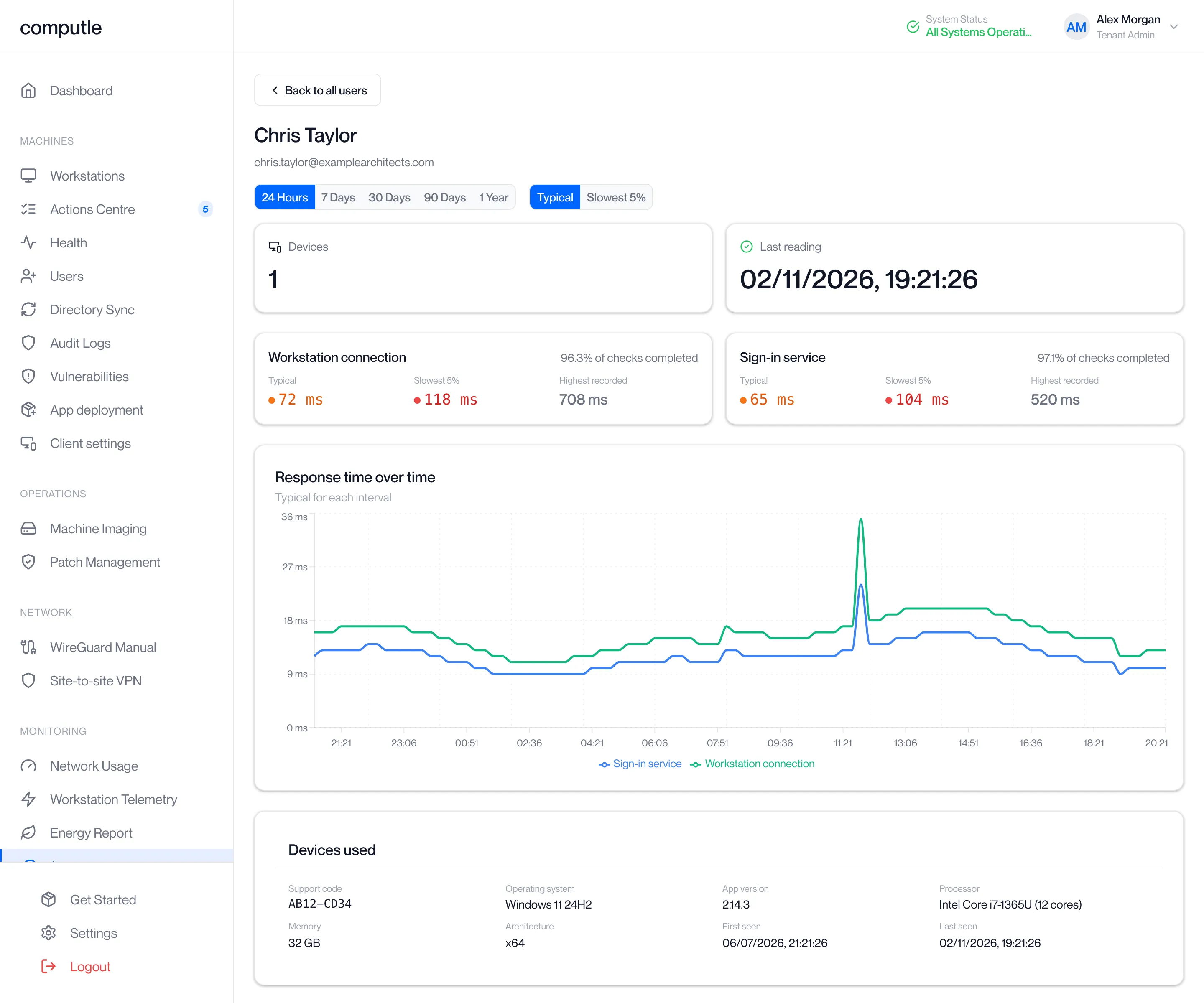
Open Latency.
Latency shows the response time of the “Workstation connection” and the “Sign-in service” as measured from users’ devices, over 24 hours to a year, with “Typical”, “Slowest 5%” and “Highest recorded” figures. Select a user under “By user” to see their own readings and the devices they used, including “Support code”, “Operating system” and “App version”. A user whose readings are far above the others is on a slow path; a day where everyone’s readings rise points at the network or the service.
Monitoring pages are shown when Computle has enabled monitoring for your organisation.
4. Try the safe steps
Section titled “4. Try the safe steps”These steps do not lose work and do not change any setting.
| Step | What it tells you |
|---|---|
| Sign out of Remotle and sign in again on the user’s device. | Clears a stale sign-in. |
| Run Diagnostics in Remotle on the user’s device and click Copy Diagnostics. See Diagnostics. | Names the service this device cannot reach, and shows whether UDP is blocked on this network. |
| Find the message on screen in Remotle’s Troubleshooting section. | Every message Remotle shows has its own page with the steps to take. |
| Try the same workstation from another device, or the same device from another network. | Separates the device, the network and the workstation. |
| Check the user’s app version against the current one. See Check Your Version. | An out-of-date app is the first thing support will ask you to rule out. |
Rebooting the workstation
Section titled “Rebooting the workstation”A reboot ends the session on that workstation. The confirmation in the Computle Portal says “Any unsaved work on your machine will be lost.” Only reboot when the user agrees, or when nobody can reach the workstation anyway.
- A user reboots their own workstation from the Dashboard: click Reboot on the workstation card, then confirm. Start powers it on if it is off.
- An administrator reboots any workstation from the Workstations page.
5. Collect the details
Section titled “5. Collect the details”Have these ready before you open the ticket. Each one is a field on the New Ticket form or a question support asks on the first reply.
| Detail | Where to find it |
|---|---|
| The workstation’s name | The Dashboard card or the Workstations page. The form lets you tick it under Affected Machines. |
| The user or users affected | Tick them under Affected Users. |
| The date and time it last happened | Ask the user. The form has “When it last happened”. |
| How often | “Once”, “Sometimes” or “Every time”. |
| The exact message | Copy the text word for word, or take a screenshot. In Remotle, press F3 during a session to show the connection figures, then Ctrl+F3 (Command+F3 on a Mac) to copy them as text. See Connection Figures. |
| Screenshots | Of the message and of what the user was doing. Attach them to the ticket. |
| The app version and Support Code | Remotle: Settings, Diagnostics. The Support Code identifies the device to support. |
| The user’s device and network | What they connect from, and whether it is “Office”, “Home” or “Mobile hotspot”. The form asks for both when the category is Connection or Performance. |
| The Diagnostics result | Copy Diagnostics in Remotle, pasted into the description. |
| What has been tried | The steps from section 4 and what each one showed. |
6. Judge the urgency
Section titled “6. Judge the urgency”The New Ticket form asks for the Impact. Choose it honestly: “Can’t work” places the ticket at the highest priority and “Minor” at the lowest.
| Impact | Choose it when |
|---|---|
| Can’t work | The user cannot reach their workstation or cannot use it for their job, and there is no other way to work. |
| Can work around it | The user can work, with a different device, network or workstation, or by avoiding the thing that fails. |
| Minor | Cosmetic, occasional, or a question. |
Several users unable to work is a Can’t work ticket with every affected user ticked. Check Service Status once more before raising it.
7. Contact Computle
Section titled “7. Contact Computle”- A fault with a workstation, a user’s access or the service: raise a support ticket.
- Something wrong inside the Remotle app: ask the user to send a bug report from the app, which attaches the logs for you.
- You cannot sign in to the portal or to Remotle: ask another Tenant Admin in your organisation to raise a ticket with the details from section 5.