Connection Messages
Connection Messages: Verifying the Workstation
Remotle checks the identity of every workstation before it sends anything. These messages mean a check did not pass.
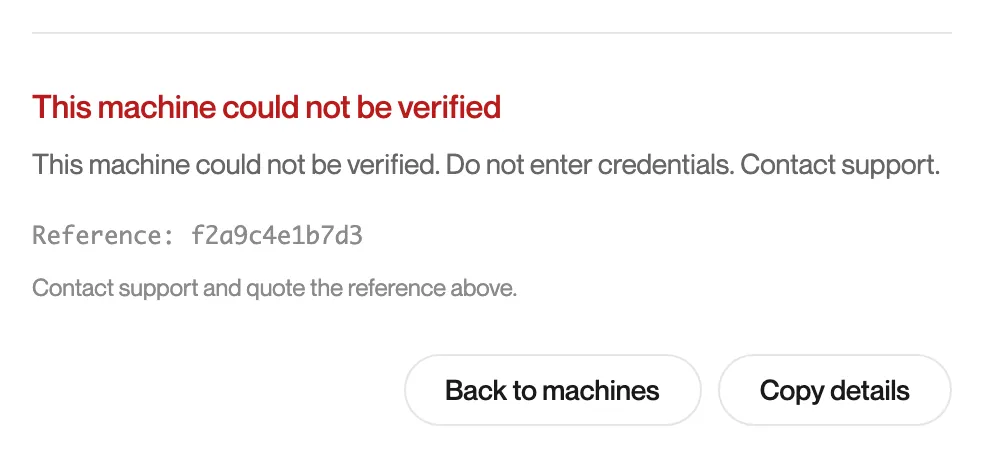
This machine could not be verified
Section titled “This machine could not be verified”What you see
“This machine could not be verified. Do not enter credentials. Contact support.”
What it means
Remotle could not confirm that the workstation it reached is the one you asked for. Remotle stopped before sending anything. No Try again is offered.
What to do
- Do not enter a password anywhere.
- Click Copy details.
- Contact Computle support straight away and paste the details.
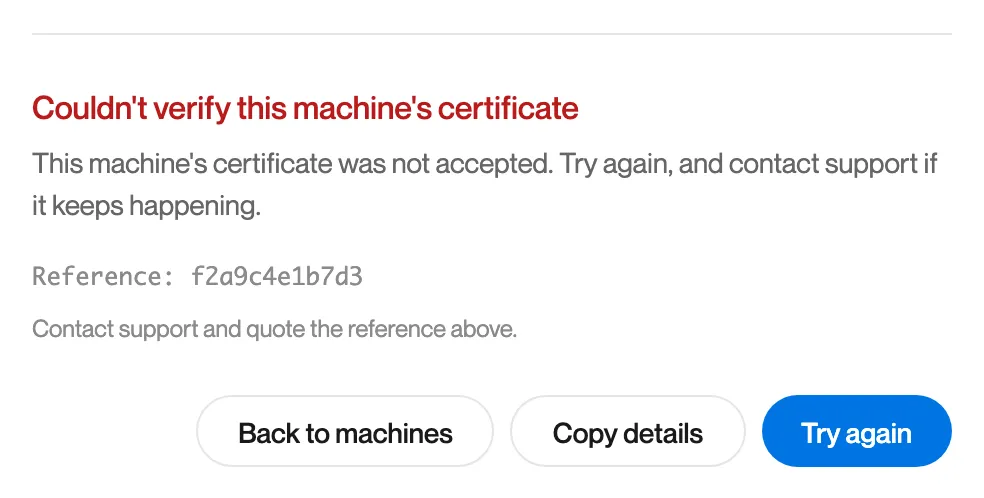
Couldn’t verify this machine’s certificate
Section titled “Couldn’t verify this machine’s certificate”What you see
“Couldn’t verify this machine’s certificate. This machine’s certificate was not accepted. Try again, and contact support if it keeps happening.”
What it means
The certificate the workstation presented was not accepted: it was not trusted, had expired or was not the one expected. A host with an expired certificate renews it by itself and reconnects, so a single Try again often succeeds.
What to do
- Click Try again.
- If it continues, click Copy details and contact Computle support with the reference.
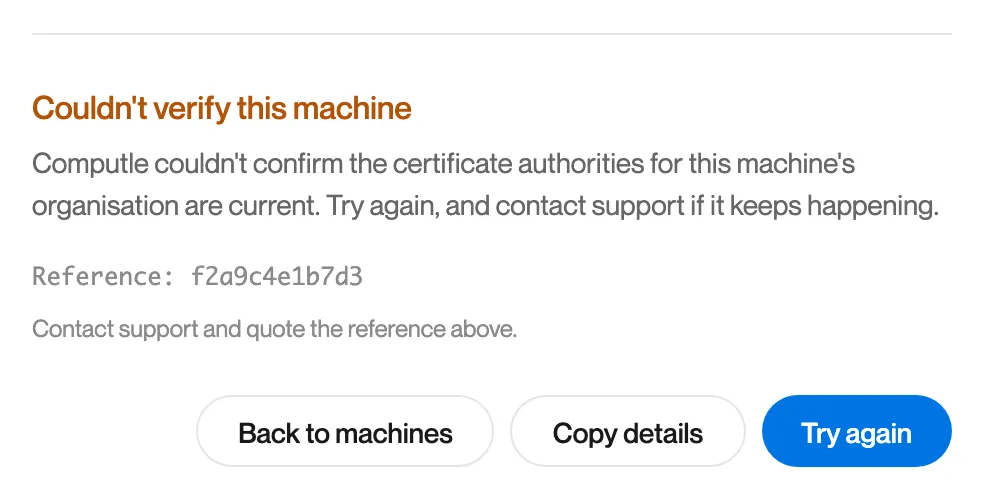
Couldn’t verify this machine
Section titled “Couldn’t verify this machine”What you see
“Couldn’t verify this machine. Computle couldn’t confirm the certificate authorities for this machine’s organisation are current. Try again, and contact support if it keeps happening.”
What it means
Remotle checks each workstation against the list of certificate authorities your organisation uses. That list could not be confirmed as current for this attempt.
What to do
- Click Try again.
- If it continues, click Copy details and contact Computle support with the reference.