App Messages
Reporting a Problem
Report a problem from inside Remotle. Your report reaches Computle with this device’s diagnostics and the app’s log files already attached, so you do not have to collect them. Replies from Computle appear in the same place, and you can answer them there.
What a report contains
Section titled “What a report contains”| Included | Detail |
|---|---|
| Your description | What you type under What happened? |
| The workstation | The one you choose under Which machine was this on?, or Not about a specific machine. |
| Attachments | Screenshots or files you add. Up to 5 files, 10 MB each, 25 MB in total. A screenshot pasted into the description is attached too. |
| This device’s diagnostics | Client version, network path and Support Code. |
| The app’s log files | The current logs on this device. They can include your account email and network address. |
A copy of the report is emailed to you, and the app shows “Your reference” so you can quote it.
Send a report from Settings
Section titled “Send a report from Settings”-
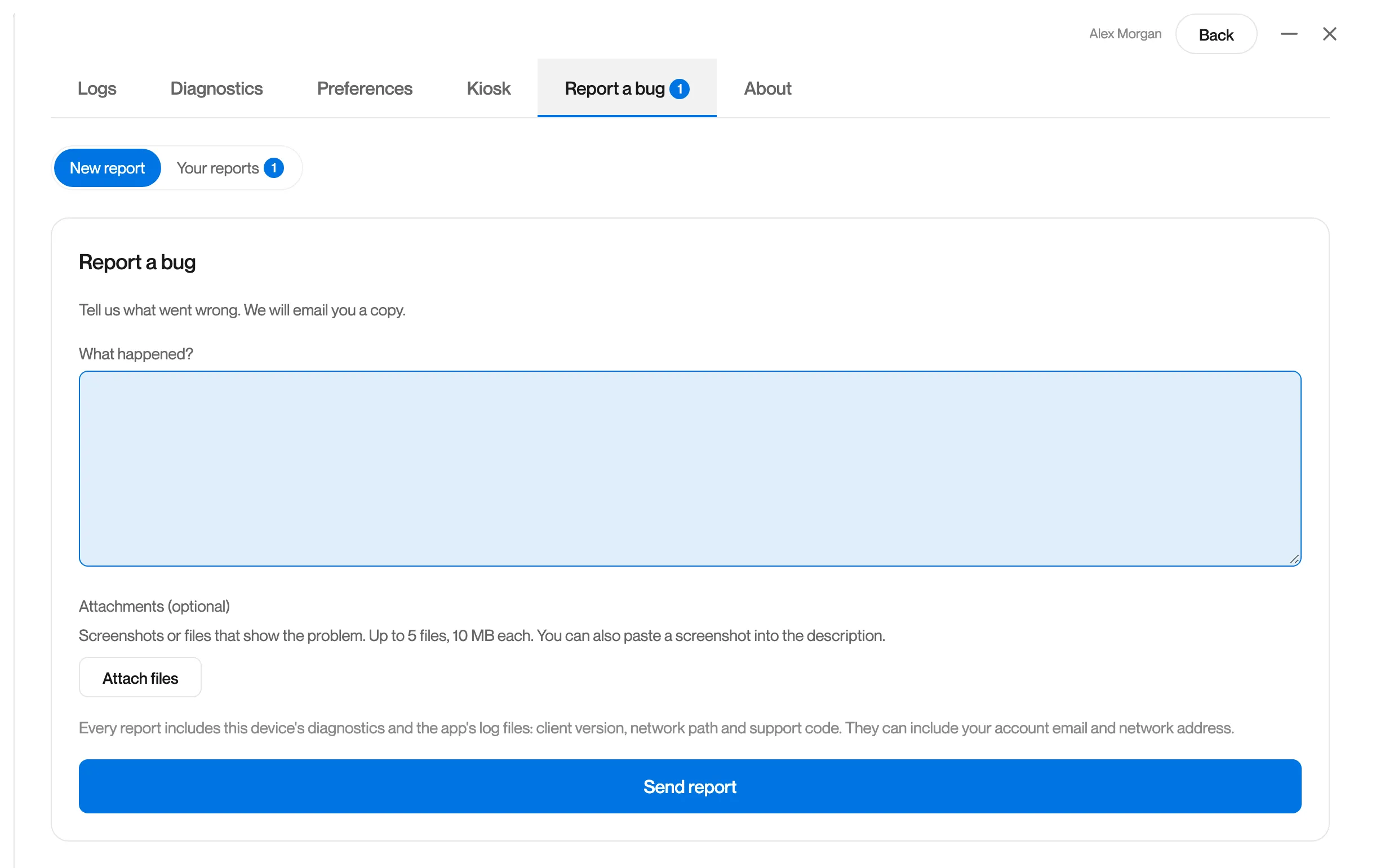
Open Settings and the Report a bug tab.
On the machine list, click the gear icon at the top right, then Report a bug.
-
Describe what happened under What happened?
Include the exact message you saw, the time, and what you were doing. If you copied a connection message or diagnostics, paste them here.
-
Choose the workstation under Which machine was this on?
Choose Not about a specific machine if it was not about one.
-
Attach screenshots or files if they help.
Click Attach files, or paste a screenshot into the description. “A report can carry up to 5 files.” and “too large. Files can be up to 10 MB each, 25 MB in total.” tell you when a limit is reached.
-
Click Send report.
Remotle shows “Report sent. Thank you. A copy is on its way to [your email]” and Your reference.
What you have typed is kept until you send it, so you can open another tab and come back.
| Message | What to do |
|---|---|
| “Please describe the problem.” | Type something under What happened? before sending. |
| “The report could not be sent. Please try again.” | Check this device’s connection and click Send report again. What you typed is still there. |
Send a report during a session
Section titled “Send a report during a session”-
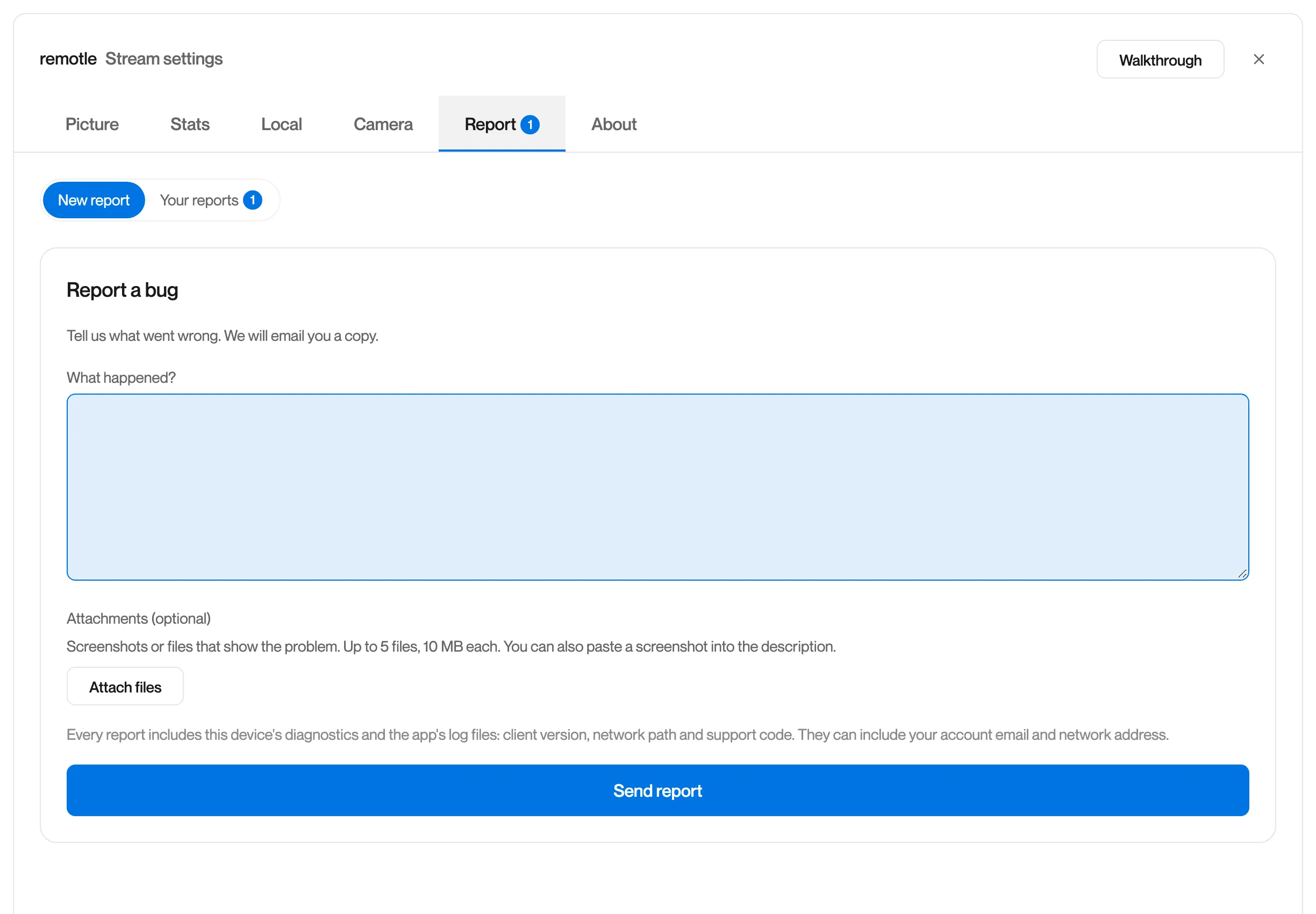
Press F2, or click the half circle at the top of the screen.
-
Open the Report tab.
-
Describe what happened and click Send report.
A report sent during a session includes the session’s logs, so support can see what you saw.
If the problem is about picture quality or delay, press F3 first to show the connection figures on screen, then Ctrl+F3 (Command+F3 on a Mac) to copy them as text, and paste them into the description. See Connection Figures.
Replies from Computle
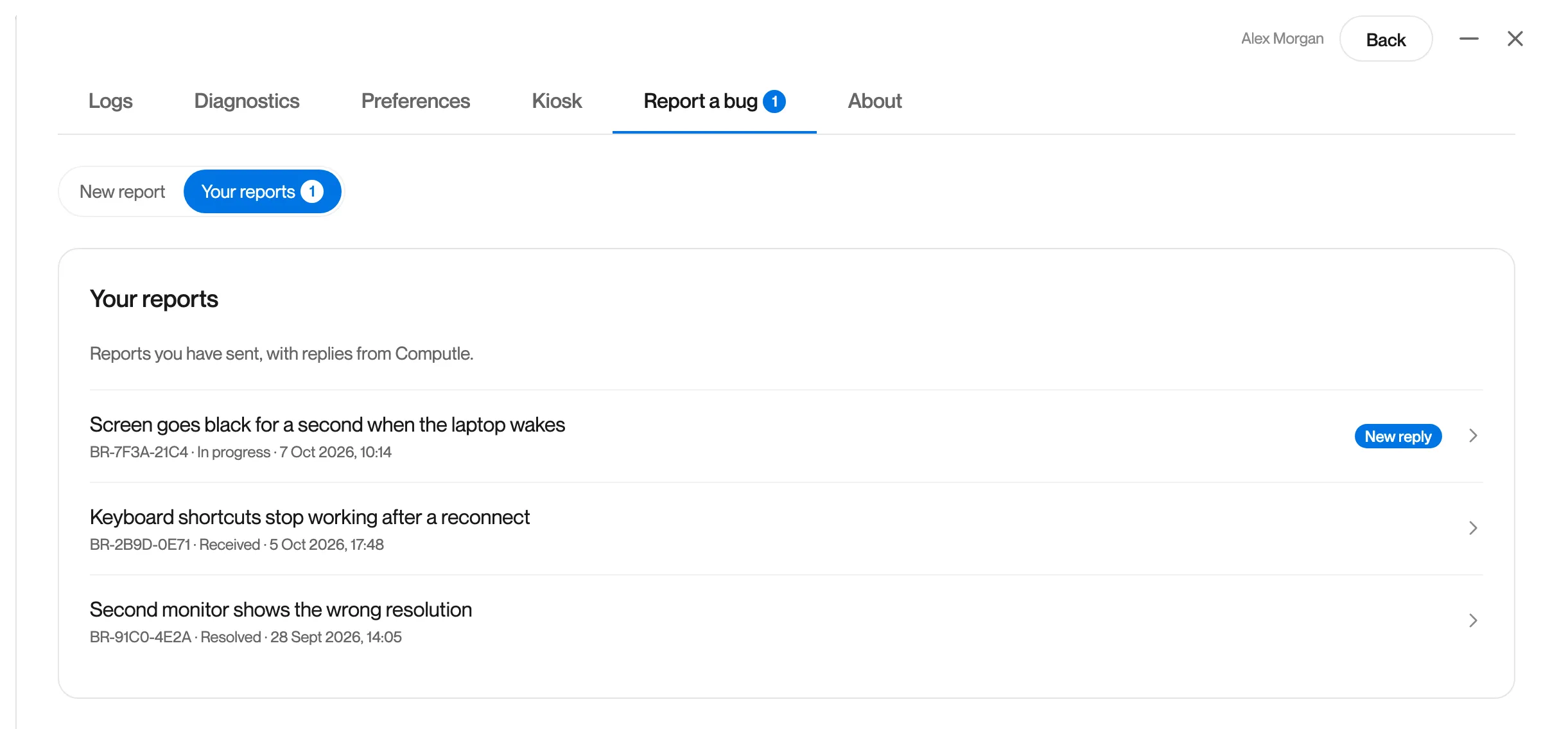
Section titled “Replies from Computle”Replies arrive in the app. A badge on Report a bug, and on Your reports, shows how many are unread, and a notification appears when a new reply arrives.
-
Open Report a bug and click Your reports.
Each report shows its reference, status and date. “New reply” marks a reply you have not read. “Needs your reply” marks a report where Computle is waiting for your answer.
-
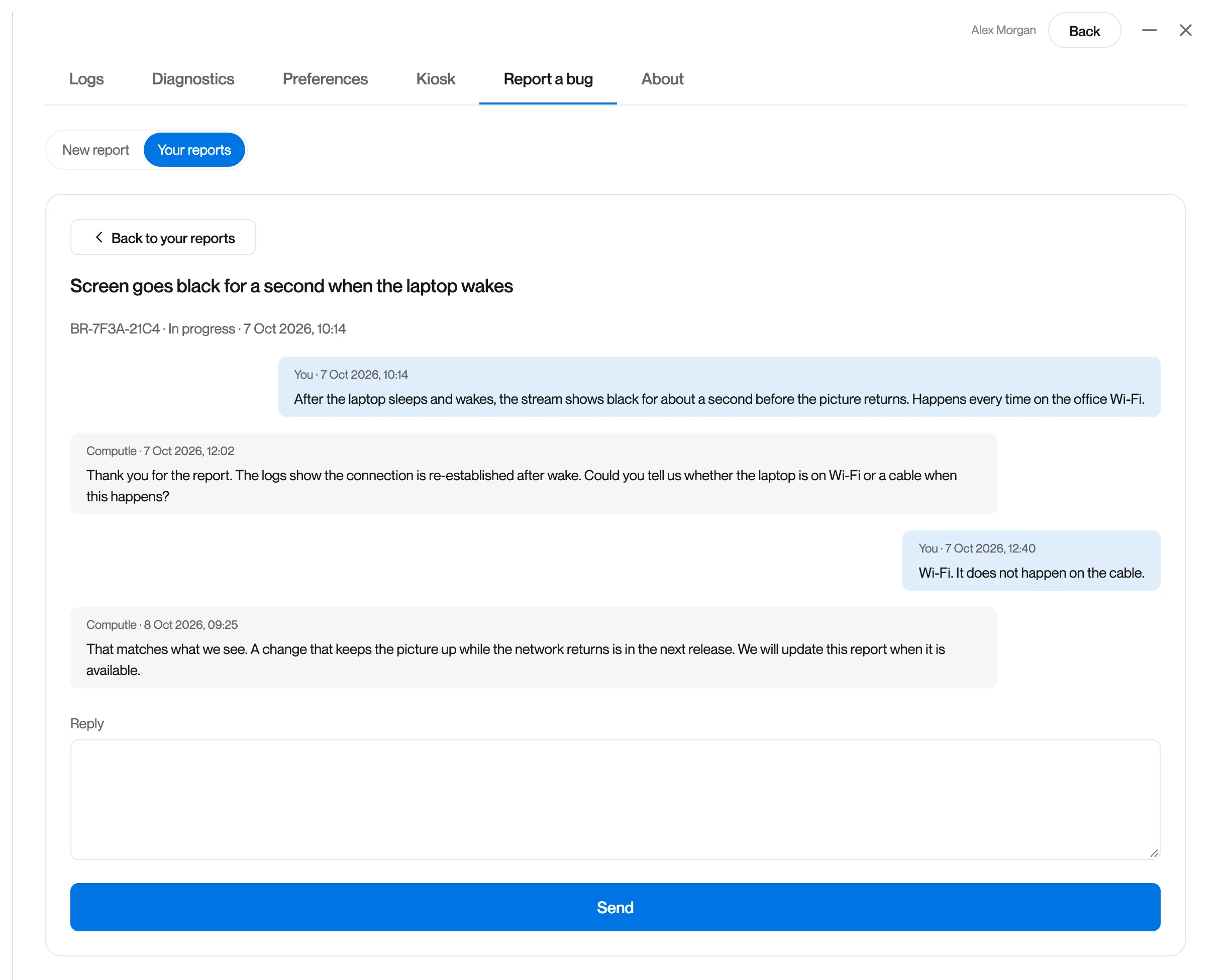
Click a report to read the conversation.
Your messages are on the right. Replies from Computle are on the left.
-
Type under Reply and click Send.
Click Back to your reports to return to the list.
| Message | What to do |
|---|---|
| “You have not sent any reports yet.” | Reports appear here once you send one. |
| “Your reports could not be loaded. Please try again.” | Check this device’s connection and click Try again. |
| “Please write a reply.” | Type something before clicking Send. |
| “Your reply could not be sent. Please try again.” | Check this device’s connection and click Send again. |
Contacting support another way
Section titled “Contacting support another way”If you cannot sign in to Remotle, contact Computle support and include your Support Code from Settings, Diagnostics (it is shown before you sign in on the About tab too), the exact message, and the time. See Diagnostics.