Keyboard Shortcuts
The keys Remotle keeps for itself. Open
Using the App
Copy text, pictures and files on either computer and paste them on the other. Nothing to set up: copy as you always do, and paste on the other side.
Text and pictures travel as soon as you copy them. Files travel only when you paste, so copying a large folder costs nothing until you decide where it goes. Everything travels inside the encrypted session, and Computle keeps none of it.
Copy as normal on one computer and paste on the other. Plain text, formatted text and pictures all carry across.
Copy one or more files on one computer.
Remotle shows what is ready, for example “Ready to paste 3 files (240 MB)”.
Paste them on the other.
Remotle sends the files and shows the progress, for example “Sending report.pdf (12 MB of 240 MB)”, then “Sent 240 MB”.
| Limit | Value |
|---|---|
| Size per copy | 1 GB, for a single file or for all the files copied together |
| Direction | Both ways, unless an administrator blocks one |
| Message | Meaning |
|---|---|
| Ready to paste (size) | One file is copied and waiting for you to paste. |
| Ready to paste n files (size) | Several files are waiting. |
| Sending name (sent of total) | The transfer is running. |
| Sent size | The transfer finished. |
| “name” is size — over the 1 GB clipboard limit | The file is too large to copy through Remotle. |
| These n files are size together — over the 1 GB clipboard limit | The files together are too large. Copy fewer at a time. |
| Skipping “name” (size) — over the 1 GB limit | One file in the set was too large and was left out. The rest were sent. |
| The copied files could not be received | The transfer failed. Copy and paste again. |
Copy and paste with Ctrl+C and Ctrl+V, or from the Edit menu, on either side. Files you paste on your own PC land where you paste them, as with any other paste.
Copy and paste with Command+C and Command+V on your Mac, and Ctrl+C and Ctrl+V on your workstation. Pasting files into the Finder puts them where you paste them.
Copy and paste with Ctrl+C and Ctrl+V on either side.
iPadOS and iOS only let an app read the clipboard when you ask it to. To send what you copied on the iPad to your workstation, open the menu pill and tap Send clipboard. What you copy on your workstation arrives on the iPad as normal.
Files are not transferred from an iPad or iPhone.
The Windows sign-in screen does not accept pasted text, so you cannot paste a password into it. Remotle can type the text for you instead.
Copy the text on your device.
Choose Type Clipboard.
| Platform | Where |
|---|---|
| Windows and Linux | Stream menu, Type Clipboard |
| Mac | Settings menu, Type Clipboard |
| iPad and iPhone | Menu pill, Type clipboard |
Remotle types the text as keystrokes into whatever has focus on your workstation.
Use it for long passwords and for any field that refuses a paste. Because the text is typed with your workstation’s keyboard layout, check the result if the two computers use different layouts.
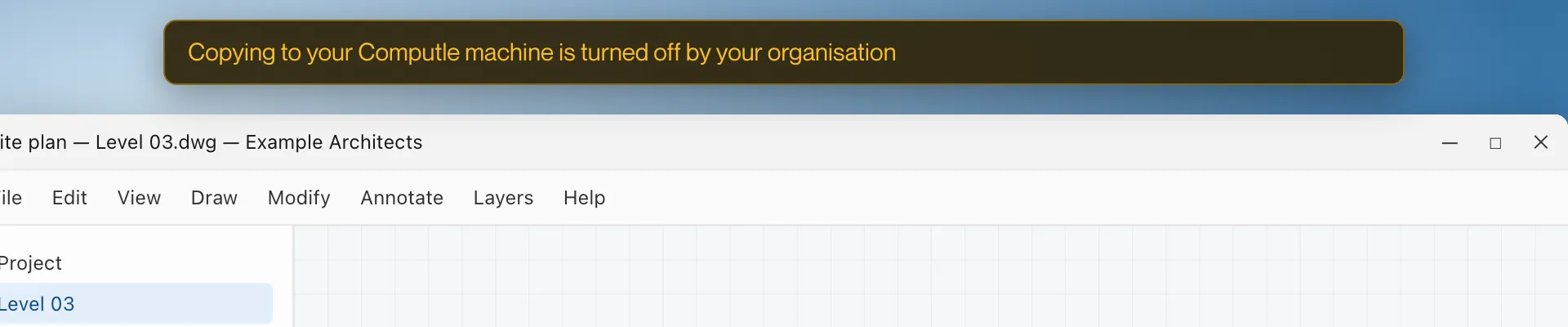
An administrator can allow or block pasting into your workstation and copying out of it, each separately, for the whole organisation or for one person, from the Computle portal. See Device Features. When pasting into your workstation is blocked, Remotle shows “Copying to your Computle machine is turned off by your organisation” when you try. Contact your administrator if you need it.
Files are sent when you paste, so the names travel at once and the contents follow when you choose where they go. Remotle shows the progress while it sends.
Copy the files inside it. The limit is 1 GB for everything copied together.
No. Text and files travel inside the encrypted session between your device and your workstation. Computle does not keep any of it. See Privacy and Data.
The Windows sign-in screen does not accept pasted text. Use Type Clipboard, which types the text as keystrokes.