Using the App
Choosing the Network Path
This page is for anyone using Remotle on Windows or Mac who wants to choose how their computer reaches their workstation.
A session reaches your workstation one of two ways. A direct path runs straight between your computer and the workstation. A relay path runs through a Remotle relay operated by Computle. Both are encrypted end to end, and a relay cannot read the session. How Remotle Connects explains the two paths in full.
Auto is the right choice for almost everyone. Change it only when your IT team or Computle support asks you to, or when the session keeps going black and reconnecting on one particular network.
Change the network path
Section titled “Change the network path”-
Open Settings.
On the machine list, click the gear icon at the top right. In a session, disconnect first, then open Settings from your machine list.
-
Open the Preferences tab.
The Network Path card shows the four choices, with the one in use highlighted. The line under the choices shows what you asked for and what the last connection used.
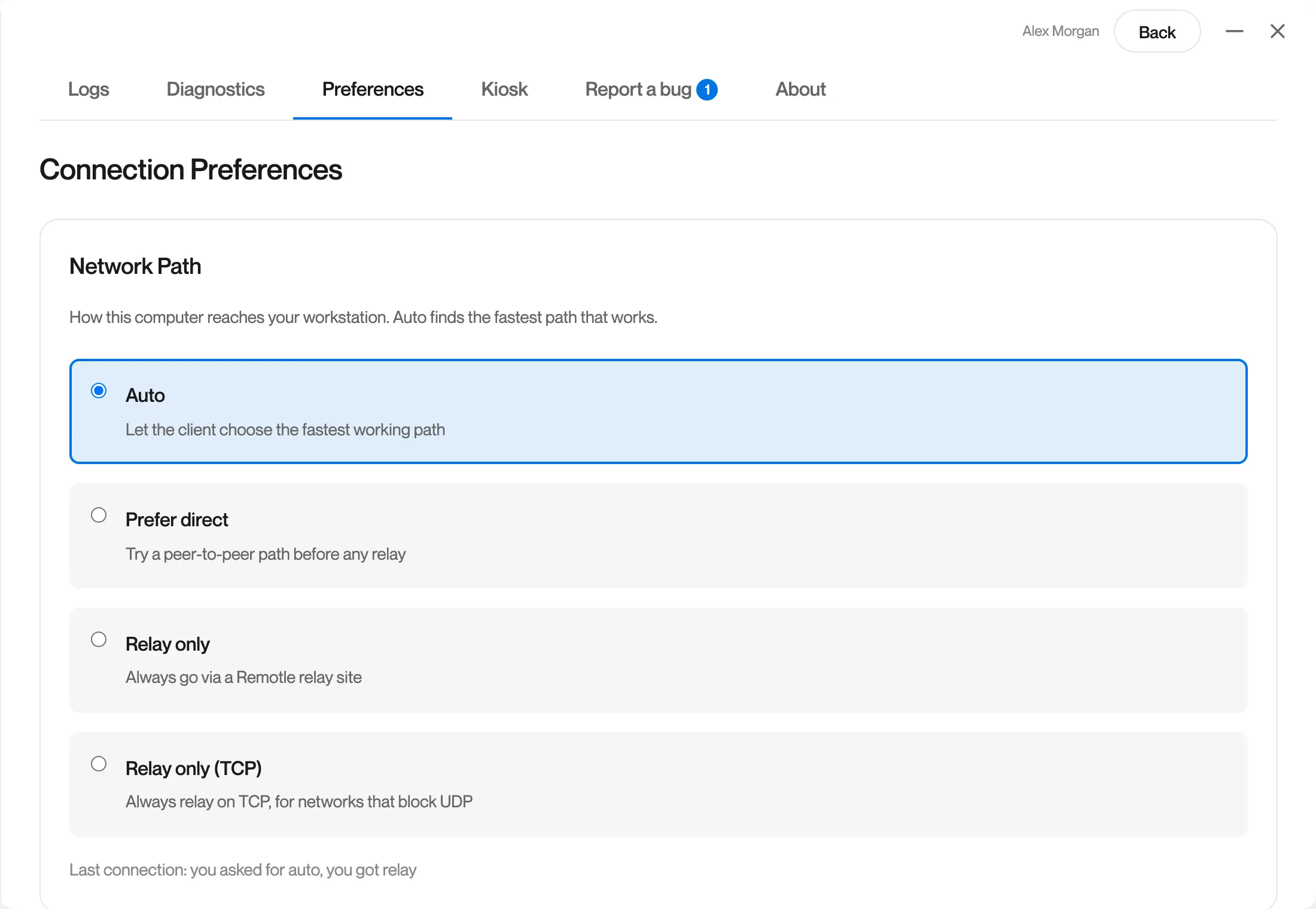
-
Click the path you want.
Remotle saves the choice straight away and shows “Network path preference set to” and the name of the path.
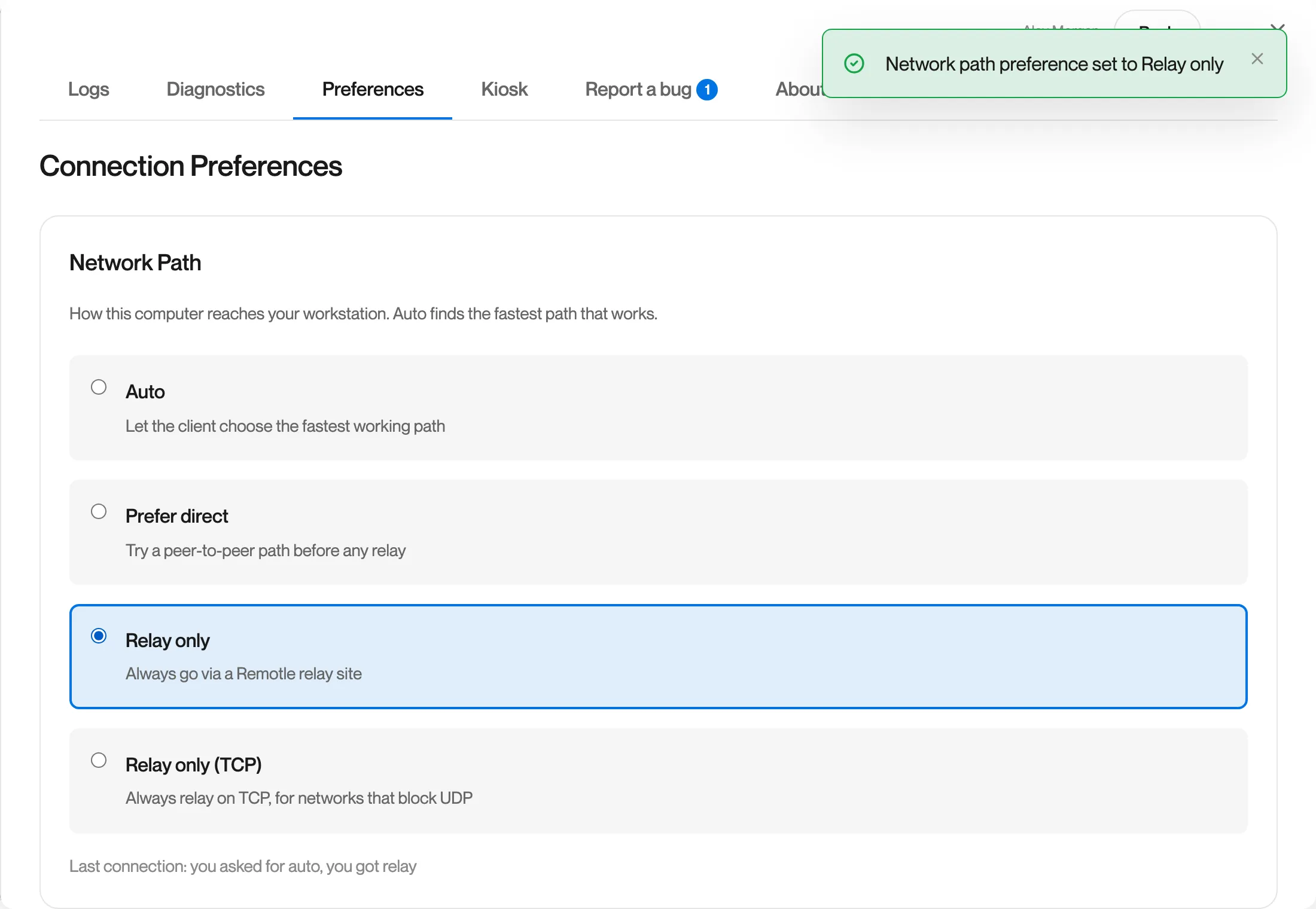
-
Connect to your workstation.
The choice applies from the next connection. A session that is already running keeps its path until you disconnect.
The choice is saved on this computer and stays until you change it. It applies to every workstation you connect to from this computer. Your other devices keep their own setting.
The four choices
Section titled “The four choices”| Choice | What it does | When to use it |
|---|---|---|
| Auto | Starts on whichever path connects first. A session that starts on the relay keeps looking for a direct path and moves to it without interruption. | Every network, unless you have a reason to change it. |
| Prefer direct | Tries the direct path first. If it does not connect, the session uses the relay. | When your IT team asks you to keep traffic off the relay where possible. |
| Relay only | Every session goes through a relay over UDP. Remotle never tries a direct path. | When the session goes black and reconnects every minute or so on one network, and the connection is otherwise fine. |
| Relay only (TCP) | Every session goes through a relay over TCP. | When the network blocks UDP. Use this only when Diagnostics shows the relays as not answering over UDP. |
Relay only and Relay only (TCP) are forced: Remotle does not try any other path, even when one would be faster. Auto and Prefer direct always fall back to the relay when the direct path does not work.
What Auto does when the direct path fails
Section titled “What Auto does when the direct path fails”Some networks let the first test packets of a direct path through and then hold back the picture. On Auto, Remotle checks that a new direct path carries the session as well as the relay did. If it does not, the session moves back to the relay without reconnecting, and that workstation stays on the relay from this computer for the next 30 minutes.
If your session still goes black and reconnects on one network, choose Relay only on that computer and send a report from the app so support can look at the connection. See Reporting a Problem.
Questions
Section titled “Questions”Is Relay only slower?
Section titled “Is Relay only slower?”The relay adds the trip to the nearest relay to every packet. Connection Figures in the session menu shows the round trip you are getting. See Connection Figures.
Is Relay only less secure?
Section titled “Is Relay only less secure?”No. The session is encrypted end to end between your computer and the workstation on both paths. The relay forwards packets it cannot read.
Can an administrator set this for everyone?
Section titled “Can an administrator set this for everyone?”No. The choice is made on each computer in Settings.
Does this setting exist on iPad, iPhone or Linux?
Section titled “Does this setting exist on iPad, iPhone or Linux?”No. Those apps always use Auto.