Users & Sign-in
Entra join
Entra join joins a built Computle workstation to your Microsoft Entra directory and enrols it in Intune, from the portal, with nobody at the keyboard. Use it for a workstation that reports Needs Domain Join on the Workstations page, for example after it has been re-imaged, so that it can take Intune policy and use Single Sign-On.
This page is for the IT administrator who manages the Microsoft Entra directory. It covers the Entra join tab of Users under Machines in the portal sidebar. The tab is shown only when Entra join is available to your organisation, and needs the Tenant Admin role. The Microsoft sign-in in step 3 needs a Microsoft Entra administrator.
How it works
Section titled “How it works”Connect creates a bulk enrolment account named package_<id> in your directory and a bulk enrolment token for it, valid for 180 days, and keeps the sign-in used for Connect so the token can be renewed. Each Join sends that token to one workstation once, which joins itself and enrols in Intune on its next check-in.
Connect Microsoft Entra
Section titled “Connect Microsoft Entra”-
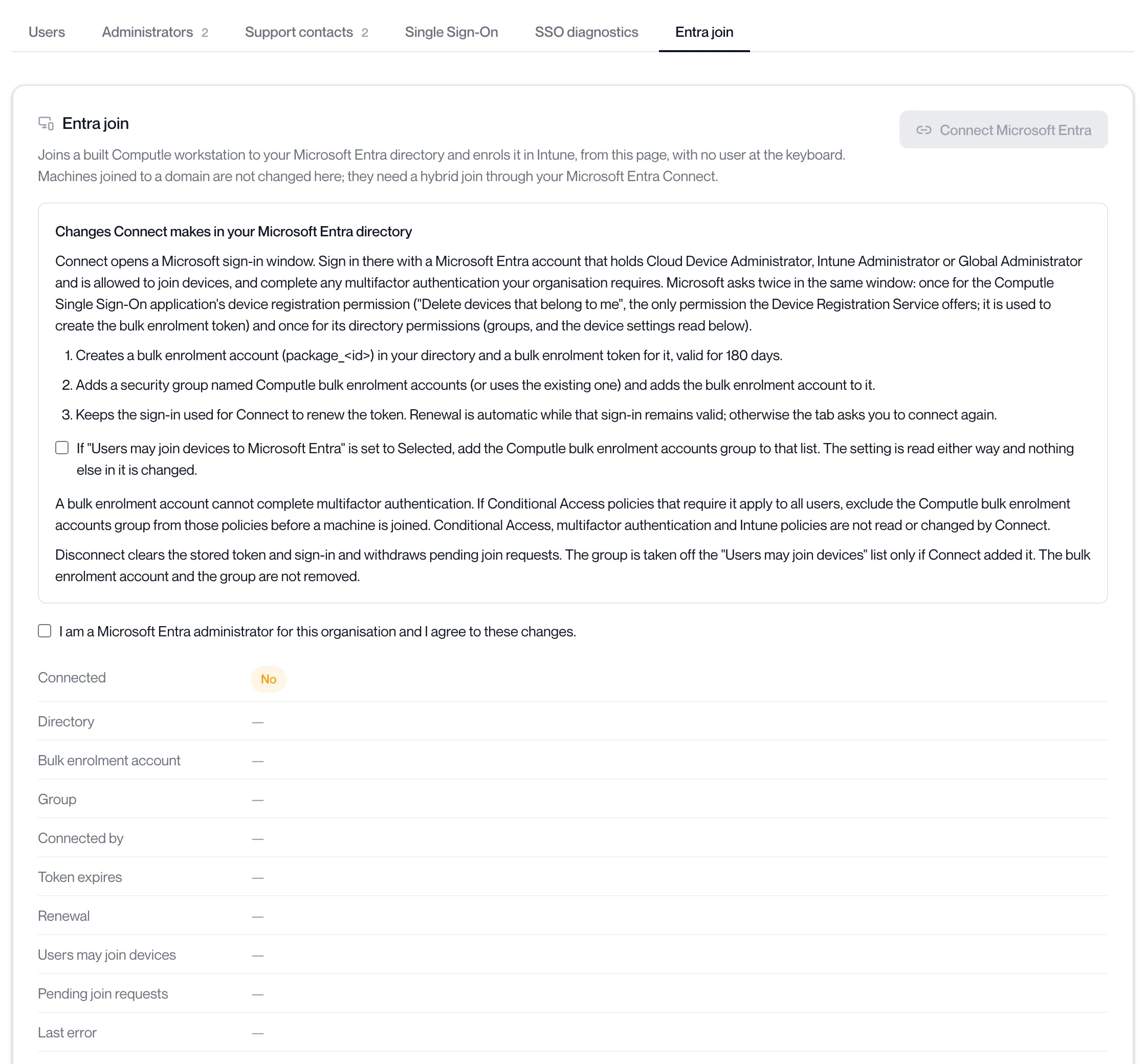
Open Users under Machines in the sidebar and click the Entra join tab.
The card reads “Joins a built Computle workstation to your Microsoft Entra directory and enrols it in Intune, from this page, with no user at the keyboard.” The Connected row reads No.
-
Read “Changes Connect makes in your Microsoft Entra directory”.
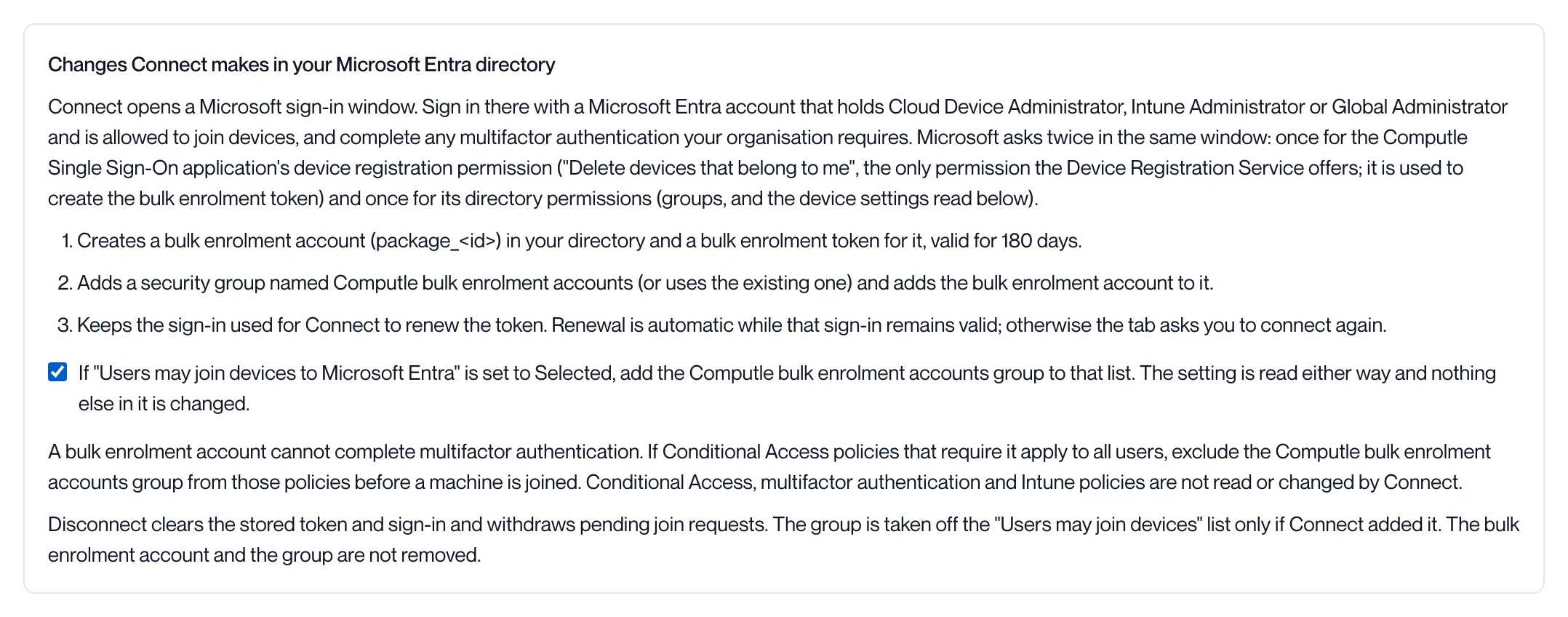
The list states the three changes: the bulk enrolment account and its 180-day token; the security group Computle bulk enrolment accounts, added or reused, with the account in it; and the sign-in kept for renewal. Microsoft asks twice in the same window: once for the Computle Single Sign-On application’s device registration permission (“Delete devices that belong to me”, used to create the token) and once for its directory permissions.
Tick “If “Users may join devices to Microsoft Entra” is set to Selected, add the Computle bulk enrolment accounts group to that list.” if your directory restricts who may join devices. The setting is read either way and nothing else in it is changed.
-
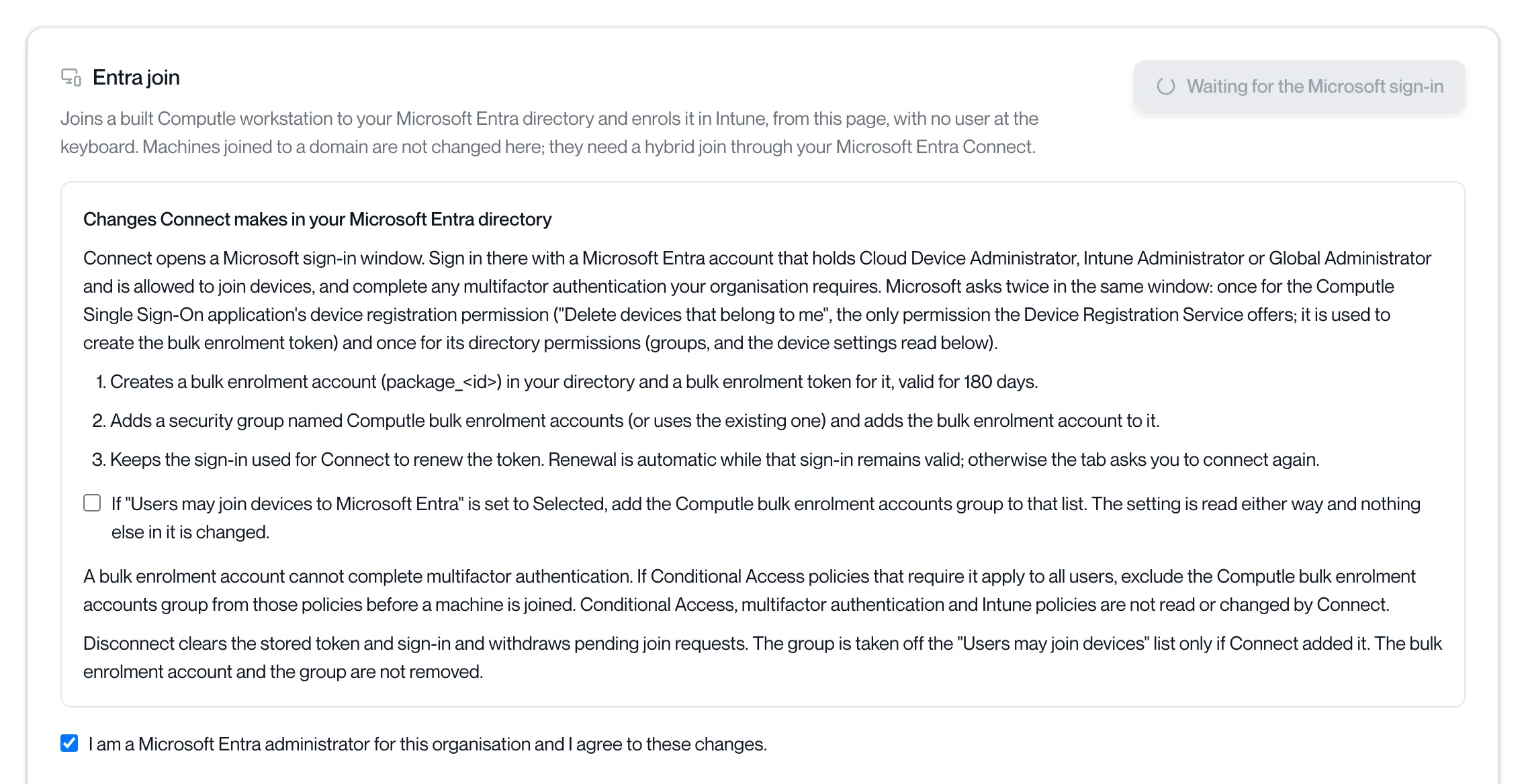
Tick “I am a Microsoft Entra administrator for this organisation and I agree to these changes.” and click Connect Microsoft Entra.
The button reads “Waiting for the Microsoft sign-in” while the window is open. Sign in there with the administrator account, complete any multifactor authentication your organisation requires, and accept both consent screens. If the browser blocks the window the portal says “The browser blocked the sign-in window. Allow pop-ups for this site and try again.”
-
The portal reports “Microsoft Entra connected”.
The window reads “Microsoft Entra is connected. You can close this window.” A refused connect names the step, for example “Microsoft Entra refused the request. (creating the bulk enrolment token)”.
-
Check the status rows.
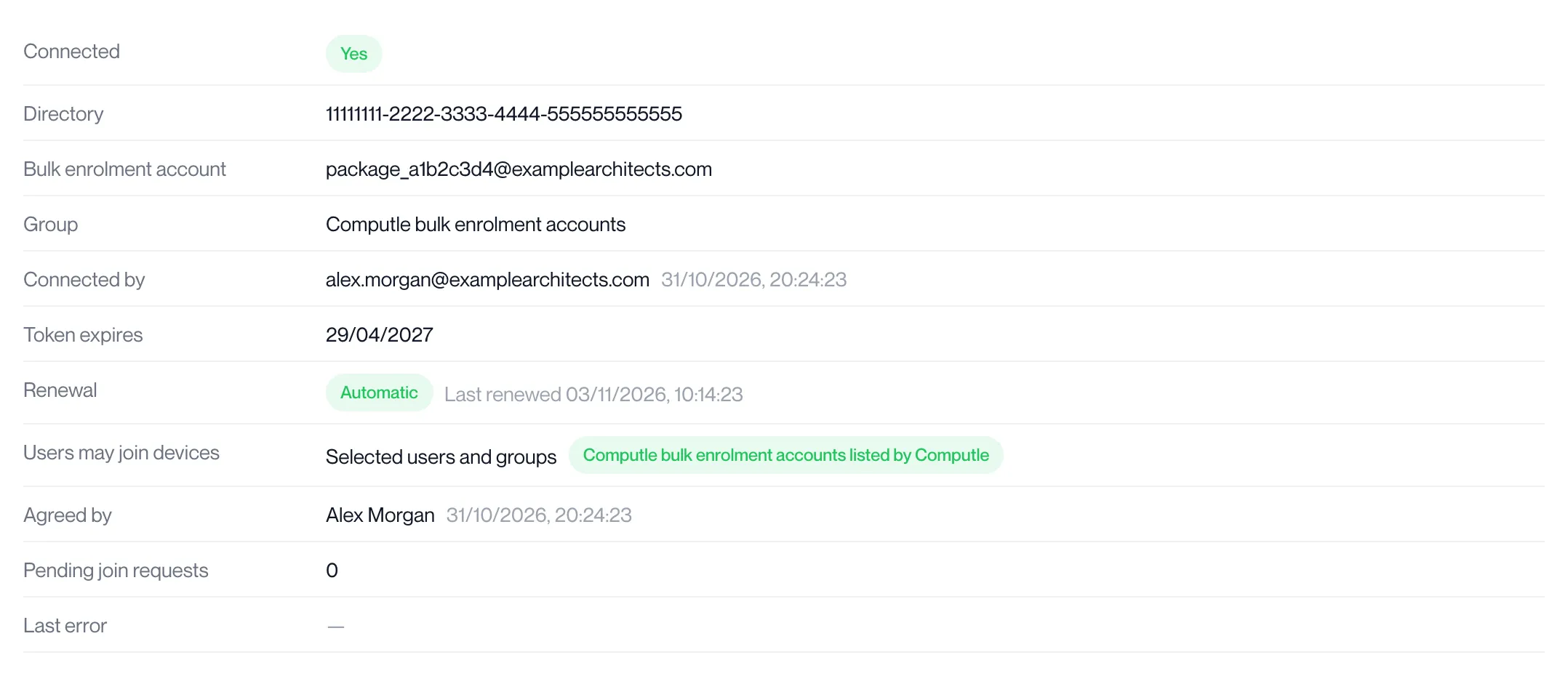
Row What it shows Connected Yes. A Reconnect needed badge means the token cannot be renewed; see Reconnect. Directory Your Microsoft Entra directory ID. Bulk enrolment account The package_<id>account Connect created.Group Computle bulk enrolment accounts. Connected by The administrator who signed in, and when. Token expires The date the bulk enrolment token expires. Renewal Automatic, with the last renewal time, or “Connect again before expiry”. Users may join devices All users, No users, or Selected users and groups. With Selected, a green badge reads “Computle bulk enrolment accounts listed by Computle” or ”… listed”; an amber badge reads “Add Computle bulk enrolment accounts to the list in Microsoft Entra, Devices, Device settings” when it is missing. Agreed by Who ticked the agreement, and when. Pending join requests Joins requested and not yet applied. Last error The most recent problem, with its time, or a dash.
Join a workstation
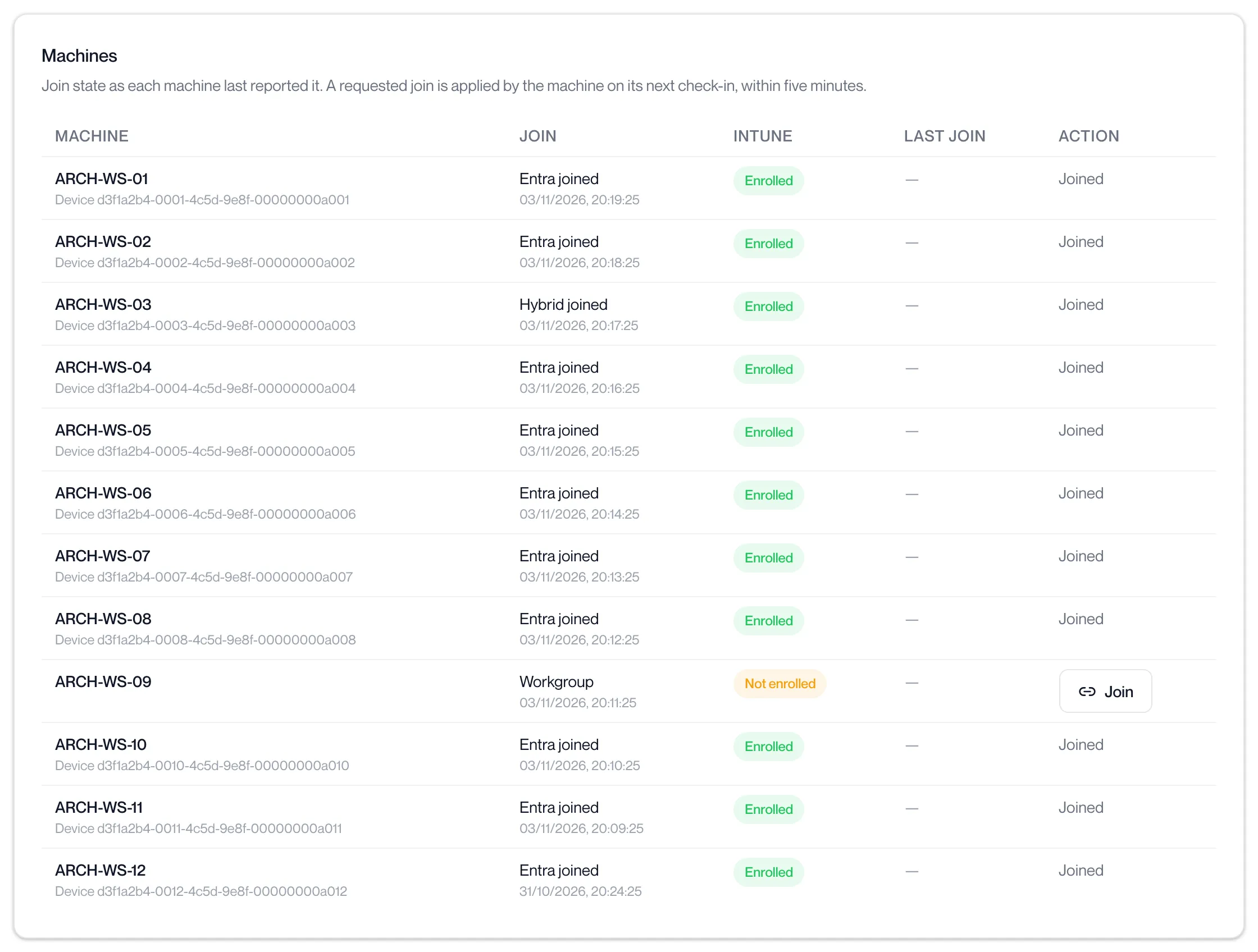
Section titled “Join a workstation”The Machines card lists every workstation with its join state as it last reported it, its Intune state, its last join and an action. “A requested join is applied by the machine on its next check-in, within five minutes.”
| Column | What it shows |
|---|---|
| Machine | The workstation’s name, and its Microsoft Entra device ID once joined. |
| Join | Entra joined, Hybrid joined, Domain joined or Workgroup, with the time it reported. “Not reported” until the workstation has reported. |
| Intune | Enrolled or Not enrolled. |
| Last join | “Applied” with the time of the last join, or the last error in red. |
| Action | Join, “Requested” with a Withdraw link, “Joined”, or the reason it cannot be joined. |
-
Find the workstation in the Machines card and click Join.
Join is offered for a workstation that reports Workgroup. “Domain joined: needs a hybrid join through your Microsoft Entra Connect” is shown instead for a domain workstation, and “Joined” for one already joined.
-
The portal reports “Join requested. The machine applies it on its next check-in.”
The Action column reads “Requested” with the time, and Pending join requests counts it. A workstation that is off applies the join when it next starts and checks in.
-
Wait for the next check-in.
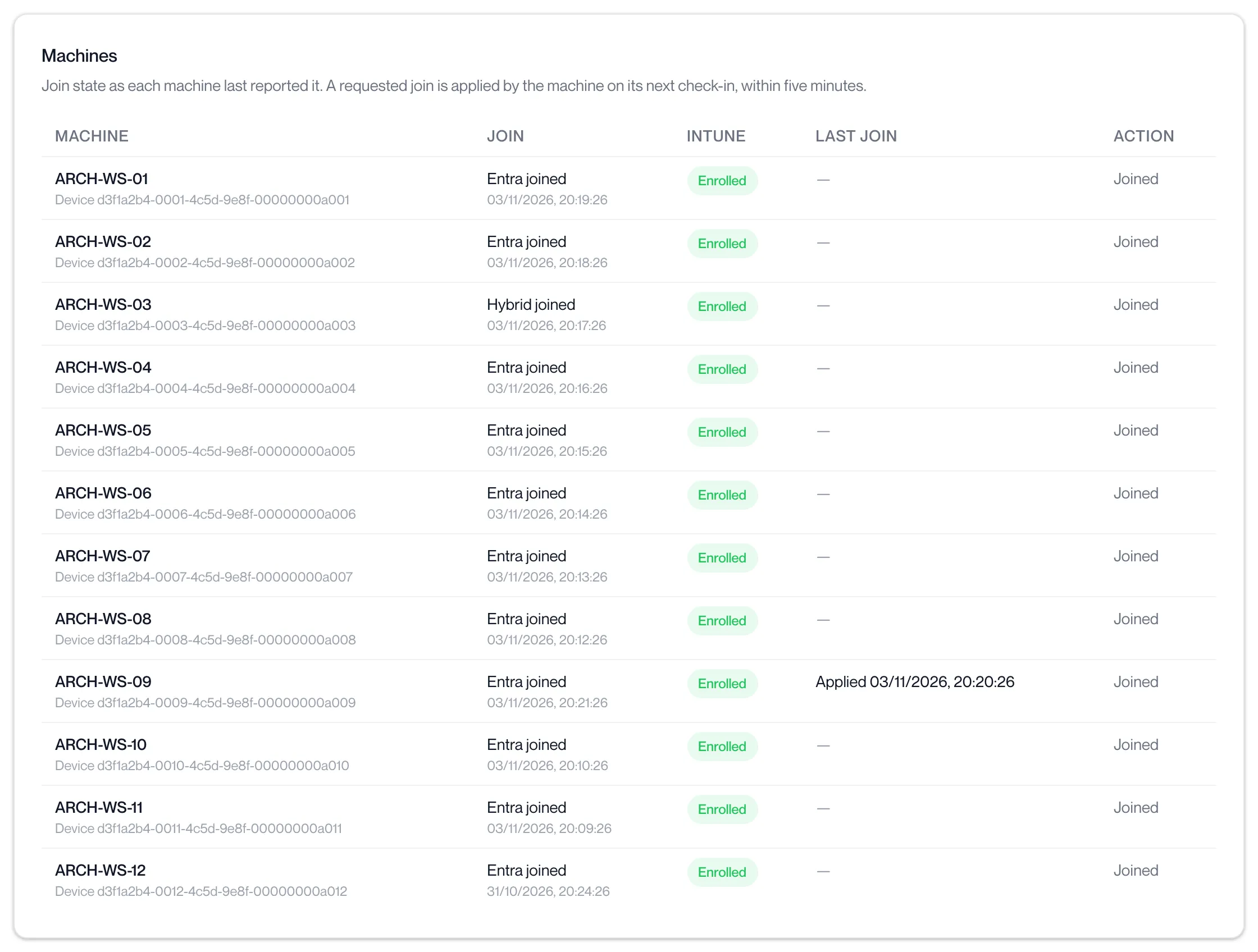
Within five minutes the workstation applies the join and reports again. The Join column reads Entra joined with the device ID, Intune reads Enrolled, and Last join reads “Applied” with the time.
-
Check the Workstations page.
The Entra column for the workstation reads Entra at its next report. See Directory join.
To cancel a request that has not been applied, click Withdraw on the row. The portal reports “Join request withdrawn”.
| Message | Meaning |
|---|---|
| This machine is already joined to Microsoft Entra. | Nothing to do. |
| This machine is joined to a domain and needs a hybrid join through your Microsoft Entra Connect. | Entra join cannot be used on it. |
| The bulk enrolment token has expired. Connect again. | See Reconnect. |
| Microsoft Entra is not connected. | Connect first. |
| An error in red under Last join | The workstation tried the join and Microsoft Entra refused it. A Conditional Access policy that requires multifactor authentication for the bulk enrolment account is the usual cause. |
Reconnect
Section titled “Reconnect”The token is renewed automatically while the administrator sign-in kept by Connect remains valid. When it cannot be renewed, the Renewal row reads “Connect again before expiry” and, once renewal has failed, Connected shows Reconnect needed and the button reads Reconnect Microsoft Entra. Tick the agreement and click it; the steps are the same as Connect Microsoft Entra. Join is not offered until the reconnect is done.
Disconnect
Section titled “Disconnect”-
On the Entra join tab, click Disconnect.
-
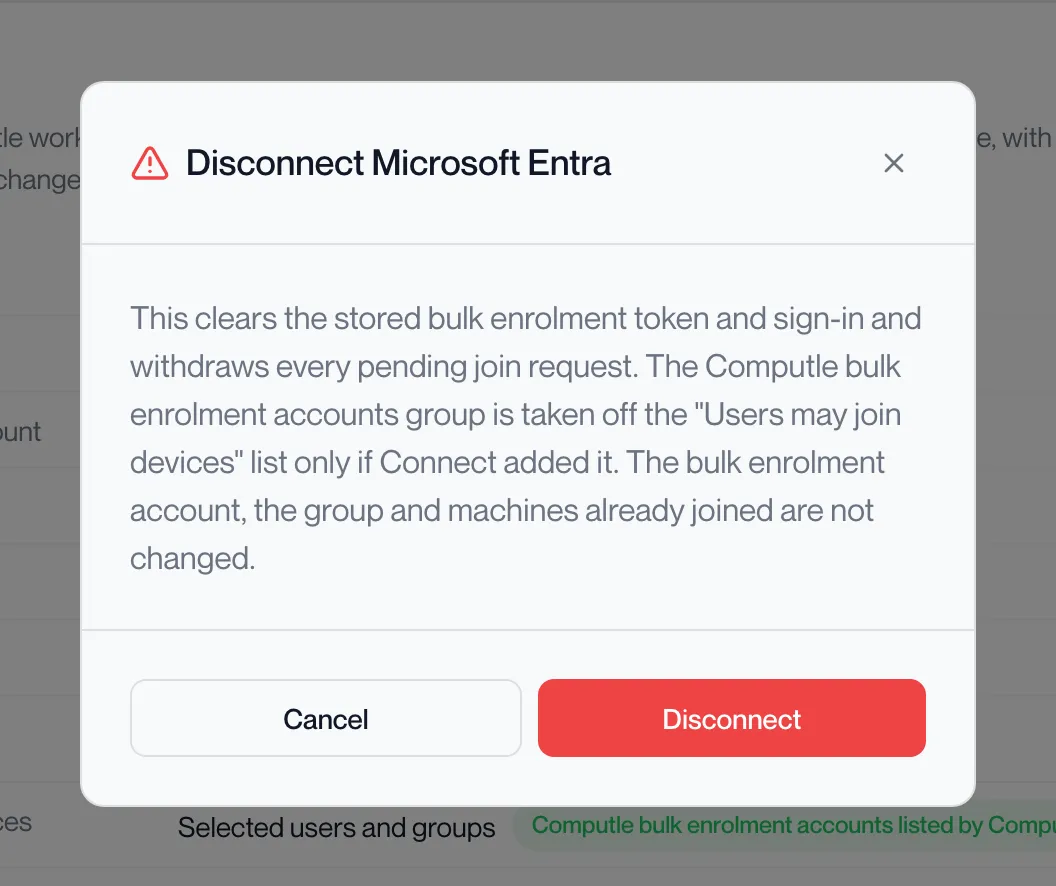
Read the Disconnect Microsoft Entra dialog and click Disconnect.
It states: “This clears the stored bulk enrolment token and sign-in and withdraws every pending join request. The Computle bulk enrolment accounts group is taken off the “Users may join devices” list only if Connect added it. The bulk enrolment account, the group and machines already joined are not changed.”
-
The portal reports “Microsoft Entra disconnected”.
The Connected row reads No. Workstations already joined stay joined.
Related pages
Section titled “Related pages”Questions
Section titled “Questions”I cannot see the Entra join tab.
Section titled “I cannot see the Entra join tab.”The tab is shown when Entra join is available to your organisation. The portal says why when it is not: “Entra join is not yet available for this organisation.” or “Entra join is not enabled for this organisation.” Contact your account manager.
Does Join need anyone at the workstation?
Section titled “Does Join need anyone at the workstation?”No. The workstation applies the join itself on its next check-in. Nobody needs to be signed in.
Does Disconnect remove joined workstations from my directory?
Section titled “Does Disconnect remove joined workstations from my directory?”No. Workstations already joined, the bulk enrolment account and the group are left as they are.
Why is the join refused with an error under Last join?
Section titled “Why is the join refused with an error under Last join?”The bulk enrolment account signed in to Microsoft Entra and was refused. Check that the Computle bulk enrolment accounts group is excluded from any Conditional Access policy that requires multifactor authentication, and that “Users may join devices to Microsoft Entra” allows the group when it is set to Selected.