Site-to-site VPN
Connection tests
This page is for the IT administrator confirming that the tunnel carries traffic. It covers the Diagnostics tab of Network, Site-to-site VPN in the Computle Portal.
A test is run by your Computle gateway, through the tunnel, from an address inside our internal networks. It shows whether a server in your office answers the way a workstation would see it.
Run a test
Section titled “Run a test”-
Open the Diagnostics tab and choose a test.
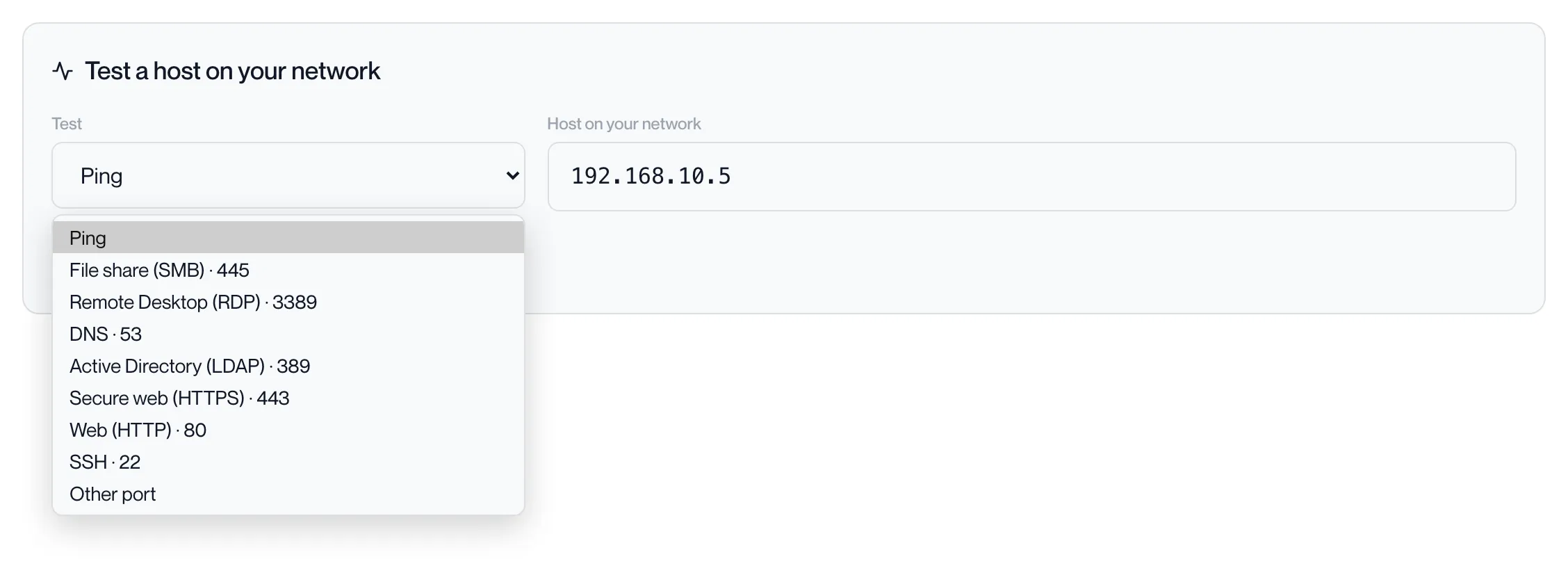
Test What it does Ping Three ICMP echo requests. Reports the average round trip. File share (SMB) · 445 TCP connection to port 445 Remote Desktop (RDP) · 3389 TCP connection to port 3389 DNS · 53 TCP connection to port 53 Active Directory (LDAP) · 389 TCP connection to port 389 Secure web (HTTPS) · 443 TCP connection to port 443 Web (HTTP) · 80 TCP connection to port 80 SSH · 22 TCP connection to port 22 Other port TCP connection to the port you type, 1 to 65535 A port test reports the time taken to open the connection. It waits up to 5 seconds.
-
Enter the host on your network.
An IPv4 address inside one of the office networks you saved on the Connection tab. The gateway refuses any other address: ”… is not inside your configured networks (…)”. A host name is not accepted.
-
Click Run test.
The button reads Testing… and the page shows “Test started”. One test runs at a time; starting another while one is running returns “A test is already running”.
-
Read the result.
The gateway picks the test up on its next poll, within 30 seconds, and the page refreshes every 15 seconds.
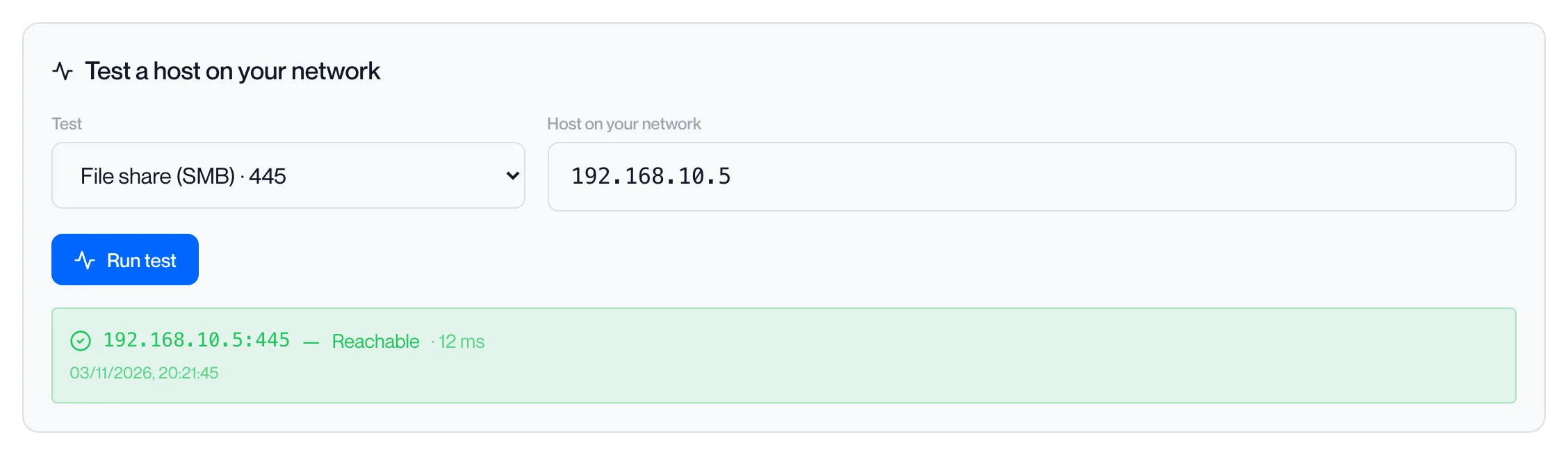
Result Meaning Reachable · n ms The host answered. For a port test, the port accepted the connection. No response through the tunnel Nothing came back within the time allowed. See If a test fails. Gateway has no address in the tunnel network The gateway could not find an address of its own inside our internal networks to send from. Contact your account manager.
Recent tests
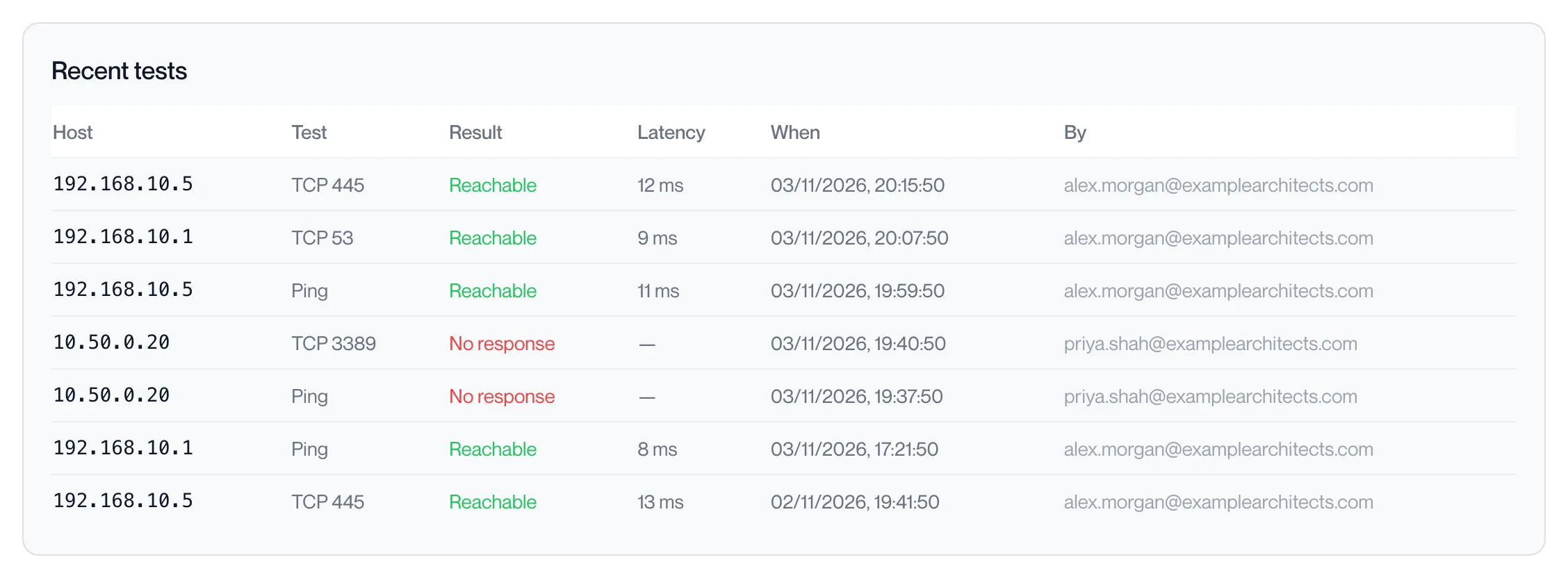
Section titled “Recent tests”The Recent tests table lists the last 20 tests on this connection: the host, the test (Ping or TCP and the port), Reachable or No response, the latency, when it completed and who ran it.
If a test fails
Section titled “If a test fails”Work through these in order.
- The status badge must read Connected. A test cannot pass while the tunnel is down. See Troubleshooting.
- Ping the host first. If ping passes and a port test fails, the tunnel is fine and the service or a host firewall on that server is refusing the port.
- Check the host’s own firewall. Windows Firewall and similar allow some services only from the local subnet. The test arrives from our internal networks, so the rule must include those ranges.
- Check routing in your office. The host must route replies for our internal networks back to your firewall. A host with a different default gateway from the firewall needs a route for our internal networks.
- Check your firewall’s tunnel selectors. Every office network you entered must be in the firewall’s local networks for this tunnel, and our internal networks in its remote networks. The Gateway log shows
TS_UNACCEPTABLEwhen they do not match.