The Session Menu
Every tab, including Camera. Open
Using the App
Sound from your workstation plays on your device. Your device’s camera and microphone appear on your workstation as Computle Camera and Computle Virtual Microphone, so Teams, Zoom and other apps can use them as if they were plugged into the workstation.
While you are connected, the workstation’s default sound devices are Computle’s, so every application’s sound comes to you and every application’s microphone is yours.
When an app on your workstation starts a call or a recording, the camera and microphone on your device switch on by themselves, and off again when it stops. The walkthrough on your first session explains this.
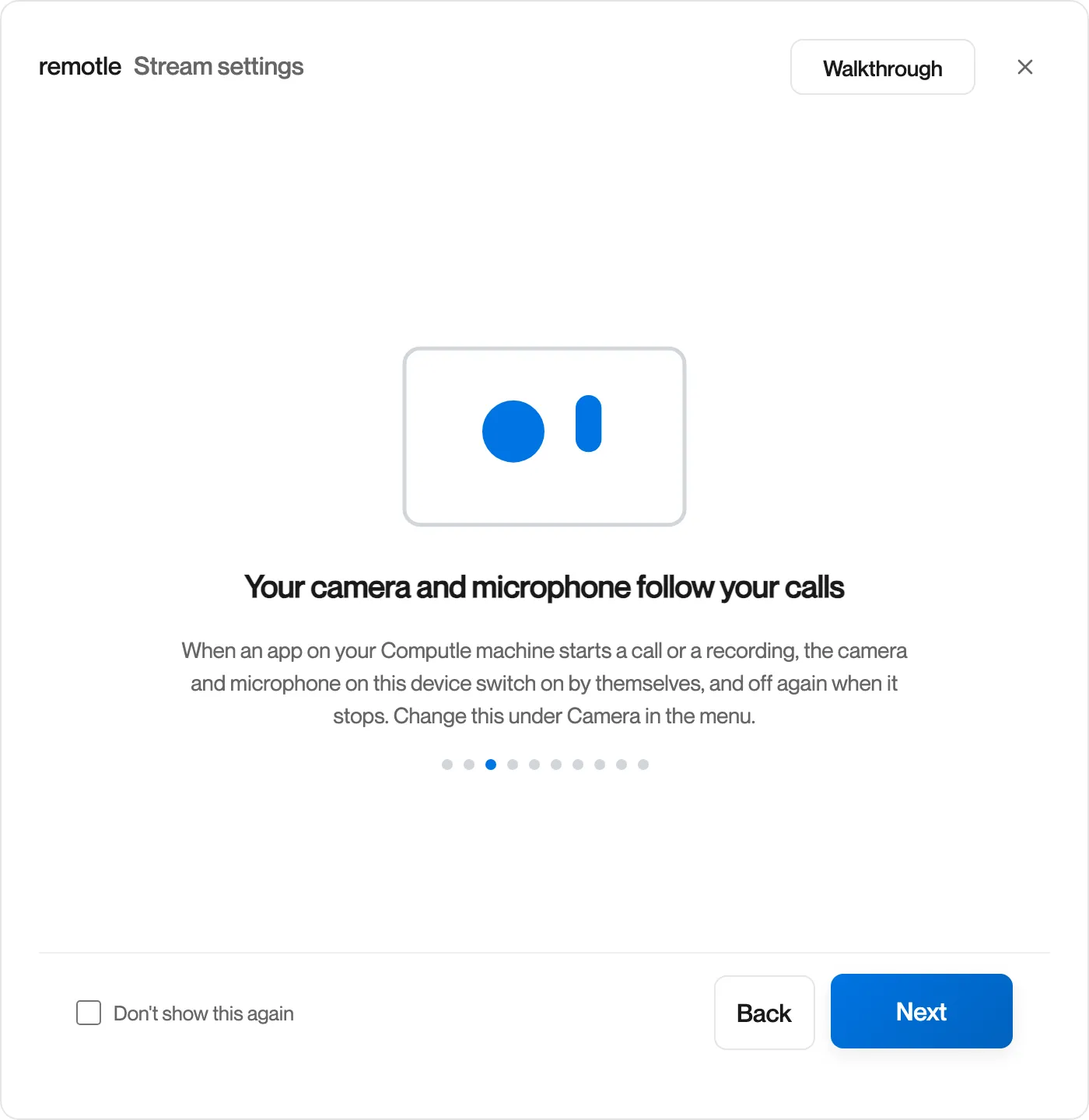
To change this, or to choose a camera:
Press F2 to open the session menu.
Open the Camera tab.
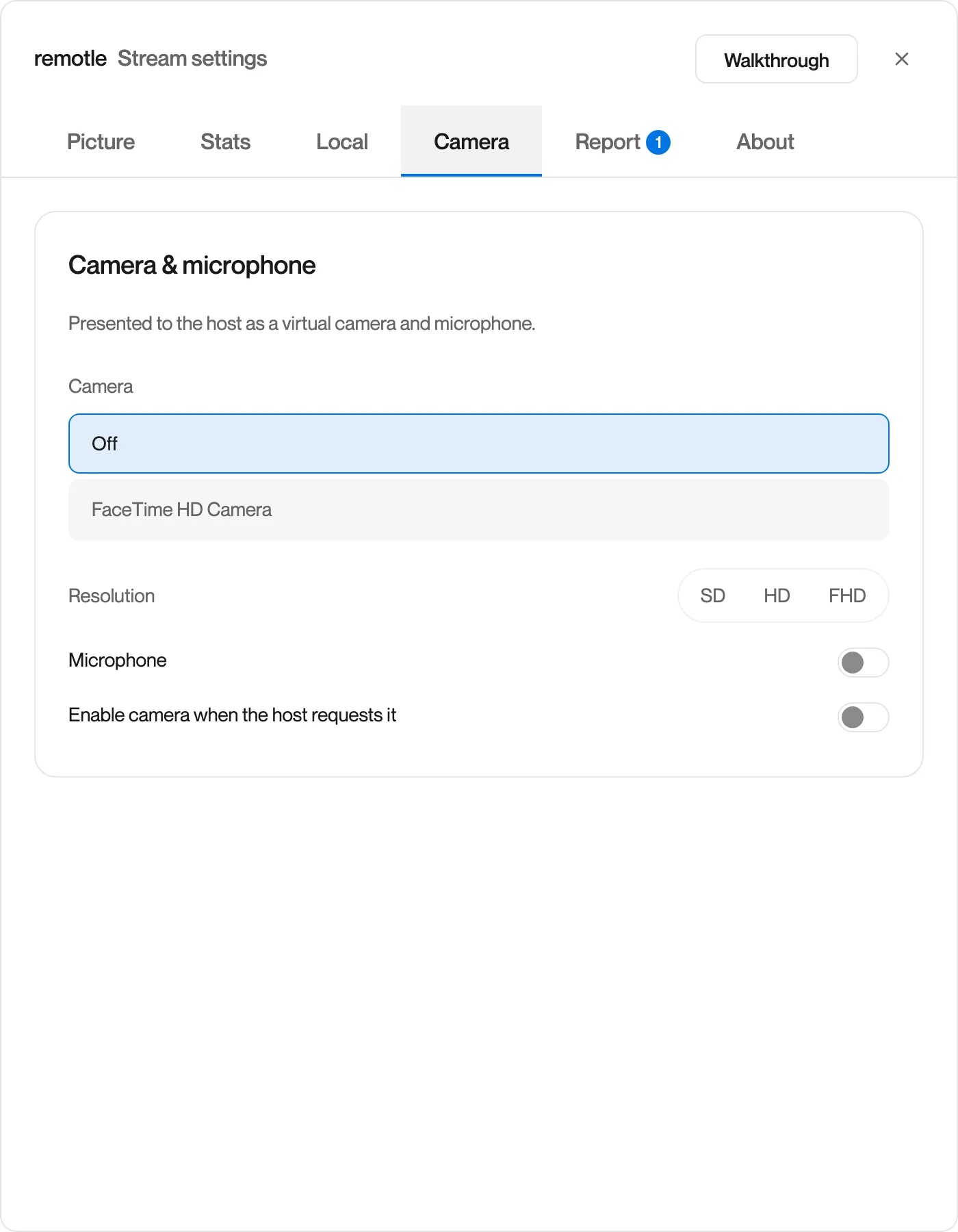
Set Camera, Resolution and Microphone, or turn off Enable camera when the host requests it.
| Setting | Options | What it does |
|---|---|---|
| Camera | Off, or one of this device’s cameras | Which camera your workstation sees as Computle Camera. Off sends no picture. |
| Resolution | SD (640 × 480), HD (1280 × 720), FHD (1920 × 1080) | The size of the camera picture sent to your workstation. Higher uses more upload bandwidth. |
| Microphone | On or off | Whether this device’s microphone reaches your workstation as Computle Virtual Microphone |
| Enable camera when the host requests it | On or off | Lets an app on your workstation turn your camera on when it starts a call or a recording |
A switch this device cannot use is greyed out with the reason, for example when the microphone permission was declined.
The first time Remotle uses your camera or microphone, your device asks for permission. Click Allow.
Settings, Privacy & security, Microphone and Camera. Make sure Computle (Remotle) is allowed.
System Settings, Privacy & Security, Microphone and Camera. Tick Computle (Remotle).
If you declined by mistake, open the Local tab of the session menu and click Reset microphone permission. macOS asks again the next time you turn the microphone on.
Remotle uses the camera and microphone your desktop makes available to applications.
Settings, Computle, then Camera and Microphone.
Sound from every application on your workstation plays on your device. You can change headset or speakers on your device during a session, and sound follows the device you choose.
While you are connected, Remotle keeps Computle’s devices as the workstation’s default sound devices. If another application on your workstation changes the default, a banner appears with Use Computle audio. Click it to switch back.
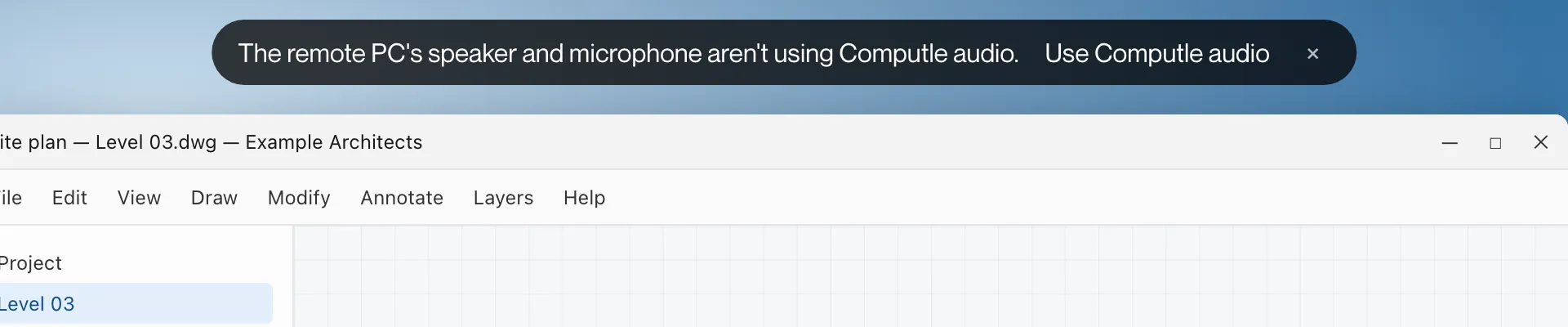
| Banner | Meaning |
|---|---|
| The remote PC’s speaker and microphone aren’t using Computle audio | Both defaults were changed. You hear nothing and apps do not hear you. |
| The remote PC’s speaker isn’t using Computle audio, so you won’t hear it | Only the output was changed. |
| The remote PC’s microphone isn’t using Computle audio, so apps won’t hear you | Only the input was changed. |
| Sound is back on Computle audio | The defaults were restored. |
Start the call in Teams, Zoom or your meeting app on your workstation.
In the app’s device settings, choose Computle Camera and Computle Virtual Microphone.
Most apps choose them by themselves because they are the defaults.
Your camera and microphone switch on when the call starts, and off when it ends.
Computle Camera for video and Computle Virtual Microphone for sound. They are the workstation’s defaults while you are connected.
Yes. Set Camera to Off and leave Microphone on.
It uses your upload. SD uses the least, FHD the most. HD suits most calls.
Cameras and headsets stream in real time and are not shared as USB devices. Use them through the Camera tab instead, where they appear as Computle Camera and Computle Virtual Microphone on the workstation. See USB Devices.