The Session Menu
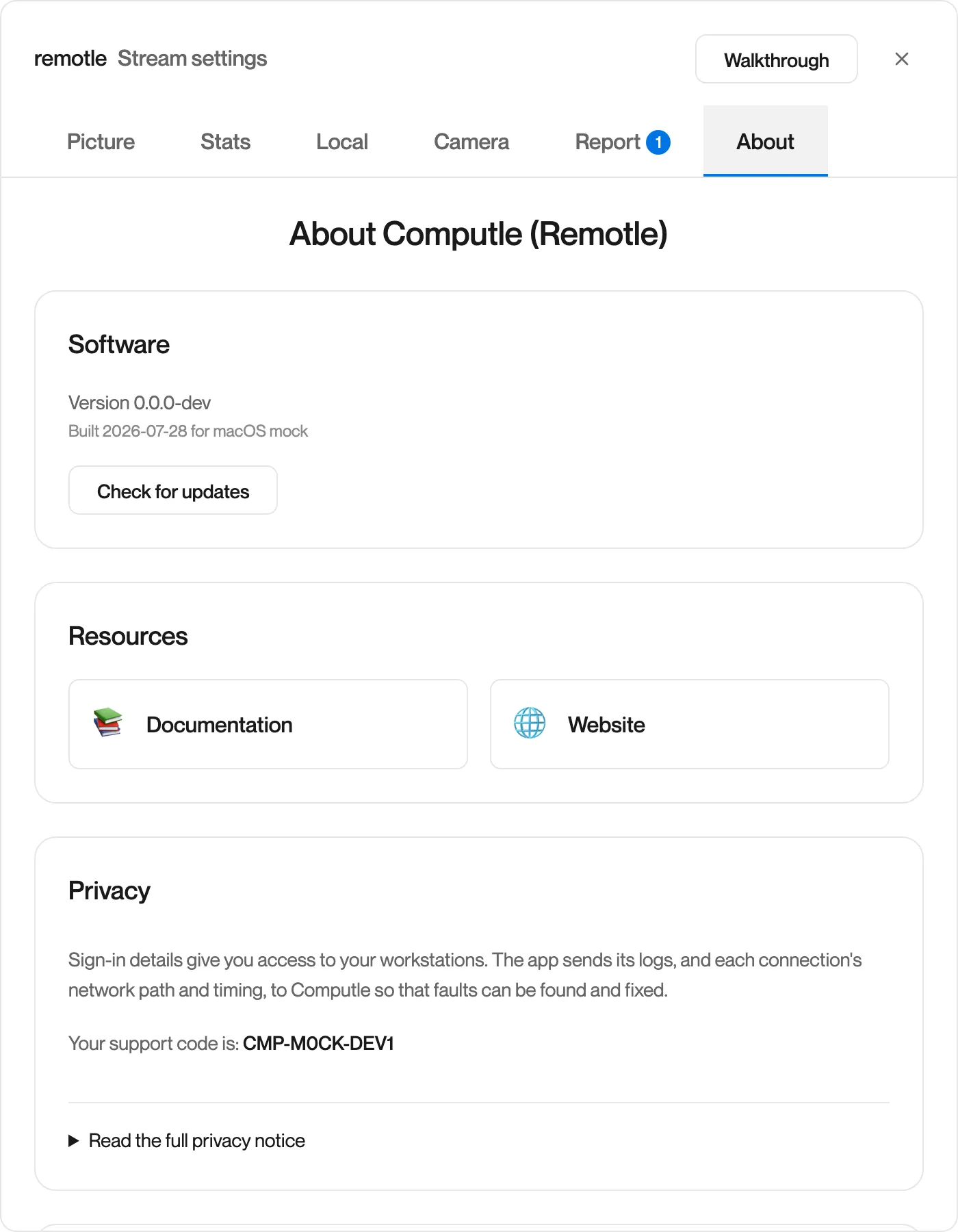
Session Menu: Report and About
The Report tab sends a problem to Computle. The About tab shows the version of Remotle you are running and your support code.
Report
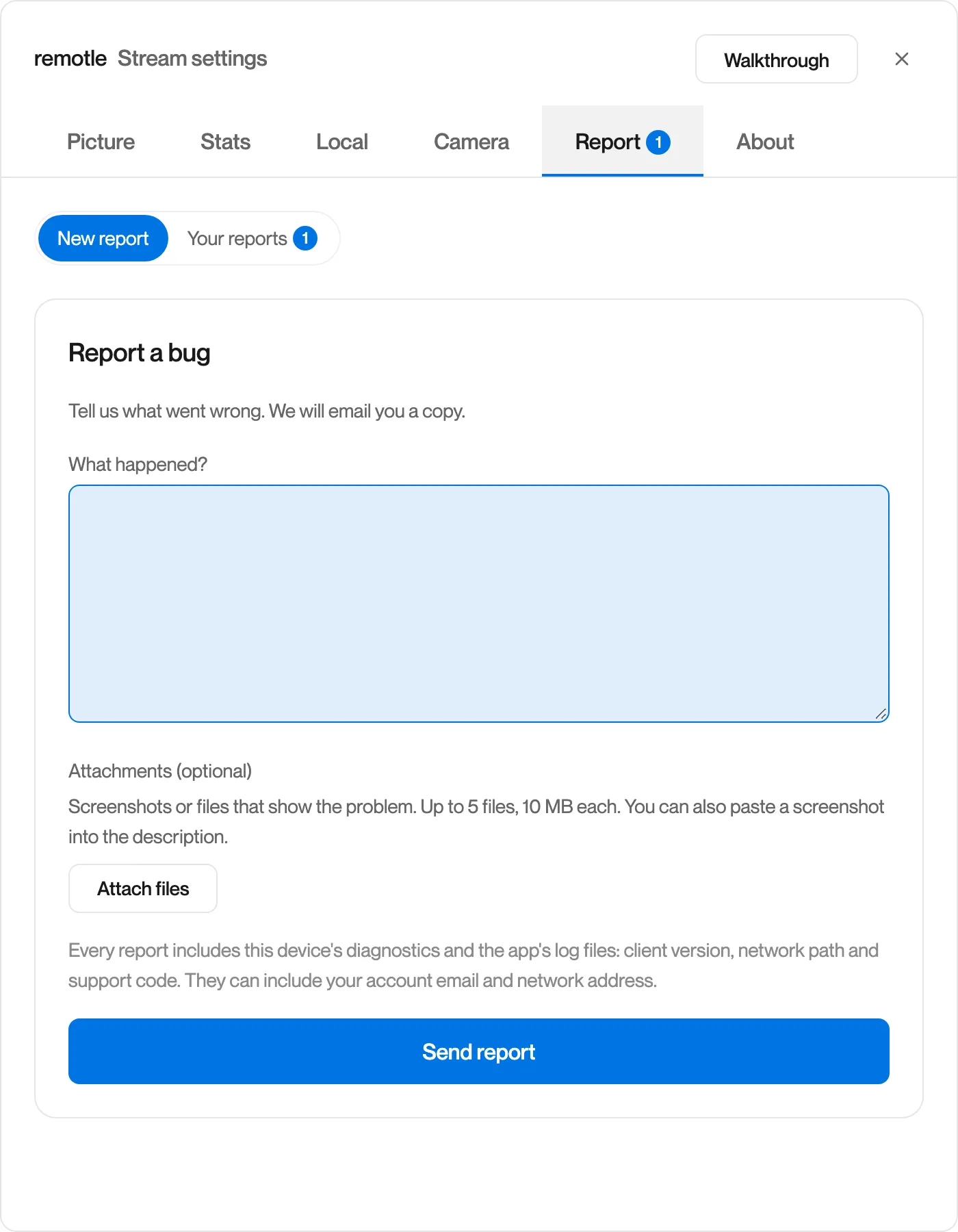
Section titled “Report”Sends a description of the problem, with this device’s diagnostics and log files, to Computle. A copy is emailed to you, and replies from Computle appear under Your reports with a badge on the tab.
-
Describe what happened.
-
Attach screenshots or files if they help.
Up to 5 files, 10 MB each and 25 MB in total. You can also paste a screenshot into the description.
-
Click Send report.
Remotle shows your reference and emails you a copy.
Every report includes this device’s diagnostics and the app’s log files: the client version, network path and support code. They can include your account email and network address.
See Reporting a Problem.
The version of Remotle you are running, Check for updates, links to this documentation and the Computle website, your support code, and the privacy notice. Show the walkthrough again is at the bottom.