Workstations
App Deployment
App deployment installs and removes software on your workstations from the Computle Portal. You upload an installer or add an app from the catalogue, check how it installs, choose the machines, and follow each install as it runs. Workstations join by running the deployment agent, and each enrolled workstation uses one seat of your licence.
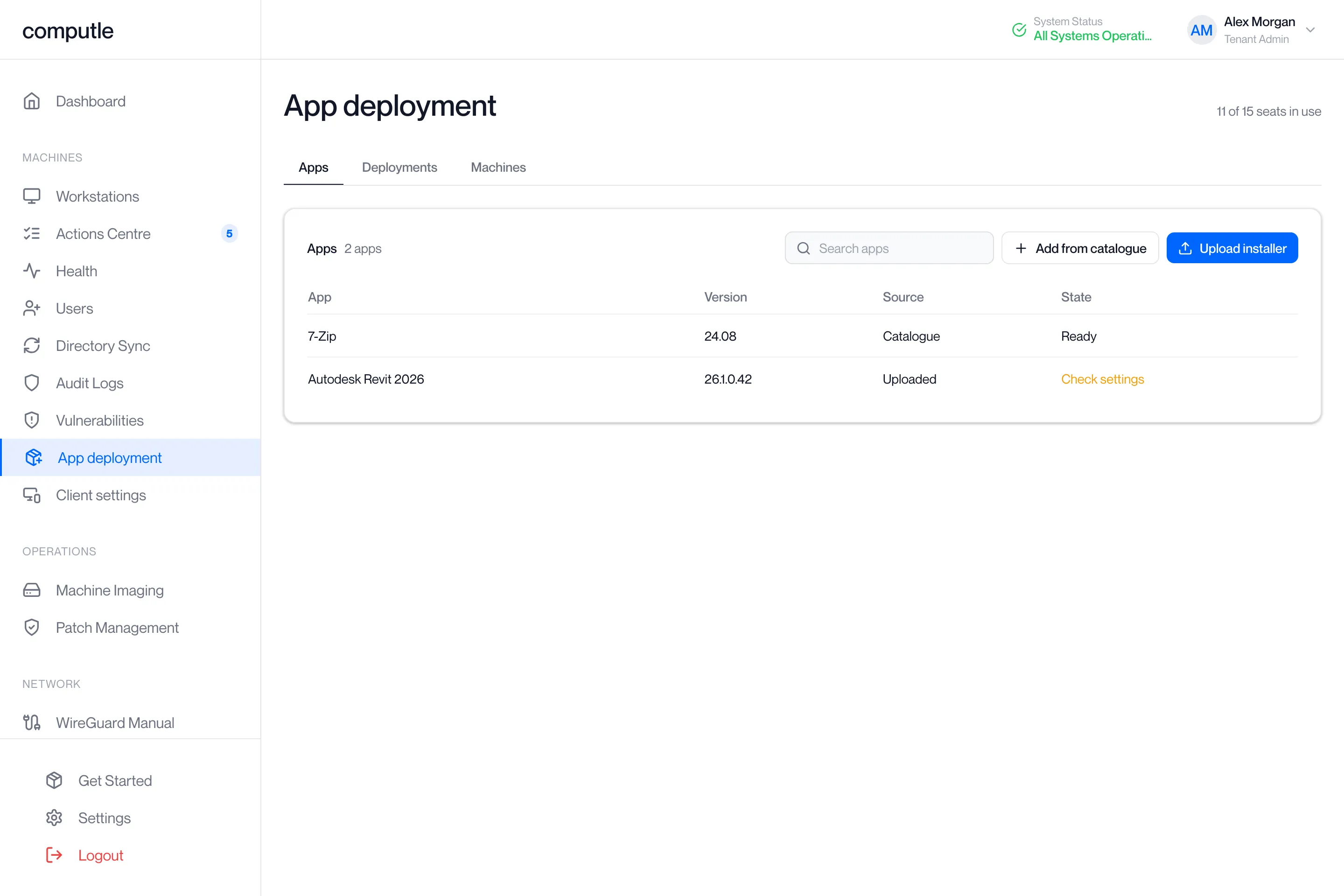
Open App deployment under Machines in the portal sidebar. The entry appears only when app deployment is licensed for your organisation, and the page needs the Tenant Admin role. The line at the top right reads “N of M seats in use”, with “N machines waiting for a seat” added when workstations are waiting.
Deploy an app
Section titled “Deploy an app”-
Add the app.
On the Apps tab, click Upload installer and choose an
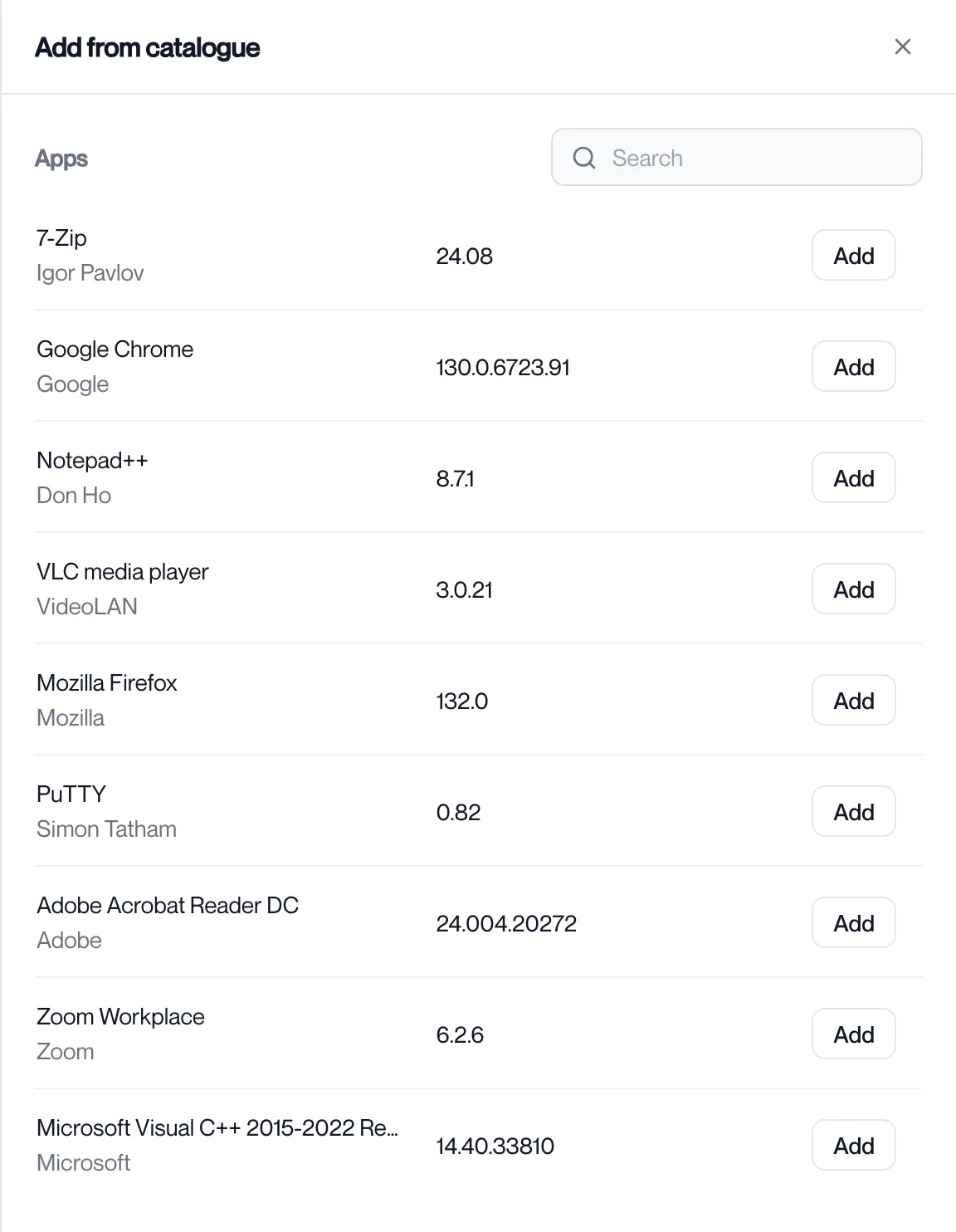
.msi,.exeor.zipfile, or click Add from catalogue and click Add next to an app. The button reads “Uploading 42%” while a file uploads. The file goes straight from your browser to your organisation’s app store, so a large installer does not pass through the portal.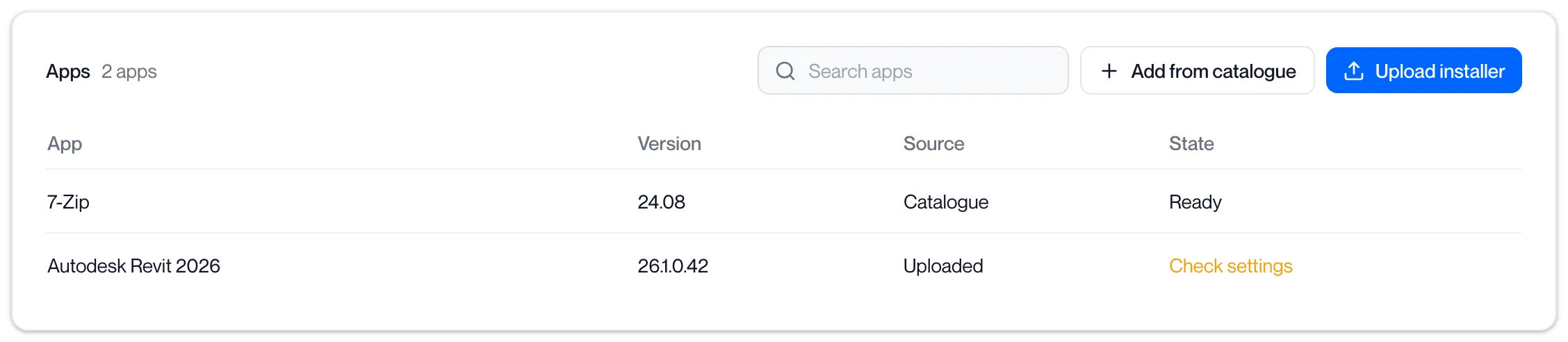
When the upload finishes the portal says “Uploaded and matched” or “Uploaded; check its settings” and opens the app. A catalogue app says “App added”, or “Added; add X too” when it needs another app installed first.
-
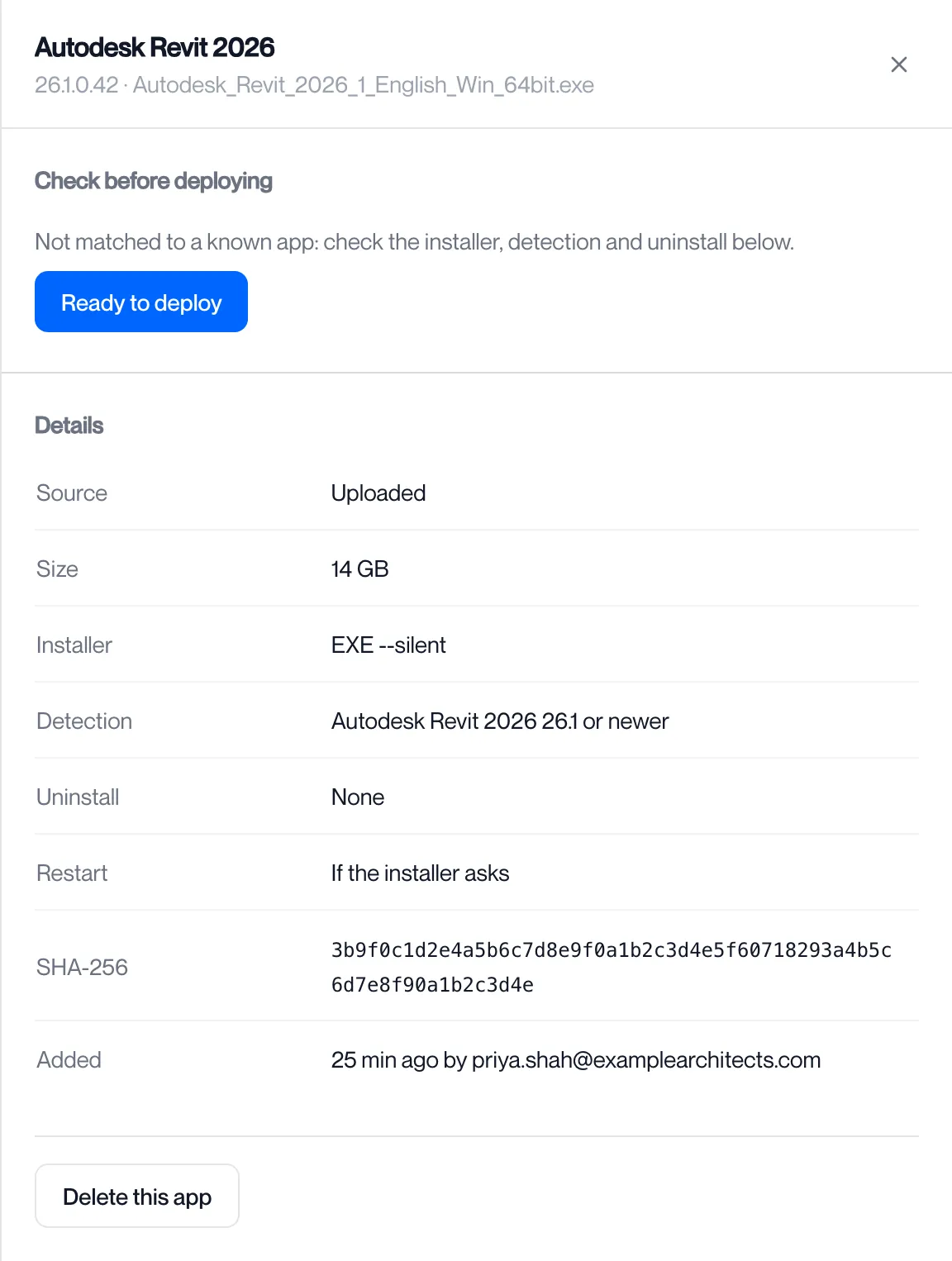
Check the settings and click Ready to deploy.
An app that is not yet confirmed shows a Check before deploying panel. It reads “Matched to a known app.” when the installer was recognised, or “Not matched to a known app: check the installer, detection and uninstall below.” Read the Details panel, then click Ready to deploy. The portal says “App ready to deploy”.
-
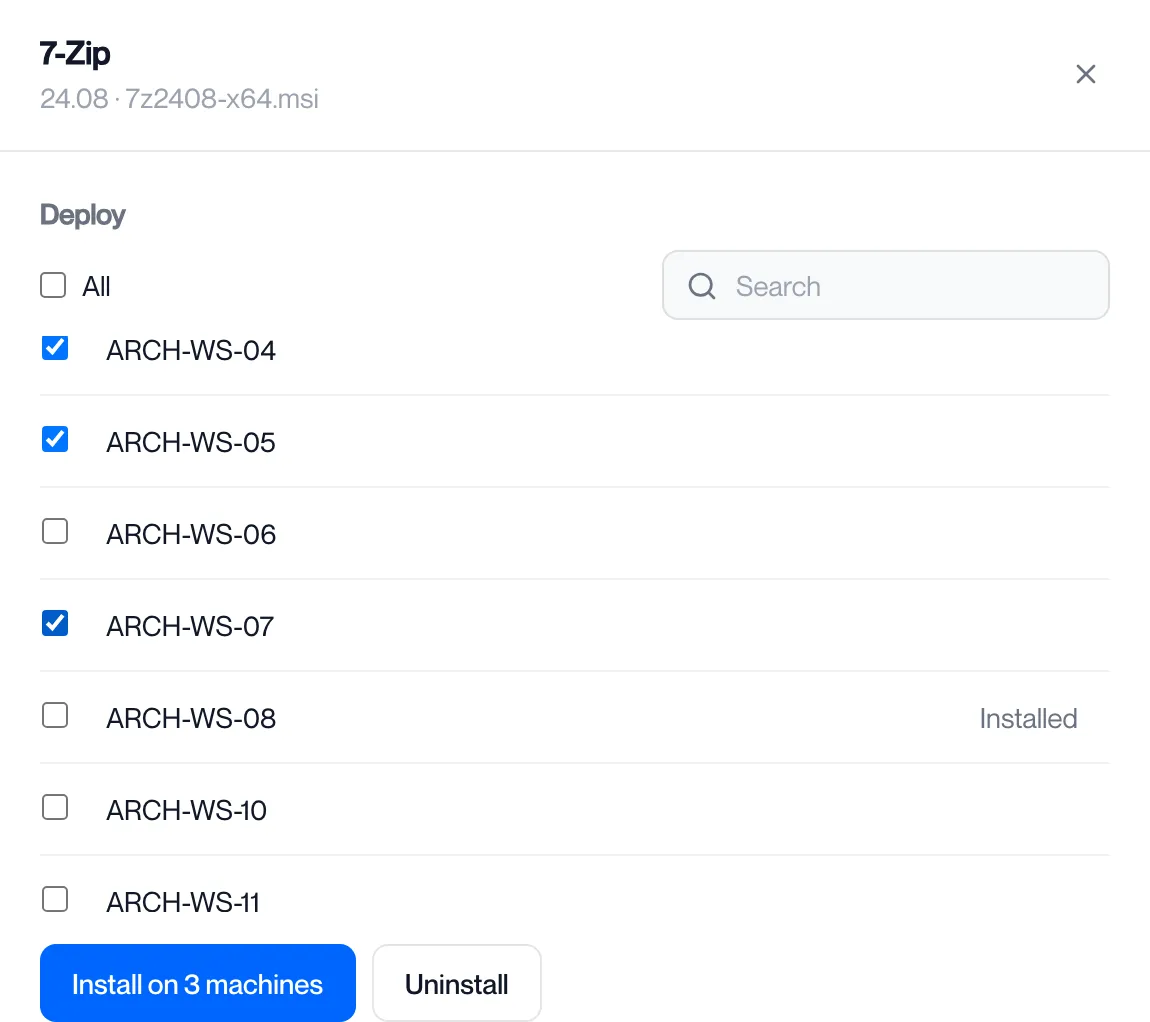
Choose the machines and click Install.
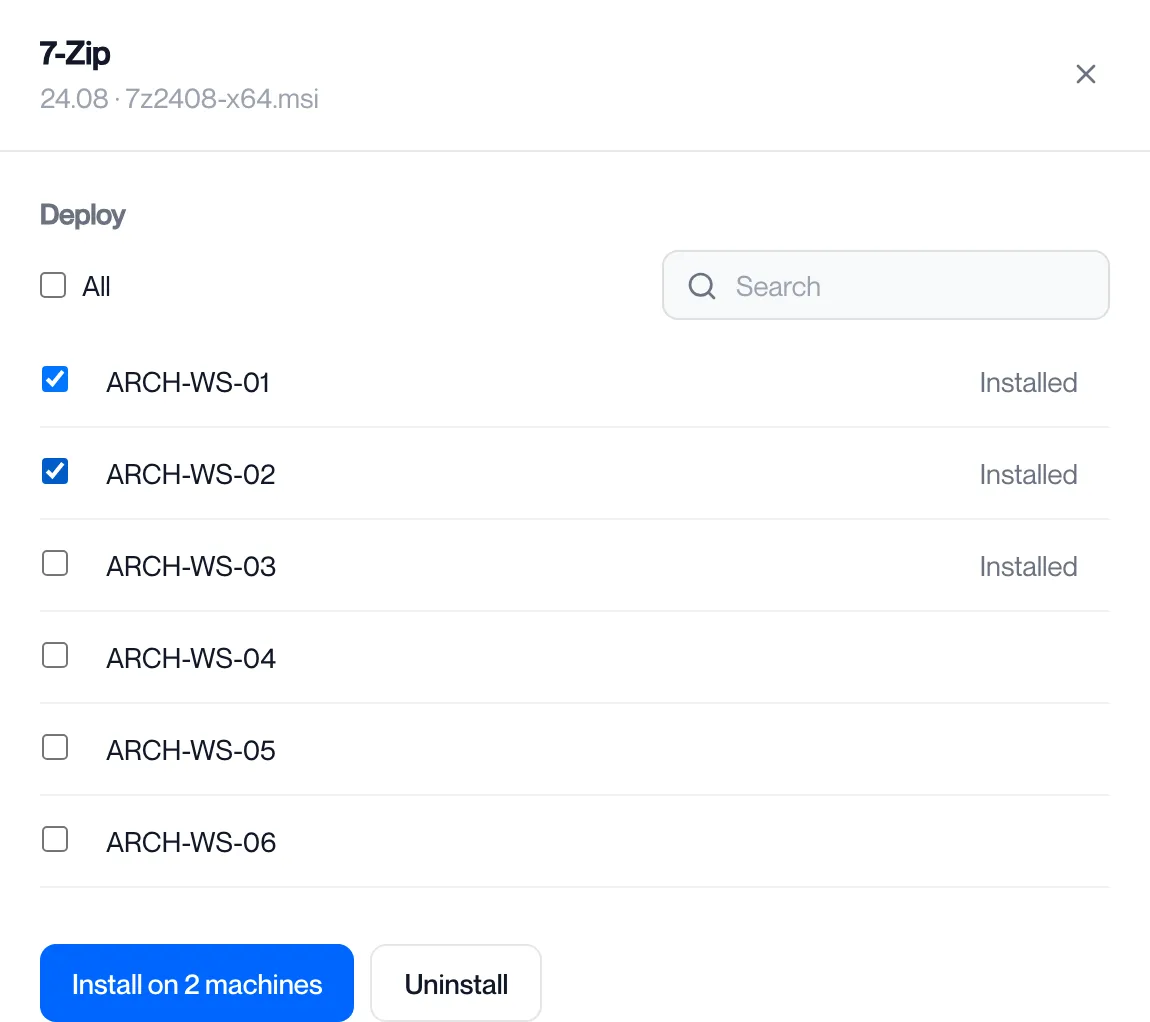
The Deploy panel lists every enrolled workstation with a checkbox, a search box and an All checkbox. A workstation that last reported the app shows “Installed” at the right. Tick the machines and click Install on N machines. The portal says “Deployment started” and opens the deployment.
-
Follow the deployment.
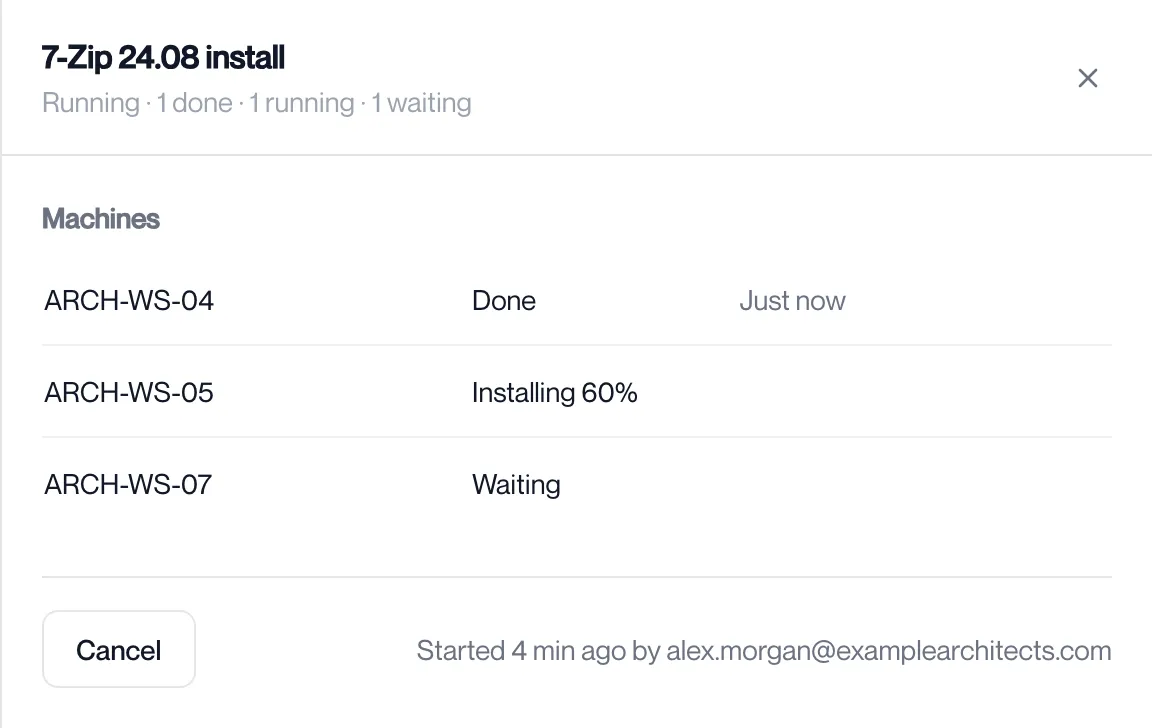
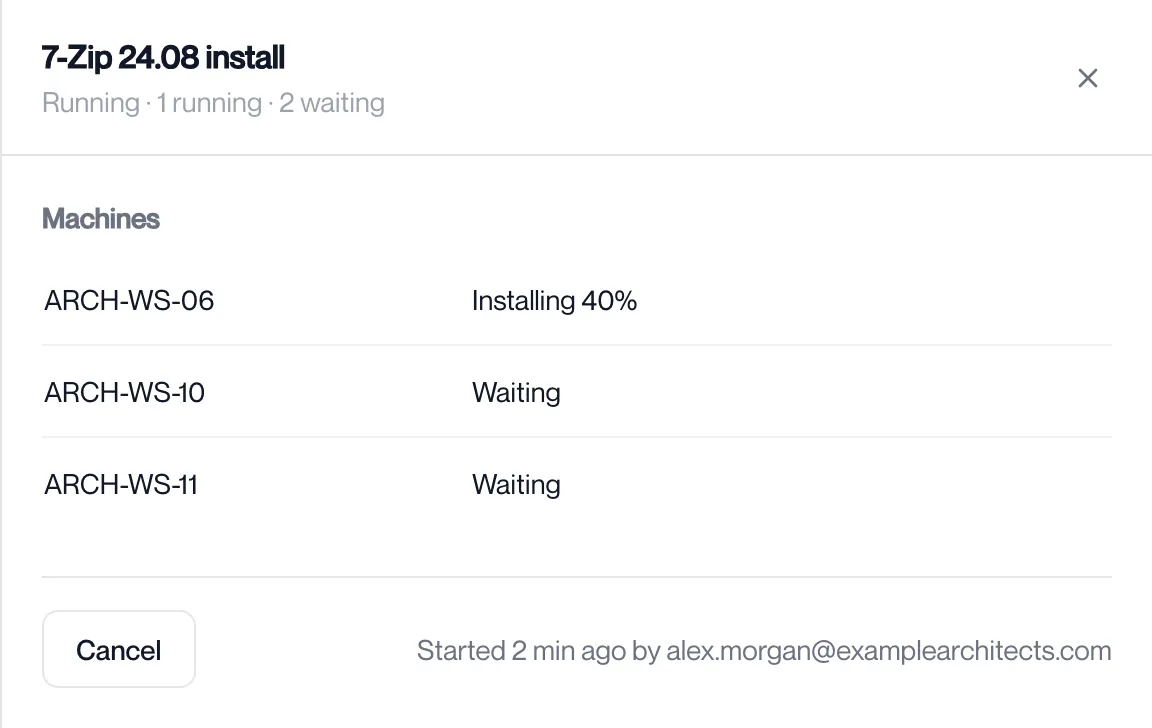
The deployment drawer lists each machine with its state, and refreshes every 5 seconds while it runs. See Deployment states.
The Apps tab
Section titled “The Apps tab”| Column | What it shows |
|---|---|
| App | The app’s name. Apps sort by name, then newest version first. |
| Version | The version read from the installer or the catalogue. |
| Source | Catalogue, for an app the service downloaded from the vendor, or Uploaded. |
| State | Ready, or “Check settings” in amber until you confirm the app. |
Type in Search apps to filter by name, version or file name. An empty list reads “No apps yet. Upload an installer or add one from the catalogue.”
How an upload is recognised
Section titled “How an upload is recognised”The app store inspects every file it receives. For an MSI it reads the product code, name, version and manufacturer; for an EXE the version information and the signer; for a ZIP the list of files, so a deployment folder can name the file to run. The result is compared with Computle’s list of known apps. A match fills in the install arguments, detection rule, uninstall rule, restart behaviour and prerequisites; an unmatched file gets the defaults for its type, which is why the portal asks you to check them.
Add from catalogue
Section titled “Add from catalogue”The catalogue lists apps that the service can download from the vendor itself. Click Add from catalogue, search by name, vendor or category, and click Add. The download is checked against the vendor’s published hash before it is stored. Computle does not redistribute installers.
The app drawer
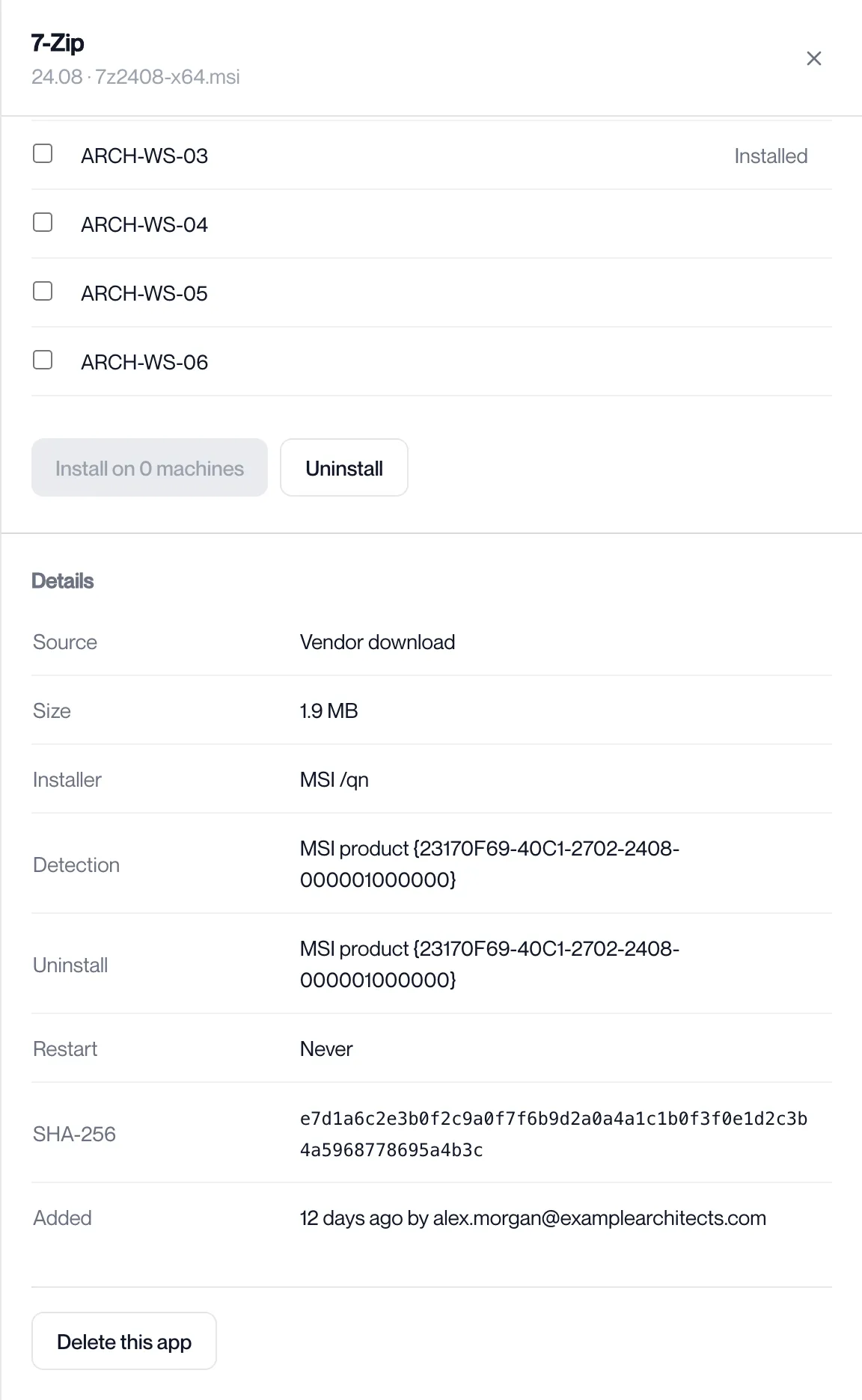
Section titled “The app drawer”Click an app to open it. The heading shows the name, version and file name.
| Row | What it shows |
|---|---|
| Source | Vendor download or Uploaded. |
| Size | The installer size. |
| Installer | The installer type and its arguments, for example “MSI /qn”. |
| Detection | How the agent decides the app is installed: an MSI product code, a program name with “1.2 or newer”, or a file path with a minimum version. “None” when there is no rule. |
| Uninstall | The rule used to remove the app. “None” when it cannot be uninstalled from the portal. |
| Restart | Always, If the installer asks, or Never. |
| SHA-256 | The hash of the installer. The agent checks every download against it. |
| Added | When the app was added and by whom. |
Uninstall appears next to Install only for a confirmed app with an uninstall rule. Delete this app at the bottom removes the app from the portal and nothing from the workstations.
Uninstall an app
Section titled “Uninstall an app”-
On the Apps tab, click the app.
The app drawer opens. Uninstall is offered only when the Details panel shows a rule against Uninstall.
-
In the Deploy panel, tick the machines and click Uninstall.
Machines that last reported the app show “Installed” at the right.
-
Confirm “Uninstall 7-Zip from 2 machines?”.
The portal says “Deployment started” and opens the deployment. Each machine runs the uninstall rule and reports Done when the app has gone.
Delete an app
Section titled “Delete an app”-
Open the app and click Delete this app at the bottom of the drawer.
-
Confirm “Delete 7-Zip 24.08? Machines keep it installed.”
The portal says “App deleted” and the app leaves the Apps tab. Nothing changes on the workstations; use Uninstall first if you want it removed from them.
The Deployments tab
Section titled “The Deployments tab”The table lists the last 100 deployments with the Deployment name, State, Started and By columns. An empty list reads “Nothing deployed yet. Open an app to send it to machines.” Click a row to open it.
Deployment states
Section titled “Deployment states”| State | Meaning |
|---|---|
| Waiting | No machine has started yet. |
| Running | At least one machine is working on it. |
| Done | Every machine finished. |
| Failed | The deployment finished with failures. |
| Cancelled | You cancelled it. |
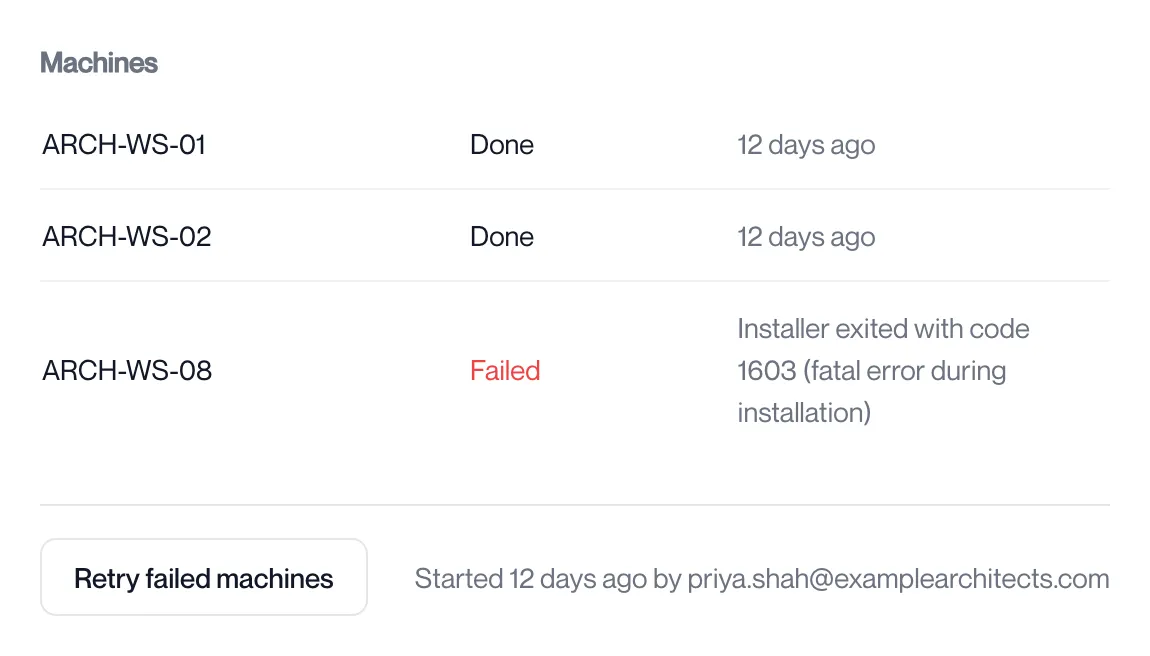
Each machine in the deployment drawer shows its own state: Waiting, then Downloading, Checking or Installing with a percentage, then Done, Failed, Cancelled, or “Waiting for restart” in amber when the installer reported that a restart is pending. When an app has prerequisites the deployment runs as steps and each row reads “Step 1 of 2”. The third column holds the agent’s message for that machine, or the time it finished.
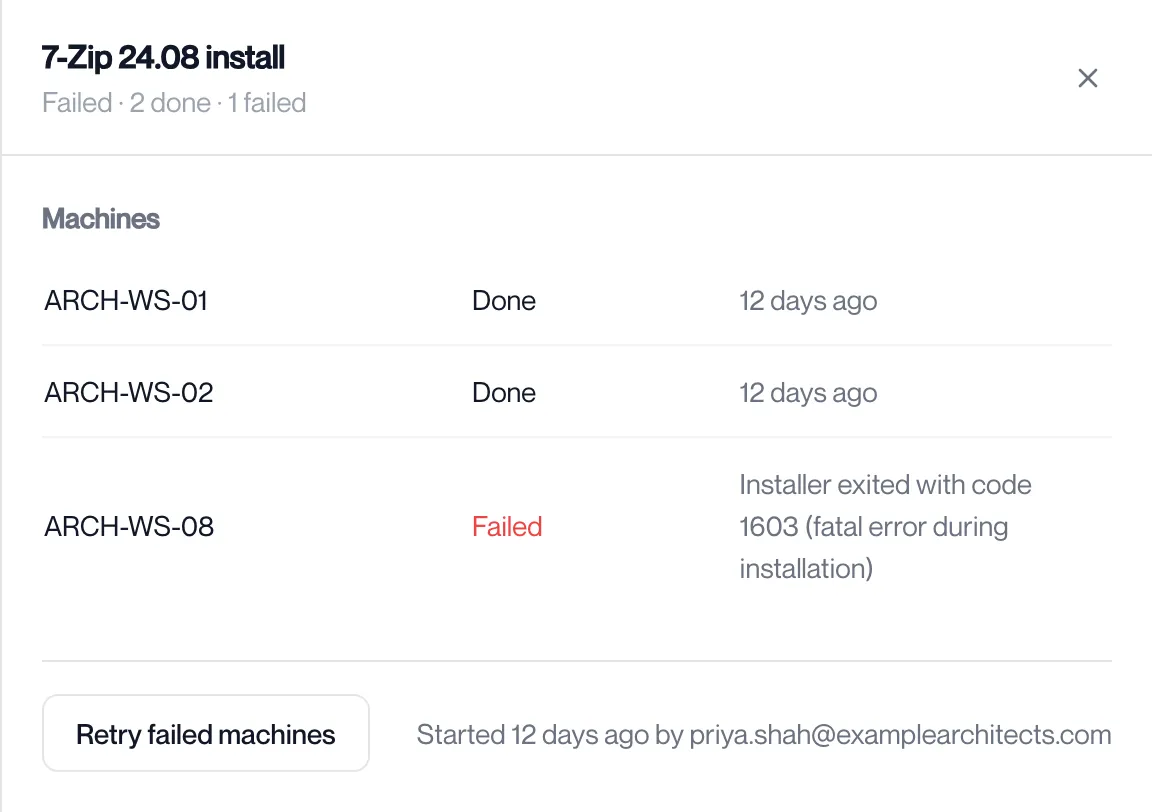
The drawer heading sums the machines: “Running · 2 done · 1 running · 3 waiting”. Under the table:
| Button | What it does |
|---|---|
| Cancel | Shown while the deployment is Waiting or Running. Asks “Cancel this deployment?” Machines that have not started are not sent the work. |
| Retry failed machines | Shown when any machine failed. Sends the work to those machines again. The portal says “Retrying failed machines”. |
Cancel a deployment
Section titled “Cancel a deployment”-
On the Deployments tab, click the deployment.
Its state must be Waiting or Running; a finished deployment has no Cancel button.
-
Click Cancel under the table and confirm “Cancel this deployment?”.
The deployment’s state becomes Cancelled. Machines that had not started are not sent the work.
Retry failed machines
Section titled “Retry failed machines”-
Open the deployment and read each failed machine’s message.
The third column holds the agent’s message, for example the installer’s exit code. Fix the cause on the machine if the message points to one.
-
Click Retry failed machines.
The portal says “Retrying failed machines”. The deployment runs again for the failed machines only; the others keep their result.
The Machines tab
Section titled “The Machines tab”The table lists every workstation that has reported to the service, with Computer, System, State, Last seen and the number of apps it reported.
| State | Meaning |
|---|---|
| Enrolled | The workstation holds a seat and receives deployments. |
| Waiting for a seat | Every seat is in use. The workstation is enrolled as soon as a seat is freed. Shown in amber. |
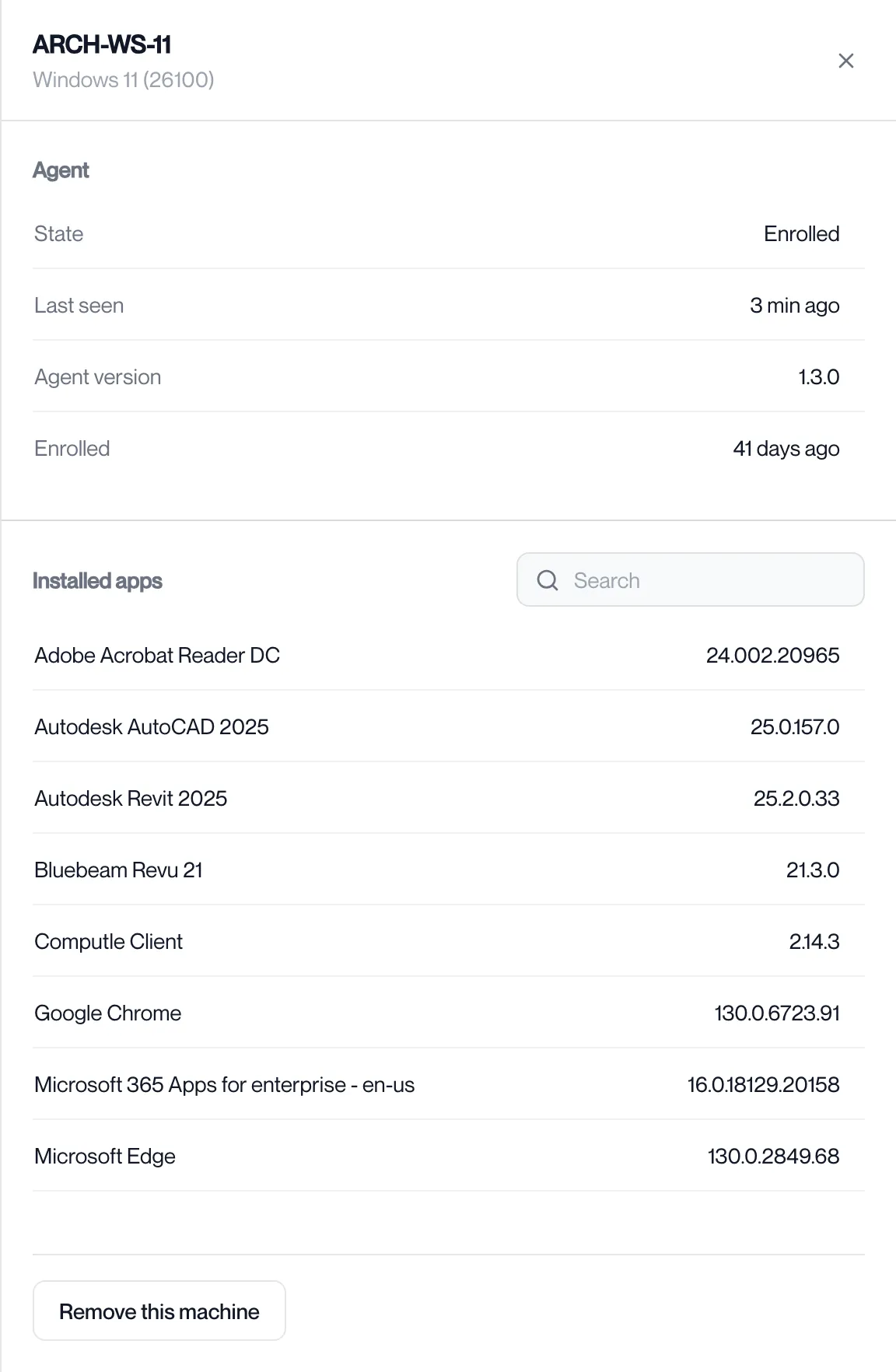
Click a machine to open it. The Agent panel shows its state, when it was last seen, the agent version and when it enrolled. Installed apps lists what the agent last reported, with a search box. Enrolled machines keep working when the seat count is reached; only new machines wait.
Remove a machine
Section titled “Remove a machine”-
On the Machines tab, click the machine.
-
Click Remove this machine at the bottom and confirm “Remove ARCH-WS-11? Its seat is freed and it gets no more deployments.”
The portal says “Machine removed”. The seat count at the top of the page goes down by one, and a machine that was waiting for a seat is enrolled in its place. Nothing is uninstalled from the removed machine.
What happens on the workstation
Section titled “What happens on the workstation”The agent is a Windows service. It downloads the installer from your organisation’s app store, checks the SHA-256 against the app’s record and discards a file that does not match, runs the detection rule, installs, then runs the detection rule again. An MSI runs silently with no restart; an EXE runs with the arguments on the app; a ZIP is extracted and the named file is run. Exit codes 3010 and 1641 count as success with a restart pending, which the portal shows as “Waiting for restart”.
Deployment Information
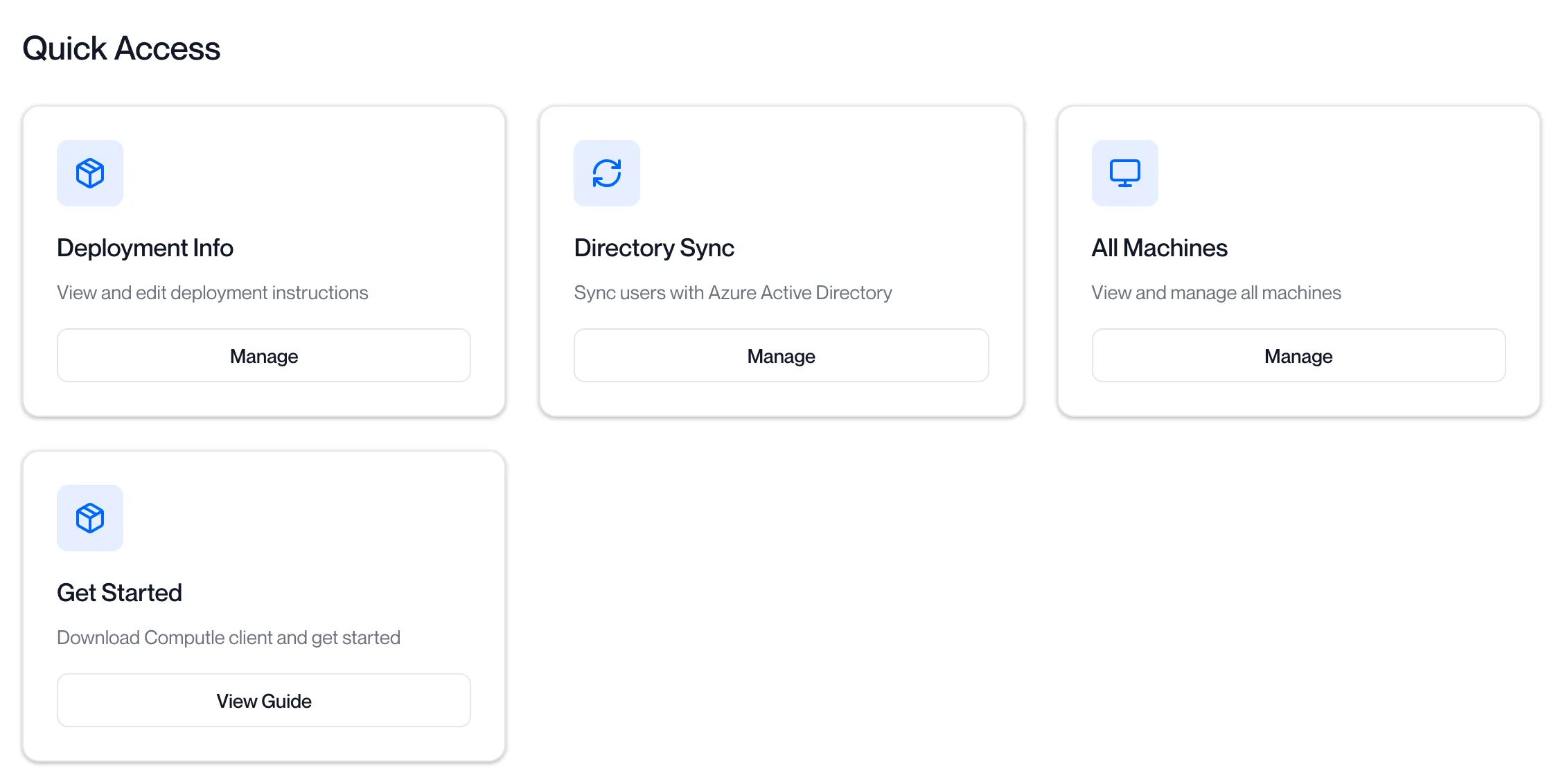
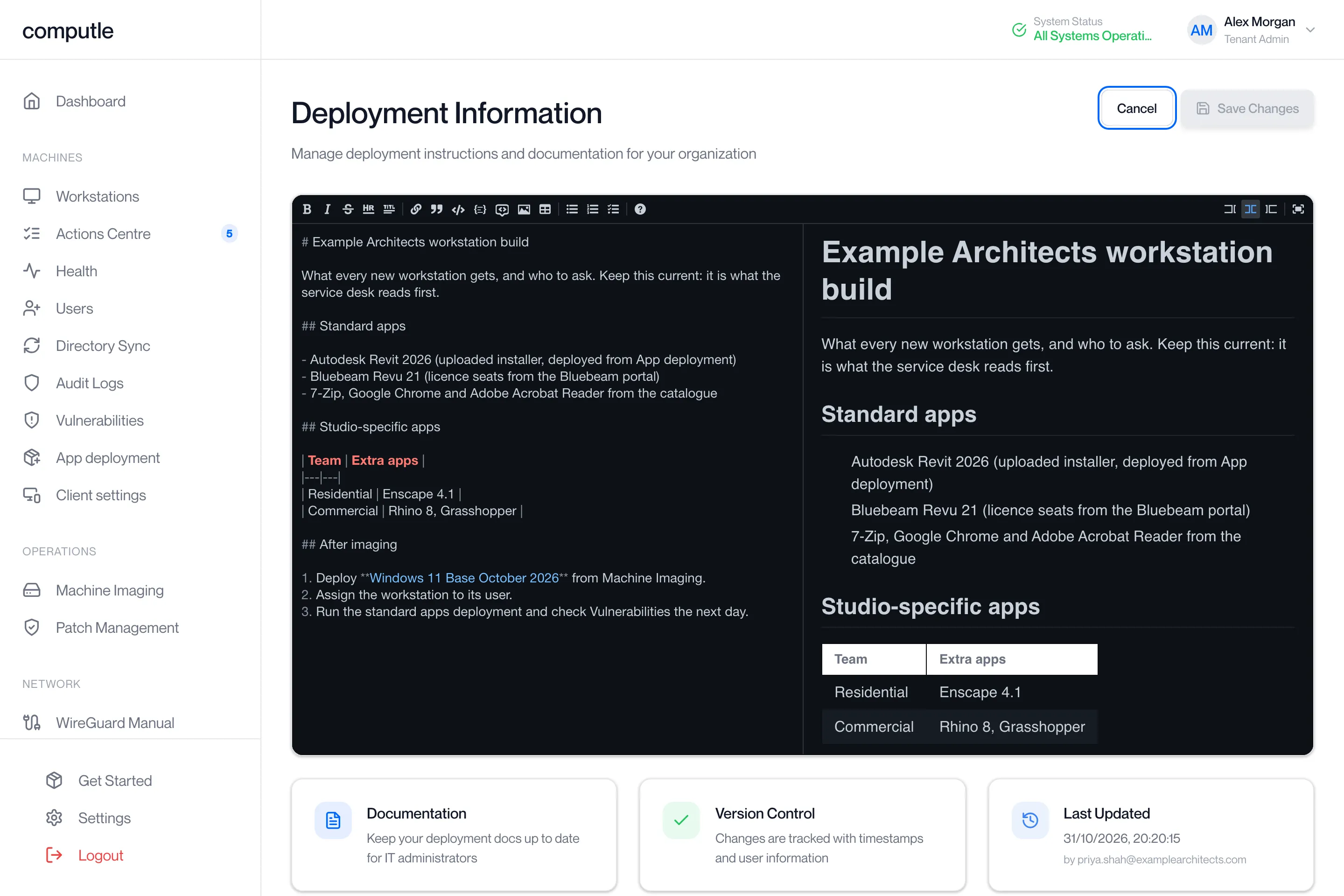
Section titled “Deployment Information”The Dashboard also has a Deployment Info card for Tenant Admins, which opens a page called Deployment Information. It holds free-text notes in Markdown for your own administrators, for example which apps each team needs. The page is separate from app deployment and sends nothing to workstations.
-
On the Dashboard, click Manage on the Deployment Info card.
-
Click Edit.
The notes open in an editor. Write in Markdown; headings and lists are rendered when you save.
-
Click Save Changes.
The portal says “Deployment information saved successfully” and the page shows who last updated it and when. Click Cancel instead to discard the edit.
Related pages
Section titled “Related pages”Questions
Section titled “Questions”The page says “App deployment is off for this organisation.” What does that mean?
Section titled “The page says “App deployment is off for this organisation.” What does that mean?”The service checked your licence and found app deployment turned off. Contact your account manager.
What do the other messages mean?
Section titled “What do the other messages mean?”| Message | Meaning |
|---|---|
| App deployment is not set up for this organisation. | The service is not provisioned for your organisation. |
| App deployment is not licensed for this organisation. | Your licence does not include app deployment. |
| The app store did not answer. Try again in a minute. | The store that holds installers was unreachable. |
| The upload did not reach the app store. Upload it again. | The file was not stored. |
| That upload was already used. Upload the file again. | The upload token was spent. Each upload needs a new one. |
| That file is larger than the upload limit. | The installer is over the size limit for uploads. |
| A chosen machine is not enrolled. | A ticked machine lost its enrolment before the deployment started. |
| Mark the app ready to deploy first. | Click Ready to deploy in the app drawer. |
| We couldn’t reach app deployment. | The portal could not reach the service. Click Try again. |
Why does a machine show “Waiting for a seat”?
Section titled “Why does a machine show “Waiting for a seat”?”Every seat in your licence is held by an enrolled machine. Remove a machine you no longer need, or ask your account manager for more seats.
Can I deploy to a Mac or Linux workstation?
Section titled “Can I deploy to a Mac or Linux workstation?”The agent runs on Windows. Only workstations that report to the service appear in the machine picker.
Does deleting an app uninstall it?
Section titled “Does deleting an app uninstall it?”No. The confirmation says “Machines keep it installed.” Use Uninstall in the app drawer first if you want it removed.
Why is there no Uninstall button?
Section titled “Why is there no Uninstall button?”The app has no uninstall rule. The Details panel shows “None” against Uninstall. An app matched to a known app has one filled in.