Billing & Reports
Actions Centre
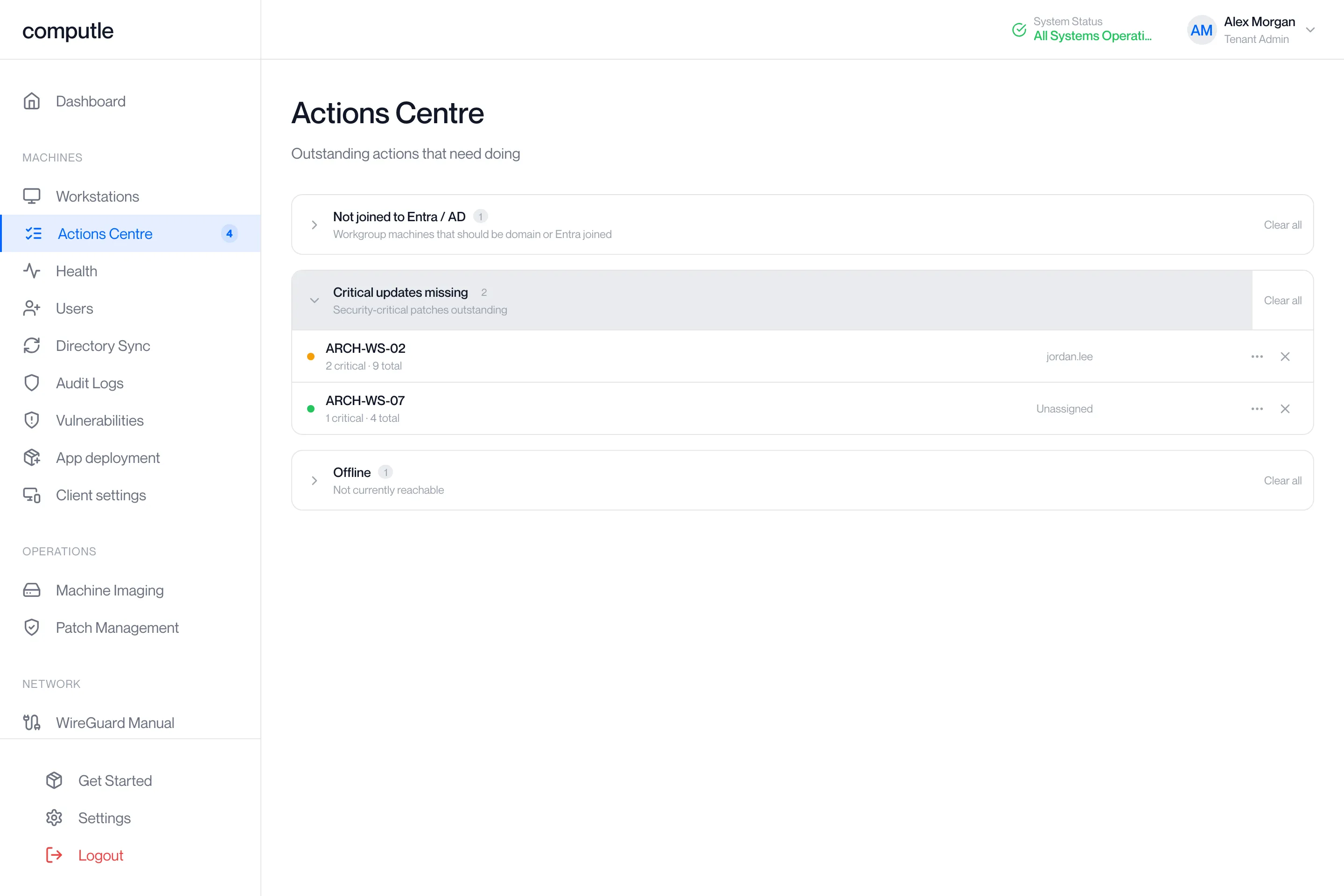
The Actions Centre is a to-do list built from what your workstations report. Each group is one kind of problem; each row is a workstation with that problem and the actions you can take on it from the same row.
Open Actions Centre in the portal sidebar. The page needs the Tenant Admin role. The number next to it in the sidebar is how many workstations have at least one problem you have not dismissed, plus one if no support contacts are set.
The groups
Section titled “The groups”Groups appear only when they have at least one workstation in them. Each starts closed; click the heading to open it. The pill shows how many workstations are in the group.
| Group | Description shown | A workstation is listed when |
|---|---|---|
| No support contacts set | “Add the people who should receive alerts about workstation problems” | This item is about your organisation as a whole. It leads the list until contacts are added. Add contacts opens the Support contacts tab on Users. |
| Not joined to Entra / AD | “Workgroup machines that should be domain or Entra joined” | The workstation reports it is in a workgroup. |
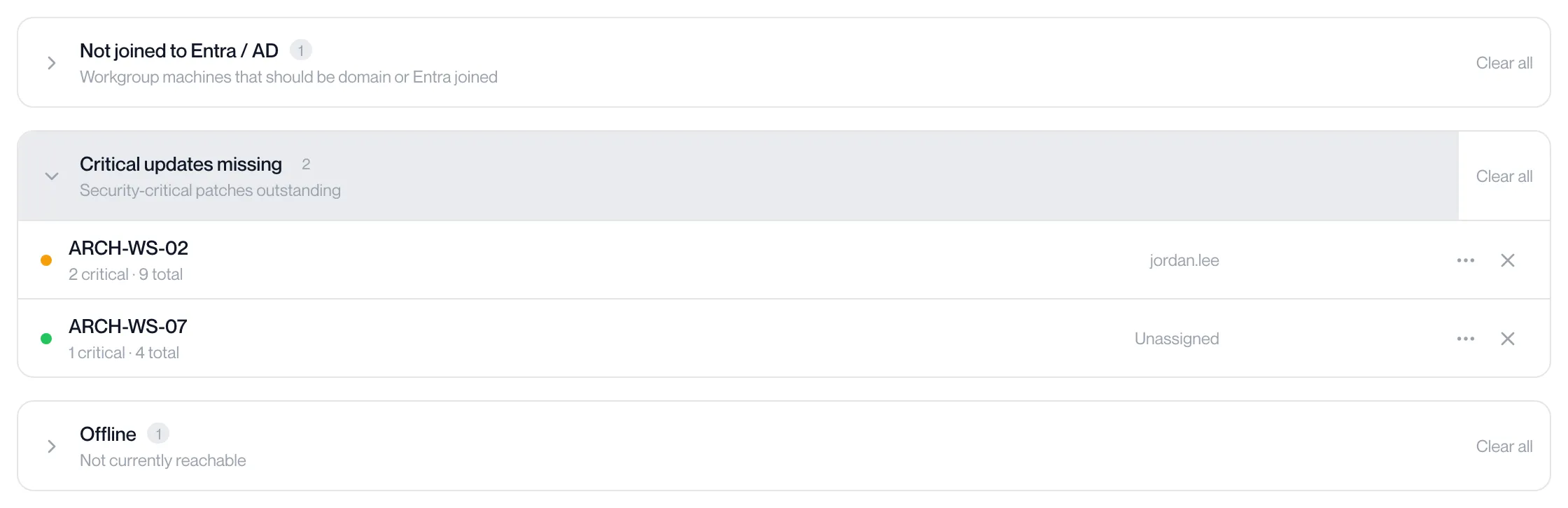
| Critical updates missing | “Security-critical patches outstanding” | At least one critical update is missing. The row shows “2 critical · 9 total”. |
| Recent BSOD (last 3 days) | “Blue-screen crash captured in the last 3 days” | A blue-screen crash dump was received in the last three days. The row shows the bug check code. |
| Unhealthy | “Agent reporting a problem or no heartbeat” | The workstation’s health is red. The row shows the reason. Shown only when health reporting is enabled for your organisation. |
| Offline | “Not currently reachable” | The workstation’s status is offline. |
| Single Sign-On blocked | “Machines whose own report rules out silent sign-in” | One of the Single Sign-On readiness checks fails. The row shows the failing check and the fix. |
When nothing is outstanding the page reads “All clear. No outstanding actions right now.”
The list refreshes itself every 30 seconds. Crash dumps are checked every minute.
A workstation row
Section titled “A workstation row”| Part | What it shows |
|---|---|
| Coloured dot | The workstation’s status. |
| Name | The workstation’s friendly name. |
| Detail | The group’s fact for this workstation, for example “Workgroup” or “BugCheck 0x0000007E”. |
| User | The assigned user’s name before the @, or “Unassigned”. |
Hover over the row for the actions. They are the same as on the Workstations page; see Workstations for what each does.
| Action | Where |
|---|---|
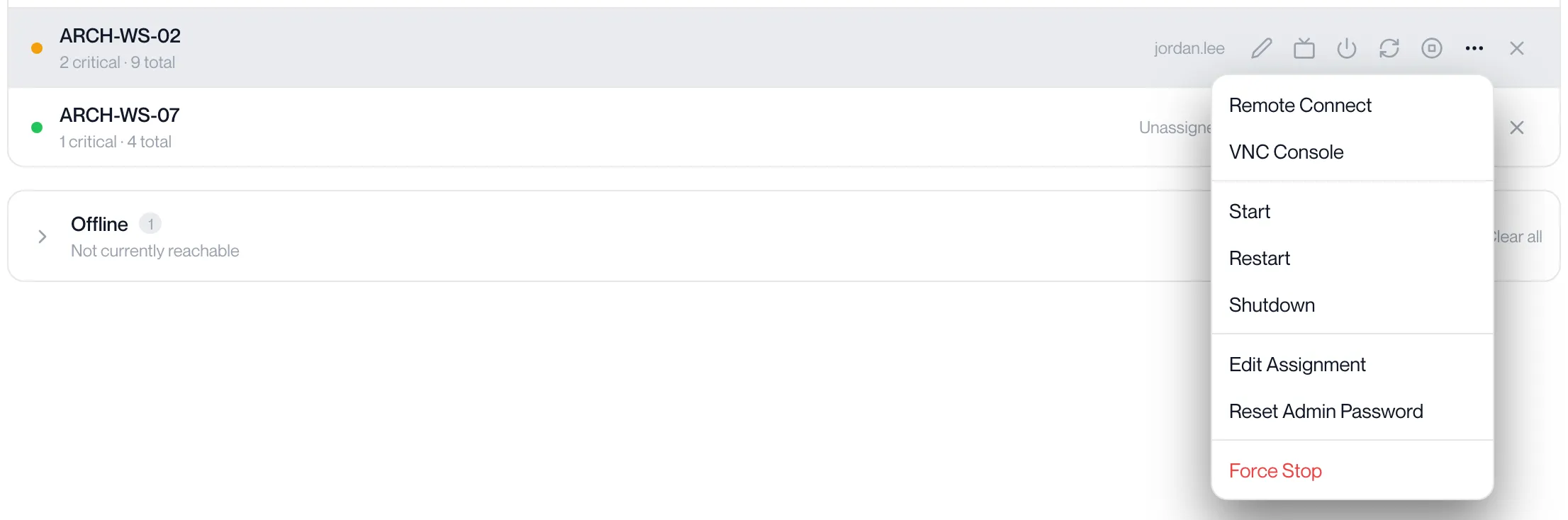
| Edit assignment, VNC Console, Start, Restart, Shutdown | Icons on the row. |
| Remote Connect, Start, Restart, Shutdown, Edit Assignment, Reset Admin Password, Force Stop | The row’s menu. |
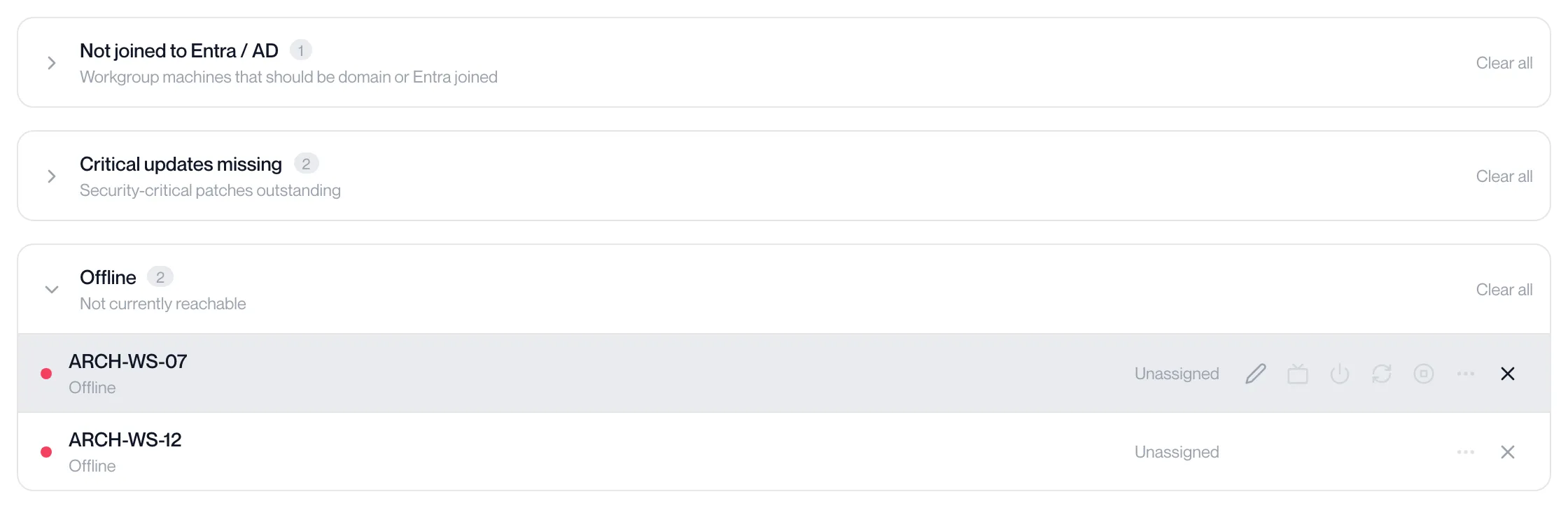
| Dismiss this alert | The X at the end of the row. |
Reset Admin Password asks “Are you sure you want to reset the Administrator password for …?” and then shows the new password once: “Copy the password below. It will not be shown again.” The password blurs after 30 seconds; click it to reveal it again. ”… has pending tasks. Try again shortly.” means the workstation is busy with another job.
While a power action runs, its progress is shown under the workstation name. The portal reports “Power action restart completed” or “Failed to restart workstation”.
Act on a workstation from the Actions Centre
Section titled “Act on a workstation from the Actions Centre”-
Click the group heading to open it.
The pill on the heading shows how many workstations are in the group.
-
Hover over the workstation’s row and click the action.
The icons are Edit assignment, VNC Console, Start, Restart and Shutdown; the ⋯ menu holds the rest. Each works as it does on the Workstations page; see Power, console and password reset.
-
Confirm when asked.
Restart, Shutdown and Force Stop open a dialog headed Confirm Restart, Confirm Shutdown or Confirm Force Stop that asks “Are you sure you want to restart …?” (or shutdown, or force stop). Click the button named for the action: Restart, Shutdown or Force Stop. For an appliance, type its name first.
-
Watch the progress under the workstation name.
The row reads “Restart in progress — this usually takes a few minutes.” and then “Restart complete.”, or the portal reports “Failed to restart workstation”.
-
The row leaves the group when the problem is fixed.
For example a workstation leaves Critical updates missing once its next patch scan reports none; see Patch Management.
Dismissing
Section titled “Dismissing”| Control | What it does |
|---|---|
| X on a row | Hides that alert for that workstation. |
| Clear all on a group | Hides every alert in the group. |
| X on No support contacts set | Hides the setup item. |
Dismiss an alert
Section titled “Dismiss an alert”-
Hover over the row and click the X at its end.
Its tooltip reads “Dismiss this alert”. The row disappears from the group, and the sidebar count drops by one if the workstation had no other alert.
-
To hide the whole group, click Clear all on its heading.
Its tooltip reads “Dismiss all in this group”.
Dismissals are saved in this browser only. Another administrator, or you on another device, still sees the alert.
A dismissed alert comes back when the problem changes: the number of missing critical updates changes, a new crash dump arrives, the health reason changes, or a different Single Sign-On check fails. An Offline or Not joined dismissal stays hidden in that browser.
Messages
Section titled “Messages”| Message | What to do |
|---|---|
| “Loading outstanding actions…” | The page waits up to 12 seconds for health data before deciding what to show, so it does not report All clear too early. |
| “Couldn’t reach the workstation service” | Click Retry now. |
| “Connection interrupted — showing the last known state and retrying.” | The list is stale; the portal keeps retrying on its own. |
Related pages
Section titled “Related pages”Questions
Section titled “Questions”The sidebar count does not match the number of rows
Section titled “The sidebar count does not match the number of rows”The count is the number of workstations. A workstation that is both Offline and missing critical updates counts once. It also includes one for the support contacts item when that is showing.
Why does a workstation I dismissed show again?
Section titled “Why does a workstation I dismissed show again?”Its problem changed, for example more critical updates are now missing, so the alert is treated as new.
Why is the Unhealthy group never shown?
Section titled “Why is the Unhealthy group never shown?”Health reporting is not enabled for your organisation. Contact your account manager.
Why do appliances not appear?
Section titled “Why do appliances not appear?”Appliances are left out of every group.