The Session Menu
Session Menu: Local
Settings for the device you are using. They are saved on this device.
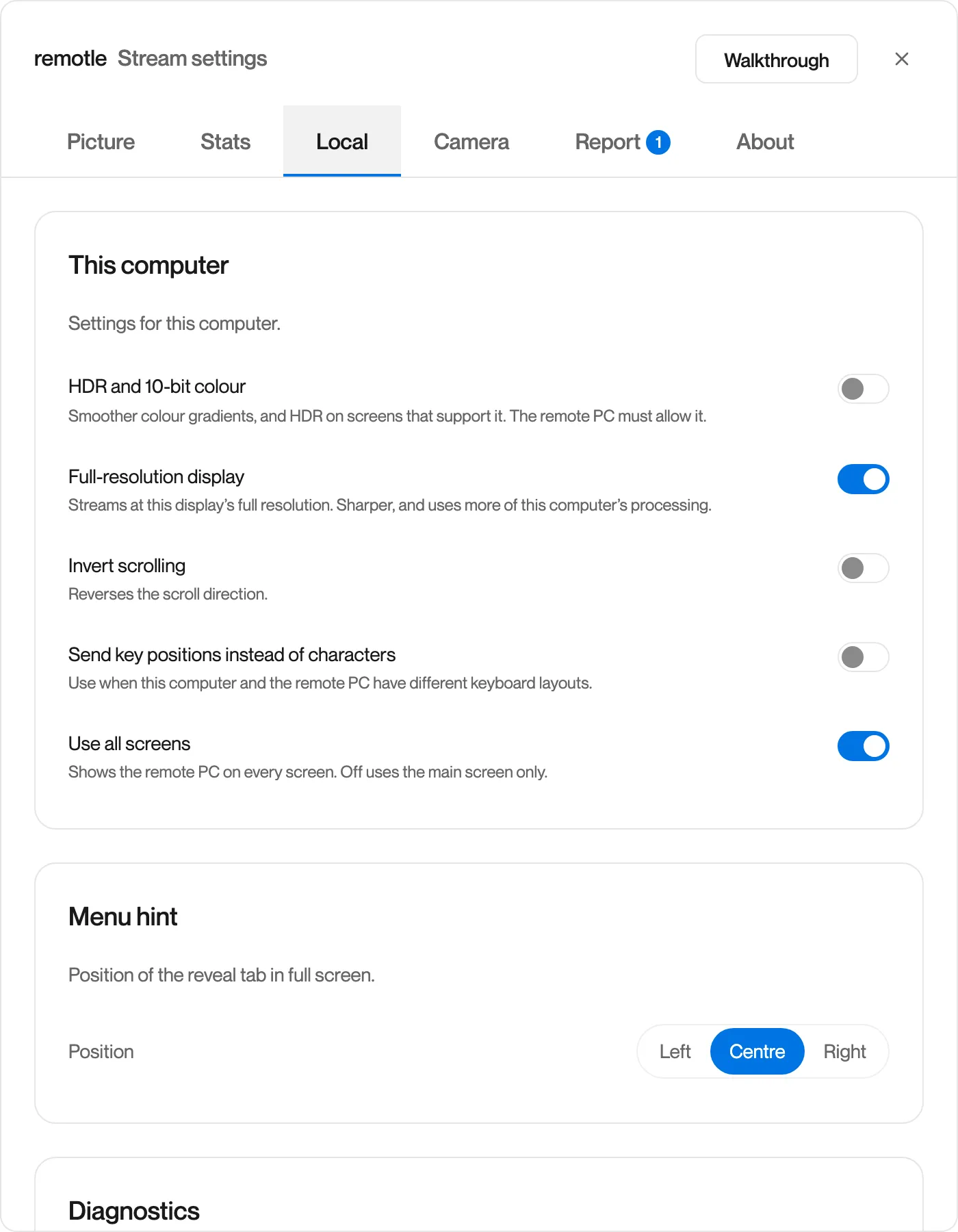
| Setting | Default | What it does |
|---|---|---|
| HDR and 10-bit colour | Off | Streams in HDR, with smoother colour gradients. Needs an HDR screen and a device that decodes 10-bit video in hardware. The workstation must allow it. On a Windows device, HDR must be on in Windows for the screen the window is on. |
| Full-resolution display | On | Streams at this screen’s full resolution. Sharper, and uses more of this device’s processing. |
| Invert scrolling | Off | Reverses the scroll direction. |
| Send key positions instead of characters | Off | Sends the position of each key instead of the character it types. Use this when this device and the workstation have different keyboard layouts, or for applications that read physical keys. |
| Use all screens | On | Shows your workstation on every screen of this device. Off uses the main screen only. See Multiple Screens. |
A setting this device cannot use is greyed out with the reason in place of its description.
Menu hint
Section titled “Menu hint”| Setting | Options | Default |
|---|---|---|
| Position | Left, Centre, Right | Centre |
Where the half circle that opens the menu sits along the top of the screen in full screen.
Diagnostics
Section titled “Diagnostics”| Button | What it does |
|---|---|
| Open logs folder | Opens the folder of Remotle’s log files on this device. On iPad and iPhone the button is Share Log and hands the file to the share sheet. |
| Reset microphone permission | Clears this device’s answer to the microphone permission request, so it asks again. Use it if you declined by mistake. |
Questions
Section titled “Questions”Why is a switch greyed out?
Section titled “Why is a switch greyed out?”This device cannot use it, and the reason is shown in place of the description. HDR, for example, needs an HDR screen and hardware 10-bit decoding.
Can I move the half circle?
Section titled “Can I move the half circle?”Yes. Open the Local tab and set Menu hint to Left, Centre or Right.