Connection Messages
Connection Messages
These messages appear on the connect screen after you click Connect, when Remotle cannot complete the connection. Each message has its own entry on the pages below, quoting the exact text, showing the screen and listing what to do.
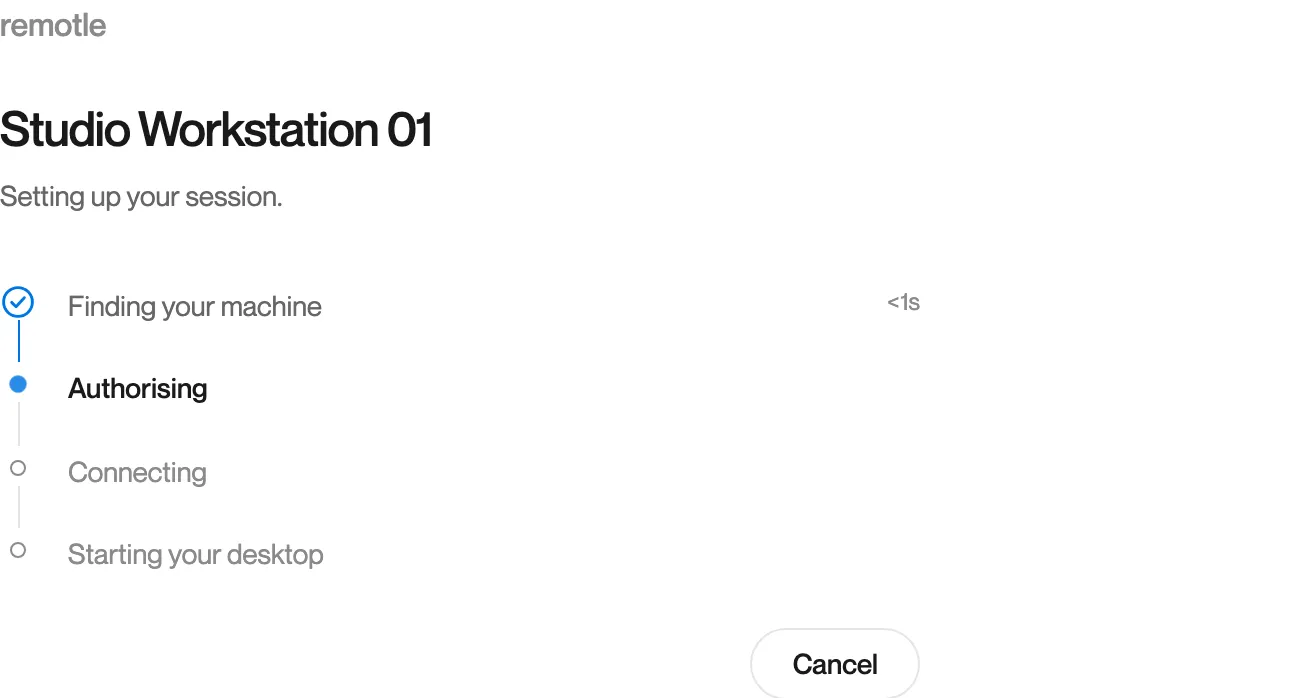
While a connection is going well, the connect screen ticks off each step in turn: Finding your machine, Authorising, Connecting, Starting your desktop.
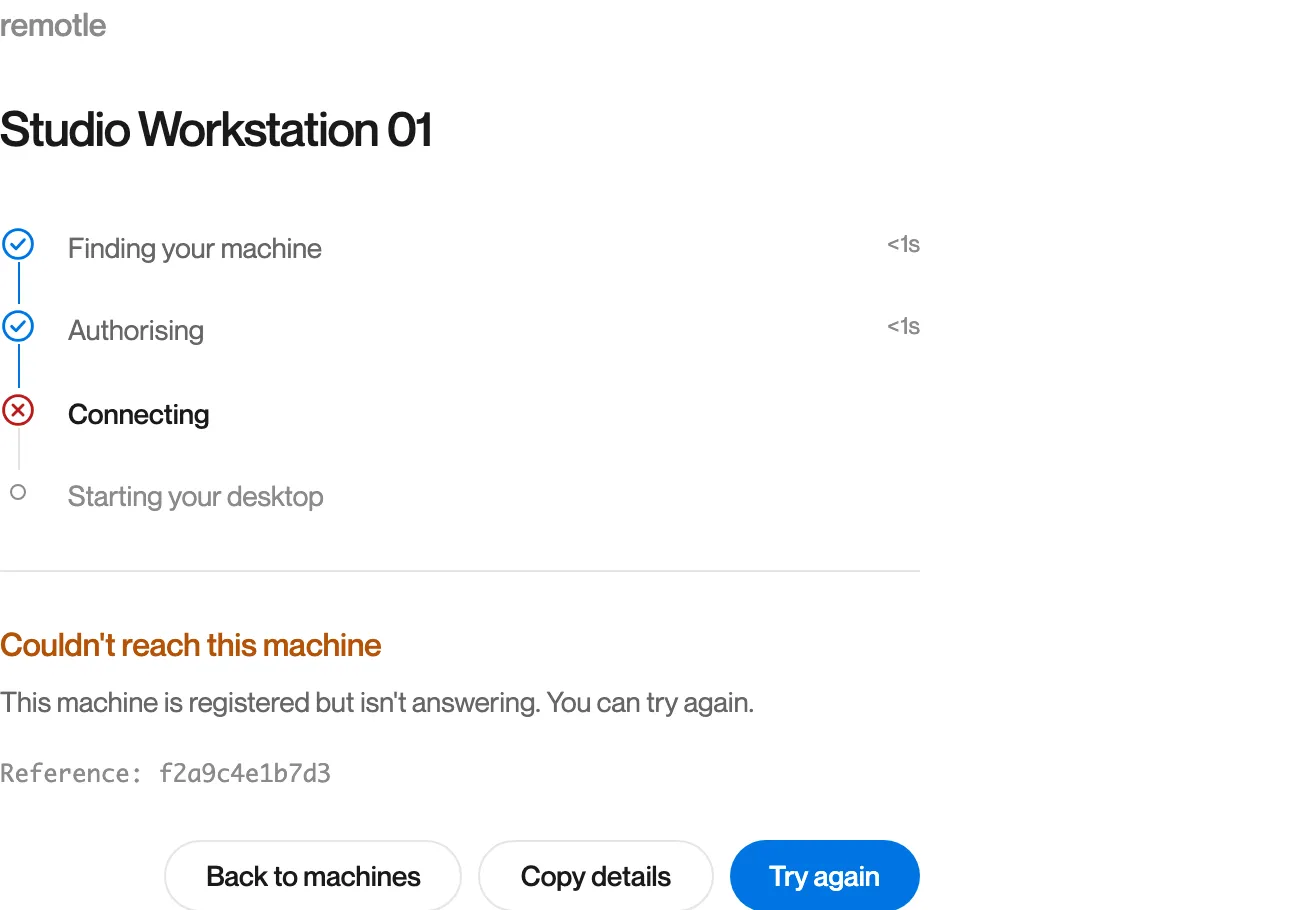
When a step does not complete, it is marked with a cross and the message appears below the steps.
How to read a connection message
Section titled “How to read a connection message”| Part | What it is |
|---|---|
| The steps | Finding your machine, Starting your machine (only when the workstation was off), Authorising, Connecting, Starting your desktop. The step that did not complete is marked with a cross. |
| Title | The message in colour. Orange means the connection stopped. Red means Remotle stopped it for your protection. |
| Message | One or two sentences on what happened and the next action. |
| Reference | A code for this attempt. Support uses it to find the attempt in Computle’s records. It is only shown when it is useful to support. |
| Contact support and quote the reference above | Shown when support needs to look at the attempt. |
| Back to machines | Returns to your machine list. |
| Copy details | Copies the message, the reference and the message code as text, beginning “Computle connection problem” (Windows and Linux) or “Remotle connection problem” (Mac, iPad and iPhone). Paste it into a report or a message to support. |
| Try again | Starts a new connection. It is only offered when a retry can help. Messages that need your administrator or support do not offer it. |
| Sign in | Replaces Try again when your sign-in needs renewing. |
Which message have you got?
Section titled “Which message have you got?”Messages by cause
Section titled “Messages by cause”Your sign-in and accessPlease sign in again, Machine not assigned, Connection not authorised, Machine assignment problem.
LicencesThis machine's licence isn't active, This machine isn't licensed yet, Couldn't check this machine's licence.
This device's networkThis device is offline, This device's network connection dropped, Couldn't reach Computle.
The workstationMachine is off, This machine isn't responding, Machine not connected, Couldn't reach this machine, the desktop didn't appear, Machine is under maintenance.
Verifying the workstationThis machine could not be verified, Couldn't verify this machine's certificate, Couldn't verify this machine.
UpdatesUpdate required, and The update service is not answering in Settings, About.
Messages that ask you to try againCouldn't connect, timeouts, authorisation and route messages, Too many attempts.
If a message keeps appearing
Section titled “If a message keeps appearing”- Click Copy details on the message.
- Open Settings, Diagnostics, click Run Test, then Copy Diagnostics.
- Report the problem from the app (see Reporting a Problem) and paste both into the description, or send both to Computle support with your Support Code.