In-Session Messages
In-Session Messages: Sound
These messages appear at the top of the picture when sound is not reaching you, or your microphone is not reaching applications on the workstation.
The remote PC’s speaker and microphone aren’t using Computle audio
Section titled “The remote PC’s speaker and microphone aren’t using Computle audio”What you see
One of:
- “The remote PC’s speaker and microphone aren’t using Computle audio.”
- “The remote PC’s speaker isn’t using Computle audio, so you won’t hear it.”
- “The remote PC’s microphone isn’t using Computle audio, so apps won’t hear you.”
with a Use Computle audio button and a × to close it.
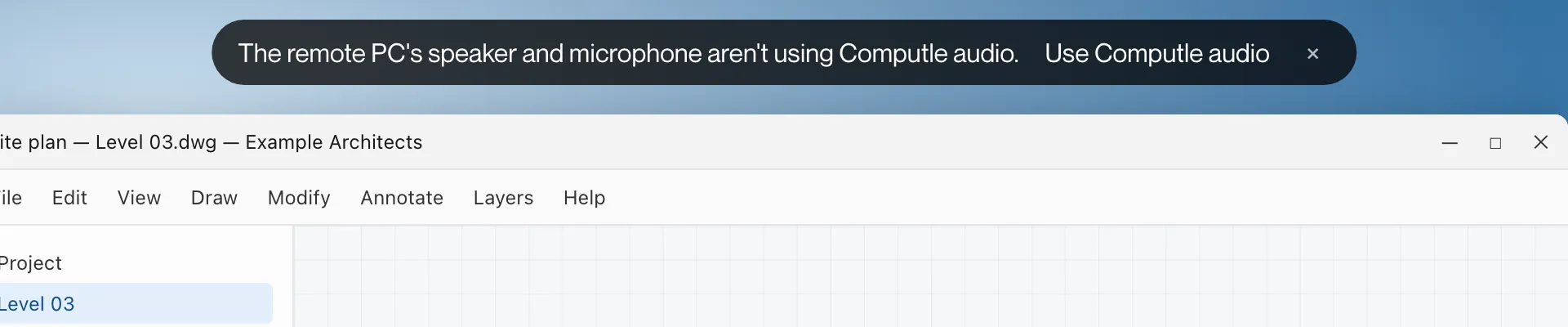
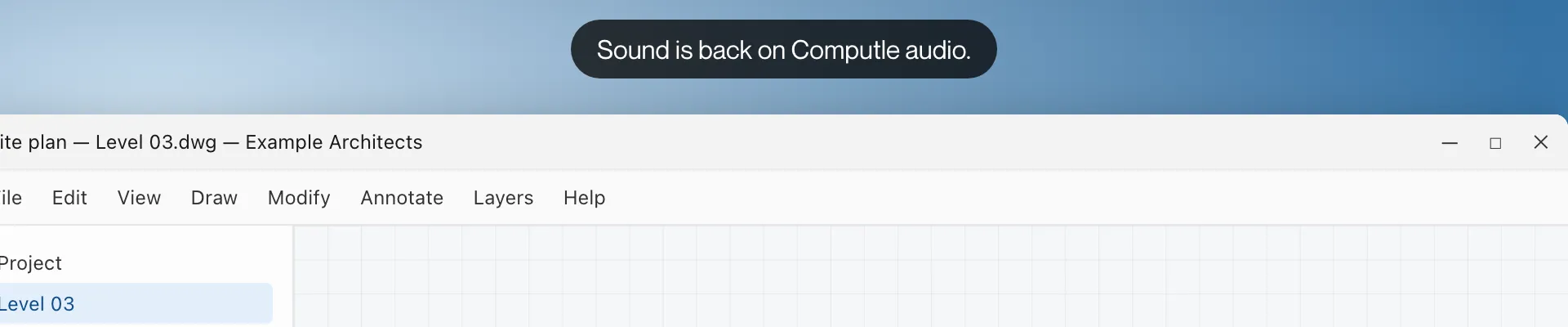
After you click Use Computle audio, the pill reads “Sound is back on Computle audio.” and then disappears.
What it means
An application or a user on the workstation changed its default sound devices away from the Remotle speaker or microphone, so sound is not reaching you, or your microphone is not reaching applications.
What to do
- Click Use Computle audio. The workstation switches its default devices back.
- If an application on the workstation keeps changing them, set its audio devices to the Remotle devices inside the application. See Sound, Camera and Microphone.
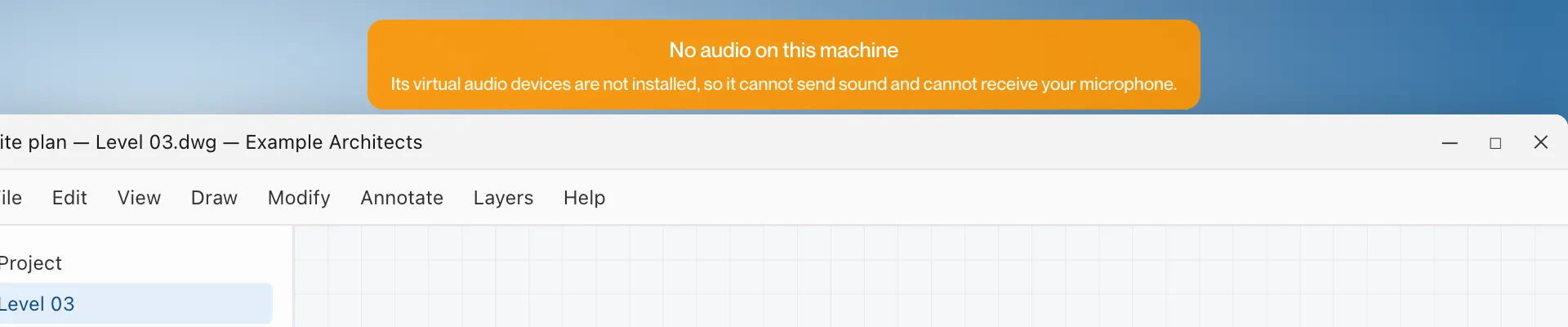
No audio on this machine
Section titled “No audio on this machine”What you see
Mac and iPad: “No audio on this machine” with “Its virtual audio devices are not installed, so it cannot send sound and cannot receive your microphone.”, “No sound from this machine” with “Its virtual speaker is not installed, so it has no sound to send.”, or “Microphone unavailable” with “Its virtual microphone is not installed, so your microphone cannot be used.”
What it means
The Computle (Remotle) Host on the workstation does not have its virtual speaker, virtual microphone or both installed.
What to do
- Ask your administrator to repair the Computle (Remotle) Host on the workstation. See Installing the Host.