The Session Menu
Picture, Stats, Local, Camera and Report. Open
Using the App
The Computle app on the App Store connects to your workstation from an iPad or iPhone, with the same sign-in as your computer. Everything you set on the session menu, such as the picture preset, is shared with your other devices because it is saved on the workstation.
Open the App Store and search for Computle.
Or open the App Store page directly.
Install the app and open it.
Sign in with Microsoft or Apple.
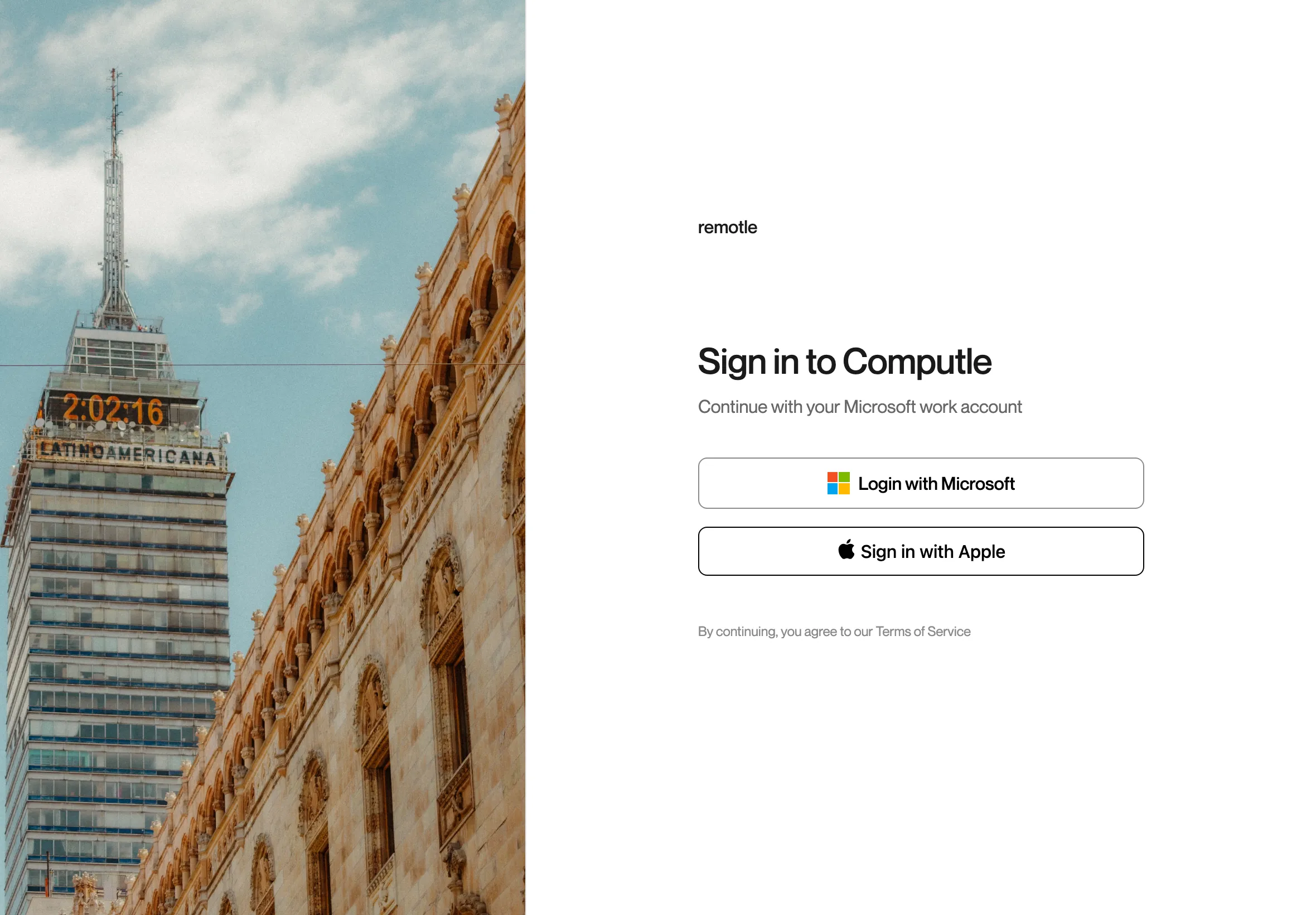
The Microsoft sign-in page opens over the app. Complete it there and the app carries on.
Tap Connect on your workstation.
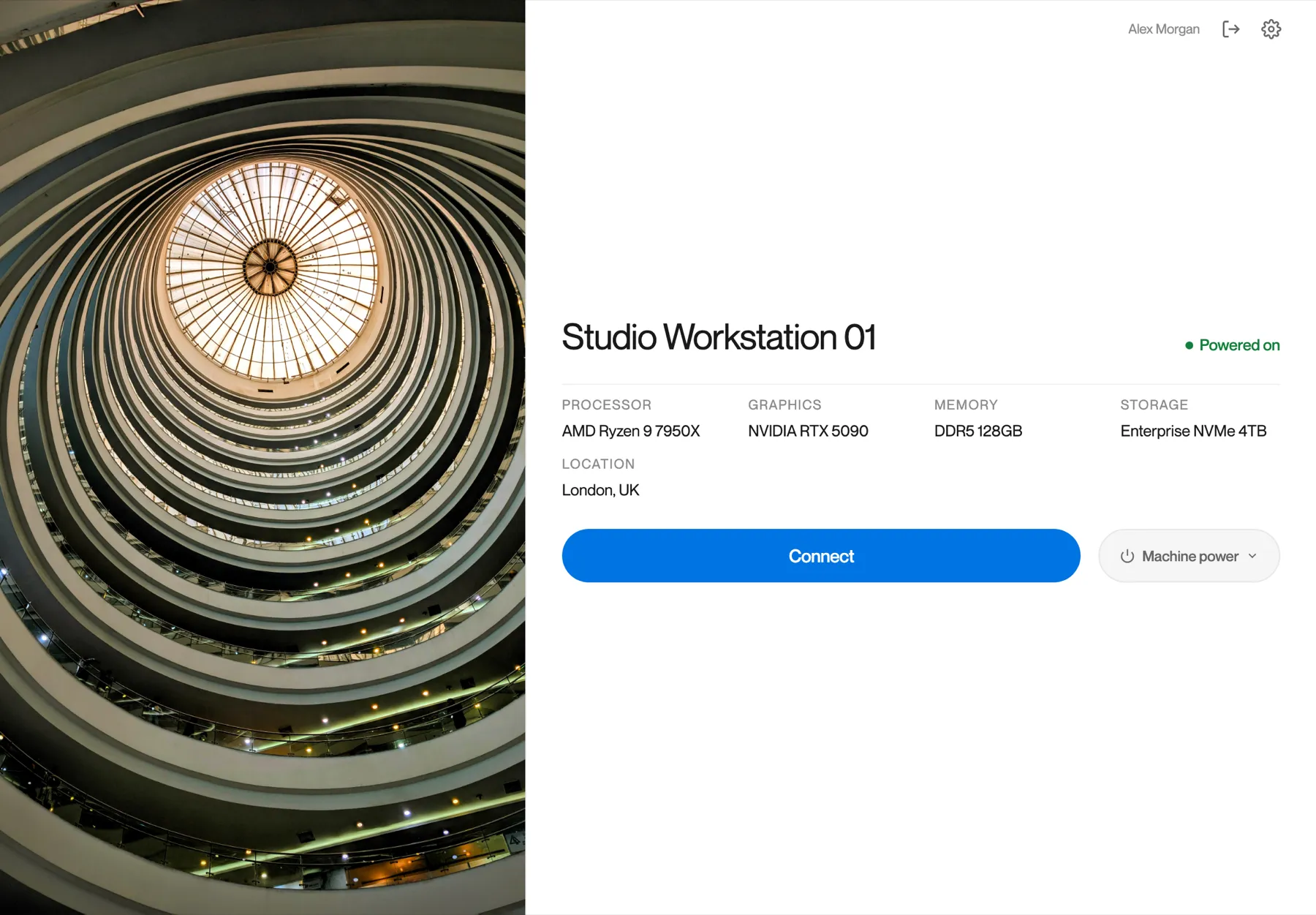
On an iPhone, and on an iPad in Split View, Slide Over or a narrow window, the app uses a compact layout with the same steps.
During a session a small pill sits at the top of the screen. Tap it, or swipe down with three fingers, to open the menu. Move the pill with Menu hint on the Local tab of the session menu: Left, Centre or Right.
| Item | What it does |
|---|---|
| Touch | Trackpad or Direct touch. See Touch modes. |
| Stream settings | Opens the session menu. See The Session Menu. |
| Keyboard | Shows or hides the on-screen keyboard. |
| Statistics | Shows or hides the connection figures. With them showing, Copy statistics copies them as text. |
| Ctrl+Alt+Del | Sends Ctrl+Alt+Del to your workstation. |
| Send clipboard | Sends what you copied on the iPad to your workstation. iPadOS only lets an app read the clipboard when you ask it to. |
| Type clipboard | Types what you copied as keystrokes, for fields that refuse a paste, such as the Windows sign-in screen. |
| Disconnect | Ends the session. |
| Mode | How it works | Default on |
|---|---|---|
| Trackpad | The whole screen is a trackpad. Drag one finger to move the pointer, tap to click, like a laptop trackpad. | iPhone |
| Direct touch | The pointer goes where you touch. Tap to click where your finger is. | iPad |
Switch between them with Touch on the menu pill. The app remembers your choice.
| Gesture | Action |
|---|---|
| One-finger tap | Click |
| One-finger drag | Move the pointer (Trackpad) or drag (Direct touch) |
| Long press | Right-click, in Direct touch |
| Two-finger drag | Scroll |
| Two-finger tap | Right-click |
| Three-finger tap | Show or hide the keyboard |
| Three-finger swipe down | Open the menu |
Tap Keyboard on the menu pill, or tap with three fingers, to show the on-screen keyboard. A bar above it has the keys an iPad keyboard lacks:
| Keys |
|---|
| Esc, Tab, Ctrl, Alt, Win, Shift, Del |
| Home, End, PgUp, PgDn |
| F1 to F12 |
| Arrow keys |
| Hide |
A hardware keyboard, mouse or trackpad connected to the iPad works as on a computer.
Apple Pencil works on your workstation with pressure. Draw or write as you would in a native iPad app. See Pens and Drawing Tablets.
Connect the iPad to an external display and the app shows your workstation on it, while you control the session from the iPad. The external display is a second screen of your workstation.
Administrators can open the Computle portal from the app. Use the Machines and Portal switch at the top of the screen. Back and Reload buttons sit beside it while the portal is open.
Open Settings from the cog at the top of your machines.
| Tab | Contents |
|---|---|
| Logs | The app’s log, with Share Log to send the file through the share sheet |
| Account | Who you are signed in as, your organisation, and Delete account |
| Diagnostics | A connection test and your support code. See Diagnostics. |
| Preferences | The update channel. On iPad and iPhone updates come from the App Store. |
| Report a bug | Send a report with the app’s logs. See Reporting a Problem. |
| About | The version and build date, the privacy notice and your support code |
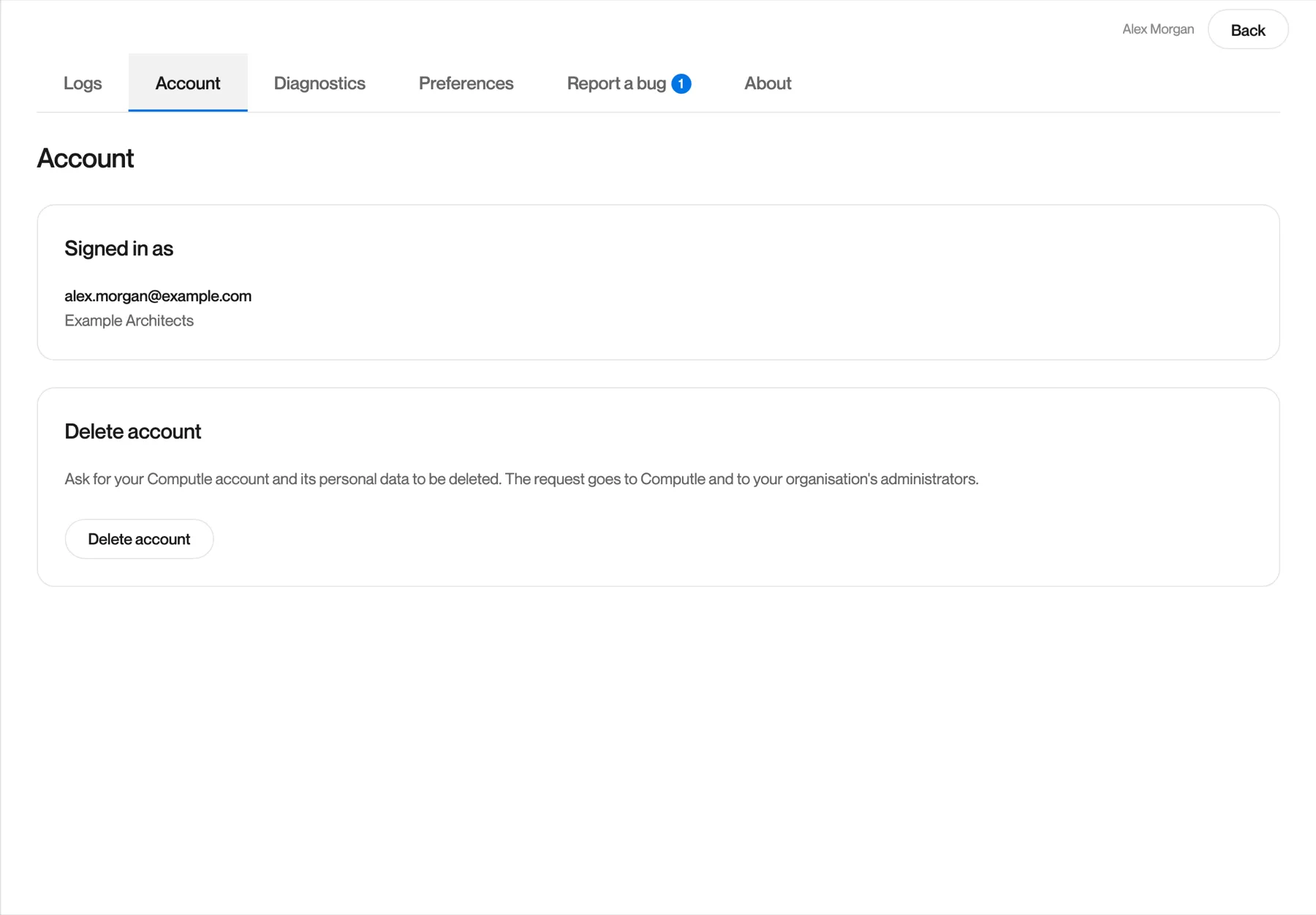
Open Settings, Account.
Tap Delete account, read what happens, then tap Continue.
Your request goes to Computle and to your organisation’s administrators. Your account and its personal data will be deleted, and you will no longer be able to sign in.
Tap Request deletion.
The app shows a reference and signs you out.
If a request for this account is already open, the app tells you and shows the existing reference.
iPadOS and iOS only let an app read the clipboard when you ask it to. Tap Send clipboard on the menu pill to send what you copied.
Yes. A Bluetooth or USB mouse or trackpad works as on a computer, with right-click and scrolling.
No. USB devices are shared from Windows, Mac and Linux only. See USB Devices.
Yes. Mode, Quality and Frame rate are saved on your workstation, so the iPad gets the same picture as your computer. Settings on the Local tab are per device.