Workstations
Vulnerabilities
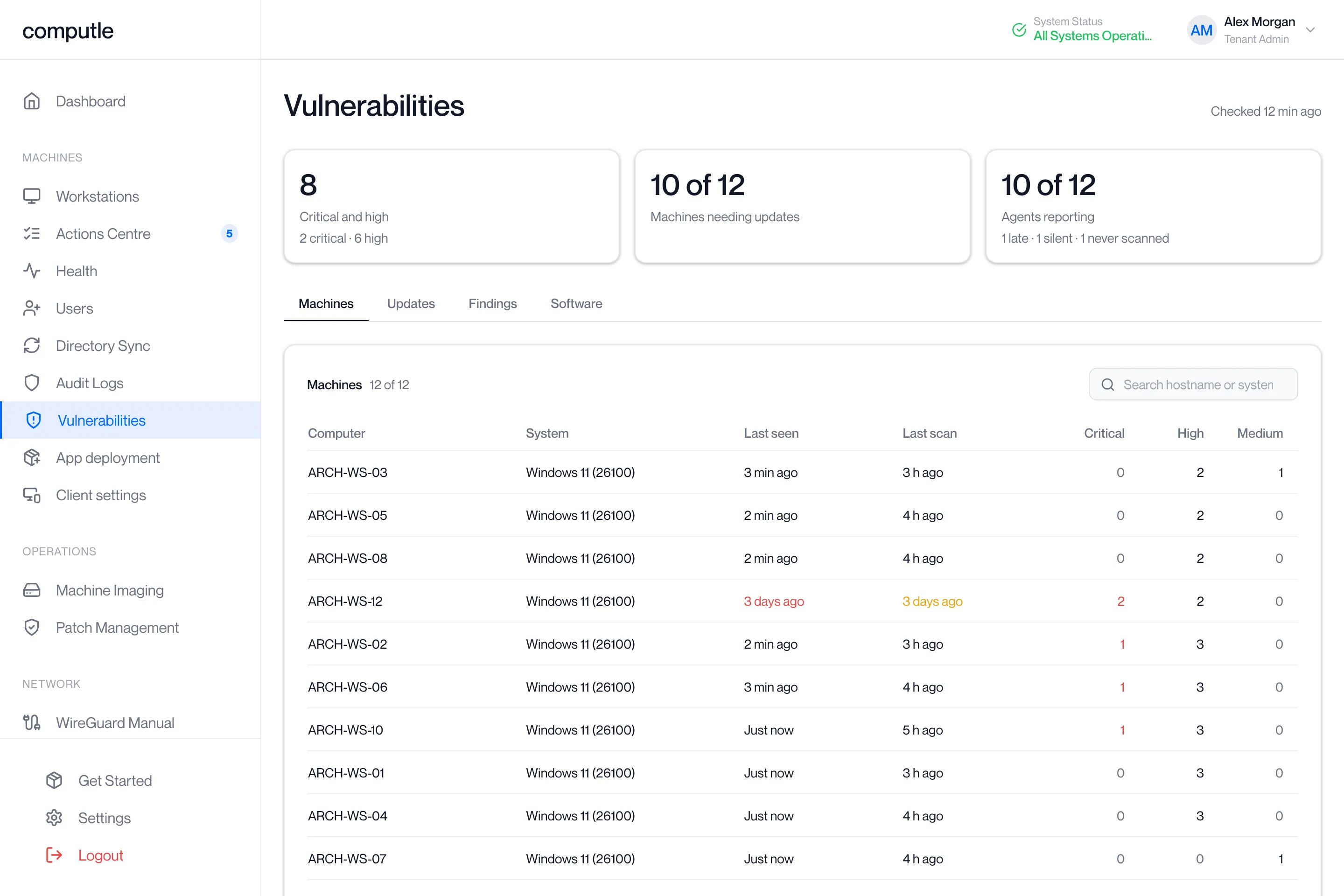
The Vulnerabilities page lists the software installed on your workstations, the published vulnerabilities that affect it, and the updates that fix them. An agent on each workstation reports what is installed; the service matches that inventory against the public vulnerability records and shows the result by machine, by update, by advisory and by product.
Open Vulnerabilities under Machines in the portal sidebar. The entry appears only when vulnerability tracking is licensed for your organisation, and the page needs the Tenant Admin role. “Checked 12 min ago” at the top right is the last time the service matched your inventory against the vulnerability records.
How it works
Section titled “How it works”The agent is a Windows service on each workstation. It reports to the service every minute, and takes an inventory of installed software every 6 hours. Desktop applications are matched against the NVD records; Linux distribution packages are matched against OSV. Each finding carries a severity from the record’s CVSS score and the fixed version read from it. A new inventory replaces the old findings, so a vulnerability that has been patched away drops out, while a status you set on a finding is kept.
The summary cards
Section titled “The summary cards”Three cards sit above the tabs. Each one is a filter: click it to apply, click it again to clear.
| Card | Shows | Click to |
|---|---|---|
| Critical and high | The number of open findings in the two worst bands, with “N critical · N high” beneath. | Open the Findings tab filtered to Critical, or High when there are no critical findings. |
| Machines needing updates | “N of M”: machines with at least one open finding, out of every tracked machine. | Open the Machines tab showing only those machines. |
| Agents reporting | “N of M”: machines whose agent reported in the last 15 minutes, with “N late · N silent · N never scanned” beneath. | Open the Machines tab showing the silent machines, or the late ones when none is silent. |
Machines
Section titled “Machines”The Machines tab opens first. Machines sort worst first: those with a finding in CISA’s Known Exploited Vulnerabilities catalogue, then by critical, high, medium and low counts, then by name.
| Column | What it shows |
|---|---|
| Computer | The workstation’s name. |
| System | The operating system, as “Windows 11 (22631)” with the build number. |
| Last seen | When the agent last reported. Amber when more than an hour ago, red when more than a day ago. |
| Last scan | When the agent last took an inventory. Amber when more than a day ago. “Never” until the first scan. |
| Critical, High, Medium | Open findings on the machine in each band. |
Type in Search hostname or system to filter. The count next to the heading reads “N of M”.
The machine panel
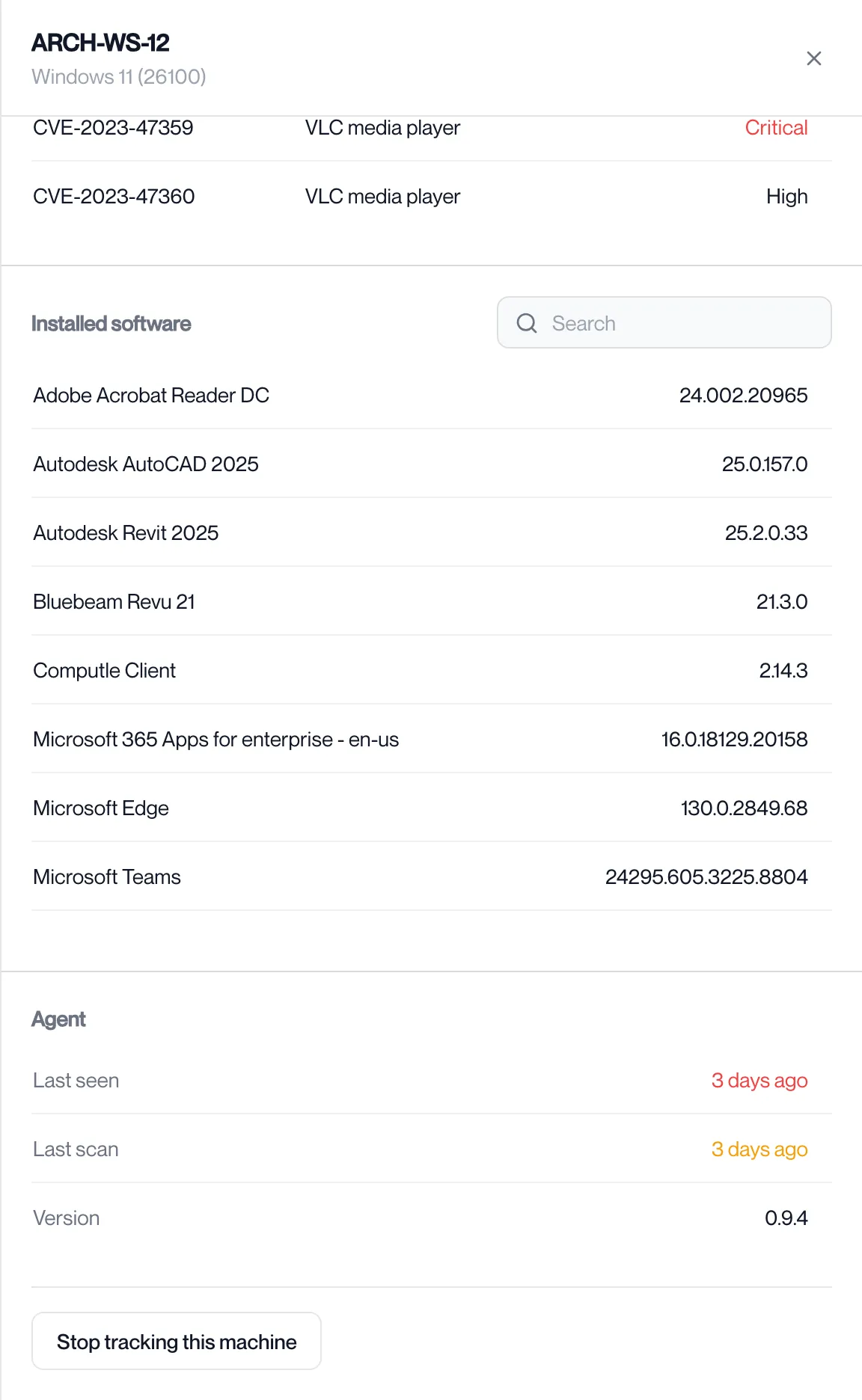
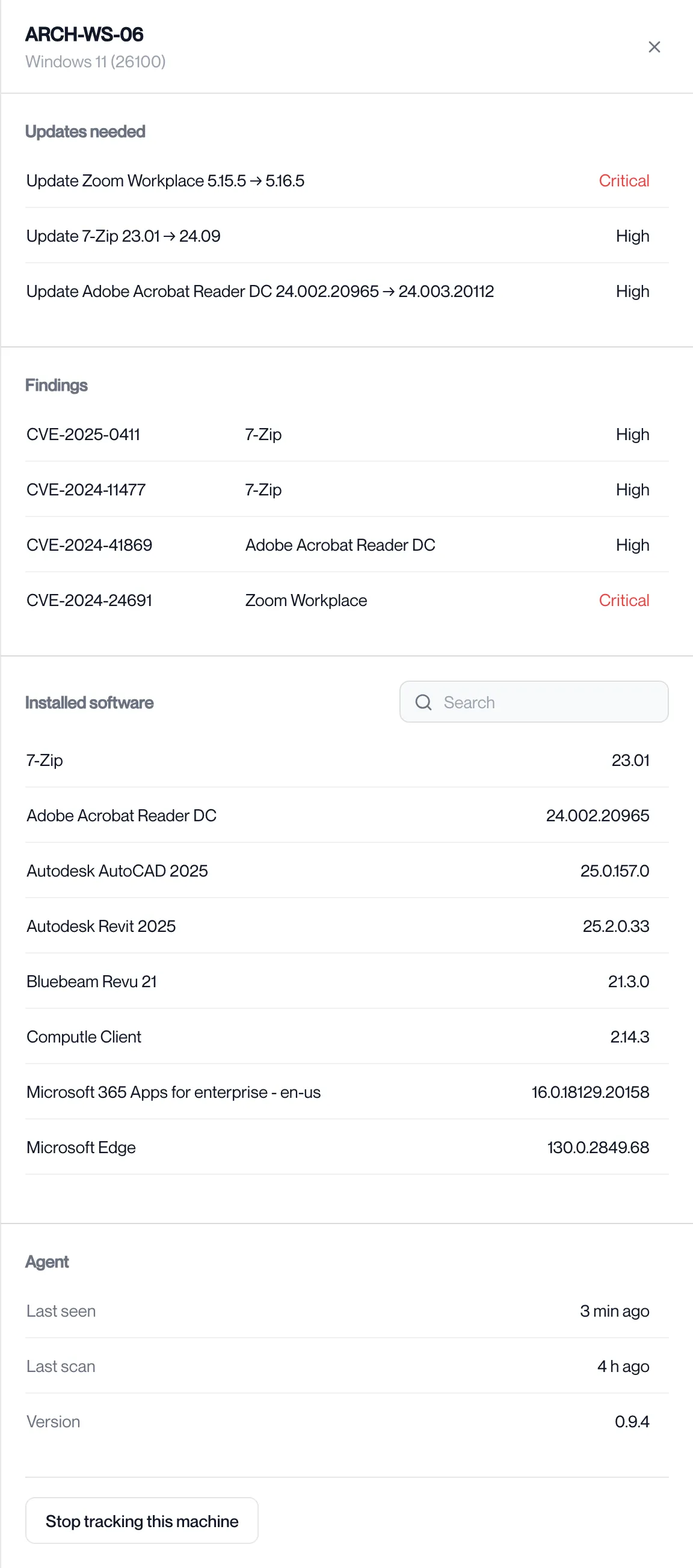
Section titled “The machine panel”Click a machine to open its panel at the right.
| Section | What it shows |
|---|---|
| Updates needed | One line per software to update, as “Update 7-Zip 23.01 → 24.08”, with its worst severity. “Nothing to update.” when the machine is clear. A product with no fixed version reads “no fix available yet”. |
| Findings | Every open finding on the machine, with its advisory, software and severity. Click one to open the advisory. “None open.” when there are none. |
| Installed software | Everything the agent reported, with a search box. |
| Agent | Last seen, last scan and the agent version. |
Stop tracking a machine
Section titled “Stop tracking a machine”Use this for a workstation that has been retired or re-imaged, so its old findings stop counting.
-
On the Machines tab, click the machine.
-
Click Stop tracking this machine at the bottom of the panel.
The browser asks “Stop tracking ARCH-WS-12? Its software list and findings are deleted; the agent on it stops reporting.” Click OK.
-
The portal says “Machine removed”.
The machine leaves the Machines tab and its findings leave every count. The change is recorded in Audit Logs.
Updates
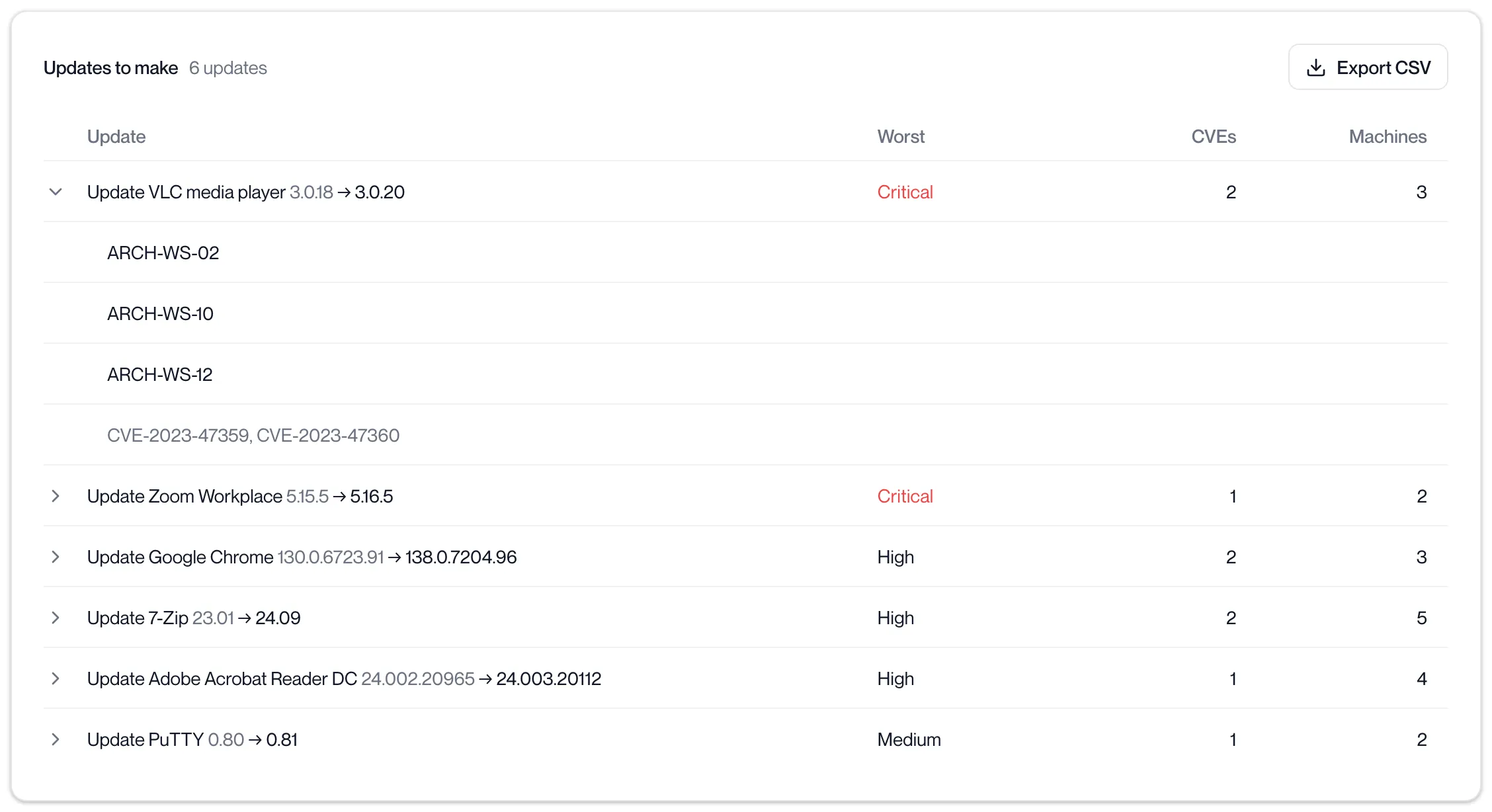
Section titled “Updates”The Updates tab turns the findings into a list of software to update, worst first.
| Column | What it shows |
|---|---|
| Update | “Update 7-Zip 23.01 → 24.08”: the product, the version installed and the version to install. |
| Worst | The worst severity among the product’s open findings. Critical is shown in red. |
| CVEs | The number of open findings the update fixes. |
| Machines | How many machines have the version installed. |
Click a row to expand it. It lists the machines, each a link to its panel, and the advisory ids, each a link to the advisory. A second card, No fix available yet, lists products with open findings and no published fixed version.
Export CSV downloads fix-first.csv with the columns Software, Vendor, Installed, Update to, Worst severity, Max CVSS, Open CVEs, Machines, Hostnames and CVE ids. See Export a list.
When there is nothing to update the card says why:
| Message | Meaning |
|---|---|
| No machines report yet. | No agent has reported. The card explains what the agent needs on the workstation. |
| N machines enrolled, none scanned yet. The first scan follows the first heartbeat within the hour. | Agents have reported and the first inventory is due. |
| No known vulnerabilities in N apps on N machines, last checked X. | The estate is clear. |
Findings
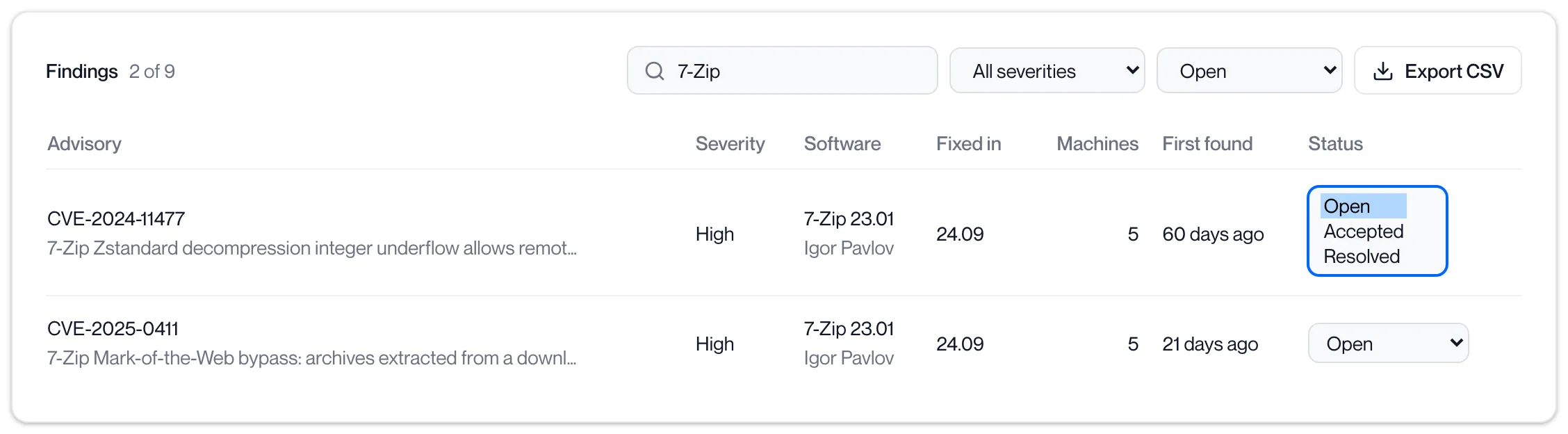
Section titled “Findings”The Findings tab lists every finding, one row per advisory and software version.
| Column | What it shows |
|---|---|
| Advisory | The advisory id, with the first line of its summary beneath. |
| Severity | Critical, High, Medium, Low, None or Unknown. |
| Software | The product and version, with the vendor beneath. |
| Fixed in | The version that fixes it, “later than 1.2” when only an affected bound is known, or “No fix yet”. |
| Machines | How many machines have it. |
| First found | When the service first matched it. |
| Status | Open, Accepted or Resolved. Change it from the list. |
Click a column heading to sort by it; click again to reverse. The list opens sorted by risk: severity, then CVSS score. Type in Search advisory or software to filter, and use the Severity and Status lists to narrow further. Status starts at Open. Export CSV downloads findings.csv with the rows on screen.
Finding statuses
Section titled “Finding statuses”| Status | Use it when |
|---|---|
| Open | The finding needs attention. Only open findings count in the summary cards and the Updates tab. |
| Accepted | You have decided to live with it. |
| Resolved | You have dealt with it in a way the next scan will not detect. |
Changing a status says “Finding updated” and is recorded in Audit Logs. The status is kept through later scans.
Change a finding’s status
Section titled “Change a finding’s status”-
On the Findings tab, find the finding.
Type the advisory id or the software name in Search advisory or software.
-
Choose Accepted or Resolved from the Status list on its row.
The portal says “Finding updated”. The row leaves the default Open view; set the Status filter to Accepted or Resolved to see it again.
-
To change it back, set the Status filter to show it and choose Open.
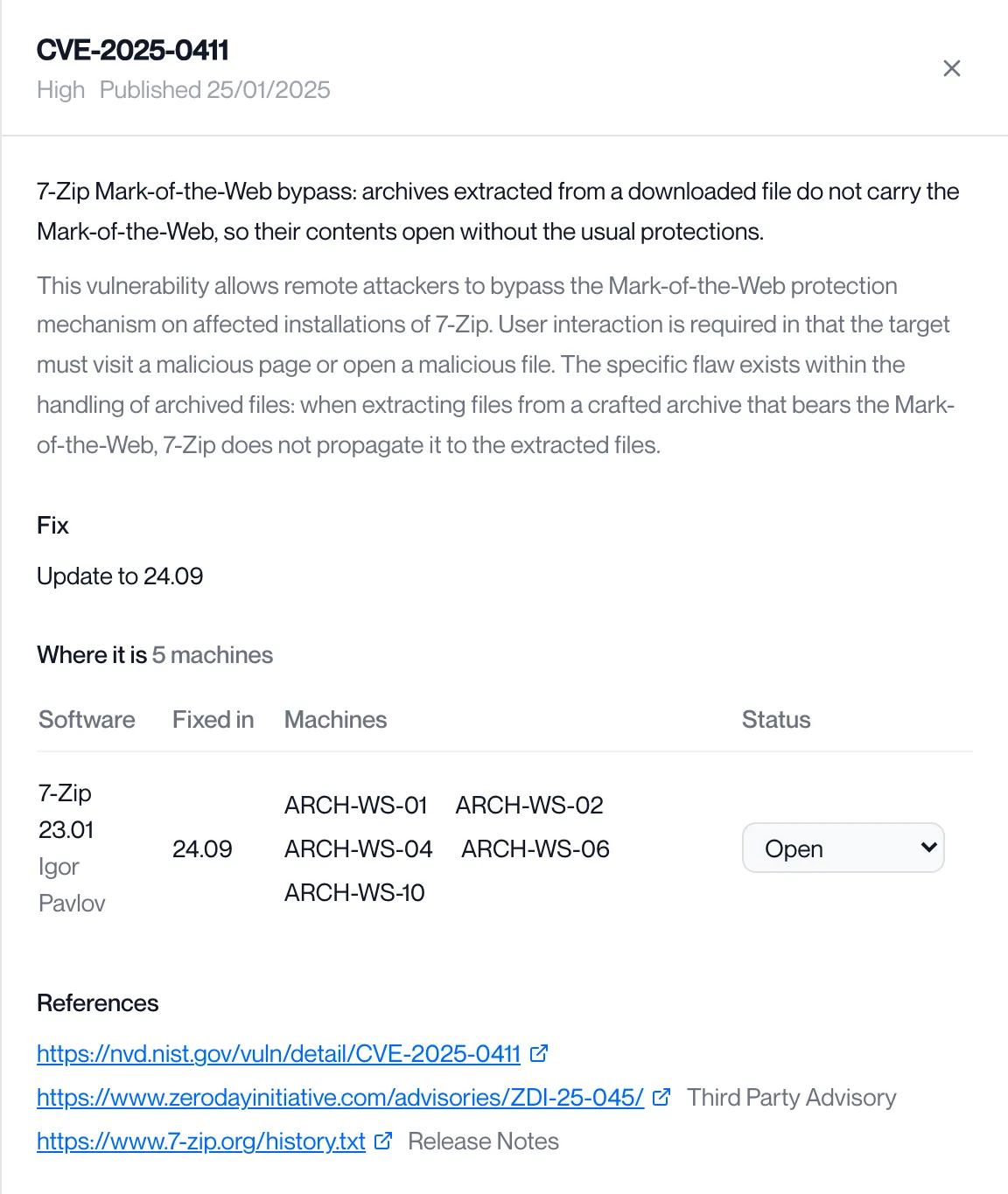
To change the status for one machine only, open the advisory and use the Status list on that machine’s row in the Where it is table.
Export a list
Section titled “Export a list”-
Open the Updates tab or the Findings tab and set the filters you want.
The Findings export contains the rows on screen, so filter first. The Updates export contains the whole list.
-
Click Export CSV.
The browser downloads
fix-first.csvfrom the Updates tab orfindings.csvfrom the Findings tab. The button is greyed out while there is nothing to export.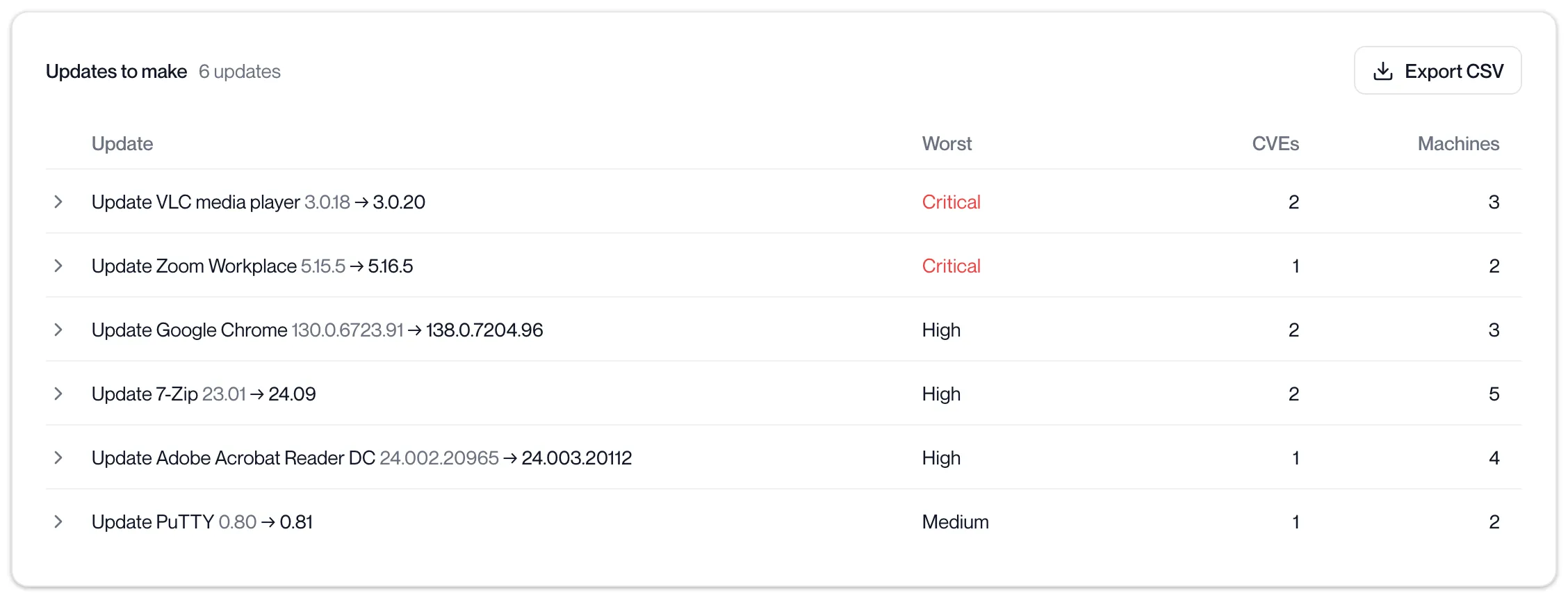
The advisory panel
Section titled “The advisory panel”Click a finding to open the advisory. The panel shows the severity and publication date, the summary and details, the fix (“Update to 24.08”, or “No fixed version published yet.”), a Where it is table of every software version and machine that carries it with a Status list on each row, and References: the public record on NVD for a CVE id or osv.dev for any other id, then up to 15 references from the record. “Also known as” lists other ids for the same vulnerability.
Software
Section titled “Software”The Software tab is the inventory across every machine, one row per product. Search name or vendor filters it.
| Column | What it shows |
|---|---|
| Name | The product. “Update needed” in red when any installed version has an open finding. |
| Vendor | The publisher. |
| Versions | The one version installed, or “N versions”. |
| Machines | How many machines have the product. |
| Open CVEs | Open findings across its versions. |
Click a row to list each version with its source, machine count and open findings.
Related pages
Section titled “Related pages”Questions
Section titled “Questions”The page says “Vulnerability tracking is off for this organisation.” What does that mean?
Section titled “The page says “Vulnerability tracking is off for this organisation.” What does that mean?”The service checked your licence and found vulnerability tracking turned off. A line beneath gives the reason when the service has one. Contact your account manager.
What does the amber line under the heading mean?
Section titled “What does the amber line under the heading mean?”The service reads your licence every minute and keeps the last good answer when a read fails. “Licence version N, checked 20 min ago; the latest check failed.” means the module is still on. ”…; the last check failed and the module is off until one succeeds.” means it has been off for more than 15 minutes of failed checks and will return when a check succeeds.
What do the other messages mean?
Section titled “What do the other messages mean?”| Message | Meaning |
|---|---|
| Vulnerability tracking is not set up for this organisation. | The service is not provisioned for your organisation. |
| This feature is not on your plan. | Your licence does not include vulnerability tracking. |
| This change is for administrators. | Changing a status or removing a machine needs the Tenant Admin role. |
| We couldn’t reach vulnerability tracking. | The portal could not reach the service. Click Try again. |
A machine shows “Never” under Last scan. Why?
Section titled “A machine shows “Never” under Last scan. Why?”The agent has reported but has not yet sent an inventory. The first scan follows the first report within the hour.
Why is Last seen red for a machine?
Section titled “Why is Last seen red for a machine?”The agent has not reported for more than a day. Check that the workstation is on and that the agent service is running.
Does marking a finding Accepted stop it coming back?
Section titled “Does marking a finding Accepted stop it coming back?”Yes. The status is kept when the next scan matches the same finding again. It is removed only when the software is updated or removed.
Why does a product show “No fix yet”?
Section titled “Why does a product show “No fix yet”?”The vulnerability record has no fixed version for the installed version. The product stays in the “No fix available yet” card on the Updates tab until one is published.